flutter_for_openharmony手语学习app实战+配对游戏实现
本文介绍了如何实现一个手语词汇配对游戏,使用Dart和Flutter框架开发。游戏通过卡片翻转匹配文字和手语emoji,包含状态管理、卡片初始化、点击处理、匹配判断和完成提示等功能。核心逻辑使用StatefulWidget管理游戏状态,包括卡片数据、选中索引、得分和步数等。游戏界面包含得分显示、卡片网格布局和完成对话框,提供流畅的用户交互体验。该游戏既能帮助学习手语词汇,又具有趣味性和可玩性。
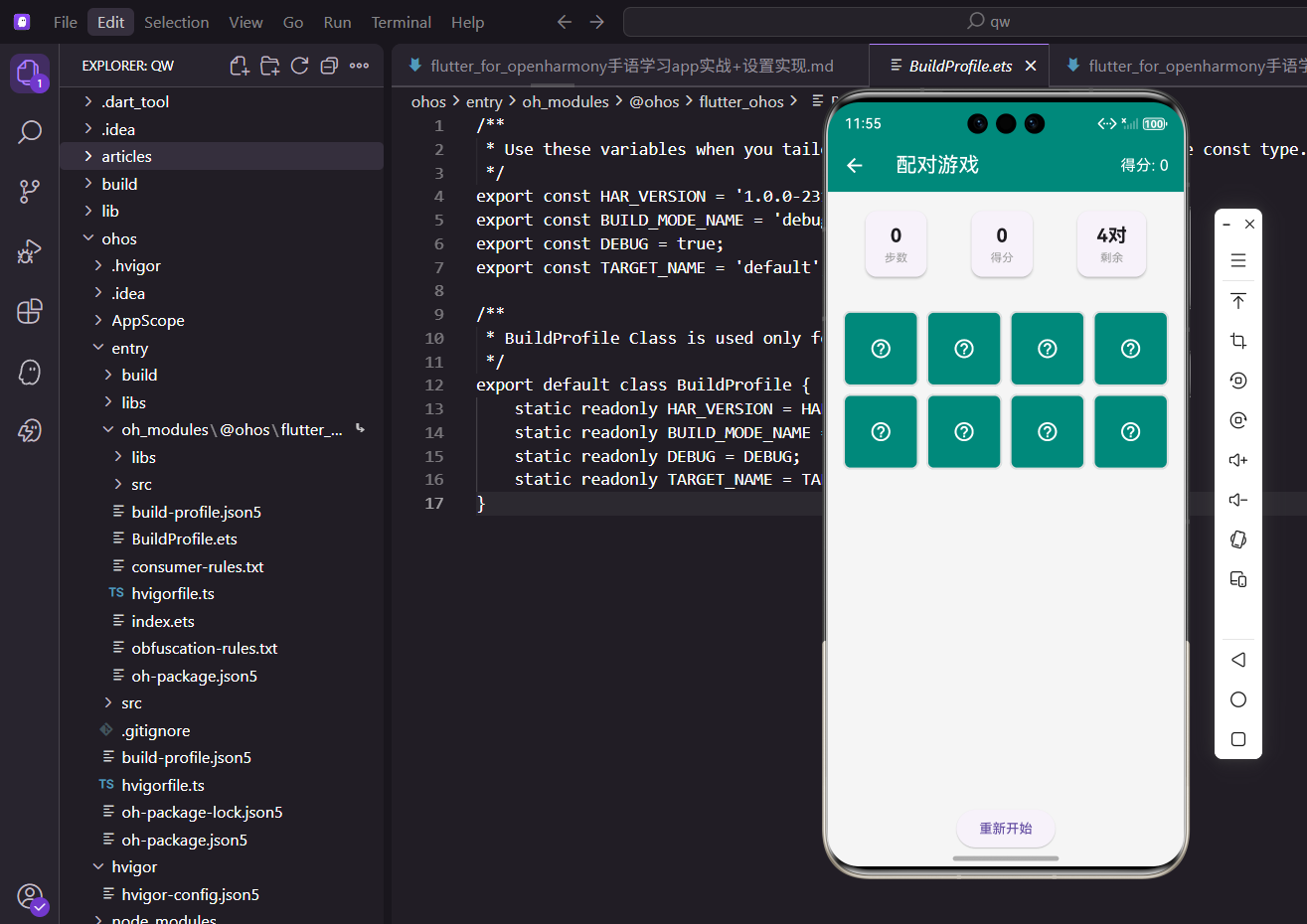
配对游戏是一种寓教于乐的学习方式,通过翻牌配对加深对手语词汇的记忆。本文介绍如何实现一个配对游戏,包括卡片翻转、匹配判断和完成提示。
StatefulWidget与状态管理
配对游戏需要管理多个状态:
class MatchingGameScreen extends StatefulWidget {
const MatchingGameScreen({super.key});
State<MatchingGameScreen> createState() => _MatchingGameScreenState();
}
class _MatchingGameScreenState extends State<MatchingGameScreen> {
final List<Map<String, dynamic>> _pairs = [
{'word': '你好', 'matched': false},
{'word': '谢谢', 'matched': false},
{'word': '对不起', 'matched': false},
{'word': '再见', 'matched': false},
];
List<Map<String, dynamic>> _cards = [];
int? _firstSelectedIndex;
int? _secondSelectedIndex;
int _score = 0;
int _moves = 0;
bool _isChecking = false;
使用StatefulWidget管理游戏状态。_pairs定义词汇对,_cards存储所有卡片,_firstSelectedIndex和_secondSelectedIndex记录选中的卡片索引,_score记录得分,_moves记录步数,_isChecking标识是否正在检查匹配。这些状态变量共同构成了游戏的核心逻辑。
初始化游戏
在initState中初始化:
void initState() {
super.initState();
_initializeGame();
}
void _initializeGame() {
_cards = [];
for (var pair in _pairs) {
_cards.add({'content': pair['word'], 'type': 'word', 'matched': false, 'revealed': false});
_cards.add({'content': '🤟', 'type': 'sign', 'word': pair['word'], 'matched': false, 'revealed': false});
}
_cards.shuffle(Random());
遍历词汇对,为每个词汇创建两张卡片:一张显示文字,一张显示手语emoji。每张卡片包含内容、类型、匹配状态和翻开状态。shuffle方法打乱卡片顺序,每次游戏的布局都不同,增加可玩性。
重置状态
初始化其他状态变量:
    _firstSelectedIndex = null;
    _secondSelectedIndex = null;
    _score = 0;
    _moves = 0;
    _isChecking = false;
  }
将选中索引设为null,得分和步数归零,检查标志设为false。这个方法既用于初始化,也用于重新开始游戏,实现了代码复用。
卡片点击处理
处理卡片点击事件:
  void _onCardTap(int index) {
    if (_isChecking || _cards[index]['revealed'] || _cards[index]['matched']) return;

    setState(() {
      _cards[index]['revealed'] = true;

      if (_firstSelectedIndex == null) {
        _firstSelectedIndex = index;
      } else {
        _secondSelectedIndex = index;
        _moves++;
        _checkMatch();
      }
    });
  }
首先检查是否可以点击:正在检查、已翻开或已匹配的卡片不能点击。翻开卡片后,如果是第一张则记录索引,如果是第二张则增加步数并检查匹配。这种状态机逻辑确保游戏规则正确执行。
匹配检查
判断两张卡片是否匹配:
  void _checkMatch() {
    _isChecking = true;
    final first = _cards[_firstSelectedIndex!];
    final second = _cards[_secondSelectedIndex!];

    bool isMatch = false;
    if (first['type'] == 'word' && second['type'] == 'sign') {
      isMatch = first['content'] == second['word'];
    } else if (first['type'] == 'sign' && second['type'] == 'word') {
      isMatch = first['word'] == second['content'];
    }
设置检查标志防止连续点击,获取两张卡片的数据。如果一张是文字一张是手语,且内容对应,则匹配成功。这种双向匹配的逻辑处理了两种点击顺序。
延迟处理
延迟800毫秒后处理结果:
    Future.delayed(const Duration(milliseconds: 800), () {
      setState(() {
        if (isMatch) {
          _cards[_firstSelectedIndex!]['matched'] = true;
          _cards[_secondSelectedIndex!]['matched'] = true;
          _score += 10;
        } else {
          _cards[_firstSelectedIndex!]['revealed'] = false;
          _cards[_secondSelectedIndex!]['revealed'] = false;
        }
        _firstSelectedIndex = null;
        _secondSelectedIndex = null;
        _isChecking = false;
使用Future.delayed延迟执行,让用户有时间看清两张卡片。匹配成功则标记为已匹配并加分,失败则翻回背面。重置选中索引和检查标志,准备下一轮。这种延迟反馈让游戏节奏更合理。
完成检查
检查是否所有卡片都已匹配:
        if (_cards.every((card) => card['matched'])) {
          _showCompletionDialog();
        }
      });
    });
  }
使用every方法检查是否所有卡片都已匹配,如果是则弹出完成对话框。every是Dart集合的高阶方法,简洁高效。这种完成检测让游戏有明确的结束条件。
完成对话框
弹出游戏完成提示:
  void _showCompletionDialog() {
    showDialog(
      context: context,
      builder: (context) => AlertDialog(
        title: const Text('🎉 恭喜完成!'),
        content: Column(
          mainAxisSize: MainAxisSize.min,
          children: [
            Text('得分: $_score', style: TextStyle(fontSize: 24.sp, fontWeight: FontWeight.bold)),
            SizedBox(height: 8.h),
            Text('步数: $_moves', style: TextStyle(fontSize: 16.sp, color: Colors.grey)),
          ],
        ),
对话框标题用庆祝emoji,内容显示得分和步数。得分用大字号粗体突出,步数用小字号灰色。这种成就展示给用户正向反馈,增强游戏的趣味性。
对话框按钮
返回和重玩按钮:
        actions: [
          TextButton(onPressed: () { Navigator.pop(context); Navigator.pop(context); }, child: const Text('返回')),
          ElevatedButton(
            onPressed: () { Navigator.pop(context); setState(() => _initializeGame()); },
            child: const Text('再玩一次'),
          ),
        ],
      ),
    );
  }
返回按钮连续pop两次,关闭对话框和游戏页面。重玩按钮关闭对话框并重新初始化游戏。这种双选项设计让用户可以选择继续玩或退出。
页面布局
构建游戏界面:
Widget build(BuildContext context) {
return Scaffold(
appBar: AppBar(
title: const Text('配对游戏'),
actions: [
Center(child: Padding(
padding: EdgeInsets.only(right: 16.w),
child: Text('得分: $_score', style: TextStyle(fontSize: 16.sp)),
)),
],
),
AppBar右侧显示当前得分,让用户随时了解游戏进度。得分用Center和Padding包裹,确保垂直居中且与右边缘保持适当距离。这种实时反馈增强了游戏的互动性。
统计卡片行
显示游戏统计数据:
      body: Column(
        children: [
          Padding(
            padding: EdgeInsets.all(16.w),
            child: Row(
              mainAxisAlignment: MainAxisAlignment.spaceAround,
              children: [
                _buildStatCard('步数', '$_moves'),
                _buildStatCard('得分', '$_score'),
                _buildStatCard('剩余', '${_cards.where((c) => !c['matched']).length ~/ 2}对'),
              ],
            ),
          ),
用Row横向排列三个统计卡片,mainAxisAlignment.spaceAround让它们均匀分布。剩余对数通过过滤未匹配卡片并除以2计算。这种数据展示让用户了解游戏进度。
网格布局
使用GridView显示卡片:
          Expanded(
            child: GridView.builder(
              padding: EdgeInsets.all(16.w),
              gridDelegate: SliverGridDelegateWithFixedCrossAxisCount(
                crossAxisCount: 4,
                crossAxisSpacing: 8.w,
                mainAxisSpacing: 8.h,
              ),
              itemCount: _cards.length,
              itemBuilder: (context, index) => _buildCard(index),
            ),
          ),
GridView.builder创建网格布局,crossAxisCount: 4表示每行4列。crossAxisSpacing和mainAxisSpacing控制卡片间距。Expanded让网格占据剩余空间。这种网格布局适合展示多个相同大小的元素。
重新开始按钮
底部放置重新开始按钮:
          Padding(
            padding: EdgeInsets.all(16.w),
            child: ElevatedButton(
              onPressed: () => setState(() => _initializeGame()),
              child: const Text('重新开始'),
            ),
          ),
        ],
      ),
    );
  }
点击按钮调用_initializeGame重置游戏,用setState包裹触发界面更新。这个按钮让用户可以随时重新开始,无需等到游戏结束。
统计卡片构建
封装统计卡片的构建逻辑:
  Widget _buildStatCard(String label, String value) {
    return Card(
      child: Padding(
        padding: EdgeInsets.symmetric(horizontal: 20.w, vertical: 12.h),
        child: Column(
          children: [
            Text(value, style: TextStyle(fontSize: 20.sp, fontWeight: FontWeight.bold)),
            Text(label, style: TextStyle(fontSize: 12.sp, color: Colors.grey)),
          ],
        ),
      ),
    );
  }
用Column纵向排列数值和标签,数值用大字号粗体,标签用小字号灰色。这种模块化设计让代码更易维护,三个统计卡片共用一个方法。
卡片构建
构建单个卡片:
  Widget _buildCard(int index) {
    final card = _cards[index];
    final isRevealed = card['revealed'] || card['matched'];

    return GestureDetector(
      onTap: () => _onCardTap(index),
      child: AnimatedContainer(
        duration: const Duration(milliseconds: 300),
        decoration: BoxDecoration(
          color: card['matched']
              ? Colors.green[100]
              : (isRevealed ? Colors.white : const Color(0xFF00897B)),
          borderRadius: BorderRadius.circular(8.r),
          border: Border.all(
            color: card['matched'] ? Colors.green : Colors.grey[300]!,
            width: 2,
          ),
        ),
用GestureDetector处理点击,AnimatedContainer提供动画效果。已匹配显示浅绿色,已翻开显示白色,未翻开显示主题色。边框颜色也根据状态变化。这种状态驱动的UI让卡片状态一目了然。
卡片内容
显示卡片的内容:
        child: Center(
          child: isRevealed
              ? Text(
                  card['type'] == 'word' ? card['content'] : card['content'],
                  style: TextStyle(
                    fontSize: card['type'] == 'word' ? 14.sp : 24.sp,
                    fontWeight: FontWeight.bold,
                  ),
                )
              : Icon(Icons.help_outline, color: Colors.white, size: 24.sp),
        ),
      ),
    );
  }
}
翻开时显示内容,文字卡片用14.sp字号,手语emoji用24.sp字号。未翻开时显示问号图标。这种条件渲染根据状态显示不同内容。
AnimatedContainer的动画
自动动画过渡:
AnimatedContainer(
  duration: const Duration(milliseconds: 300),
  decoration: BoxDecoration(
    color: card['matched'] ? Colors.green[100] : (isRevealed ? Colors.white : const Color(0xFF00897B)),
    ...
  ),
)
AnimatedContainer在属性变化时自动添加动画,比如颜色从主题色变为白色会有300毫秒的渐变过渡。这种隐式动画让状态变化更流畅,无需手动编写动画代码。
Future.delayed的应用
延迟执行代码:
Future.delayed(const Duration(milliseconds: 800), () {
  setState(() {
    // 处理匹配结果
  });
});
Future.delayed在指定时间后执行回调,这里延迟800毫秒让用户有时间看清两张卡片。这种延迟执行是异步编程的常用技巧,改善了用户体验。
shuffle方法
随机打乱列表:
_cards.shuffle(Random());
shuffle方法随机打乱列表元素顺序,传入Random()作为随机数生成器。每次游戏的卡片布局都不同,增加了可重玩性。这是Dart集合的内置方法,使用简单。
every方法
检查所有元素是否满足条件:
if (_cards.every((card) => card['matched'])) {
  _showCompletionDialog();
}
every方法检查列表中所有元素是否都满足条件,只要有一个不满足就返回false。这比手动遍历更简洁,是函数式编程的典型应用。
where方法
过滤列表元素:
'${_cards.where((c) => !c['matched']).length ~/ 2}对'
where方法过滤出满足条件的元素,返回新的可迭代对象。length获取数量,~/ 2整除2得到对数。这种链式调用简洁高效,一行代码完成过滤和计算。
状态驱动的UI
根据状态动态变化UI:
color: card['matched'] ? Colors.green[100] : (isRevealed ? Colors.white : const Color(0xFF00897B)),
border: Border.all(color: card['matched'] ? Colors.green : Colors.grey[300]!, width: 2),
child: isRevealed ? Text(...) : Icon(...),
卡片的颜色、边框、内容都根据状态动态变化。这种声明式UI让代码逻辑清晰,状态与UI保持同步。Flutter的响应式框架让这种编程方式非常自然。
响应式布局
使用flutter_screenutil适配屏幕:
fontSize: 24.sp,
padding: EdgeInsets.all(16.w),
crossAxisSpacing: 8.w,
mainAxisSpacing: 8.h,
.sp用于字号,.w和.h用于尺寸和间距。这些单位会根据屏幕尺寸自动缩放,确保在不同设备上比例一致。一套代码适配所有屏幕。
小结
配对游戏通过翻牌匹配的方式让学习更有趣,卡片状态用颜色和动画清晰展示。延迟反馈让游戏节奏合理,完成对话框提供成就感。整体设计注重游戏逻辑和用户体验,打造寓教于乐的学习方式。
欢迎加入开源鸿蒙跨平台社区:https://openharmonycrossplatform.csdn.net

开源鸿蒙跨平台开发社区汇聚开发者与厂商,共建“一次开发,多端部署”的开源生态,致力于降低跨端开发门槛,推动万物智联创新。
更多推荐

 26
26 0
0- 0


 已为社区贡献30条内容

所有评论(0)