Flutter 框架跨平台鸿蒙开发 - 打造精美记事本备忘录应用
数据模型:Note类设计与JSON序列化本地存储:SharedPreferences持久化列表展示:GridView/ListView双视图页面导航:Navigator传值与返回搜索过滤:实时搜索与排序交互细节:颜色选择、未保存提醒、置顶功能记事本虽然是一个常见的应用类型,但涵盖了Flutter开发的大部分核心知识。希望这篇文章能帮你掌握这些技能!
📝 Flutter + HarmonyOS 实战:打造精美记事本备忘录应用
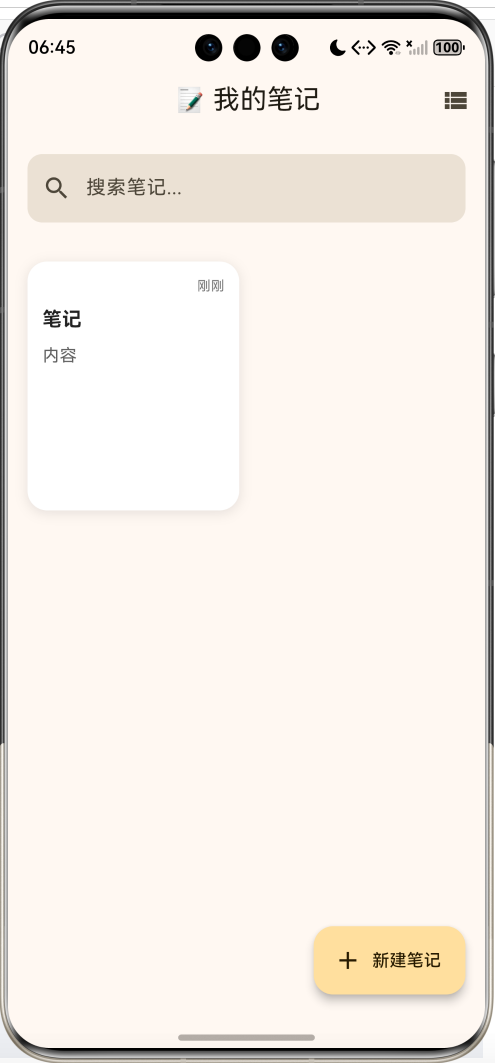
效果预览图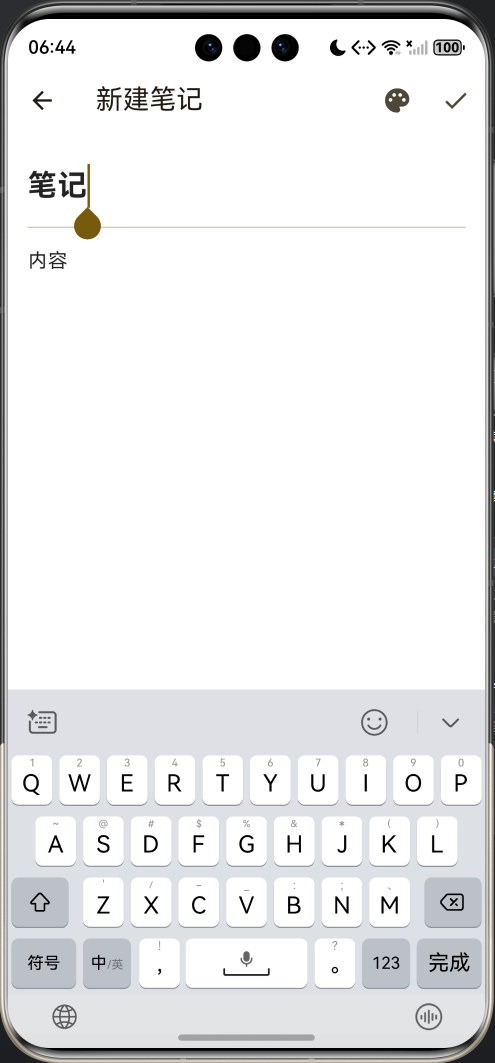
📋 文章导读
| 章节 | 内容概要 | 预计阅读 |
|---|---|---|
| 一 | 记事本应用需求分析 | 3分钟 |
| 二 | 数据模型与本地存储 | 8分钟 |
| 三 | 笔记列表页面实现 | 10分钟 |
| 四 | 笔记编辑页面实现 | 8分钟 |
| 五 | 搜索与筛选功能 | 5分钟 |
| 六 | 完整源码与运行 | 3分钟 |
💡 写在前面:记事本是每个人手机里的必备应用。一个好的记事本不仅要能记录文字,还要支持分类、搜索、个性化等功能。本文将带你用Flutter从零打造一款功能完善、界面精美的记事本应用,涵盖本地存储、状态管理、页面导航等核心知识点。
一、需求分析与设计
1.1 功能需求
1.2 界面设计
| 页面 | 功能 | 核心组件 |
|---|---|---|
| 主页 | 笔记列表展示 | GridView / ListView |
| 编辑页 | 创建/编辑笔记 | TextField |
| 搜索 | 关键词过滤 | SearchBar |
| 选项 | 置顶/删除操作 | BottomSheet |
1.3 配色方案
笔记支持8种背景色,让用户可以分类标记:
| 颜色 | 色值 | 适用场景 |
|---|---|---|
| ⬜ 白色 | #FFFFFF |
默认 |
| 🟨 浅黄 | #FFF9C4 |
重要事项 |
| 🟧 浅橙 | #FFCCBC |
工作相关 |
| 🩷 浅粉 | #F8BBD9 |
生活记录 |
| 🟪 浅紫 | #E1BEE7 |
灵感创意 |
| 🟦 浅蓝 | #BBDEFB |
学习笔记 |
| 🩵 浅青 | #B2DFDB |
健康运动 |
| 🟩 浅绿 | #C8E6C9 |
财务相关 |
二、数据模型与本地存储
2.1 笔记数据模型
class Note {
  String id;           // 唯一标识
  String title;        // 标题
  String content;      // 内容
  DateTime createdAt;  // 创建时间
  DateTime updatedAt;  // 更新时间
  int colorIndex;      // 颜色索引
  bool isPinned;       // 是否置顶

  Note({
    required this.id,
    required this.title,
    required this.content,
    required this.createdAt,
    required this.updatedAt,
    this.colorIndex = 0,
    this.isPinned = false,
  });
}
2.2 JSON序列化
为了实现本地存储,需要将对象转换为JSON:
// 对象 → JSON
Map<String, dynamic> toJson() => {
  'id': id,
  'title': title,
  'content': content,
  'createdAt': createdAt.toIso8601String(),
  'updatedAt': updatedAt.toIso8601String(),
  'colorIndex': colorIndex,
  'isPinned': isPinned,
};

// JSON → 对象
factory Note.fromJson(Map<String, dynamic> json) => Note(
  id: json['id'],
  title: json['title'],
  content: json['content'],
  createdAt: DateTime.parse(json['createdAt']),
  updatedAt: DateTime.parse(json['updatedAt']),
  colorIndex: json['colorIndex'] ?? 0,
  isPinned: json['isPinned'] ?? false,
);
2.3 SharedPreferences 存储
import 'package:shared_preferences/shared_preferences.dart';
import 'dart:convert';

/// 加载笔记
Future<void> _loadNotes() async {
  final prefs = await SharedPreferences.getInstance();
  final notesJson = prefs.getString('notes');

  if (notesJson != null) {
    final List<dynamic> decoded = jsonDecode(notesJson);
    notes = decoded.map((e) => Note.fromJson(e)).toList();
  }
}

/// 保存笔记
Future<void> _saveNotes() async {
  final prefs = await SharedPreferences.getInstance();
  final notesJson = jsonEncode(notes.map((e) => e.toJson()).toList());
  await prefs.setString('notes', notesJson);
}
2.4 数据流程图
三、笔记列表页面
3.1 页面结构
3.2 视图切换
支持网格视图和列表视图两种展示方式:
bool isGridView = true;

// 切换按钮
IconButton(
  icon: Icon(isGridView ? Icons.view_list : Icons.grid_view),
  onPressed: () => setState(() => isGridView = !isGridView),
)

// 条件渲染
if (isGridView) {
  return GridView.builder(...);
} else {
  return ListView.builder(...);
}
3.3 网格视图实现
GridView.builder(
  padding: const EdgeInsets.all(16),
  gridDelegate: const SliverGridDelegateWithFixedCrossAxisCount(
    crossAxisCount: 2,        // 每行2个
    crossAxisSpacing: 12,     // 横向间距
    mainAxisSpacing: 12,      // 纵向间距
    childAspectRatio: 0.85,   // 宽高比
  ),
  itemCount: filteredNotes.length,
  itemBuilder: (context, index) => _buildNoteCard(filteredNotes[index]),
)
3.4 笔记卡片设计
Widget _buildNoteCard(Note note) {
  return GestureDetector(
    onTap: () => _editNote(note),
    onLongPress: () => _showNoteOptions(note),
    child: Container(
      decoration: BoxDecoration(
        color: NoteColors.colors[note.colorIndex],
        borderRadius: BorderRadius.circular(16),
        boxShadow: [...],
      ),
      child: Padding(
        padding: const EdgeInsets.all(12),
        child: Column(
          crossAxisAlignment: CrossAxisAlignment.start,
          children: [
            // 置顶图标 + 时间
            Row(children: [
              if (note.isPinned) Icon(Icons.push_pin, size: 16),
              Spacer(),
              Text(_formatDate(note.updatedAt)),
            ]),
            // 标题
            Text(note.title, style: TextStyle(fontWeight: FontWeight.bold)),
            // 内容预览
            Expanded(child: Text(note.content, maxLines: 5)),
          ],
        ),
      ),
    ),
  );
}
3.5 排序逻辑
笔记按照"置顶优先 + 更新时间倒序"排列:
void _filterNotes() {
  // 先过滤
  if (searchQuery.isEmpty) {
    filteredNotes = List.from(notes);
  } else {
    filteredNotes = notes.where((note) =>
      note.title.toLowerCase().contains(searchQuery.toLowerCase()) ||
      note.content.toLowerCase().contains(searchQuery.toLowerCase())
    ).toList();
  }

  // 再排序
  filteredNotes.sort((a, b) {
    // 置顶的排前面
    if (a.isPinned && !b.isPinned) return -1;
    if (!a.isPinned && b.isPinned) return 1;
    // 同级别按更新时间倒序
    return b.updatedAt.compareTo(a.updatedAt);
  });
}
四、笔记编辑页面
4.1 页面导航
使用 Navigator.push 进行页面跳转,并通过返回值传递数据:
// 跳转到编辑页
Future<void> _addNote() async {
  final result = await Navigator.push<Note>(
    context,
    MaterialPageRoute(builder: (_) => const NoteEditPage()),
  );

  // 处理返回结果
  if (result != null) {
    setState(() {
      notes.add(result);
      _filterNotes();
    });
    _saveNotes();
  }
}
4.2 编辑页面布局
Scaffold(
  backgroundColor: NoteColors.colors[_colorIndex],  // 动态背景色
  appBar: AppBar(
    backgroundColor: NoteColors.colors[_colorIndex],
    title: Text(widget.note == null ? '新建笔记' : '编辑笔记'),
    actions: [
      IconButton(icon: Icon(Icons.palette), onPressed: _showColorPicker),
      IconButton(icon: Icon(Icons.check), onPressed: _saveNote),
    ],
  ),
  body: Column(
    children: [
      // 标题输入框
      TextField(
        controller: _titleController,
        style: TextStyle(fontSize: 24, fontWeight: FontWeight.bold),
        decoration: InputDecoration(hintText: '标题', border: InputBorder.none),
      ),
      Divider(),
      // 内容输入框
      TextField(
        controller: _contentController,
        maxLines: null,
        minLines: 20,
        decoration: InputDecoration(hintText: '开始输入...', border: InputBorder.none),
      ),
    ],
  ),
  bottomNavigationBar: _buildBottomBar(),  // 字数统计
)
4.3 颜色选择器
void _showColorPicker() {
  showModalBottomSheet(
    context: context,
    builder: (context) => Padding(
      padding: const EdgeInsets.all(20),
      child: Column(
        mainAxisSize: MainAxisSize.min,
        children: [
          Text('选择背景颜色', style: TextStyle(fontSize: 18)),
          SizedBox(height: 16),
          Wrap(
            spacing: 12,
            runSpacing: 12,
            children: List.generate(NoteColors.colors.length, (index) {
              return GestureDetector(
                onTap: () {
                  setState(() => _colorIndex = index);
                  Navigator.pop(context);
                },
                child: Container(
                  width: 48,
                  height: 48,
                  decoration: BoxDecoration(
                    color: NoteColors.colors[index],
                    shape: BoxShape.circle,
                    border: Border.all(
                      color: _colorIndex == index ? Colors.blue : Colors.grey,
                      width: _colorIndex == index ? 3 : 1,
                    ),
                  ),
                  child: _colorIndex == index ? Icon(Icons.check) : null,
                ),
              );
            }),
          ),
        ],
      ),
    ),
  );
}
4.4 未保存提醒
使用 PopScope 拦截返回操作:
PopScope(
  canPop: !_hasChanges,  // 有更改时不允许直接返回
  onPopInvokedWithResult: (didPop, result) async {
    if (didPop) return;

    // 显示确认对话框
    final shouldPop = await showDialog<bool>(
      context: context,
      builder: (context) => AlertDialog(
        title: Text('放弃更改?'),
        content: Text('你有未保存的更改,确定要放弃吗?'),
        actions: [
          TextButton(onPressed: () => Navigator.pop(context, false), child: Text('继续编辑')),
          TextButton(onPressed: () => Navigator.pop(context, true), child: Text('放弃')),
        ],
      ),
    );

    if (shouldPop == true && context.mounted) {
      Navigator.pop(context);
    }
  },
  child: Scaffold(...),
)
五、搜索与筛选
5.1 搜索栏实现
TextField(
  controller: _searchController,
  decoration: InputDecoration(
    hintText: '搜索笔记...',
    prefixIcon: Icon(Icons.search),
    suffixIcon: searchQuery.isNotEmpty
        ? IconButton(
            icon: Icon(Icons.clear),
            onPressed: () {
              _searchController.clear();
              setState(() {
                searchQuery = '';
                _filterNotes();
              });
            },
          )
        : null,
    border: OutlineInputBorder(
      borderRadius: BorderRadius.circular(12),
      borderSide: BorderSide.none,
    ),
    filled: true,
  ),
  onChanged: (value) {
    setState(() {
      searchQuery = value;
      _filterNotes();
    });
  },
)
5.2 搜索逻辑
同时搜索标题和内容,不区分大小写:
filteredNotes = notes.where((note) =>
  note.title.toLowerCase().contains(searchQuery.toLowerCase()) ||
  note.content.toLowerCase().contains(searchQuery.toLowerCase())
).toList();
5.3 空状态处理
Widget _buildEmptyState() {
  return Center(
    child: Column(
      mainAxisAlignment: MainAxisAlignment.center,
      children: [
        Icon(
          searchQuery.isEmpty ? Icons.note_add : Icons.search_off,
          size: 80,
          color: Colors.grey,
        ),
        SizedBox(height: 16),
        Text(
          searchQuery.isEmpty ? '还没有笔记' : '没有找到相关笔记',
          style: TextStyle(fontSize: 18, color: Colors.grey),
        ),
        if (searchQuery.isEmpty)
          Text('点击下方按钮创建第一条笔记'),
      ],
    ),
  );
}
六、完整源码与运行
6.1 项目结构
flutter_notes/
├── lib/
│   └── main.dart       # 记事本应用代码(约450行)
├── ohos/               # 鸿蒙平台配置
├── pubspec.yaml        # 依赖配置
└── README.md           # 项目说明
6.2 依赖配置
dependencies:
  flutter:
    sdk: flutter
  shared_preferences: ^2.2.2  # 本地存储
6.3 运行命令
# 获取依赖
flutter pub get

# 运行应用
flutter run

# 运行到鸿蒙设备
flutter run -d ohos
6.4 功能清单
| 功能 | 状态 | 说明 |
|---|---|---|
| 新建笔记 | ✅ | 标题+内容 |
| 编辑笔记 | ✅ | 点击进入编辑 |
| 删除笔记 | ✅ | 长按或菜单 |
| 置顶笔记 | ✅ | 重要笔记置顶 |
| 搜索笔记 | ✅ | 标题+内容搜索 |
| 网格/列表视图 | ✅ | 一键切换 |
| 8种背景色 | ✅ | 个性化分类 |
| 本地存储 | ✅ | SharedPreferences |
| 未保存提醒 | ✅ | 防止误操作 |
| 字数统计 | ✅ | 底部显示 |
| 时间显示 | ✅ | 相对时间 |
| 深色模式 | ✅ | 跟随系统 |
七、扩展方向
7.1 功能扩展
7.2 分类标签实现思路
class Note {
  // ... 原有字段
  List<String> tags;  // 新增标签字段
}

// 标签筛选
filteredNotes = notes.where((note) =>
  selectedTag == null || note.tags.contains(selectedTag)
).toList();
7.3 图片附件思路
// 使用 image_picker 包
final ImagePicker picker = ImagePicker();
final XFile? image = await picker.pickImage(source: ImageSource.gallery);

// 存储图片路径
class Note {
  List<String> imagePaths;
}
八、常见问题
Q1: 为什么用 SharedPreferences 而不是 SQLite?对于简单的笔记应用,SharedPreferences 足够使用:
- 优点:API简单,无需建表
- 缺点:不支持复杂查询,数据量大时性能下降
如果笔记数量超过100条或需要复杂查询,建议使用 SQLite(sqflite包)或 Hive。
Q2: 如何实现笔记的云端同步?可以使用以下方案:
- Firebase Firestore - Google官方,集成简单
- Supabase - 开源替代方案
- 自建后端 - 完全控制数据
基本流程:登录 → 上传本地数据 → 下载云端数据 → 合并冲突
Q3: 如何支持 Markdown 格式?可以使用 flutter_markdown 包:
import 'package:flutter_markdown/flutter_markdown.dart';

// 预览模式
Markdown(data: note.content)

// 编辑模式
TextField(controller: _contentController)
九、总结
本文从零实现了一款功能完善的记事本应用,核心技术点包括:
- 数据模型:Note类设计与JSON序列化
- 本地存储:SharedPreferences持久化
- 列表展示:GridView/ListView双视图
- 页面导航:Navigator传值与返回
- 搜索过滤:实时搜索与排序
- 交互细节:颜色选择、未保存提醒、置顶功能
记事本虽然是一个常见的应用类型,但涵盖了Flutter开发的大部分核心知识。希望这篇文章能帮你掌握这些技能!

开源鸿蒙跨平台开发社区汇聚开发者与厂商,共建“一次开发,多端部署”的开源生态,致力于降低跨端开发门槛,推动万物智联创新。
更多推荐
 28
28 0
0- 0



 已为社区贡献32条内容

所有评论(0)