Flutter for OpenHarmony游戏集合App实战之贪吃蛇蛇头蛇身
本文介绍了Flutter贪吃蛇游戏的核心实现,重点讲解了蛇的数据结构和渲染逻辑。使用List<Point<int>>存储蛇身坐标,通过头部插入和尾部删除实现移动。游戏状态包括蛇身列表、移动方向、食物位置等变量。渲染时通过二维坐标转换和布尔判断区分蛇头、蛇身和食物,并添加视觉样式。移动逻辑包含碰撞检测、穿墙效果和长度增长机制。方向控制防止180度转弯,定时器实现自动移动。这种
通过网盘分享的文件:game_flutter_openharmony.zip
链接: https://pan.baidu.com/s/1ryUS1A0zcvXGrDaStu530w 提取码: tqip
前言
贪吃蛇是一个经典的游戏,蛇不断移动,吃到食物就变长,撞到自己就游戏结束。
蛇由蛇头和蛇身组成,蛇头决定移动方向,蛇身跟着蛇头走。这篇来聊聊蛇的数据结构和渲染。
我在实现这个游戏的时候,最开始用二维数组存储蛇的位置,结果移动逻辑写得很复杂。后来改用List,代码简洁了很多。数据结构选对了,代码就好写了。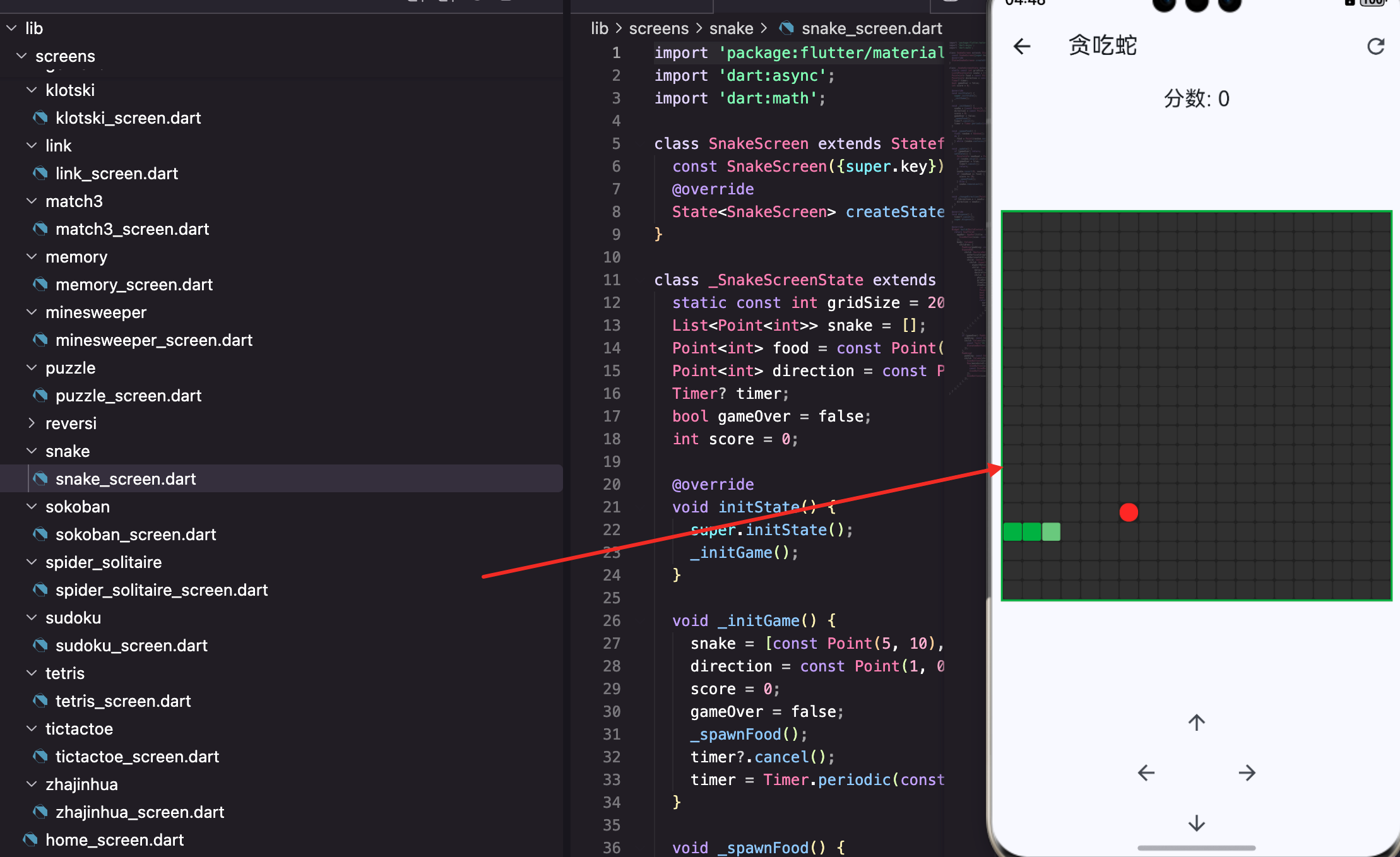
状态变量
static const int gridSize = 20;
List<Point<int>> snake = [];
Point<int> direction = const Point(1, 0);
Point<int> food = const Point(10, 10);
int score = 0;
bool gameOver = false;
Timer? timer;
这些变量定义了游戏的完整状态:
- gridSize: 棋盘大小,20x20
- snake: 蛇身列表
- direction: 移动方向
- food: 食物位置
- score: 当前分数
- gameOver: 游戏是否结束
- timer: 定时器,控制自动移动
蛇的数据结构
List<Point<int>> snake = [];
蛇用一个Point列表表示,每个Point是蛇身的一节。
Point<int>是Dart的内置类,表示一个二维坐标点,有x和y两个属性。用泛型<int>指定坐标是整数。
初始化
snake = [const Point(5, 10), const Point(4, 10), const Point(3, 10)];
初始蛇有3节,从右到左排列。
第一个元素是蛇头,后面的是蛇身。这个约定很重要,后面的移动逻辑都依赖它。
坐标(5, 10)表示x=5, y=10,在棋盘的中间偏左位置。
为什么用List
用List的好处是:
- 头部插入:
snake.insert(0, newHead)- O(n)但n很小 - 尾部删除:
snake.removeLast()- O(1) - 遍历检测:
snake.contains(point)- O(n)
这些操作正好对应蛇的移动逻辑。虽然头部插入是O(n),但蛇的长度通常不会超过100,性能完全不是问题。
为什么不用LinkedList
LinkedList头部插入是O(1),但Dart的LinkedList不支持随机访问和contains,用起来不方便。
对于这个规模的游戏,List足够了。
蛇的渲染
itemBuilder: (_, i) {
  int x = i % gridSize, y = i ~/ gridSize;
  Point<int> p = Point(x, y);
  bool isHead = snake.isNotEmpty && snake.first == p;
  bool isSnake = snake.contains(p);
  bool isFood = food == p;
  return Container(
    margin: const EdgeInsets.all(0.5),
    decoration: BoxDecoration(
      color: isHead ? Colors.green[300] : isSnake ? Colors.green : isFood ? Colors.red : Colors.grey[850],
      borderRadius: BorderRadius.circular(isFood ? 8 : 2),
    ),
  );
},
这段代码在GridView.builder的itemBuilder里,为每个格子生成对应的Widget。
坐标转换
int x = i % gridSize, y = i ~/ gridSize;
Point<int> p = Point(x, y);
GridView的索引i是一维的(0到399),需要转换成二维坐标。
i % gridSize得到列号(x),i ~/ gridSize得到行号(y)。~/是Dart的整除运算符。
比如i=25,gridSize=20,那么x=25%20=5,y=25~/20=1,坐标是(5, 1)。
判断类型
bool isHead = snake.isNotEmpty && snake.first == p;
bool isSnake = snake.contains(p);
bool isFood = food == p;
三个布尔值判断当前格子是什么:
- isHead: 是蛇头(列表第一个元素)
- isSnake: 是蛇身(在列表中)
- isFood: 是食物
注意isHead也满足isSnake,所以判断顺序很重要。先判断isHead,再判断isSnake。
snake.isNotEmpty检查是必要的,防止空列表调用first报错。
颜色
color: isHead ? Colors.green[300] : isSnake ? Colors.green : isFood ? Colors.red : Colors.grey[850],
嵌套三元运算符:
- 蛇头: 浅绿色(green[300])
- 蛇身: 深绿色(green)
- 食物: 红色
- 空地: 深灰色
蛇头比蛇身浅一点,让玩家能区分头和身体,知道蛇在往哪个方向走。
圆角
borderRadius: BorderRadius.circular(isFood ? 8 : 2),
食物用大圆角(8),看起来像个圆形,像苹果或者其他食物。
蛇身用小圆角(2),看起来像方块,有像素风格。
间隙
margin: const EdgeInsets.all(0.5),
每个格子有0.5像素的间隙,让蛇身的每一节能区分开。没有间隙的话,蛇看起来就是一整块,不好看。
蛇的移动
void _update() {
  if (gameOver) return;
  setState(() {
    Point<int> newHead = Point((snake.first.x + direction.x) % gridSize, (snake.first.y + direction.y) % gridSize);
这是游戏的核心方法,每次定时器触发都会调用,让蛇移动一格。
游戏结束检查
if (gameOver) return;
游戏已经结束,不再移动。
计算新蛇头
Point<int> newHead = Point((snake.first.x + direction.x) % gridSize, (snake.first.y + direction.y) % gridSize);
新蛇头位置 = 当前蛇头 + 移动方向。
snake.first是当前蛇头,direction是移动方向(比如(1, 0)表示向右)。
% gridSize实现穿墙效果:超出边界后从另一边出来。比如x=20时,20%20=0,从右边出去就从左边进来。
碰撞检测
if (snake.skip(1).contains(newHead)) {
  gameOver = true;
  timer?.cancel();
  return;
}
snake.skip(1)跳过蛇头,返回蛇身的Iterable。检查新蛇头是否撞到蛇身。
为什么要skip(1)?因为蛇头移动后,原来蛇头的位置会变成蛇身的第一节。如果不跳过,蛇头永远会"撞到"自己原来的位置。
撞到了就游戏结束,取消定时器。
移动蛇身
snake.insert(0, newHead);
if (newHead == food) {
  score += 10;
  _spawnFood();
} else {
  snake.removeLast();
}
先在头部插入新蛇头。
如果吃到食物,不删除尾巴,蛇就变长了。同时加分并生成新食物。
如果没吃到,删除尾巴,蛇长度不变。
这就是蛇移动的核心逻辑:头部增加,尾部删除。简单但巧妙。
方向控制
Point<int> direction = const Point(1, 0);
方向也用Point表示:
- (1, 0): 向右,x增加
- (-1, 0): 向左,x减少
- (0, 1): 向下,y增加
- (0, -1): 向上,y减少
用Point表示方向的好处是可以直接和坐标相加,计算新位置很方便。
改变方向
void _changeDirection(Point<int> newDir) {
  if (direction.x + newDir.x != 0 || direction.y + newDir.y != 0) {
    direction = newDir;
  }
}
不能直接掉头(180度转弯),那样会立即撞到自己。
direction.x + newDir.x != 0 || direction.y + newDir.y != 0
如果新方向和当前方向相反,x或y会抵消成0。比如向右(1,0)和向左(-1,0),x相加是0,y相加也是0。
只有不相反的方向才能设置。这个判断很巧妙,一行代码就处理了四种掉头情况。
定时器
timer = Timer.periodic(const Duration(milliseconds: 200), (_) => _update());
每200毫秒调用一次_update,蛇自动移动。
Timer.periodic创建一个周期性定时器,第一个参数是间隔时间,第二个参数是回调函数。
200毫秒是一个适中的速度,太快玩家反应不过来,太慢游戏无聊。可以根据分数调整速度增加难度。
清理定时器
void dispose() {
timer?.cancel();
super.dispose();
}
页面销毁时取消定时器,避免内存泄漏。
timer?.cancel()用了空安全操作符,如果timer是null就不调用cancel。
dispose是StatefulWidget的生命周期方法,在Widget被移除时调用。
手势控制
GestureDetector(
  onVerticalDragUpdate: (d) => d.delta.dy < 0 ? _changeDirection(const Point(0, -1)) : _changeDirection(const Point(0, 1)),
  onHorizontalDragUpdate: (d) => d.delta.dx < 0 ? _changeDirection(const Point(-1, 0)) : _changeDirection(const Point(1, 0)),
滑动改变方向:
- 向上滑(dy < 0):(0, -1)
- 向下滑(dy > 0):(0, 1)
- 向左滑(dx < 0):(-1, 0)
- 向右滑(dx > 0):(1, 0)
用onDragUpdate而不是onDragEnd,响应更快。玩家一开始滑动就改变方向,不用等滑动结束。
d.delta是滑动的增量,dy是垂直方向,dx是水平方向。负值表示向上或向左。
方向按钮
Column(children: [
  IconButton(icon: const Icon(Icons.arrow_upward), onPressed: () => _changeDirection(const Point(0, -1))),
  Row(mainAxisAlignment: MainAxisAlignment.center, children: [
    IconButton(icon: const Icon(Icons.arrow_back), onPressed: () => _changeDirection(const Point(-1, 0))),
    const SizedBox(width: 48),
    IconButton(icon: const Icon(Icons.arrow_forward), onPressed: () => _changeDirection(const Point(1, 0))),
  ]),
  IconButton(icon: const Icon(Icons.arrow_downward), onPressed: () => _changeDirection(const Point(0, 1))),
]),
十字形排列的方向按钮,方便不习惯滑动的玩家。
游戏结束显示
if (gameOver) Padding(
  padding: const EdgeInsets.all(16),
  child: Column(children: [
    const Text('游戏结束!', style: TextStyle(fontSize: 24, color: Colors.red)),
    ElevatedButton(onPressed: () => setState(_initGame), child: const Text('重新开始')),
  ]),
),
游戏结束时显示红色文字和重新开始按钮。
场景背景
Container(
  margin: const EdgeInsets.all(8),
  decoration: BoxDecoration(color: Colors.grey[900], border: Border.all(color: Colors.green, width: 2)),
深灰色背景,绿色边框,和蛇的绿色呼应。
蛇的视觉效果
当前实现用纯色方块表示蛇,可以加一些视觉效果:
渐变蛇身
Color getSnakeColor(int index) {
  // 从头到尾颜色渐变
  double ratio = index / snake.length;
  return Color.lerp(Colors.green[300], Colors.green[800], ratio)!;
}
蛇头浅绿,蛇尾深绿,中间渐变。Color.lerp在两个颜色之间插值。
蛇眼睛
if (isHead) {
  return Stack(
    children: [
      Container(color: Colors.green[300]),
      Positioned(
        left: direction.x == 1 ? 8 : 2,
        top: direction.y == 1 ? 8 : 2,
        child: Container(
          width: 4, height: 4,
          decoration: BoxDecoration(
            color: Colors.black,
            shape: BoxShape.circle,
          ),
        ),
      ),
    ],
  );
}
根据移动方向,在蛇头上画眼睛。向右移动时眼睛在右边,向下移动时眼睛在下边。
当前实现简化了,只用颜色区分。
难度递增
可以根据分数加快速度:
void _updateSpeed() {
  int speed = 200 - (score ~/ 50) * 20;
  speed = speed.clamp(80, 200);

  timer?.cancel();
  timer = Timer.periodic(Duration(milliseconds: speed), (_) => _update());
}
每50分加速20毫秒,从200毫秒最快到80毫秒。
吃到食物后调用_updateSpeed()更新定时器。
暂停功能
bool isPaused = false;

void _togglePause() {
  setState(() {
    isPaused = !isPaused;
    if (isPaused) {
      timer?.cancel();
    } else {
      timer = Timer.periodic(const Duration(milliseconds: 200), (_) => _update());
    }
  });
}
暂停时取消定时器,继续时重新创建。
可以加个暂停按钮,或者检测应用进入后台时自动暂停。
最高分记录
import 'package:shared_preferences/shared_preferences.dart';

int highScore = 0;

Future<void> _loadHighScore() async {
  final prefs = await SharedPreferences.getInstance();
  highScore = prefs.getInt('snakeHighScore') ?? 0;
}

Future<void> _saveHighScore() async {
  if (score > highScore) {
    highScore = score;
    final prefs = await SharedPreferences.getInstance();
    await prefs.setInt('snakeHighScore', highScore);
  }
}
游戏结束时保存最高分,启动时加载。
当前实现简化了,没有持久化存储。
小结
这篇讲了贪吃蛇的蛇头蛇身,核心知识点:
- List: 用列表存储蛇身,第一个是蛇头,简洁高效
- 颜色区分: 蛇头浅绿,蛇身深绿,让玩家知道方向
- 移动逻辑: 头部插入,尾部删除,简单但巧妙
- 吃食物: 不删除尾部,蛇变长,一行代码的差别
- 碰撞检测: skip(1).contains检查是否撞到自己
- 方向限制: 不能180度掉头,防止立即死亡
- 定时器: Timer.periodic实现自动移动,dispose时取消
- 坐标转换: 一维索引转二维坐标,GridView的常用技巧
- 穿墙效果: %运算符实现边界循环
- 手势控制: onDragUpdate响应滑动,改变方向
蛇的数据结构和移动逻辑是贪吃蛇的核心,理解了这些,游戏就完成一大半了。
欢迎加入开源鸿蒙跨平台社区:https://openharmonycrossplatform.csdn.net

开源鸿蒙跨平台开发社区汇聚开发者与厂商,共建“一次开发,多端部署”的开源生态,致力于降低跨端开发门槛,推动万物智联创新。
更多推荐
 12
12 0
0- 0


 已为社区贡献30条内容

所有评论(0)