Flutter for OpenHarmony垃圾分类指南App实战:分类指南实现
文章摘要: 垃圾分类指南页面采用层次化布局设计,分为头部横幅、分类列表和快捷链接三个区域。头部横幅通过渐变背景和环保图标营造氛围,分类列表展示四大垃圾类型卡片(可回收、有害、厨余、其他),每类卡片采用专属配色和可点击设计。页面遵循"重要性递减"和"渐进式披露"原则,从概览到详情引导用户学习。技术实现上使用Flutter的SingleChildScrollVi
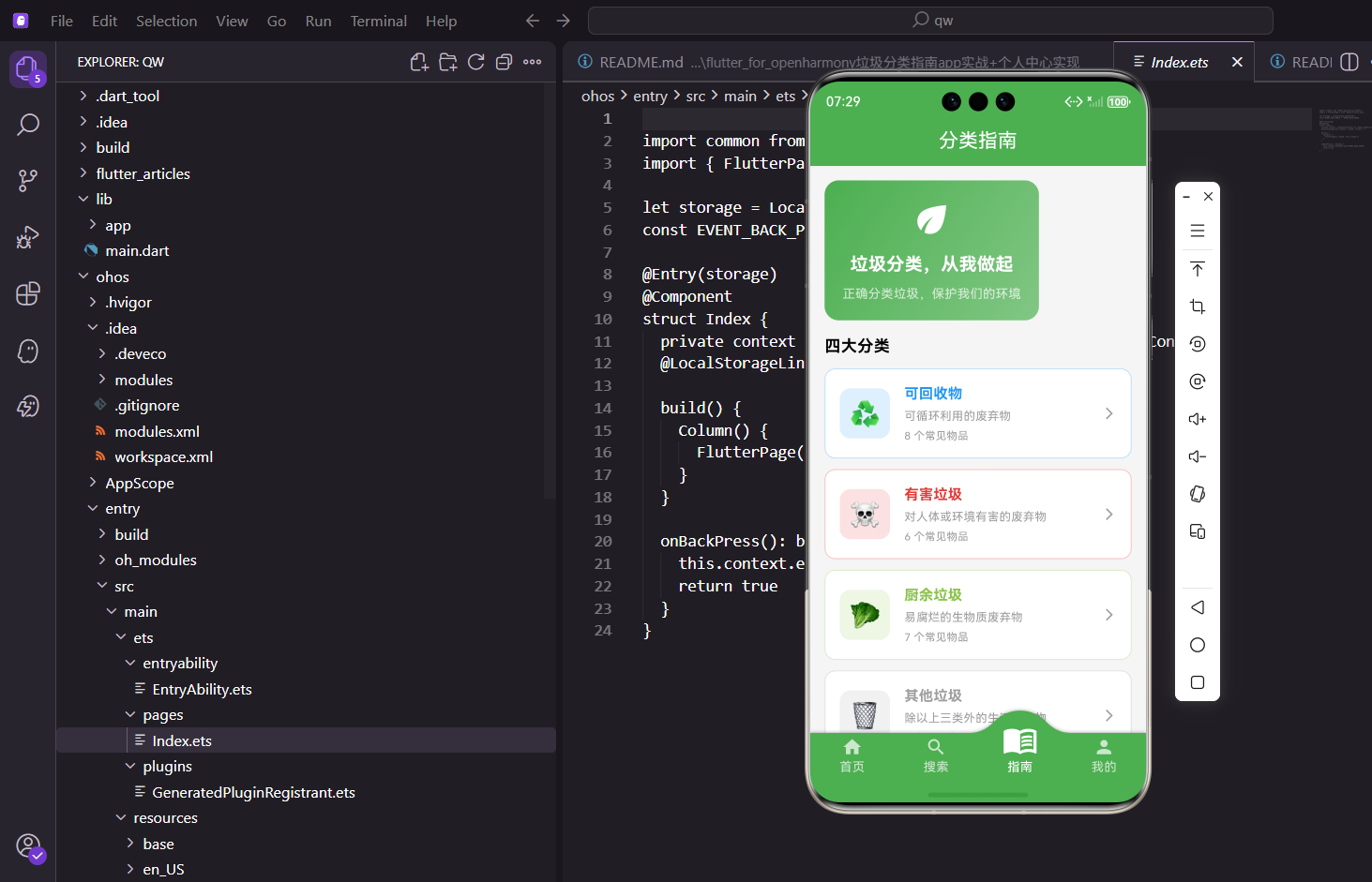
分类指南页面是整个App的知识库,用户可以在这里系统地了解四大垃圾分类。跟首页的快捷入口不同,这个页面更注重信息的完整性和层次感,从宏观的分类概览到具体的功能入口,一步步引导用户深入了解。
页面的整体布局
分类指南页面用滚动布局,从上到下分三个区域:
class GuidePage extends StatelessWidget {
const GuidePage({super.key});
Widget build(BuildContext context) {
return Scaffold(
appBar: AppBar(title: const Text('分类指南')),
body: SingleChildScrollView(
child: Column(
crossAxisAlignment: CrossAxisAlignment.start,
children: [
_buildGuideHeader(), // 头部横幅
_buildCategoryList(), // 分类列表
_buildQuickLinks(), // 快捷链接
],
),
),
);
}
三个区域各有分工:
- 头部横幅:展示环保主题的宣传语,营造氛围,让用户感受到这是一个有意义的事情
- 分类列表:四大分类的详细入口,是页面的核心内容
- 快捷链接:答题、技巧等扩展功能,提供更多学习途径
这种布局设计遵循了"信息架构"的原则:
- 重要性递减:最重要的内容放在最上面
- 逻辑分组:相关的内容放在一起
- 渐进式披露:先给概览,再给详情
头部横幅的设计
头部用渐变背景,配合环保图标和宣传语:
Widget _buildGuideHeader() {
  return Container(
    margin: EdgeInsets.all(16.w),
    padding: EdgeInsets.all(20.w),
    decoration: BoxDecoration(
      // 线性渐变,从左上到右下
      gradient: const LinearGradient(
        colors: [AppTheme.primaryColor, AppTheme.secondaryColor],
        begin: Alignment.topLeft,
        end: Alignment.bottomRight,
      ),
      borderRadius: BorderRadius.circular(16.r),
      // 添加轻微阴影增加层次感
      boxShadow: [
        BoxShadow(
          color: AppTheme.primaryColor.withOpacity(0.3),
          blurRadius: 10,
          offset: const Offset(0, 4),
        ),
      ],
    ),
渐变从主题绿色过渡到浅绿色,方向是左上到右下,看起来很有层次感。阴影用主题色的半透明版本,让卡片看起来像是"浮"在页面上。
内容部分:
    child: Column(
      children: [
        // 环保图标
        Icon(Icons.eco, color: Colors.white, size: 48.sp),
        SizedBox(height: 12.h),
        // 主标题
        Text(
          '垃圾分类,从我做起',
          style: TextStyle(
            color: Colors.white,
            fontSize: 20.sp,
            fontWeight: FontWeight.bold,
          ),
        ),
        SizedBox(height: 8.h),
        // 副标题
        Text(
          '正确分类垃圾,保护我们的环境',
          style: TextStyle(
            color: Colors.white70,
            fontSize: 14.sp,
          ),
        ),
      ],
    ),
  );
}
设计思路:这个横幅不是为了传递具体信息,而是营造一种"环保、积极"的氛围。用户看到这个,会觉得这个App是认真在做环保这件事的。这种情感化设计能增加用户对App的好感度。
文案的选择也有讲究:
- “垃圾分类,从我做起”:强调个人行动的重要性
- “正确分类垃圾,保护我们的环境”:说明分类的意义
四大分类列表
分类数据从GarbageData.categories获取:
Widget _buildCategoryList() {
  // 获取分类数据
  final categories = GarbageData.categories;

  return Padding(
    padding: EdgeInsets.symmetric(horizontal: 16.w),
    child: Column(
      crossAxisAlignment: CrossAxisAlignment.start,
      children: [
        // 区域标题
        Text(
          '四大分类',
          style: TextStyle(
            fontSize: 18.sp,
            fontWeight: FontWeight.bold,
          ),
        ),
        SizedBox(height: 12.h),
        // 使用展开运算符将分类卡片列表展开
        ...categories.map((cat) => _buildCategoryCard(cat)),
      ],
    ),
  );
}
展开运算符的用法:
...categories.map((cat) => _buildCategoryCard(cat))这行代码,map返回的是一个Iterable,前面加...可以把它展开成多个Widget,直接放到Column的children里。
这种写法等价于:
children: [
  Text('四大分类', ...),
  SizedBox(height: 12.h),
  _buildCategoryCard(categories[0]),
  _buildCategoryCard(categories[1]),
  _buildCategoryCard(categories[2]),
  _buildCategoryCard(categories[3]),
],
但用展开运算符更简洁,而且当分类数量变化时不需要修改代码。
分类卡片的实现
每个分类显示为一个可点击的卡片:
Widget _buildCategoryCard(GarbageCategory category) {
  // 根据分类类型确定颜色
  Color color;
  switch (category.type) {
    case GarbageType.recyclable:
      color = AppTheme.recyclableColor;  // 蓝色
      break;
    case GarbageType.hazardous:
      color = AppTheme.hazardousColor;   // 红色
      break;
    case GarbageType.kitchen:
      color = AppTheme.kitchenColor;     // 绿色
      break;
    case GarbageType.other:
      color = AppTheme.otherColor;       // 灰色
      break;
  }
先根据分类类型确定颜色,这个颜色会用在图标背景、文字和边框上,形成统一的视觉风格。
卡片的布局:
  return GestureDetector(
    // 点击跳转到分类详情页
    onTap: () => Get.toNamed(Routes.categoryDetail, arguments: category.type),
    child: Container(
      margin: EdgeInsets.only(bottom: 12.h),
      padding: EdgeInsets.all(16.w),
      decoration: BoxDecoration(
        color: Colors.white,
        borderRadius: BorderRadius.circular(12.r),
        // 使用分类颜色的浅色边框
        border: Border.all(color: color.withOpacity(0.3)),
        // 轻微阴影
        boxShadow: [
          BoxShadow(
            color: Colors.black.withOpacity(0.03),
            blurRadius: 8,
            offset: const Offset(0, 2),
          ),
        ],
      ),
白色背景配上分类颜色的浅色边框,既能区分不同分类,又不会太花哨。阴影非常淡,只是为了让卡片有一点立体感。
卡片内容分左中右三部分:
      child: Row(
        children: [
          // 左边:图标区域
          Container(
            width: 56.w,
            height: 56.w,
            decoration: BoxDecoration(
              // 分类颜色的15%透明度作为背景
              color: color.withOpacity(0.15),
              borderRadius: BorderRadius.circular(12.r),
            ),
            child: Center(
              // 使用emoji作为图标
              child: Text(category.icon, style: TextStyle(fontSize: 28.sp)),
            ),
          ),
左边是图标区域,用emoji作为图标。背景色是分类颜色的15%透明度版本,看起来很柔和。
中间是文字信息:
          SizedBox(width: 16.w),
          // 中间:文字信息
          Expanded(
            child: Column(
              crossAxisAlignment: CrossAxisAlignment.start,
              children: [
                // 分类名称,使用分类颜色
                Text(
                  category.name,
                  style: TextStyle(
                    fontSize: 16.sp,
                    fontWeight: FontWeight.bold,
                    color: color,
                  ),
                ),
                SizedBox(height: 4.h),
                // 分类描述
                Text(
                  category.description,
                  style: TextStyle(
                    fontSize: 13.sp,
                    color: Colors.grey,
                  ),
                  maxLines: 2,
                  overflow: TextOverflow.ellipsis,
                ),
                SizedBox(height: 4.h),
                // 物品数量
                Text(
                  '${category.items.length} 个常见物品',
                  style: TextStyle(
                    fontSize: 12.sp,
                    color: Colors.grey,
                  ),
                ),
              ],
            ),
          ),
          // 右边:箭头图标
          Icon(Icons.arrow_forward_ios, size: 16.sp, color: Colors.grey),
        ],
      ),
    ),
  );
}
显示分类名称、描述和包含的物品数量。名称用分类颜色,其他用灰色,形成主次关系。右边的箭头提示用户可以点击进入详情。
快捷功能入口
底部用网格布局展示四个扩展功能:
Widget _buildQuickLinks() {
  // 功能入口配置
  final links = [
    {'icon': Icons.quiz, 'label': '答题挑战', 'route': Routes.quiz},
    {'icon': Icons.tips_and_updates, 'label': '分类技巧', 'route': Routes.tips},
    {'icon': Icons.policy, 'label': '政策法规', 'route': Routes.policy},
    {'icon': Icons.help, 'label': '常见问题', 'route': Routes.faq},
  ];
用数组配置功能入口,后面要加减功能改这个数组就行。这种数据驱动的方式让代码更易维护。
网格布局:
  return Container(
    margin: EdgeInsets.all(16.w),
    child: Column(
      crossAxisAlignment: CrossAxisAlignment.start,
      children: [
        // 区域标题
        Text(
          '更多功能',
          style: TextStyle(
            fontSize: 18.sp,
            fontWeight: FontWeight.bold,
          ),
        ),
        SizedBox(height: 12.h),
        // 网格布局
        GridView.builder(
          // 让GridView高度自适应内容
          shrinkWrap: true,
          // 禁用GridView自己的滚动
          physics: const NeverScrollableScrollPhysics(),
          // 网格配置:一行4个
          gridDelegate: SliverGridDelegateWithFixedCrossAxisCount(
            crossAxisCount: 4,
            crossAxisSpacing: 12.w,
            mainAxisSpacing: 12.h,
          ),
GridView的配置:
shrinkWrap: true让GridView高度自适应内容,不会占据无限高度NeverScrollableScrollPhysics禁用GridView自己的滚动,因为外面有ScrollViewcrossAxisCount: 4一行显示4个
每个功能入口的样式:
          itemCount: links.length,
          itemBuilder: (context, index) {
            final link = links[index];
            return GestureDetector(
              onTap: () => Get.toNamed(link['route'] as String),
              child: Column(
                mainAxisAlignment: MainAxisAlignment.center,
                children: [
                  // 图标容器
                  Container(
                    width: 48.w,
                    height: 48.w,
                    decoration: BoxDecoration(
                      color: AppTheme.primaryColor.withOpacity(0.1),
                      borderRadius: BorderRadius.circular(12.r),
                    ),
                    child: Icon(
                      link['icon'] as IconData,
                      color: AppTheme.primaryColor,
                      size: 24.sp,
                    ),
                  ),
                  SizedBox(height: 4.h),
                  // 功能名称
                  Text(
                    link['label'] as String,
                    style: TextStyle(fontSize: 11.sp),
                    textAlign: TextAlign.center,
                  ),
                ],
              ),
            );
          },
        ),
      ],
    ),
  );
}
图标背景用主题色的浅色版本,跟首页的快捷入口风格一致,保持整个App的视觉统一性。
数据模型设计
分类数据的模型是这样定义的:
/// 垃圾分类类型枚举
enum GarbageType {
  recyclable,  // 可回收物
  hazardous,   // 有害垃圾
  kitchen,     // 厨余垃圾
  other,       // 其他垃圾
}

/// 垃圾分类数据模型
class GarbageCategory {
  final String id;              // 唯一标识
  final String name;            // 分类名称
  final GarbageType type;       // 分类类型
  final String description;     // 分类描述
  final String icon;            // emoji图标
  final List<GarbageItem> items; // 该分类下的物品列表

  GarbageCategory({
    required this.id,
    required this.name,
    required this.type,
    required this.description,
    required this.icon,
    this.items = const [],
  });
}

/// 垃圾物品数据模型
class GarbageItem {
  final String id;              // 唯一标识
  final String name;            // 物品名称
  final String icon;            // emoji图标
  final GarbageType type;       // 所属分类
  final String description;     // 物品描述
  final String tips;            // 投放提示
  final List<String> aliases;   // 别名列表

  GarbageItem({
    required this.id,
    required this.name,
    required this.icon,
    required this.type,
    required this.description,
    this.tips = '',
    this.aliases = const [],
  });

  // 获取分类名称
  String get typeName {
    switch (type) {
      case GarbageType.recyclable:
        return '可回收物';
      case GarbageType.hazardous:
        return '有害垃圾';
      case GarbageType.kitchen:
        return '厨余垃圾';
      case GarbageType.other:
        return '其他垃圾';
    }
  }
}
页面的信息层次
分类指南页面的设计体现了信息架构的层次性:
- 第一层:头部横幅 → 营造氛围,传递价值观
- 第二层:四大分类 → 核心内容,用户最需要的信息
- 第三层:快捷链接 → 扩展功能,深入学习的入口
这种设计让用户可以根据自己的需求,选择停留在哪个层次:
- 只想快速了解分类?看四大分类就够了
- 想深入学习?点击进入详情或扩展功能
- 想测试自己?去答题挑战
可访问性考虑
为了让更多用户能够使用这个页面,我们做了一些可访问性优化:
// 为图标添加语义标签
Semantics(
  label: '可回收物分类',
  child: _buildCategoryCard(category),
)

// 确保点击区域足够大
GestureDetector(
  behavior: HitTestBehavior.opaque,  // 整个区域都可点击
  child: Container(
    padding: EdgeInsets.all(16.w),   // 足够的内边距
    // ...
  ),
)

// 使用足够的颜色对比度
Text(
  category.name,
  style: TextStyle(
    color: color,  // 确保颜色对比度符合WCAG标准
  ),
)
分类指南页面的设计注重信息的层次感,从氛围营造到具体分类再到扩展功能,一步步引导用户深入了解垃圾分类知识。
欢迎加入开源鸿蒙跨平台社区:https://openharmonycrossplatform.csdn.net

开源鸿蒙跨平台开发社区汇聚开发者与厂商,共建“一次开发,多端部署”的开源生态,致力于降低跨端开发门槛,推动万物智联创新。
更多推荐

 25
25 0
0- 0


 已为社区贡献30条内容

所有评论(0)