flutter_for_openharmony家庭药箱管理app实战+急救指南实现
本文介绍了在 Flutter for OpenHarmony 应用中实现急救指南功能的设计与实现方法。页面包含紧急电话提示、急救场景列表、详情展示等核心功能,支持心肺复苏、海姆立克、烧烫伤、中暑、低血糖和外伤出血等常见急救知识。界面采用卡片式布局,每个场景配有不同颜色和图标,视觉清晰。内容使用 Markdown 格式组织,步骤明确,便于阅读。扩展功能包括一键拨打 120、急救收藏、视频教程、知识测
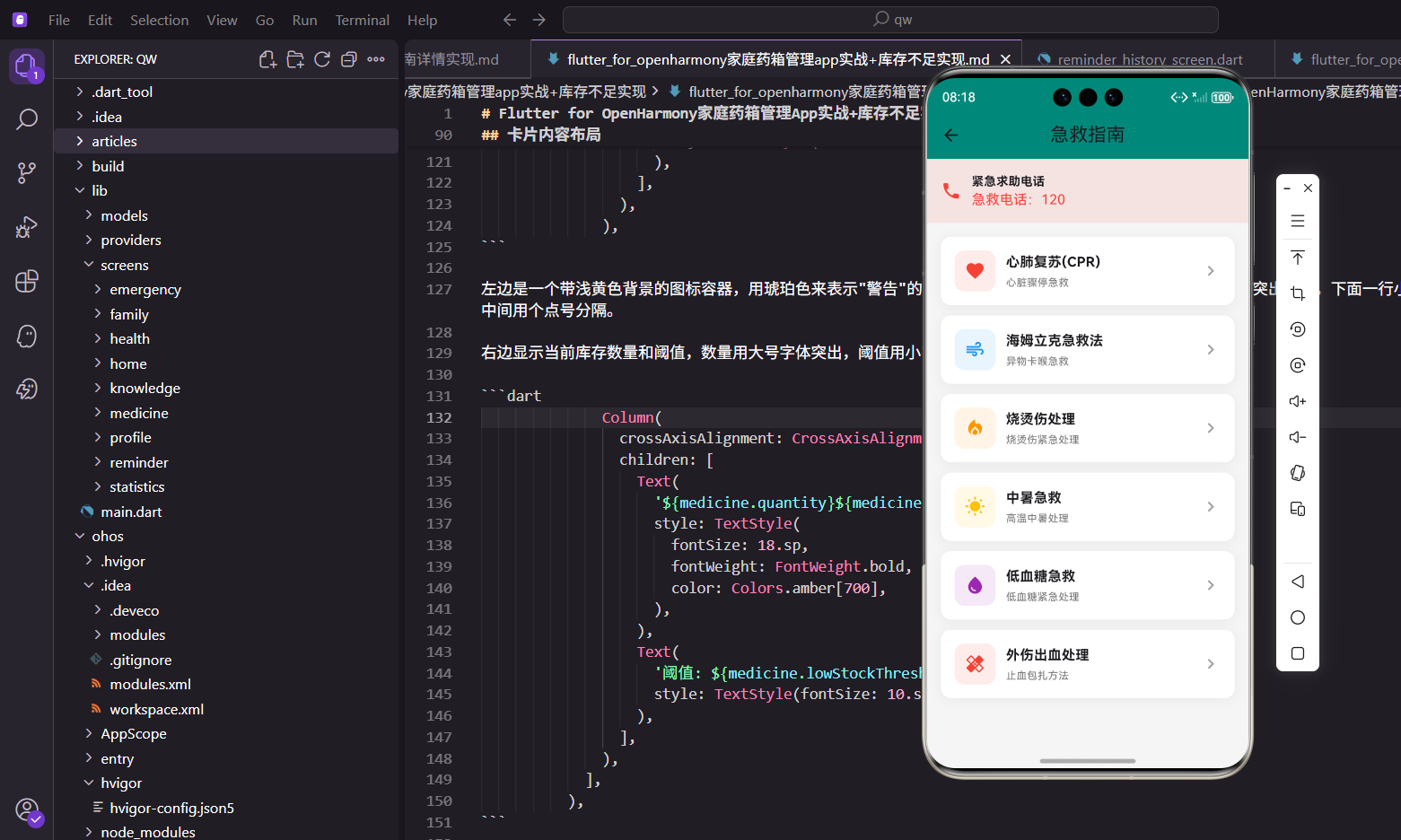
急救指南功能为用户提供了常见急救场景的处理方法,在紧急情况下可以快速查阅,挽救生命。本文将介绍如何在Flutter for OpenHarmony应用中实现急救指南功能,包括急救知识列表、紧急电话提示、详情页面展示等特性。
功能设计思路
急救指南页面包含多个急救场景,如心肺复苏、海姆立克急救法、烧烫伤处理、中暑急救、低血糖急救、外伤出血处理等。每个场景都有详细的急救步骤和注意事项。页面顶部有醒目的紧急求助电话提示,方便用户在紧急情况下快速拨打120。
页面采用列表布局,顶部是红色背景的紧急电话提示区域,下方是急救场景列表。每个场景使用卡片展示,左侧是带背景色的图标,中间是标题和副标题,右侧是右箭头。不同场景使用不同的颜色,让页面更加醒目。
页面结构实现
页面使用无状态组件,急救数据直接定义在build方法中:
Widget build(BuildContext context) {
final emergencyList = [
{
'title': '心肺复苏(CPR)',
'subtitle': '心脏骤停急救',
'icon': Icons.favorite,
'color': Colors.red,
'content': '''
# 心肺复苏(CPR)
## 判断意识
1. 轻拍双肩,大声呼唤
2. 观察胸廓起伏
3. 检查颈动脉搏动(10秒内)
## 呼救
- 拨打120急救电话
- 请人取AED(自动体外除颤器)
## 胸外按压
1. 患者仰卧于硬质平面
2. 按压位置:两乳头连线中点
3. 按压深度:5-6厘米
4. 按压频率:100-120次/分钟
5. 每30次按压后进行2次人工呼吸
''',
},
// 更多急救场景...
];
return Scaffold(
appBar: AppBar(title: const Text('急救指南')),
body: Column(
children: [
Container(
  padding: EdgeInsets.all(16.w),
  color: Colors.red.withOpacity(0.1),
  child: Row(
    children: [
      Icon(Icons.phone, color: Colors.red, size: 24.sp),
      SizedBox(width: 12.w),
      Expanded(
        child: Column(
          crossAxisAlignment: CrossAxisAlignment.start,
          children: [
            Text('紧急求助电话', style: TextStyle(fontSize: 14.sp, fontWeight: FontWeight.bold)),
            Text('急救电话:120', style: TextStyle(fontSize: 16.sp, color: Colors.red)),
          ],
        ),
      ),
    ],
  ),
),
Expanded(
child: ListView.builder(
padding: EdgeInsets.all(16.w),
itemCount: emergencyList.length,
itemBuilder: (context, index) {
final item = emergencyList[index];
return GestureDetector(
onTap: () => Get.to(() => EmergencyDetailScreen(
title: item['title'] as String,
content: item['content'] as String,
)),
child: Container(
  margin: EdgeInsets.only(bottom: 12.h),
  padding: EdgeInsets.all(16.w),
  decoration: BoxDecoration(
    color: Colors.white,
    borderRadius: BorderRadius.circular(12.r),
    boxShadow: [
      BoxShadow(color: Colors.black.withOpacity(0.05), blurRadius: 10, offset: const Offset(0, 2)),
    ],
  ),
  child: Row(
    children: [
      Container(
        width: 48.w,
        height: 48.w,
        decoration: BoxDecoration(
          color: (item['color'] as Color).withOpacity(0.1),
          borderRadius: BorderRadius.circular(12.r),
        ),
        child: Icon(item['icon'] as IconData, color: item['color'] as Color, size: 24.sp),
      ),
      SizedBox(width: 12.w),
      Expanded(
        child: Column(
          crossAxisAlignment: CrossAxisAlignment.start,
          children: [
            Text(item['title'] as String,
                style: TextStyle(fontSize: 16.sp, fontWeight: FontWeight.bold)),
            SizedBox(height: 4.h),
            Text(item['subtitle'] as String,
                style: TextStyle(fontSize: 12.sp, color: Colors.grey[600])),
          ],
        ),
      ),
      const Icon(Icons.chevron_right, color: Colors.grey),
    ],
  ),
),
);
},
),
),
],
),
);
}
页面使用Column布局,顶部是紧急电话提示区域,下方是可滚动的急救场景列表。紧急电话区域使用红色背景,非常醒目。列表使用ListView.builder构建,每个场景是一个可点击的卡片。
紧急电话提示
页面顶部的紧急电话提示区域设计醒目:
Container(
padding: EdgeInsets.all(16.w),
color: Colors.red.withOpacity(0.1),
child: Row(
children: [
Icon(Icons.phone, color: Colors.red, size: 24.sp),
SizedBox(width: 12.w),
Expanded(
child: Column(
crossAxisAlignment: CrossAxisAlignment.start,
children: [
Text('紧急求助电话', style: TextStyle(fontSize: 14.sp, fontWeight: FontWeight.bold)),
Text('急救电话:120', style: TextStyle(fontSize: 16.sp, color: Colors.red)),
],
),
),
],
),
),
提示区域使用浅红色背景,左侧是红色电话图标,右侧是文字信息。"急救电话:120"使用红色字体,非常醒目。这种设计让用户在紧急情况下可以快速找到急救电话。
急救场景卡片
每个急救场景的卡片采用统一的设计风格:
child: Container(
margin: EdgeInsets.only(bottom: 12.h),
padding: EdgeInsets.all(16.w),
decoration: BoxDecoration(
color: Colors.white,
borderRadius: BorderRadius.circular(12.r),
boxShadow: [
BoxShadow(color: Colors.black.withOpacity(0.05), blurRadius: 10, offset: const Offset(0, 2)),
],
),
child: Row(
children: [
Container(
width: 48.w,
height: 48.w,
decoration: BoxDecoration(
color: (item['color'] as Color).withOpacity(0.1),
borderRadius: BorderRadius.circular(12.r),
),
child: Icon(item['icon'] as IconData, color: item['color'] as Color, size: 24.sp),
),
SizedBox(width: 12.w),
Expanded(
child: Column(
crossAxisAlignment: CrossAxisAlignment.start,
children: [
Text(item['title'] as String,
style: TextStyle(fontSize: 16.sp, fontWeight: FontWeight.bold)),
SizedBox(height: 4.h),
Text(item['subtitle'] as String,
style: TextStyle(fontSize: 12.sp, color: Colors.grey[600])),
],
),
),
const Icon(Icons.chevron_right, color: Colors.grey),
],
),
),
卡片使用白色背景和浅色阴影,视觉上清爽舒适。左侧图标使用半透明背景色,与图标颜色相呼应。中间是标题和副标题的垂直布局,右侧是灰色右箭头提示可点击。
急救内容组织
急救内容使用Markdown格式编写,步骤清晰:
'content': '''
# 心肺复苏(CPR)

## 判断意识
1. 轻拍双肩,大声呼唤
2. 观察胸廓起伏
3. 检查颈动脉搏动(10秒内)

## 呼救
- 拨打120急救电话
- 请人取AED(自动体外除颤器)

## 胸外按压
1. 患者仰卧于硬质平面
2. 按压位置:两乳头连线中点
3. 按压深度:5-6厘米
4. 按压频率:100-120次/分钟
5. 每30次按压后进行2次人工呼吸

## 人工呼吸
1. 开放气道:仰头抬颏法
2. 捏住鼻子,口对口吹气
3. 每次吹气1秒,观察胸廓起伏

## 注意事项
- 持续进行直到专业救援到达
- 如有AED,尽快使用
- 按压时手臂伸直,垂直向下
''',
内容使用一级标题、二级标题、有序列表、无序列表等Markdown语法,让急救步骤清晰明了。每个场景都包含判断、处理、注意事项等部分,内容专业实用。
多场景设计
页面包含六个急救场景,每个场景使用不同的颜色和图标:
{
  'title': '心肺复苏(CPR)',
  'subtitle': '心脏骤停急救',
  'icon': Icons.favorite,
  'color': Colors.red,
},
{
  'title': '海姆立克急救法',
  'subtitle': '异物卡喉急救',
  'icon': Icons.air,
  'color': Colors.blue,
},
{
  'title': '烧烫伤处理',
  'subtitle': '烧烫伤紧急处理',
  'icon': Icons.local_fire_department,
  'color': Colors.orange,
},
{
  'title': '中暑急救',
  'subtitle': '高温中暑处理',
  'icon': Icons.wb_sunny,
  'color': Colors.amber,
},
{
  'title': '低血糖急救',
  'subtitle': '低血糖紧急处理',
  'icon': Icons.water_drop,
  'color': Colors.purple,
},
{
  'title': '外伤出血处理',
  'subtitle': '止血包扎方法',
  'icon': Icons.healing,
  'color': Colors.red,
},
心肺复苏用红色和心形图标,海姆立克用蓝色和空气图标,烧烫伤用橙色和火焰图标,中暑用琥珀色和太阳图标,低血糖用紫色和水滴图标,外伤出血用红色和治疗图标。这种设计让每个场景都有鲜明的视觉特征。
页面跳转
点击急救卡片会跳转到详情页面:
return GestureDetector(
  onTap: () => Get.to(() => EmergencyDetailScreen(
        title: item['title'] as String,
        content: item['content'] as String,
      )),
  child: Container(
    // 卡片内容
  ),
);
使用GestureDetector包裹卡片,点击时通过Get.to跳转到详情页面。详情页面接收标题和内容两个参数,使用Markdown渲染器展示内容。这种设计让急救知识的查看体验流畅自然。
技术要点
紧急提示:页面顶部的紧急电话提示区域使用红色背景,非常醒目。在紧急情况下,用户可以快速找到急救电话,争取宝贵的救援时间。
数据驱动:急救数据使用Map列表存储,通过ListView.builder动态构建UI。这种设计让添加新急救场景变得非常简单,只需在列表中添加新的Map即可。
Markdown格式:急救内容使用Markdown格式编写,支持标题、列表等语法。在详情页面中使用Markdown渲染器展示,让急救步骤清晰明了,易于理解和记忆。
视觉设计:每个场景使用不同的颜色和图标,让页面更加生动。图标背景使用半透明颜色,与图标颜色相呼应,视觉效果统一协调。
总结
急救指南功能通过详细的急救步骤和醒目的紧急电话提示,为用户提供了实用的急救知识。从心肺复苏到外伤处理,涵盖了常见的急救场景。这种急救知识普及功能在紧急情况下可能挽救生命,体现了应用的社会价值。让每个家庭都能掌握基本的急救技能,是健康管理的重要组成部分。
一键拨打急救电话
添加一键拨打急救电话的功能:
Widget _buildEmergencyCallButton() {
  return GestureDetector(
    onTap: () => _makeEmergencyCall(),
    child: Container(
      padding: EdgeInsets.all(16.w),
      margin: EdgeInsets.symmetric(horizontal: 16.w),
      decoration: BoxDecoration(
        color: Colors.red,
        borderRadius: BorderRadius.circular(12.r),
      ),
      child: Row(
        mainAxisAlignment: MainAxisAlignment.center,
        children: [
          const Icon(Icons.phone, color: Colors.white),
          SizedBox(width: 8.w),
          Text(
            '一键拨打120',
            style: TextStyle(color: Colors.white, fontSize: 16.sp, fontWeight: FontWeight.bold),
          ),
        ],
      ),
    ),
  );
}

Future<void> _makeEmergencyCall() async {
  final Uri phoneUri = Uri(scheme: 'tel', path: '120');
  if (await canLaunchUrl(phoneUri)) {
    await launchUrl(phoneUri);
  } else {
    Get.snackbar('提示', '无法拨打电话', snackPosition: SnackPosition.BOTTOM);
  }
}
一键拨打按钮使用红色背景,非常醒目。点击后直接调用系统电话功能拨打120。在紧急情况下,这个功能可以节省宝贵的时间。
急救收藏功能
支持收藏常用的急救指南:
Set<String> _favorites = {};

Widget _buildFavoriteButton(String title) {
  final isFavorite = _favorites.contains(title);
  return IconButton(
    icon: Icon(
      isFavorite ? Icons.star : Icons.star_border,
      color: isFavorite ? Colors.amber : Colors.grey,
    ),
    onPressed: () {
      setState(() {
        if (isFavorite) {
          _favorites.remove(title);
        } else {
          _favorites.add(title);
        }
      });
      _saveFavorites();
    },
  );
}
收藏功能让用户可以将常用的急救指南标记为收藏,方便快速访问。收藏状态保存到本地存储,下次打开应用时自动恢复。
急救视频链接
为急救指南添加视频教程链接:
Widget _buildVideoLink(String videoUrl) {
  return GestureDetector(
    onTap: () => launchUrl(Uri.parse(videoUrl)),
    child: Container(
      padding: EdgeInsets.all(12.w),
      decoration: BoxDecoration(
        color: Colors.blue.withOpacity(0.1),
        borderRadius: BorderRadius.circular(8.r),
      ),
      child: Row(
        children: [
          Icon(Icons.play_circle_outline, color: Colors.blue, size: 24.sp),
          SizedBox(width: 8.w),
          Text('观看视频教程', style: TextStyle(color: Colors.blue, fontSize: 14.sp)),
        ],
      ),
    ),
  );
}
视频教程比文字更直观,特别是对于心肺复苏等需要动作示范的急救技能。点击后跳转到视频网站观看教程。
急救知识测验
添加急救知识测验功能,帮助用户巩固学习:
void _showQuiz(String topic) {
  final questions = _getQuizQuestions(topic);
  int currentIndex = 0;
  int correctCount = 0;

  showDialog(
    context: context,
    builder: (context) => StatefulBuilder(
      builder: (context, setDialogState) {
        if (currentIndex >= questions.length) {
          return AlertDialog(
            title: const Text('测验完成'),
            content: Text('您答对了 $correctCount / ${questions.length} 题'),
            actions: [
              TextButton(
                onPressed: () => Navigator.pop(context),
                child: const Text('确定'),
              ),
            ],
          );
        }

        final question = questions[currentIndex];
        return AlertDialog(
          title: Text('问题 ${currentIndex + 1}'),
          content: Column(
            mainAxisSize: MainAxisSize.min,
            crossAxisAlignment: CrossAxisAlignment.start,
            children: [
              Text(question['question'] as String),
              SizedBox(height: 16.h),
              ...(question['options'] as List<String>).map((option) {
                return ListTile(
                  title: Text(option),
                  onTap: () {
                    if (option == question['answer']) {
                      correctCount++;
                    }
                    setDialogState(() => currentIndex++);
                  },
                );
              }).toList(),
            ],
          ),
        );
      },
    ),
  );
}
测验功能通过问答的方式帮助用户检验急救知识的掌握程度。完成测验后显示得分,鼓励用户继续学习。
附近医院查询
提供附近医院查询功能:
Widget _buildNearbyHospitals() {
  return GestureDetector(
    onTap: () => _openMapForHospitals(),
    child: Container(
      padding: EdgeInsets.all(16.w),
      decoration: BoxDecoration(
        color: Colors.green.withOpacity(0.1),
        borderRadius: BorderRadius.circular(12.r),
      ),
      child: Row(
        children: [
          Icon(Icons.local_hospital, color: Colors.green, size: 24.sp),
          SizedBox(width: 12.w),
          Expanded(
            child: Column(
              crossAxisAlignment: CrossAxisAlignment.start,
              children: [
                Text('附近医院', style: TextStyle(fontSize: 14.sp, fontWeight: FontWeight.bold)),
                Text('查看附近的医疗机构', style: TextStyle(fontSize: 12.sp, color: Colors.grey[600])),
              ],
            ),
          ),
          const Icon(Icons.chevron_right, color: Colors.grey),
        ],
      ),
    ),
  );
}

void _openMapForHospitals() {
  final Uri mapUri = Uri.parse('geo:0,0?q=医院');
  launchUrl(mapUri);
}
附近医院查询功能调用系统地图应用,搜索附近的医院。在紧急情况下,用户可以快速找到最近的医疗机构。
欢迎加入开源鸿蒙跨平台社区:https://openharmonycrossplatform.csdn.net

开源鸿蒙跨平台开发社区汇聚开发者与厂商,共建“一次开发,多端部署”的开源生态,致力于降低跨端开发门槛,推动万物智联创新。
更多推荐

 21
21 0
0- 0


 已为社区贡献30条内容

所有评论(0)