Flutter for OpenHarmony 身体健康状况记录App实战 - 添加血糖记录实现
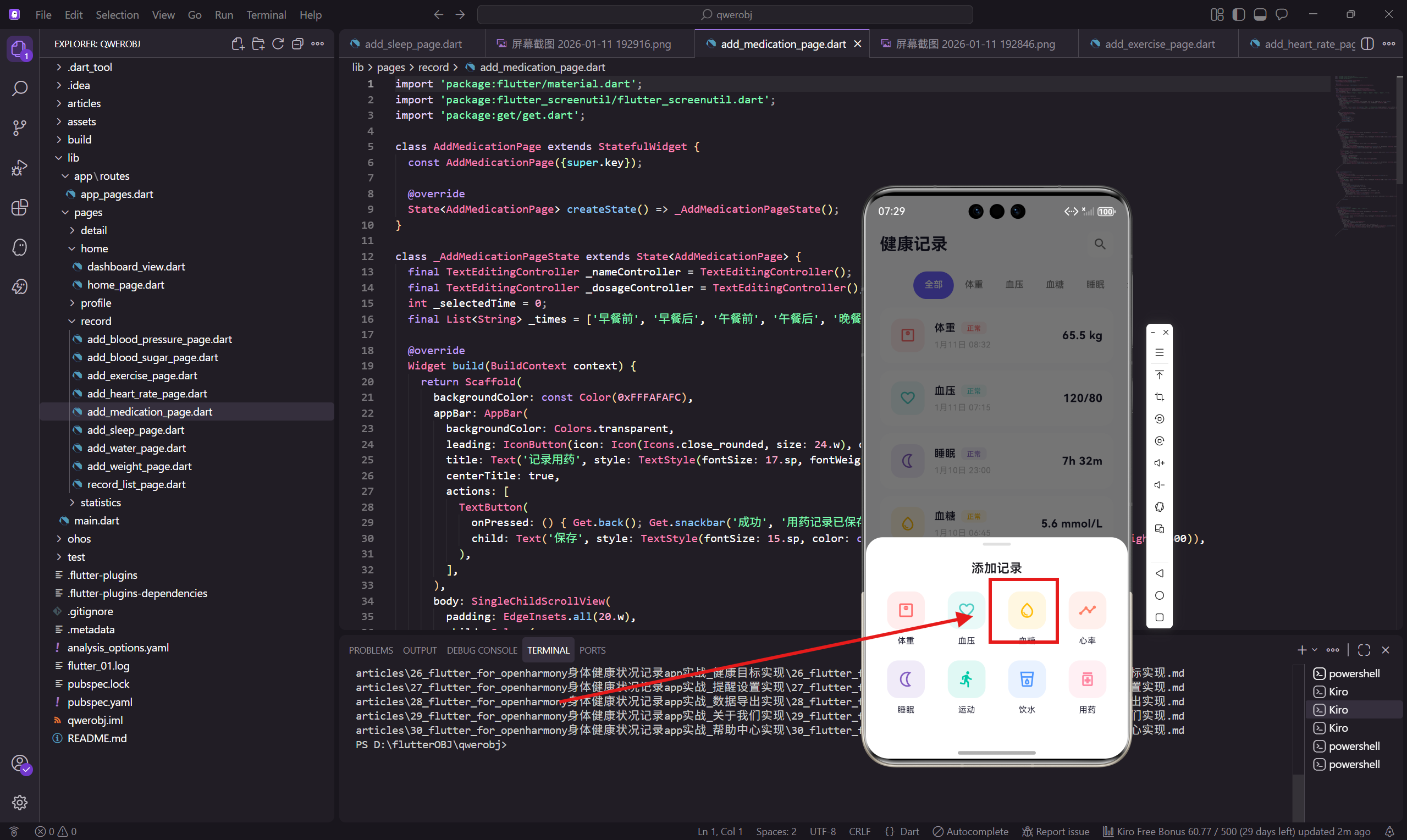
血糖监测应用开发摘要 本文介绍了一个糖尿病患者血糖监测应用的开发实现。应用包含三个核心功能模块:数值选择卡片、测量时间类型选择和记录时间显示。血糖值采用滑块精确到0.1mmol/L的调节方式,范围覆盖2.0-20.0mmol/L。特别设计了四种常见测量时间类型选择(空腹、餐前、餐后2h、睡前),并采用黄色主题色统一标识血糖相关功能。应用还根据医学标准动态显示血糖状态提示,帮助用户直观了解测量结果是
前言
血糖监测对糖尿病患者来说非常重要,需要在不同时间点测量。空腹血糖、餐前血糖、餐后血糖的正常范围是不同的,所以记录血糖时必须同时记录测量时间类型。
这篇文章会实现一个血糖记录页面,包括数值选择和测量时间类型选择两个核心功能。
状态变量
血糖页面需要维护血糖值和测量时间类型两个状态。
class AddBloodSugarPage extends StatefulWidget {
const AddBloodSugarPage({super.key});
State<AddBloodSugarPage> createState() => _AddBloodSugarPageState();
}
class _AddBloodSugarPageState extends State<AddBloodSugarPage> {
double _value = 5.6;
int _selectedTime = 0;
final List<String> _times = ['空腹', '餐前', '餐后2h', '睡前'];
血糖值用 double 类型,因为血糖通常精确到一位小数,比如 5.6 mmol/L。
_times 列表定义了四种常见的测量时间类型。空腹血糖是最常用的,所以默认选中第一个。
页面结构
页面分为三个部分:数值卡片、时间类型选择、记录时间。
Widget build(BuildContext context) {
return Scaffold(
backgroundColor: const Color(0xFFFAFAFC),
appBar: AppBar(
backgroundColor: Colors.transparent,
leading: IconButton(
icon: Icon(Icons.close_rounded, size: 24.w),
onPressed: () => Get.back()
),
title: Text('记录血糖', style: TextStyle(
fontSize: 17.sp,
fontWeight: FontWeight.w600
)),
centerTitle: true,
actions: [
TextButton(
onPressed: () {
Get.back();
Get.snackbar('成功', '血糖记录已保存', backgroundColor: Colors.white);
},
child: Text('保存', style: TextStyle(
fontSize: 15.sp,
color: const Color(0xFF6C63FF),
fontWeight: FontWeight.w600
)),
),
],
),
body: SingleChildScrollView(
padding: EdgeInsets.all(20.w),
child: Column(
children: [
_buildValueCard(),
SizedBox(height: 16.h),
_buildTimeTypeSelector(),
SizedBox(height: 16.h),
_buildTimeCard(),
],
),
),
);
}
布局和其他添加页面保持一致,用户可以快速熟悉操作流程。
血糖数值卡片
用滑块选择血糖值,和体重页面类似,但颜色换成黄色主题。
  Widget _buildValueCard() {
    return Container(
      padding: EdgeInsets.symmetric(vertical: 40.h),
      decoration: BoxDecoration(
        color: Colors.white,
        borderRadius: BorderRadius.circular(24.r)
      ),
      child: Column(
        children: [
          Row(
            mainAxisAlignment: MainAxisAlignment.center,
            crossAxisAlignment: CrossAxisAlignment.end,
            children: [
              Text(_value.toStringAsFixed(1), style: TextStyle(
                fontSize: 56.sp,
                fontWeight: FontWeight.w700,
                color: const Color(0xFF1A1A2E)
              )),
              Padding(
                padding: EdgeInsets.only(bottom: 10.h),
                child: Text(' mmol/L', style: TextStyle(
                  fontSize: 16.sp,
                  color: Colors.grey[500]
                ))
              ),
            ],
          ),
血糖单位用 mmol/L(毫摩尔每升),这是国内常用的单位。美国等地区用 mg/dL,换算关系是 1 mmol/L ≈ 18 mg/dL。
状态标签
根据血糖值和测量时间类型判断是否正常。
          SizedBox(height: 8.h),
          Container(
            padding: EdgeInsets.symmetric(horizontal: 12.w, vertical: 4.h),
            decoration: BoxDecoration(
              color: const Color(0xFF00C9A7).withOpacity(0.12),
              borderRadius: BorderRadius.circular(12.r)
            ),
            child: Text('正常', style: TextStyle(
              fontSize: 12.sp,
              color: const Color(0xFF00C9A7)
            )),
          ),
不同测量时间的正常范围不同:
- 空腹:3.9-6.1 mmol/L
- 餐后2小时:< 7.8 mmol/L
- 随机血糖:< 11.1 mmol/L
实际项目中应该根据这些标准动态显示状态。
血糖滑块
滑块用黄色主题,和血糖的图标颜色一致。
          SizedBox(height: 30.h),
          Padding(
            padding: EdgeInsets.symmetric(horizontal: 30.w),
            child: SliderTheme(
              data: SliderTheme.of(context).copyWith(
                activeTrackColor: const Color(0xFFFFBE0B),
                inactiveTrackColor: Colors.grey[200],
                thumbColor: const Color(0xFFFFBE0B),
                trackHeight: 6.h,
                thumbShape: RoundSliderThumbShape(enabledThumbRadius: 12.r)
              ),
              child: Slider(
                value: _value,
                min: 2.0,
                max: 20.0,
                onChanged: (v) => setState(() => _value = double.parse(v.toStringAsFixed(1)))
              ),
            ),
          ),
        ],
      ),
    );
  }
血糖范围设为 2.0-20.0 mmol/L,覆盖了从低血糖到严重高血糖的所有情况。正常人的血糖一般在 4-8 之间。
黄色 #FFBE0B 是血糖在整个App中的主题色,在首页、列表页都用这个颜色表示血糖相关的内容。
测量时间类型选择
这是血糖记录特有的功能,用一排按钮让用户选择测量时间类型。
  Widget _buildTimeTypeSelector() {
    return Container(
      padding: EdgeInsets.all(16.w),
      decoration: BoxDecoration(
        color: Colors.white,
        borderRadius: BorderRadius.circular(16.r)
      ),
      child: Column(
        crossAxisAlignment: CrossAxisAlignment.start,
        children: [
          Text('测量时间', style: TextStyle(
            fontSize: 14.sp,
            fontWeight: FontWeight.w500,
            color: const Color(0xFF1A1A2E)
          )),
          SizedBox(height: 12.h),
          Row(
            children: _times.asMap().entries.map((e) {
              final isSelected = _selectedTime == e.key;
              return Expanded(
                child: GestureDetector(
                  onTap: () => setState(() => _selectedTime = e.key),
                  child: Container(
                    margin: EdgeInsets.only(right: e.key < _times.length - 1 ? 8.w : 0),
                    padding: EdgeInsets.symmetric(vertical: 10.h),
                    decoration: BoxDecoration(
                      color: isSelected ? const Color(0xFF6C63FF) : Colors.grey[100],
                      borderRadius: BorderRadius.circular(10.r),
                    ),
                    child: Center(
                      child: Text(e.value, style: TextStyle(
                        fontSize: 13.sp,
                        color: isSelected ? Colors.white : Colors.grey[600],
                        fontWeight: FontWeight.w500
                      ))
                    ),
                  ),
                ),
              );
            }).toList(),
          ),
        ],
      ),
    );
  }
用 asMap().entries 可以同时获取索引和值,方便判断是否选中以及是否是最后一个元素。
四个按钮用 Expanded 平均分配宽度,选中的按钮用主题色背景和白色文字,未选中的用灰色背景和深色文字。
记录时间卡片
和其他页面一样的时间显示组件。
  Widget _buildTimeCard() {
    return Container(
      padding: EdgeInsets.all(16.w),
      decoration: BoxDecoration(
        color: Colors.white,
        borderRadius: BorderRadius.circular(16.r)
      ),
      child: Row(
        children: [
          Icon(Icons.access_time_rounded, size: 22.w, color: Colors.grey[600]),
          SizedBox(width: 12.w),
          Expanded(
            child: Text('今天 ${TimeOfDay.now().format(context)}', style: TextStyle(
              fontSize: 15.sp,
              color: const Color(0xFF1A1A2E)
            ))
          ),
          Icon(Icons.chevron_right_rounded, size: 20.w, color: Colors.grey[400]),
        ],
      ),
    );
  }
}
这个组件可以抽成一个公共 Widget,在所有添加页面中复用。
数据模型设计
保存血糖记录时,需要同时保存数值和测量时间类型:
class BloodSugarRecord {
  final double value;
  final String timeType;  // 空腹、餐前、餐后2h、睡前
  final DateTime recordTime;
  final String? note;

  BloodSugarRecord({
    required this.value,
    required this.timeType,
    required this.recordTime,
    this.note,
  });
}
timeType 用字符串存储,也可以用枚举类型,看项目的具体需求。
血糖趋势分析
有了测量时间类型,就可以做更精细的趋势分析。比如:
- 只看空腹血糖的变化趋势
- 对比餐前和餐后血糖的差值
- 分析一天中不同时间点的血糖波动
这些分析功能可以在统计页面实现,帮助用户更好地了解自己的血糖控制情况。
小结
血糖记录页面的特点:
- 滑块选择血糖值,精确到 0.1 mmol/L
- 必须选择测量时间类型(空腹/餐前/餐后/睡前)
- 根据数值和时间类型判断是否正常
- 黄色主题色,和App中其他血糖相关内容一致
测量时间类型是血糖记录的关键信息,没有这个信息,血糖数值的参考价值会大打折扣。
下一篇会讲添加心率记录页面,心率的交互设计又会有所不同。
欢迎加入开源鸿蒙跨平台社区:https://openharmonycrossplatform.csdn.net

开源鸿蒙跨平台开发社区汇聚开发者与厂商,共建“一次开发,多端部署”的开源生态,致力于降低跨端开发门槛,推动万物智联创新。
更多推荐
 16
16 0
0- 0


 已为社区贡献30条内容

所有评论(0)