Flutter for OpenHarmony二手物品置换App实战 - 消息列表实现
本文介绍了二手交易App"闲置换"消息页面的实现方案。该页面分为通知栏和会话列表两部分:顶部通知栏展示收藏、点赞等系统通知的未读数量;下方会话列表按时间倒序排列聊天记录。文章详细讲解了页面布局设计、数据结构和交互逻辑,包括空状态处理、未读消息提示等细节。通过Dart代码示例展示了如何构建消息列表、通知项组件以及分割线样式等关键实现。这种设计将系统通知与私信分离,帮助用户快速获取
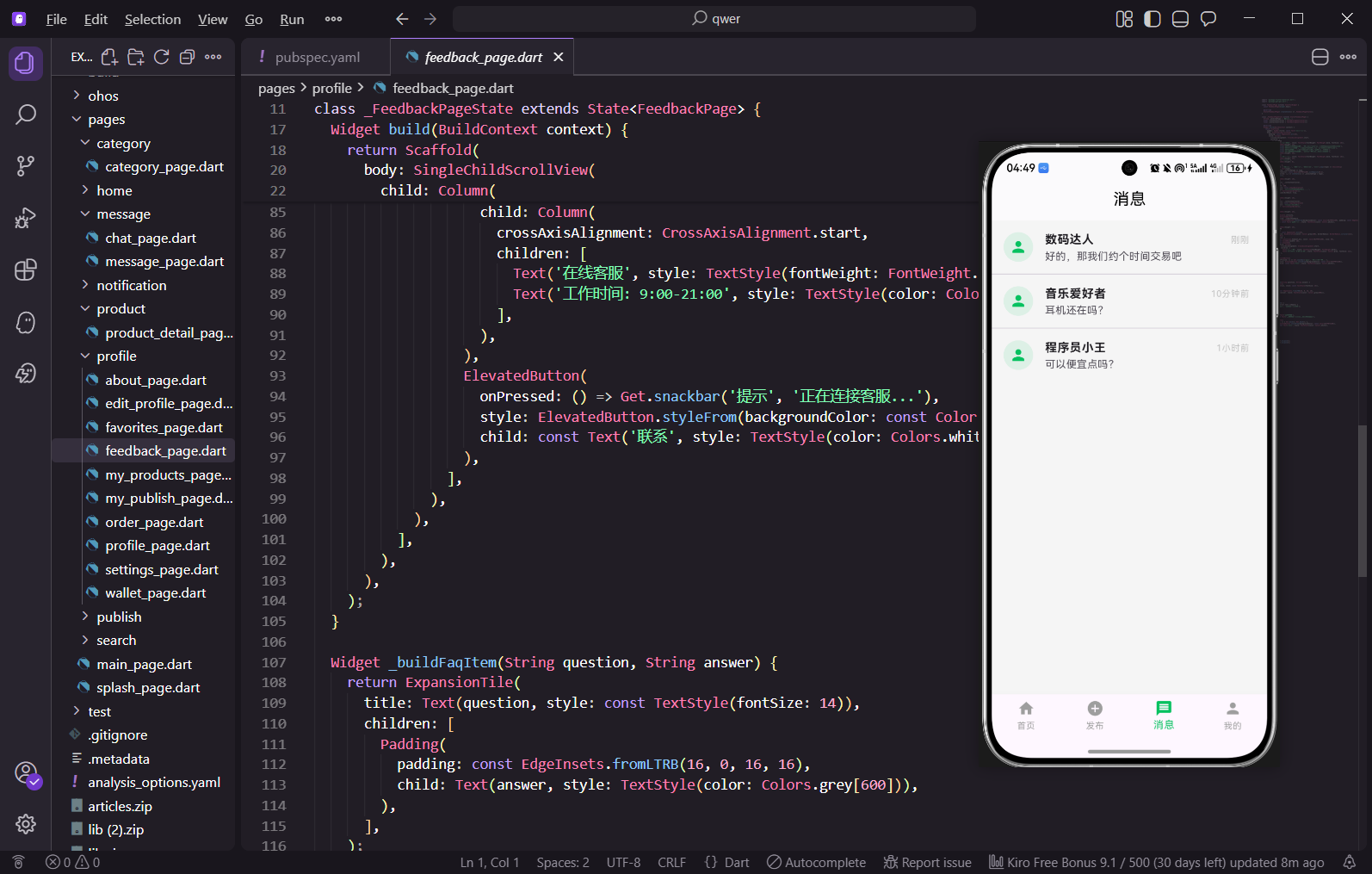
消息功能是二手交易App中买卖双方沟通的桥梁,买家询问商品详情、卖家回复问题、双方协商价格都在这里进行。今天我们来实现"闲置换"的消息列表页面,包括通知栏和会话列表。
消息页面的设计思路
消息页面分为两个部分:顶部是通知栏,展示收藏、点赞、评论、关注等系统通知的未读数量;下面是会话列表,展示和其他用户的聊天记录,按最后消息时间排序。这种设计把系统通知和私信分开,用户能快速找到想要的信息。
完整代码实现
import 'package:flutter/material.dart';
import 'package:get/get.dart';
import 'chat_page.dart';
class MessagePage extends StatefulWidget {
const MessagePage({super.key});
State<MessagePage> createState() => _MessagePageState();
}
class _MessagePageState extends State<MessagePage> {
final List<Map<String, dynamic>> _messages = [
{
'id': 1,
'name': '小明',
'avatar': 'M',
'lastMessage': '这个还在吗?',
'time': '10:30',
'unread': 2,
},
导入聊天页面用于点击会话后跳转进入详细对话。_messages是会话列表数据,每个会话包含id、用户名、头像(这里用首字母代替)、最后一条消息、时间、未读数量。用StatefulWidget是因为会话列表可能会动态更新,比如收到新消息时要刷新列表。实际项目中这些数据应该从后端接口获取,并且要实现实时更新,比如用WebSocket接收新消息推送。
    {
      'id': 2,
      'name': '小红',
      'avatar': 'H',
      'lastMessage': '可以便宜点吗?',
      'time': '昨天',
      'unread': 0,
    },
    {
      'id': 3,
      'name': '系统通知',
      'avatar': 'S',
      'lastMessage': '您的商品已被收藏',
      'time': '前天',
      'unread': 5,
    },
  ];
模拟了三个会话:小明有2条未读消息,小红的消息已读(unread为0),系统通知有5条未读。时间显示支持具体时间、昨天、前天等格式,实际项目中需要根据消息时间戳计算显示什么格式,今天的消息显示具体时间,昨天的显示"昨天",更早的显示日期。会话列表通常按最后消息时间倒序排列,最新的会话在最上面,方便用户找到最近的对话。
Widget build(BuildContext context) {
return Scaffold(
appBar: AppBar(
title: const Text('消息'),
actions: [
IconButton(
icon: const Icon(Icons.more_horiz),
onPressed: () {},
),
],
),
body: Column(
children: [
_buildNotificationBar(),
Expanded(
child: _messages.isEmpty
? _buildEmptyState()
: ListView.separated(
itemCount: _messages.length,
separatorBuilder: (_, __) => const Divider(height: 1, indent: 76),
itemBuilder: (context, index) => _buildMessageItem(_messages[index]),
),
),
],
),
);
}
页面结构用Column垂直排列通知栏和会话列表,通知栏固定在顶部,会话列表占据剩余空间可以滚动。会话列表用ListView.separated,separatorBuilder在每个会话之间添加分割线,indent: 76让分割线从头像右边开始,不会穿过头像区域,这是微信等主流App的做法。如果没有会话就显示空状态提示,有会话就显示列表。AppBar右边放更多按钮,可以弹出全部已读、清空消息等选项。
  Widget _buildNotificationBar() {
    return Container(
      padding: const EdgeInsets.symmetric(horizontal: 16, vertical: 12),
      color: Colors.white,
      child: Row(
        mainAxisAlignment: MainAxisAlignment.spaceAround,
        children: [
          _buildNotificationItem(Icons.favorite, '收藏', 3),
          _buildNotificationItem(Icons.thumb_up, '点赞', 5),
          _buildNotificationItem(Icons.comment, '评论', 2),
          _buildNotificationItem(Icons.person_add, '关注', 1),
        ],
      ),
    );
  }
通知栏用Row水平排列四种通知类型,spaceAround让它们均匀分布,每个通知项之间有相等的间距。每种通知显示图标、名称和未读数量,点击可以跳转到对应的通知详情页。这四种通知是二手交易App常见的互动类型:有人收藏了你的商品、有人点赞了你的动态、有人评论了你的商品、有人关注了你。通知栏让用户一眼就能看到有哪些新的互动。
  Widget _buildNotificationItem(IconData icon, String label, int count) {
    return Column(
      children: [
        Stack(
          children: [
            Container(
              width: 50,
              height: 50,
              decoration: BoxDecoration(
                color: const Color(0xFF07C160).withOpacity(0.1),
                borderRadius: BorderRadius.circular(12),
              ),
              child: Icon(icon, color: const Color(0xFF07C160)),
            ),
            if (count > 0)
              Positioned(
                right: 0,
                top: 0,
                child: Container(
                  padding: const EdgeInsets.all(4),
                  decoration: const BoxDecoration(
                    color: Colors.red,
                    shape: BoxShape.circle,
                  ),
                  child: Text(
                    count.toString(),
                    style: const TextStyle(color: Colors.white, fontSize: 10),
                  ),
                ),
              ),
          ],
        ),
        const SizedBox(height: 4),
        Text(label, style: const TextStyle(fontSize: 12)),
      ],
    );
  }
每个通知项是图标加文字的组合,图标放在浅绿色圆角方块里,用Stack在右上角叠加未读数量角标。角标只在有未读时显示(count > 0),红色圆形背景加白色数字,非常醒目能吸引用户注意。withOpacity(0.1)让背景色很淡,图标颜色用主题绿,整体风格统一协调。这种设计在各大App中都很常见,用户一眼就能理解每个图标的含义。
  Widget _buildEmptyState() {
    return Center(
      child: Column(
        mainAxisAlignment: MainAxisAlignment.center,
        children: [
          Icon(Icons.message_outlined, size: 80, color: Colors.grey[300]),
          const SizedBox(height: 16),
          Text('暂无消息', style: TextStyle(color: Colors.grey[500], fontSize: 16)),
        ],
      ),
    );
  }
空状态页面显示一个大图标和提示文字,告诉用户目前没有消息,这比什么都不显示要友好得多,用户知道这是正常状态而不是出错了。灰色调的设计不会太突兀,和整体风格协调。空状态设计是App体验的重要部分,好的空状态应该告诉用户为什么是空的、怎么才能有内容,比如可以加一个"去逛逛"按钮引导用户浏览商品。
  Widget _buildMessageItem(Map<String, dynamic> message) {
    return ListTile(
      onTap: () => Get.to(() => ChatPage(
        userId: message['id'],
        userName: message['name'],
      )),
      leading: CircleAvatar(
        backgroundColor: const Color(0xFF07C160),
        child: Text(
          message['avatar'],
          style: const TextStyle(color: Colors.white, fontWeight: FontWeight.bold),
        ),
      ),
      title: Row(
        children: [
          Text(message['name'], style: const TextStyle(fontWeight: FontWeight.w500)),
          const Spacer(),
          Text(
            message['time'],
            style: TextStyle(color: Colors.grey[500], fontSize: 12),
          ),
        ],
      ),
会话项用ListTile实现,点击跳转到聊天页面,传入用户id和用户名让聊天页知道是和谁对话。leading放头像,用CircleAvatar做成圆形,绿色背景加白色首字母,实际项目中应该显示用户的真实头像图片。title区域用Row排列用户名和时间,Spacer把它们撑到两端,用户名用粗体突出显示,时间用灰色小字不抢风头。
      subtitle: Row(
        children: [
          Expanded(
            child: Text(
              message['lastMessage'],
              style: TextStyle(color: Colors.grey[600]),
              overflow: TextOverflow.ellipsis,
            ),
          ),
          if (message['unread'] > 0)
            Container(
              padding: const EdgeInsets.symmetric(horizontal: 6, vertical: 2),
              decoration: BoxDecoration(
                color: Colors.red,
                borderRadius: BorderRadius.circular(10),
              ),
              child: Text(
                message['unread'].toString(),
                style: const TextStyle(color: Colors.white, fontSize: 10),
              ),
            ),
        ],
      ),
    );
  }
}
subtitle显示最后一条消息和未读数量,这两个信息帮助用户快速了解会话状态。消息文字用Expanded包裹并设置ellipsis,太长就显示省略号,避免把未读角标挤出去。未读角标用红色胶囊形状,和通知栏的角标风格一致,只在有未读消息时显示。ListTile是Flutter提供的列表项组件,内置了合理的间距和点击效果,用起来很方便,不需要自己处理点击态。
消息功能的扩展
实际项目中消息功能还需要这些能力:消息推送让用户不在App里时也能收到新消息通知;消息已读状态同步让用户在一个设备上读了消息其他设备上的未读数也要更新;会话置顶和删除让用户能管理自己的会话列表;消息搜索在大量会话中快速找到某个人或者某条消息。
小结
这篇实现了"闲置换"App的消息列表页面,包括四种通知类型的展示和会话列表。通知栏用角标显示未读数量,会话列表展示最后消息和时间。点击会话跳转到聊天页面进行详细对话。消息功能是买卖双方沟通的桥梁,做好消息体验能促进交易达成。
欢迎加入开源鸿蒙跨平台社区:https://openharmonycrossplatform.csdn.net

开源鸿蒙跨平台开发社区汇聚开发者与厂商,共建“一次开发,多端部署”的开源生态,致力于降低跨端开发门槛,推动万物智联创新。
更多推荐
 11
11 0
0- 0


 已为社区贡献51条内容

所有评论(0)