Flutter for OpenHarmony 万能游戏库App实战 - 瑞克和莫蒂地点列表实现
本文介绍了如何实现《瑞克和莫蒂》地点列表页面,包括分页加载、滚动监听和UI展示。通过Dart代码构建了一个信息丰富的地点列表,包含地点名称、类型、维度和居民数量等数据,并支持点击跳转详情页。主要功能点包括:使用AutomaticKeepAliveClientMixin保持状态、ListView实现分页加载、RefreshIndicator支持下拉刷新、Card组件展示地点信息,以及维度标签和居民统
瑞克和莫蒂中有许多有趣的地点,从地球到外星球。这篇文章我们来实现一个地点列表页面,包括地点信息展示、维度标签、居民数量统计、以及地点详情页面。通过这个功能,我们能展示如何构建一个信息丰富的列表页面。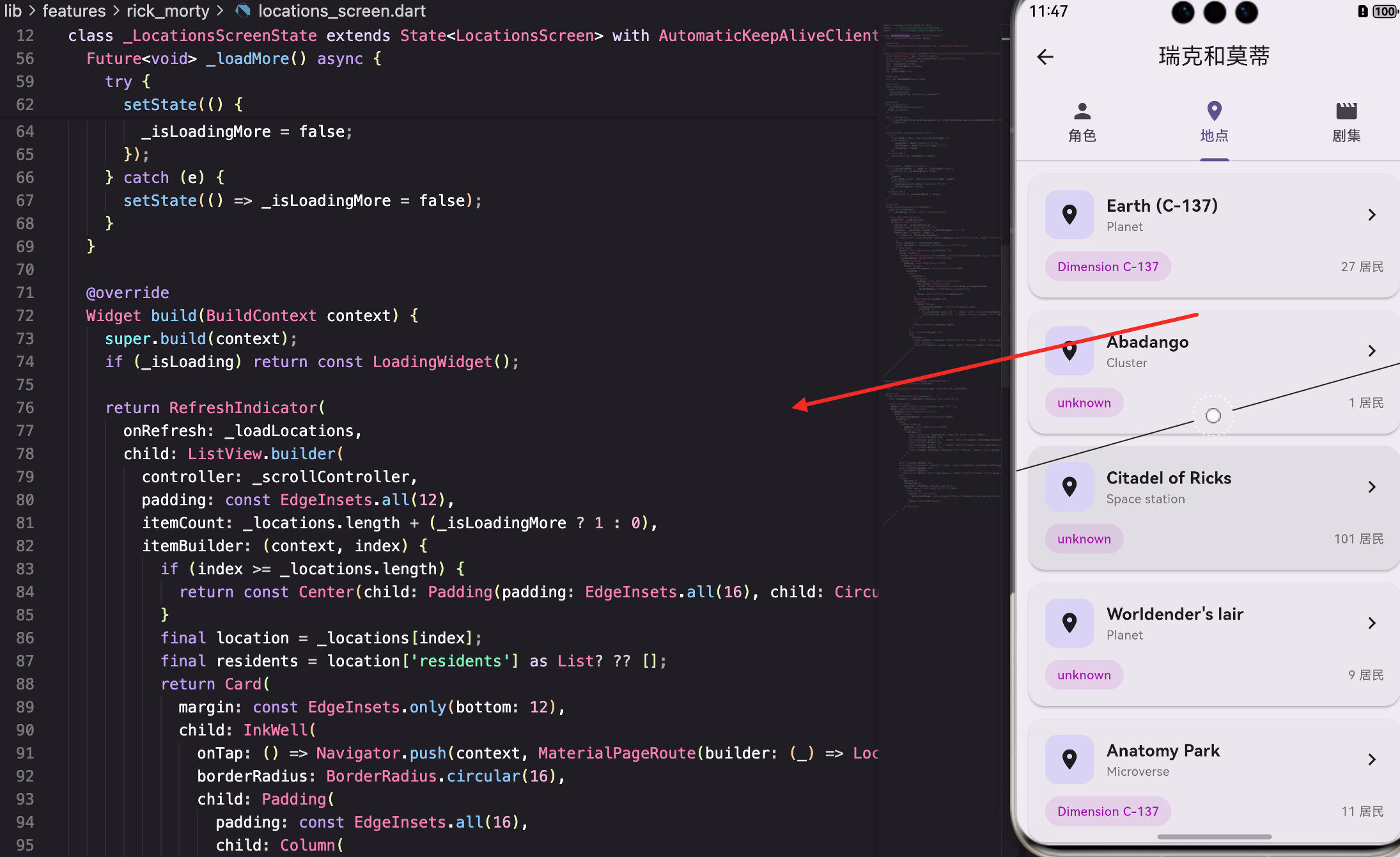
页面的基本结构
LocationsScreen是一个有状态的Widget,需要管理地点列表和分页:
class LocationsScreen extends StatefulWidget {
const LocationsScreen({super.key});
State<LocationsScreen> createState() => _LocationsScreenState();
}
class _LocationsScreenState extends State<LocationsScreen> with AutomaticKeepAliveClientMixin {
final RickMortyApi _api = RickMortyApi();
final ScrollController _scrollController = ScrollController();
List<dynamic> _locations = [];
bool _isLoading = true;
bool _isLoadingMore = false;
int _page = 1;
int _totalPages = 1;
bool get wantKeepAlive => true;
使用AutomaticKeepAliveClientMixin来保持Tab页面的状态。
_locations存储地点列表,_page和_totalPages用来管理分页。
初始化和滚动监听
initState中初始化数据和添加滚动监听:
void initState() {
super.initState();
_loadLocations();
_scrollController.addListener(_onScroll);
}
void dispose() {
_scrollController.dispose();
super.dispose();
}
void _onScroll() {
if (_scrollController.position.pixels >= _scrollController.position.maxScrollExtent - 200) {
_loadMore();
}
}
当用户滚动到距离底部200像素时,自动加载更多地点。
数据加载
_loadLocations方法加载初始数据:
  Future<void> _loadLocations() async {
    try {
      final data = await _api.getLocations(page: 1);
      setState(() {
        _locations = data['results'] ?? [];
        _totalPages = data['info']?['pages'] ?? 1;
        _isLoading = false;
      });
    } catch (e) {
      setState(() => _isLoading = false);
    }
  }
调用API获取地点列表。
从返回的data中提取results和pages信息。
_loadMore方法加载下一页:
  Future<void> _loadMore() async {
    if (_isLoadingMore || _page >= _totalPages) return;
    setState(() => _isLoadingMore = true);
    try {
      _page++;
      final data = await _api.getLocations(page: _page);
      setState(() {
        _locations.addAll(data['results'] ?? []);
        _isLoadingMore = false;
      });
    } catch (e) {
      setState(() => _isLoadingMore = false);
    }
  }
先检查是否已经在加载或已经到达最后一页。
页码加1后调用API获取下一页数据。
地点列表的UI
地点用ListView展示,支持下拉刷新:
Widget build(BuildContext context) {
super.build(context);
if (_isLoading) return const LoadingWidget();
return RefreshIndicator(
onRefresh: _loadLocations,
child: ListView.builder(
controller: _scrollController,
padding: const EdgeInsets.all(12),
itemCount: _locations.length + (_isLoadingMore ? 1 : 0),
itemBuilder: (context, index) {
if (index >= _locations.length) {
return const Center(child: Padding(padding: EdgeInsets.all(16), child: CircularProgressIndicator()));
}
final location = _locations[index];
final residents = location['residents'] as List? ?? [];
用RefreshIndicator包装ListView,支持下拉刷新。
itemCount加1是为了在加载更多时显示一个loading圈。
地点卡片
每个地点用一个Card展示:
          return Card(
            margin: const EdgeInsets.only(bottom: 12),
            child: InkWell(
              onTap: () => Navigator.push(context, MaterialPageRoute(builder: (_) => LocationDetailScreen(location: location))),
              borderRadius: BorderRadius.circular(16),
              child: Padding(
                padding: const EdgeInsets.all(16),
                child: Column(
                  crossAxisAlignment: CrossAxisAlignment.start,
                  children: [
                    Row(
                      children: [
                        Container(
                          padding: const EdgeInsets.all(12),
                          decoration: BoxDecoration(
                            color: Theme.of(context).colorScheme.primaryContainer,
                            borderRadius: BorderRadius.circular(12),
                          ),
                          child: const Icon(Icons.location_on),
                        ),
                        const SizedBox(width: 12),
                        Expanded(
                          child: Column(
                            crossAxisAlignment: CrossAxisAlignment.start,
                            children: [
                              Text(location['name'] ?? '', style: const TextStyle(fontWeight: FontWeight.bold, fontSize: 16)),
                              Text(location['type'] ?? '', style: TextStyle(color: Colors.grey[600], fontSize: 12)),
                            ],
                          ),
                        ),
                        const Icon(Icons.chevron_right),
                      ],
                    ),
卡片用Row布局,左边是位置图标,中间是地点信息,右边是箭头。
地点名称用加粗的大字体显示,类型用灰色小字体显示。
地点的维度和居民信息:
                    const SizedBox(height: 12),
                    Row(
                      children: [
                        TagChip(label: location['dimension'] ?? 'Unknown', color: Colors.purple),
                        const Spacer(),
                        Text('${residents.length} 居民', style: TextStyle(color: Colors.grey[600], fontSize: 12)),
                      ],
                    ),
维度用TagChip展示,这样能突出显示维度信息。
居民数量显示在右边。
地点详情页面
LocationDetailScreen展示地点的详细信息:
class LocationDetailScreen extends StatelessWidget {
final Map<String, dynamic> location;
const LocationDetailScreen({super.key, required this.location});
Widget build(BuildContext context) {
final residents = location['residents'] as List? ?? [];
return Scaffold(
appBar: AppBar(title: Text(location['name'] ?? '')),
body: SingleChildScrollView(
padding: const EdgeInsets.all(16),
child: Column(
crossAxisAlignment: CrossAxisAlignment.start,
children: [
Card(
child: Padding(
padding: const EdgeInsets.all(20),
child: Column(
children: [
const Icon(Icons.location_on, size: 64, color: Colors.blue),
const SizedBox(height: 16),
Text(location['name'] ?? '', style: Theme.of(context).textTheme.headlineSmall?.copyWith(fontWeight: FontWeight.bold), textAlign: TextAlign.center),
const SizedBox(height: 8),
Text(location['type'] ?? '', style: TextStyle(color: Colors.grey[600])),
const SizedBox(height: 16),
TagChip(label: location['dimension'] ?? 'Unknown', color: Colors.purple, selected: true),
],
),
),
),
页面顶部用一个Card展示地点的基本信息。
地点名称用headlineSmall样式,加粗显示。
维度用TagChip展示,selected: true表示这是一个选中的chip。
居民列表
地点的居民用Wrap展示:
            const SizedBox(height: 24),
            Text('居民 (${residents.length})', style: Theme.of(context).textTheme.titleLarge?.copyWith(fontWeight: FontWeight.bold)),
            const SizedBox(height: 12),
            if (residents.isEmpty)
              const Center(child: Text('暂无居民信息', style: TextStyle(color: Colors.grey)))
            else
              Wrap(
                spacing: 8,
                runSpacing: 8,
                children: residents.take(30).map((r) {
                  final id = r.toString().split('/').last;
                  return Chip(
                    avatar: CircleAvatar(
                      backgroundImage: NetworkImage('https://rickandmortyapi.com/api/character/avatar/$id.jpeg'),
                    ),
                    label: Text('角色 #$id'),
                  );
                }).toList(),
              ),
用Wrap展示居民,这样能自动换行。
只显示前30个居民。
每个居民用一个Chip展示,包含角色头像和ID。
头像从Rick and Morty API的CDN加载。
总结
这篇文章我们实现了一个地点列表页面。涉及到的知识点包括:
- 列表布局 - 使用ListView.builder实现高效的列表渲染
- 卡片设计 - 使用Card和Row实现清晰的信息展示
- 无限滚动加载 - 通过ScrollController监听滚动事件
- 下拉刷新 - 使用RefreshIndicator实现下拉刷新
- 详情页面 - 实现地点详情页面展示更多信息
- 网络图片加载 - 从API CDN加载角色头像
地点列表页面展示了如何构建一个信息丰富、交互流畅的列表页面。通过合理的布局、清晰的视觉设计、以及完善的交互,我们能为用户提供一个高效的浏览体验。
欢迎加入开源鸿蒙跨平台社区:https://openharmonycrossplatform.csdn.net

开源鸿蒙跨平台开发社区汇聚开发者与厂商,共建“一次开发,多端部署”的开源生态,致力于降低跨端开发门槛,推动万物智联创新。
更多推荐


 7
7 0
0- 0


 已为社区贡献12条内容

所有评论(0)