Flutter for OpenHarmony垃圾分类指南App实战:答题挑战实现
摘要:答题挑战功能通过交互式测试帮助用户检验垃圾分类知识掌握程度。页面设计包含进度条、题目展示、选项和下一题按钮,采用响应式UI自动更新状态。核心逻辑包括:初始化答题状态、实时计算进度、动态生成选项、延迟跳转结果页等。通过视觉层次设计(如题号与题目样式区分)和状态控制(如答完自动跳转)提升用户体验,最终得分将展示在结果页面。
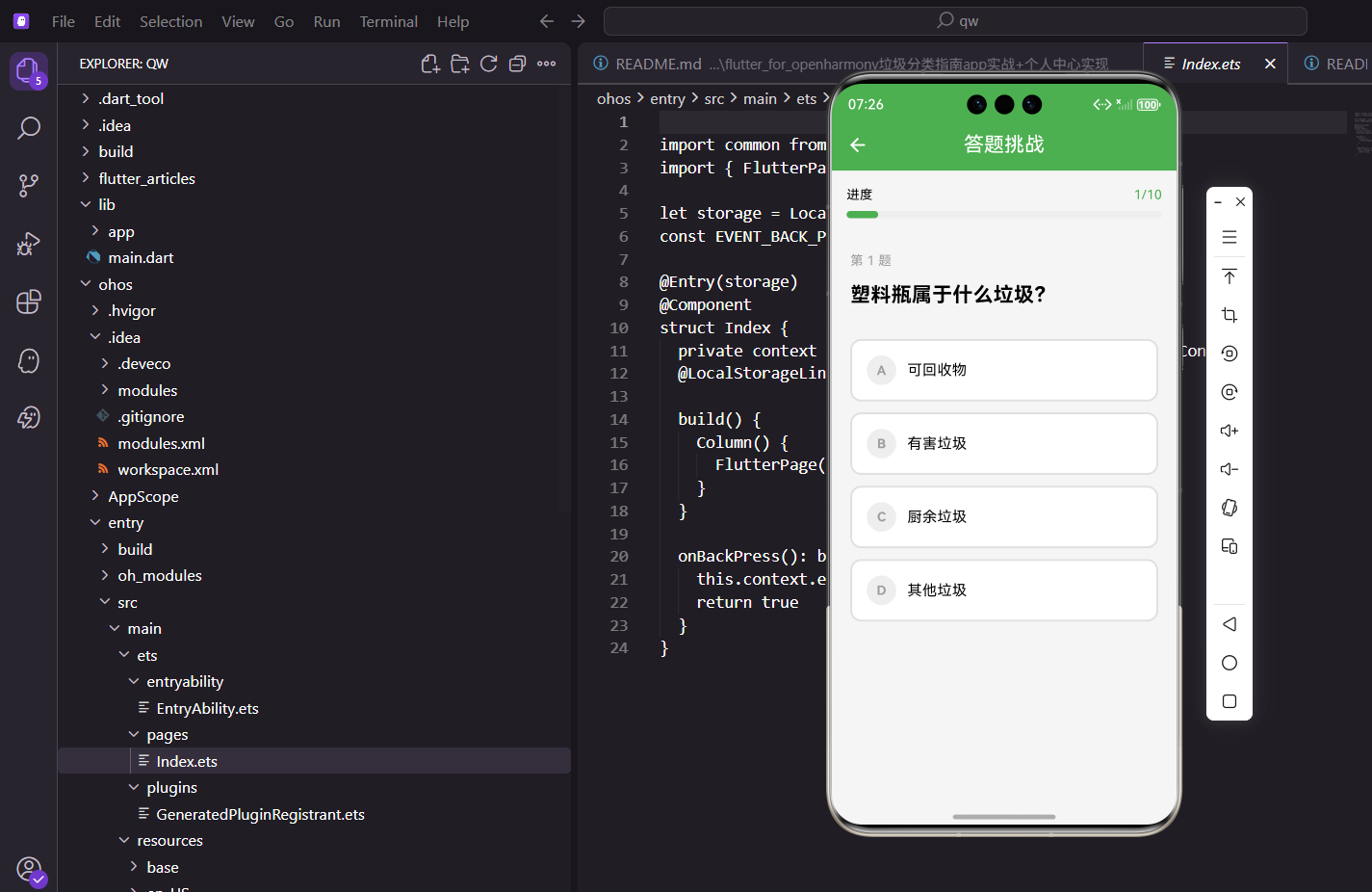
学了那么多垃圾分类知识,总得检验一下学习成果吧?答题挑战功能就是干这个的。用户可以通过答题来测试自己对垃圾分类的掌握程度,答对了有成就感,答错了也能学到新知识。
页面整体设计
答题页面的核心元素包括:顶部的进度条、题目内容、四个选项、以及底部的下一题按钮。整个流程是:显示题目 → 用户选择答案 → 显示对错 → 点击下一题 → 循环直到答完所有题目。
class QuizPage extends StatelessWidget {
const QuizPage({super.key});
Widget build(BuildContext context) {
// 获取答题相关的控制器
final controller = Get.find<GuideController>();
// 开始答题,重置状态
controller.startQuiz();
页面一进来就调用startQuiz()方法,这个方法会重置答题状态,比如当前题目索引归零、分数清零等。用StatelessWidget是因为所有状态都交给GuideController管理了。
为什么要在build方法里调用startQuiz()?这样每次进入答题页面都会重新开始,用户不会看到上次答题的残留状态。
响应式UI构建
整个页面用Obx包裹,这样当控制器里的状态变化时,UI会自动更新:
    return Scaffold(
      appBar: AppBar(
        title: const Text('答题挑战'),
        // 显示当前得分
        actions: [
          Center(
            child: Padding(
              padding: EdgeInsets.only(right: 16.w),
              child: Obx(() => Text(
                '得分: ${controller.quizScore.value}',
                style: TextStyle(fontSize: 16.sp),
              )),
            ),
          ),
        ],
      ),
      body: Obx(() {
        // 检查是否答完所有题目
        if (controller.quizCompleted.value) {
          // 使用addPostFrameCallback延迟导航
          WidgetsBinding.instance.addPostFrameCallback((_) {
            Get.offNamed(Routes.quizResult, arguments: controller.quizScore.value);
          });
          return const Center(child: CircularProgressIndicator());
        }
这里有个小技巧:当所有题目答完后,需要跳转到结果页。但不能直接在build方法里调用导航,因为build方法可能会被多次调用,而且在build过程中修改状态是不允许的。所以用addPostFrameCallback把导航操作延迟到当前帧渲染完成后执行。
为什么用offNamed而不是toNamed?
offNamed会把当前页面从栈里移除,这样用户在结果页点返回时不会回到答题页,而是回到更上一级。这符合用户的预期——答完题就结束了,不需要再回到答题页。
获取当前题目数据
        // 获取当前题目
        final question = controller.questions[controller.currentQuestionIndex.value];
        // 计算答题进度(0到1之间的小数)
        final progress = (controller.currentQuestionIndex.value + 1) / controller.questions.length;

        return Column(
          children: [
            // 进度条
            _buildProgress(controller, progress),
            // 题目和选项
            Expanded(
              child: Padding(
                padding: EdgeInsets.all(20.w),
progress是个0到1之间的小数,表示答题进度。比如总共10题,当前是第3题,那progress就是0.3。这个值会传给进度条组件。
题目显示区域
                child: Column(
                  crossAxisAlignment: CrossAxisAlignment.start,
                  children: [
                    // 题号
                    Text(
                      '第 ${controller.currentQuestionIndex.value + 1} 题 / 共 ${controller.questions.length} 题',
                      style: TextStyle(
                        fontSize: 14.sp,
                        color: Colors.grey,
                      ),
                    ),
                    SizedBox(height: 12.h),
                    // 题目内容
                    Text(
                      question['question'] as String,
                      style: TextStyle(
                        fontSize: 20.sp,
                        fontWeight: FontWeight.bold,
                        height: 1.5,
                      ),
                    ),
题号用灰色小字显示,题目内容用大号加粗字体,形成视觉层次。用户一眼就能看出哪个是主要内容。height: 1.5设置行高,让多行题目读起来更舒服。
选项列表生成
四个选项用List.generate动态生成:
                    SizedBox(height: 32.h),
                    // 生成四个选项
                    ...List.generate(4, (index) {
                      return _buildOption(controller, index, question);
                    }),
                  ],
                ),
              ),
            ),
            // 下一题按钮(选择答案后才显示)
            if (controller.showResult.value) _buildNextButton(controller),
          ],
        );
      }),
    );
  }
showResult控制下一题按钮的显示。用户选择答案后才会显示这个按钮,避免用户还没选就点下一题。
进度条组件
进度条让用户知道自己答了多少题,还剩多少:
Widget _buildProgress(GuideController controller, double progress) {
  return Container(
    padding: EdgeInsets.all(16.w),
    decoration: BoxDecoration(
      color: Colors.white,
      boxShadow: [
        BoxShadow(
          color: Colors.black.withOpacity(0.05),
          blurRadius: 4,
          offset: const Offset(0, 2),
        ),
      ],
    ),
    child: Column(
      children: [
        // 文字显示
        Row(
          mainAxisAlignment: MainAxisAlignment.spaceBetween,
          children: [
            Text(
              '答题进度',
              style: TextStyle(fontSize: 14.sp, color: Colors.grey),
            ),
            Text(
              '${(progress * 100).toInt()}%',
              style: TextStyle(
                fontSize: 14.sp,
                color: AppTheme.primaryColor,
                fontWeight: FontWeight.bold,
              ),
            ),
          ],
        ),
上面是文字显示"答题进度"和百分比,下面是可视化的进度条:
        SizedBox(height: 8.h),
        // 进度条
        ClipRRect(
          borderRadius: BorderRadius.circular(4.r),
          child: LinearProgressIndicator(
            value: progress,
            backgroundColor: Colors.grey.shade200,
            valueColor: AlwaysStoppedAnimation(AppTheme.primaryColor),
            minHeight: 8.h,
          ),
        ),
      ],
    ),
  );
}
用Flutter自带的LinearProgressIndicator实现进度条,ClipRRect给它加上圆角。minHeight设置进度条的高度。
选项按钮的实现
选项按钮是整个页面最复杂的部分,因为它有多种状态:未选中、已选中、答对、答错。
Widget _buildOption(
  GuideController controller,
  int index,
  Map<String, dynamic> question,
) {
  // 获取选项列表
  final options = question['options'] as List<String>;
  // 当前选项是否被选中
  final isSelected = controller.selectedAnswer.value == index;
  // 是否显示结果
  final showResult = controller.showResult.value;
  // 当前选项是否是正确答案
  final isCorrect = question['answer'] == index;
先把需要的数据都准备好:选项列表、当前选项是否被选中、是否显示结果、当前选项是否是正确答案。
然后根据这些状态决定背景色和边框色:
  // 默认样式
  Color bgColor = Colors.white;
  Color borderColor = Colors.grey.shade300;
  Color textColor = Colors.black87;

  if (showResult) {
    // 显示结果时的样式
    if (isCorrect) {
      // 正确答案:绿色
      bgColor = Colors.green.withOpacity(0.1);
      borderColor = Colors.green;
      textColor = Colors.green.shade700;
    } else if (isSelected && !isCorrect) {
      // 选错了:红色
      bgColor = Colors.red.withOpacity(0.1);
      borderColor = Colors.red;
      textColor = Colors.red.shade700;
    }
  } else if (isSelected) {
    // 选中但还没显示结果:主题色
    bgColor = AppTheme.primaryColor.withOpacity(0.1);
    borderColor = AppTheme.primaryColor;
    textColor = AppTheme.primaryColor;
  }
状态逻辑解释:
- 显示结果时,正确答案变绿色
- 显示结果时,如果用户选错了,选中的那个变红色
- 还没显示结果时,用户选中的选项变主题色
选项的UI结构
  return GestureDetector(
    // 只有在还没显示结果时才能点击
    onTap: showResult ? null : () => controller.selectQuizAnswer(index),
    child: Container(
      width: double.infinity,
      margin: EdgeInsets.only(bottom: 12.h),
      padding: EdgeInsets.all(16.w),
      decoration: BoxDecoration(
        color: bgColor,
        borderRadius: BorderRadius.circular(12.r),
        border: Border.all(color: borderColor, width: 2),
      ),
用GestureDetector包裹整个Container,这样点击任何位置都能触发选择。边框宽度设为2,让选中状态更明显。showResult为true时,onTap设为null,禁止再次点击。
选项内部是字母标识和选项文字:
      child: Row(
        children: [
          // 选项字母(A、B、C、D)
          Container(
            width: 32.w,
            height: 32.w,
            decoration: BoxDecoration(
              shape: BoxShape.circle,
              color: isSelected ? borderColor : Colors.grey.shade200,
            ),
            child: Center(
              child: Text(
                // 把0、1、2、3转换成A、B、C、D
                String.fromCharCode(65 + index),
                style: TextStyle(
                  color: isSelected ? Colors.white : Colors.grey,
                  fontWeight: FontWeight.bold,
                  fontSize: 14.sp,
                ),
              ),
            ),
          ),
String.fromCharCode(65 + index)把0、1、2、3转换成A、B、C、D。65是字母A的ASCII码。
最后是选项文字和对错图标:
          SizedBox(width: 12.w),
          // 选项文字
          Expanded(
            child: Text(
              options[index],
              style: TextStyle(
                fontSize: 16.sp,
                color: textColor,
              ),
            ),
          ),
          // 对错图标
          if (showResult && isCorrect)
            Icon(Icons.check_circle, color: Colors.green, size: 24.sp),
          if (showResult && isSelected && !isCorrect)
            Icon(Icons.cancel, color: Colors.red, size: 24.sp),
        ],
      ),
    ),
  );
}
显示结果时,正确答案后面会出现绿色对勾,错误选择后面会出现红色叉号。这种即时反馈能帮助用户记住正确答案。
下一题按钮
Widget _buildNextButton(GuideController controller) {
  // 判断是否是最后一题
  final isLastQuestion = controller.currentQuestionIndex.value >=
      controller.questions.length - 1;

  return Container(
    padding: EdgeInsets.all(16.w),
    decoration: BoxDecoration(
      color: Colors.white,
      boxShadow: [
        BoxShadow(
          color: Colors.black.withOpacity(0.05),
          blurRadius: 4,
          offset: const Offset(0, -2),
        ),
      ],
    ),
    child: SafeArea(
      child: SizedBox(
        width: double.infinity,
        child: ElevatedButton(
          onPressed: controller.nextQuestion,
          style: ElevatedButton.styleFrom(
            backgroundColor: AppTheme.primaryColor,
            padding: EdgeInsets.symmetric(vertical: 16.h),
            shape: RoundedRectangleBorder(
              borderRadius: BorderRadius.circular(12.r),
            ),
          ),
          child: Text(
            isLastQuestion ? '查看结果' : '下一题',
            style: TextStyle(
              fontSize: 16.sp,
              color: Colors.white,
              fontWeight: FontWeight.bold,
            ),
          ),
        ),
      ),
    ),
  );
}
按钮文字会根据是否是最后一题而变化。如果还有下一题就显示"下一题",如果是最后一题就显示"查看结果"。这种细节能让用户知道自己的进度。
SafeArea确保按钮不会被底部的安全区域遮挡(比如iPhone的Home Indicator)。
控制器的实现
class GuideController extends GetxController {
  // 题目列表
  final questions = <Map<String, dynamic>>[
    {
      'question': '塑料瓶属于什么垃圾?',
      'options': ['可回收物', '有害垃圾', '厨余垃圾', '其他垃圾'],
      'answer': 0,
    },
    {
      'question': '废电池属于什么垃圾?',
      'options': ['可回收物', '有害垃圾', '厨余垃圾', '其他垃圾'],
      'answer': 1,
    },
    {
      'question': '剩饭剩菜属于什么垃圾?',
      'options': ['可回收物', '有害垃圾', '厨余垃圾', '其他垃圾'],
      'answer': 2,
    },
    // ... 更多题目
  ];

  // 当前题目索引
  final currentQuestionIndex = 0.obs;
  // 当前得分
  final quizScore = 0.obs;
  // 用户选择的答案(-1表示未选择)
  final selectedAnswer = (-1).obs;
  // 是否显示结果
  final showResult = false.obs;
  // 是否答完所有题目
  final quizCompleted = false.obs;

  /// 开始答题,重置所有状态
  void startQuiz() {
    currentQuestionIndex.value = 0;
    quizScore.value = 0;
    selectedAnswer.value = -1;
    showResult.value = false;
    quizCompleted.value = false;
  }

  /// 选择答案
  void selectQuizAnswer(int index) {
    // 如果已经显示结果,不允许再选择
    if (showResult.value) return;

    selectedAnswer.value = index;
    showResult.value = true;

    // 判断是否答对
    final correctAnswer = questions[currentQuestionIndex.value]['answer'];
    if (index == correctAnswer) {
      quizScore.value += 10;  // 每题10分
    }
  }

  /// 下一题
  void nextQuestion() {
    if (currentQuestionIndex.value < questions.length - 1) {
      // 还有下一题
      currentQuestionIndex.value++;
      selectedAnswer.value = -1;
      showResult.value = false;
    } else {
      // 答完所有题目
      quizCompleted.value = true;
    }
  }
}
题目数据的扩展
实际项目中,题目数据可以从后端获取:
Future<void> loadQuestions() async {
  try {
    final response = await dio.get('/api/quiz/questions');
    questions.value = (response.data as List)
        .map((json) => Question.fromJson(json))
        .toList();
  } catch (e) {
    // 使用本地题库
    questions.value = localQuestions;
  }
}
也可以实现随机出题:
void startQuiz({int count = 10}) {
  // 从题库中随机选择指定数量的题目
  final shuffled = List.from(allQuestions)..shuffle();
  questions.value = shuffled.take(count).toList();
  // 重置状态
  currentQuestionIndex.value = 0;
  quizScore.value = 0;
  // ...
}
答题功能是个很好的互动形式,既能检验学习效果,又能增加App的趣味性。实现起来主要是状态管理要理清楚,UI部分反而不难。
欢迎加入开源鸿蒙跨平台社区:https://openharmonycrossplatform.csdn.net

开源鸿蒙跨平台开发社区汇聚开发者与厂商,共建“一次开发,多端部署”的开源生态,致力于降低跨端开发门槛,推动万物智联创新。
更多推荐
 25
25 0
0- 0


 已为社区贡献7条内容

所有评论(0)