Flutter for OpenHarmony二手物品置换App实战 - 项目初始化与主框架搭建
本文介绍了从零开始搭建二手交易App"闲置换"的基础框架,主要包括应用入口配置、主题设置和底部导航栏实现。使用Flutter作为开发框架,结合GetX进行路由和状态管理,采用flutter_screenutil实现屏幕适配,并利用convex_bottom_bar包创建中间凸起的底部导航栏效果。文章详细讲解了main.dart入口文件的全局配置、MainPage主框架页面的实现
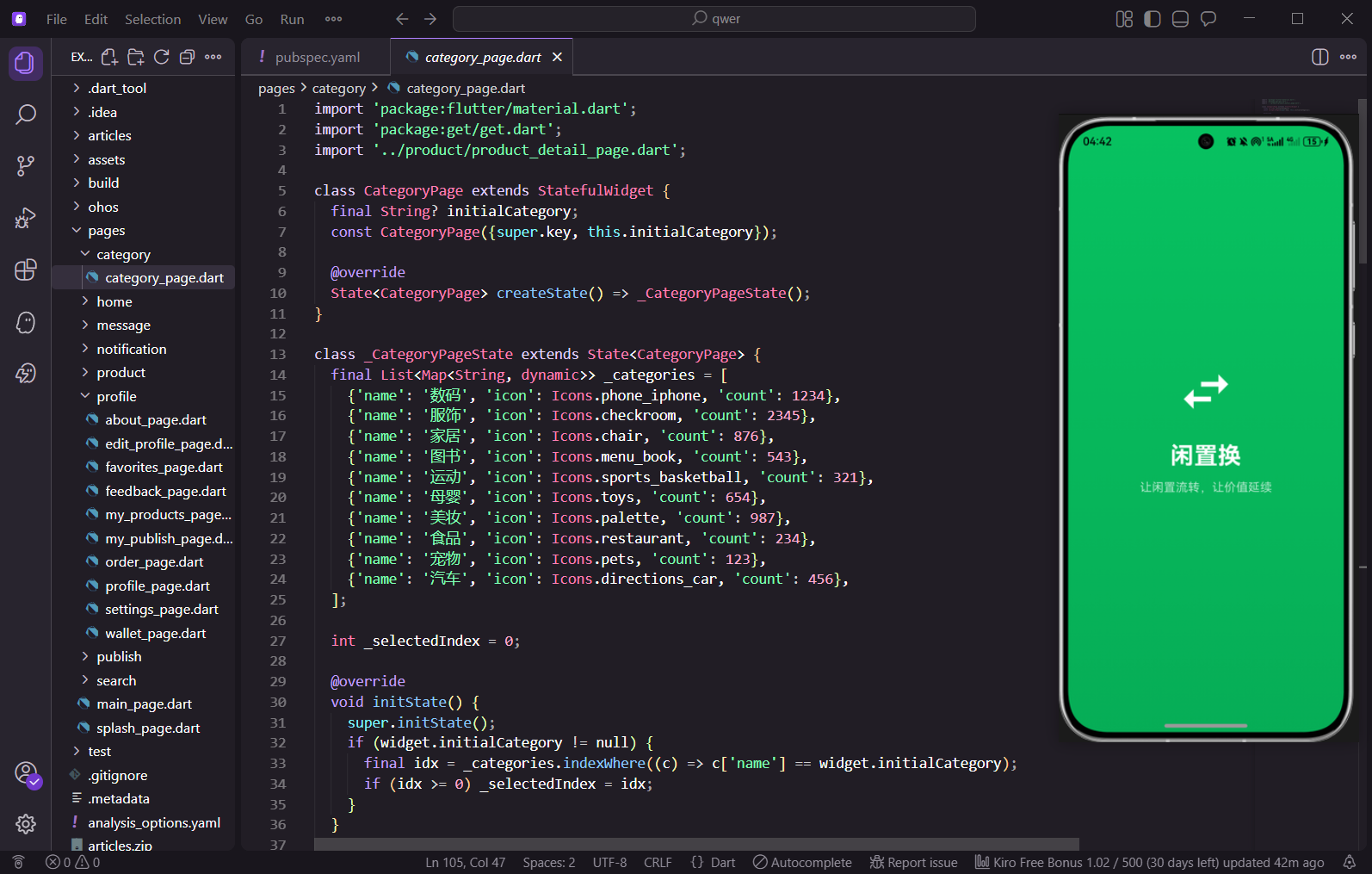
做二手交易类的App,第一步就是把项目骨架搭好。今天我们从零开始,把"闲置换"这个二手物品置换应用的基础框架给搭起来,包括应用入口配置、主题设置、还有那个中间凸起的底部导航栏。
先说说要做什么
咱们这个"闲置换"App主要有四个核心模块:首页浏览商品、发布闲置物品、消息聊天、个人中心。所以底部导航栏就是四个Tab,中间的"发布"按钮做成凸起的样式,这样用户一眼就能看到,方便快速发布闲置。
用到的技术栈也简单说一下:Flutter做跨平台UI,GetX处理路由和状态管理,flutter_screenutil做屏幕适配,convex_bottom_bar实现那个凸起的底部导航效果。
应用入口 main.dart
先看应用入口文件,这里主要做全局配置:
import 'package:flutter/material.dart';
import 'package:get/get.dart';
import 'package:flutter_screenutil/flutter_screenutil.dart';
import 'pages/splash_page.dart';

void main() {
  runApp(const MyApp());
}
开头导入必要的包,main函数是程序入口,runApp启动整个Flutter应用。这里用const修饰MyApp是个好习惯,能让Flutter在编译期就创建这个Widget,运行时性能更好。
class MyApp extends StatelessWidget {
const MyApp({super.key});
Widget build(BuildContext context) {
return ScreenUtilInit(
designSize: const Size(375, 812),
minTextAdapt: true,
builder: (context, child) {
return GetMaterialApp(
title: '闲置换',
debugShowCheckedModeBanner: false,
ScreenUtilInit是屏幕适配的初始化组件,designSize设成375x812是因为设计稿一般按iPhone X的尺寸来。minTextAdapt开启后文字大小也会跟着适配。
GetMaterialApp是GetX提供的,比原生MaterialApp多了路由管理和依赖注入的功能,用起来方便很多。debugShowCheckedModeBanner设成false把右上角那个碍眼的Debug标签去掉。
          theme: ThemeData(
            primarySwatch: Colors.green,
            primaryColor: const Color(0xFF07C160),
            scaffoldBackgroundColor: const Color(0xFFF5F5F5),
            appBarTheme: const AppBarTheme(
              backgroundColor: Colors.white,
              foregroundColor: Colors.black,
              elevation: 0.5,
              centerTitle: true,
            ),
          ),
          home: const SplashPage(),
        );
      },
    );
  }
}
主题配置这块,primaryColor用的是微信那个绿色0xFF07C160,做二手交易App用这个颜色挺合适,给人一种环保、清新的感觉。scaffoldBackgroundColor设成浅灰色,这样白色的卡片放上去就有层次感了。
appBarTheme统一配置所有页面顶部栏的样式:白底黑字、微弱阴影、标题居中。这样每个页面的AppBar风格就统一了,不用每次都写一遍。
home指向SplashPage,应用启动后先显示启动页,然后再跳到主页面。
主框架 main_page.dart
主框架页面是整个App的骨架,包含底部导航和四个主要页面的切换:
import 'package:flutter/material.dart';
import 'package:convex_bottom_bar/convex_bottom_bar.dart';
import 'home/home_page.dart';
import 'publish/publish_page.dart';
import 'message/message_page.dart';
import 'profile/profile_page.dart';
class MainPage extends StatefulWidget {
const MainPage({super.key});
State<MainPage> createState() => _MainPageState();
}
导入convex_bottom_bar这个包来实现中间凸起的导航栏效果。MainPage用StatefulWidget是因为要管理当前选中的Tab索引,点击不同Tab时需要更新状态。
class _MainPageState extends State<MainPage> {
  int _currentIndex = 0;

  final List<Widget> _pages = [
    const HomePage(),
    const PublishPage(),
    const MessagePage(),
    const ProfilePage(),
  ];
_currentIndex记录当前选中的是哪个Tab,默认是0也就是首页。_pages列表存放四个主要页面,顺序要和底部导航的Tab顺序对应。
这里用const修饰每个页面Widget,Flutter会复用这些实例而不是每次都重新创建,内存占用更小。
Widget build(BuildContext context) {
return Scaffold(
body: IndexedStack(
index: _currentIndex,
children: _pages,
),
IndexedStack是个很实用的组件,它会同时持有所有子页面,但只显示index指定的那个。好处是切换Tab时页面状态不会丢失,比如你在首页滚动到某个位置,切到消息页再切回来,滚动位置还在。
如果用普通的条件判断来切换页面,每次切换都会重建Widget,之前的状态就没了。
      bottomNavigationBar: ConvexAppBar(
        style: TabStyle.fixedCircle,
        backgroundColor: Colors.white,
        activeColor: const Color(0xFF07C160),
        color: Colors.grey,
        items: const [
          TabItem(icon: Icons.home, title: '首页'),
          TabItem(icon: Icons.add_circle, title: '发布'),
          TabItem(icon: Icons.message, title: '消息'),
          TabItem(icon: Icons.person, title: '我的'),
        ],
        initialActiveIndex: _currentIndex,
        onTap: (index) {
          setState(() {
            _currentIndex = index;
          });
        },
      ),
    );
  }
}
ConvexAppBar就是那个中间凸起的底部导航栏。style: TabStyle.fixedCircle让中间的"发布"按钮固定凸起,不管选中哪个Tab它都是凸起的状态。
backgroundColor设成白色,activeColor是选中时的颜色用主题绿,color是未选中时的灰色。
四个TabItem分别对应首页、发布、消息、我的。onTap回调里通过setState更新_currentIndex,触发UI重建,IndexedStack就会显示对应的页面。
启动页 splash_page.dart
启动页是用户打开App看到的第一个画面,一般展示Logo和品牌信息,同时可以做一些初始化工作:
import 'package:flutter/material.dart';
import 'package:get/get.dart';
import 'main_page.dart';
class SplashPage extends StatefulWidget {
const SplashPage({super.key});
State<SplashPage> createState() => _SplashPageState();
}
class _SplashPageState extends State<SplashPage> {
void initState() {
super.initState();
Future.delayed(const Duration(seconds: 2), () {
Get.off(() => const MainPage());
});
}
initState里用Future.delayed延迟2秒后跳转到主页面。Get.off是GetX的路由方法,跳转后会把当前页面从路由栈里移除,这样用户按返回键就不会回到启动页了。
实际项目中这2秒可以用来做一些初始化工作,比如检查登录状态、加载缓存数据、请求配置信息等。
Widget build(BuildContext context) {
return Scaffold(
body: Container(
decoration: const BoxDecoration(
gradient: LinearGradient(
begin: Alignment.topCenter,
end: Alignment.bottomCenter,
colors: [Color(0xFF07C160), Color(0xFF06AD56)],
),
),
启动页用渐变背景,从上到下由浅绿过渡到深绿,比纯色背景更有质感。LinearGradient的begin和end控制渐变方向。
        child: Center(
          child: Column(
            mainAxisAlignment: MainAxisAlignment.center,
            children: [
              Container(
                width: 100,
                height: 100,
                decoration: BoxDecoration(
                  color: Colors.white,
                  borderRadius: BorderRadius.circular(20),
                  boxShadow: [
                    BoxShadow(
                      color: Colors.black.withOpacity(0.2),
                      blurRadius: 20,
                      offset: const Offset(0, 10),
                    ),
                  ],
                ),
                child: const Icon(
                  Icons.swap_horiz,
                  size: 60,
                  color: Color(0xFF07C160),
                ),
              ),
Logo区域是一个白色圆角方块,里面放一个交换图标,寓意"闲置换"的交换概念。boxShadow给Logo加了个向下的阴影,让它看起来像是悬浮在背景上。
offset: const Offset(0, 10)让阴影向下偏移10像素,blurRadius: 20控制阴影的模糊程度。
              const SizedBox(height: 24),
              const Text(
                '闲置换',
                style: TextStyle(
                  fontSize: 32,
                  fontWeight: FontWeight.bold,
                  color: Colors.white,
                ),
              ),
              const SizedBox(height: 8),
              const Text(
                '让闲置流转,让价值延续',
                style: TextStyle(
                  fontSize: 16,
                  color: Colors.white70,
                ),
              ),
            ],
          ),
        ),
      ),
    );
  }
}
Logo下面是App名称和Slogan。名称用32号粗体白字,Slogan用16号半透明白字,形成主次分明的视觉层次。"让闲置流转,让价值延续"这句话点明了App的核心价值。
几个值得注意的点
关于IndexedStack和PageView的选择
IndexedStack适合Tab数量少、需要保持页面状态的场景。它的缺点是所有页面都会被创建并保持在内存中,如果页面很多或者很重,内存占用会比较大。
PageView支持滑动切换,但默认不保持页面状态。如果需要保持状态,要配合AutomaticKeepAliveClientMixin使用,稍微麻烦一点。
咱们这个App只有4个Tab,用IndexedStack完全没问题。
关于ConvexAppBar的其他样式
除了fixedCircle,ConvexAppBar还支持其他几种样式:react是选中哪个哪个凸起,reactCircle是选中的变成圆形凸起,textIn是文字在图标下方的凹槽里,flip切换时有翻转动画。
根据产品需求选择合适的样式就行,咱们用fixedCircle是因为"发布"功能比较重要,要一直突出显示。
关于主题配置
把通用样式放在ThemeData里统一配置是个好习惯。这样整个App的视觉风格就统一了,后期要改颜色或者样式也只需要改一个地方。
比如appBarTheme配置好之后,所有页面的AppBar默认就是白底黑字居中标题,不用每个页面都写一遍。
小结
这篇把"闲置换"App的基础框架搭好了:main.dart配置了应用入口和全局主题,main_page.dart实现了带凸起按钮的底部导航和页面切换,splash_page.dart做了一个简洁的启动页。
框架搭好之后,接下来就可以往里面填充具体的功能页面了。下一篇我们来实现首页的商品列表展示。
欢迎加入开源鸿蒙跨平台社区:https://openharmonycrossplatform.csdn.net

开源鸿蒙跨平台开发社区汇聚开发者与厂商,共建“一次开发,多端部署”的开源生态,致力于降低跨端开发门槛,推动万物智联创新。
更多推荐
 12
12 0
0- 0


 已为社区贡献61条内容

所有评论(0)