Flutter for OpenHarmony音乐播放器App实战:首页实现
本文介绍了音乐播放器App首页的实现方案,主要包括以下内容: 首页功能结构: 顶部搜索入口 Banner轮播区域 快捷功能入口 推荐歌单网格 热门歌手横向列表 新碟上架横向列表 核心技术: SingleChildScrollView实现页面滚动 GridView.builder构建网格布局 ListView.builder实现横向滚动 数据驱动UI构建方式 实现要点: 使用GetX进行页面导航 B
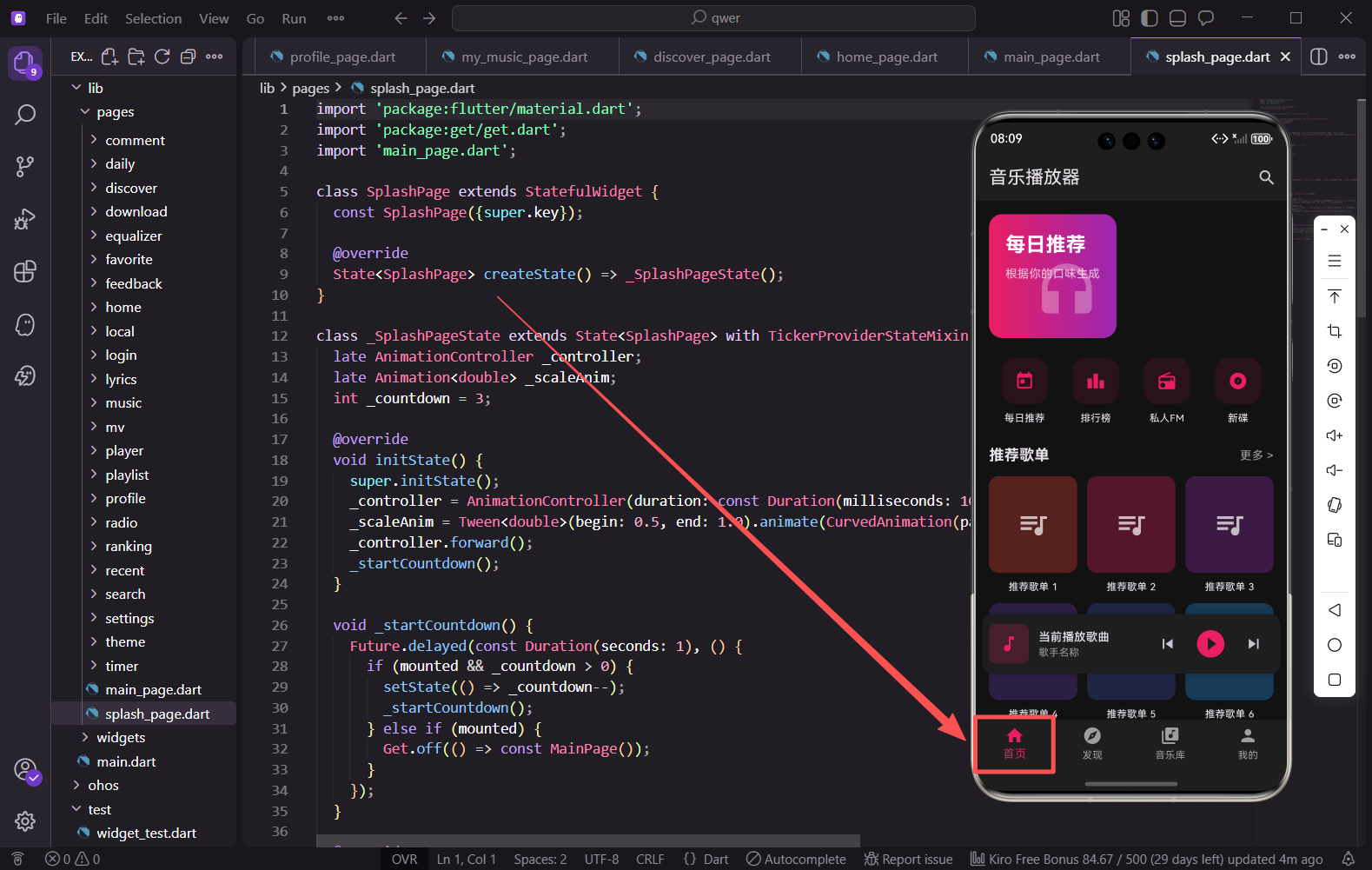
首页是用户进入App后看到的第一个内容页面,它需要展示最重要的信息和功能入口。音乐播放器的首页通常包含Banner轮播、快捷入口、推荐歌单、热门歌手、新碟上架等模块。本篇我们来实现一个功能丰富的首页。
功能分析
首页需要实现以下功能:顶部搜索入口、Banner区域展示每日推荐、快捷入口、推荐歌单网格展示、热门歌手横向滚动列表、新碟上架横向滚动列表。
核心技术点
本篇涉及的核心技术包括:SingleChildScrollView实现页面滚动、GridView.builder实现网格布局、ListView.builder实现横向滚动列表、数据驱动的UI构建方式。
对应代码文件
lib/pages/home/home_page.dart
完整代码实现
import 'package:flutter/material.dart';
import 'package:get/get.dart';
import '../search/search_page.dart';
import '../playlist/playlist_detail_page.dart';
import '../artist/artist_detail_page.dart';
import '../album/album_detail_page.dart';
import '../ranking/ranking_page.dart';
import '../daily/daily_recommend_page.dart';
class HomePage extends StatelessWidget {
const HomePage({super.key});
Widget build(BuildContext context) {
return Scaffold(
appBar: AppBar(
title: const Text('音乐播放器'),
actions: [
IconButton(
icon: const Icon(Icons.search),
onPressed: () => Get.to(() => const SearchPage()),
),
],
),
上面这段代码导入了必要的依赖和子页面。HomePage使用StatelessWidget因为不需要管理内部状态。AppBar右侧放置搜索按钮,点击后使用GetX导航到搜索页面。
      body: SingleChildScrollView(
        padding: const EdgeInsets.all(16),
        child: Column(
          crossAxisAlignment: CrossAxisAlignment.start,
          children: [
            _buildBanner(),
            const SizedBox(height: 24),
            _buildQuickActions(),
            const SizedBox(height: 24),
            _buildSection('推荐歌单', _buildPlaylistGrid()),
            const SizedBox(height: 24),
            _buildSection('热门歌手', _buildArtistList()),
            const SizedBox(height: 24),
            _buildSection('新碟上架', _buildAlbumList()),
            const SizedBox(height: 100),
          ],
        ),
      ),
    );
  }
SingleChildScrollView包裹Column实现整体滚动。padding设置16像素内边距,crossAxisAlignment设为start让内容左对齐。底部留100像素空间避免被迷你播放器遮挡。
  Widget _buildBanner() {
    return GestureDetector(
      onTap: () => Get.to(() => const DailyRecommendPage()),
      child: Container(
        height: 160,
        decoration: BoxDecoration(
          borderRadius: BorderRadius.circular(16),
          gradient: const LinearGradient(
            begin: Alignment.topLeft,
            end: Alignment.bottomRight,
            colors: [Color(0xFFE91E63), Color(0xFF9C27B0)],
          ),
          boxShadow: [
            BoxShadow(
              color: const Color(0xFFE91E63).withOpacity(0.3),
              blurRadius: 15,
              offset: const Offset(0, 8),
            ),
          ],
        ),
Banner是首页的视觉焦点,高度160像素,使用16像素圆角。渐变从粉色到紫色与App主题一致,boxShadow添加粉色阴影让Banner有悬浮效果。点击跳转到每日推荐页面。
        child: Stack(
          children: [
            Positioned(
              right: 20,
              bottom: 20,
              child: Icon(
                Icons.headphones,
                size: 100,
                color: Colors.white.withOpacity(0.2),
              ),
            ),
            Padding(
              padding: const EdgeInsets.all(20),
              child: Column(
                crossAxisAlignment: CrossAxisAlignment.start,
                children: [
                  Container(
                    padding: const EdgeInsets.symmetric(horizontal: 8, vertical: 4),
                    decoration: BoxDecoration(
                      color: Colors.white.withOpacity(0.2),
                      borderRadius: BorderRadius.circular(12),
                    ),
                    child: const Text(
                      '每日推荐',
                      style: TextStyle(color: Colors.white, fontSize: 12),
                    ),
                  ),
Stack叠加背景装饰图标和文字内容。Positioned将耳机图标定位在右下角作为装饰,使用20%透明度不抢夺视觉焦点。标签使用半透明白色背景的胶囊形状。
                  const SizedBox(height: 12),
                  const Text(
                    '发现你的专属音乐',
                    style: TextStyle(
                      color: Colors.white,
                      fontSize: 24,
                      fontWeight: FontWeight.bold,
                    ),
                  ),
                  const SizedBox(height: 8),
                  const Text(
                    '根据你的口味,每天为你推荐30首歌曲',
                    style: TextStyle(color: Colors.white70, fontSize: 14),
                  ),
                ],
              ),
            ),
          ],
        ),
      ),
    );
  }
主标题使用24像素粗体白色大字,副标题使用白色70%透明度形成主次层次。SizedBox添加固定间距让布局整齐。
  Widget _buildQuickActions() {
    final actions = [
      {
        'icon': Icons.today,
        'label': '每日推荐',
        'color': const Color(0xFFE91E63),
        'onTap': () => Get.to(() => const DailyRecommendPage()),
      },
      {
        'icon': Icons.leaderboard,
        'label': '排行榜',
        'color': const Color(0xFF9C27B0),
        'onTap': () => Get.to(() => const RankingPage()),
      },
      {
        'icon': Icons.radio,
        'label': '私人FM',
        'color': const Color(0xFF2196F3),
        'onTap': () {},
      },
      {
        'icon': Icons.album,
        'label': '新碟',
        'color': const Color(0xFF4CAF50),
        'onTap': () {},
      },
    ];
快捷入口使用数据驱动方式构建,每个入口包含图标、文字、颜色和点击回调。这种方式让代码更易维护,添加或修改入口只需修改数据即可。
    return Row(
      mainAxisAlignment: MainAxisAlignment.spaceAround,
      children: actions.map((action) {
        return GestureDetector(
          onTap: action['onTap'] as VoidCallback,
          child: Column(
            children: [
              Container(
                width: 56,
                height: 56,
                decoration: BoxDecoration(
                  color: (action['color'] as Color).withOpacity(0.1),
                  borderRadius: BorderRadius.circular(16),
                ),
                child: Icon(
                  action['icon'] as IconData,
                  color: action['color'] as Color,
                  size: 28,
                ),
              ),
              const SizedBox(height: 8),
              Text(
                action['label'] as String,
                style: const TextStyle(fontSize: 12),
              ),
            ],
          ),
        );
      }).toList(),
    );
  }
Row的spaceAround让入口均匀分布。每个入口使用不同颜色增加视觉区分度,图标背景使用10%透明度的对应颜色。
  Widget _buildSection(String title, Widget child) {
    return Column(
      crossAxisAlignment: CrossAxisAlignment.start,
      children: [
        Row(
          mainAxisAlignment: MainAxisAlignment.spaceBetween,
          children: [
            Text(
              title,
              style: const TextStyle(
                fontSize: 18,
                fontWeight: FontWeight.bold,
              ),
            ),
            GestureDetector(
              onTap: () {},
              child: const Row(
                children: [
                  Text(
                    '更多',
                    style: TextStyle(color: Colors.grey, fontSize: 14),
                  ),
                  Icon(Icons.chevron_right, color: Colors.grey, size: 20),
                ],
              ),
            ),
          ],
        ),
        const SizedBox(height: 12),
        child,
      ],
    );
  }
通用Section组件封装标题行和内容区域,避免重复代码。标题行左侧显示标题,右侧显示"更多"按钮,让页面结构更清晰。
  Widget _buildPlaylistGrid() {
    return GridView.builder(
      shrinkWrap: true,
      physics: const NeverScrollableScrollPhysics(),
      gridDelegate: const SliverGridDelegateWithFixedCrossAxisCount(
        crossAxisCount: 3,
        childAspectRatio: 0.75,
        crossAxisSpacing: 12,
        mainAxisSpacing: 12,
      ),
      itemCount: 6,
      itemBuilder: (context, index) {
        return GestureDetector(
          onTap: () => Get.to(() => PlaylistDetailPage(id: index)),
          child: Column(
            crossAxisAlignment: CrossAxisAlignment.start,
            children: [
              Expanded(
                child: Container(
                  decoration: BoxDecoration(
                    borderRadius: BorderRadius.circular(12),
                    color: Colors.primaries[index % Colors.primaries.length]
                        .withOpacity(0.3),
                  ),
GridView.builder的shrinkWrap让高度自适应内容,NeverScrollableScrollPhysics禁用内部滚动。gridDelegate配置3列、0.75宽高比、12像素间距。
                  child: Stack(
                    children: [
                      const Center(
                        child: Icon(
                          Icons.queue_music,
                          size: 40,
                          color: Colors.white70,
                        ),
                      ),
                      Positioned(
                        top: 4,
                        right: 4,
                        child: Container(
                          padding: const EdgeInsets.symmetric(
                            horizontal: 6,
                            vertical: 2,
                          ),
                          decoration: BoxDecoration(
                            color: Colors.black45,
                            borderRadius: BorderRadius.circular(8),
                          ),
                          child: Row(
                            mainAxisSize: MainAxisSize.min,
                            children: [
                              const Icon(
                                Icons.play_arrow,
                                size: 12,
                                color: Colors.white,
                              ),
                              Text(
                                '${(index + 1) * 10}万',
                                style: const TextStyle(
                                  color: Colors.white,
                                  fontSize: 10,
                                ),
                              ),
                            ],
                          ),
                        ),
                      ),
                    ],
                  ),
                ),
              ),
              const SizedBox(height: 8),
              Text(
                '推荐歌单 ${index + 1}',
                style: const TextStyle(fontSize: 12),
                maxLines: 2,
                overflow: TextOverflow.ellipsis,
              ),
            ],
          ),
        );
      },
    );
  }
每个歌单项包含封面和标题,封面右上角显示播放量。Stack叠加音乐图标和播放量角标,Positioned精确定位角标位置。
  Widget _buildArtistList() {
    return SizedBox(
      height: 110,
      child: ListView.builder(
        scrollDirection: Axis.horizontal,
        itemCount: 10,
        itemBuilder: (context, index) {
          return GestureDetector(
            onTap: () => Get.to(() => ArtistDetailPage(id: index)),
            child: Container(
              width: 80,
              margin: const EdgeInsets.only(right: 16),
              child: Column(
                children: [
                  Container(
                    width: 64,
                    height: 64,
                    decoration: BoxDecoration(
                      shape: BoxShape.circle,
                      color: Colors.primaries[index % Colors.primaries.length]
                          .withOpacity(0.3),
                      border: Border.all(
                        color: const Color(0xFFE91E63).withOpacity(0.3),
                        width: 2,
                      ),
                    ),
                    child: const Icon(
                      Icons.person,
                      color: Colors.white70,
                      size: 32,
                    ),
                  ),
SizedBox固定高度110像素,scrollDirection设为Axis.horizontal实现横向滚动。每个歌手项宽80像素,圆形头像使用粉色边框与主题色呼应。
                  const SizedBox(height: 8),
                  Text(
                    '歌手 ${index + 1}',
                    style: const TextStyle(fontSize: 12),
                    maxLines: 1,
                    overflow: TextOverflow.ellipsis,
                    textAlign: TextAlign.center,
                  ),
                  Text(
                    '${(index + 1) * 50}首',
                    style: const TextStyle(
                      fontSize: 10,
                      color: Colors.grey,
                    ),
                  ),
                ],
              ),
            ),
          );
        },
      ),
    );
  }
歌手名和歌曲数量显示在头像下方,maxLines和overflow确保文字过长时显示省略号。歌曲数量使用灰色小字作为辅助信息。
  Widget _buildAlbumList() {
    return SizedBox(
      height: 180,
      child: ListView.builder(
        scrollDirection: Axis.horizontal,
        itemCount: 10,
        itemBuilder: (context, index) {
          return GestureDetector(
            onTap: () => Get.to(() => AlbumDetailPage(id: index)),
            child: Container(
              width: 130,
              margin: const EdgeInsets.only(right: 12),
              child: Column(
                crossAxisAlignment: CrossAxisAlignment.start,
                children: [
                  Container(
                    height: 130,
                    decoration: BoxDecoration(
                      borderRadius: BorderRadius.circular(12),
                      color: Colors.primaries[index % Colors.primaries.length]
                          .withOpacity(0.3),
                      boxShadow: [
                        BoxShadow(
                          color: Colors.black.withOpacity(0.1),
                          blurRadius: 8,
                          offset: const Offset(0, 4),
                        ),
                      ],
                    ),
新碟列表高度180像素,每个专辑项宽130像素。封面区域高130像素,添加阴影增加立体感。
                    child: Stack(
                      children: [
                        const Center(
                          child: Icon(
                            Icons.album,
                            size: 50,
                            color: Colors.white70,
                          ),
                        ),
                        Positioned(
                          bottom: 8,
                          right: 8,
                          child: Container(
                            width: 32,
                            height: 32,
                            decoration: const BoxDecoration(
                              shape: BoxShape.circle,
                              color: Color(0xFFE91E63),
                            ),
                            child: const Icon(
                              Icons.play_arrow,
                              color: Colors.white,
                              size: 20,
                            ),
                          ),
                        ),
                      ],
                    ),
                  ),
                  const SizedBox(height: 8),
                  Text(
                    '专辑 ${index + 1}',
                    style: const TextStyle(fontSize: 13),
                    maxLines: 1,
                    overflow: TextOverflow.ellipsis,
                  ),
                  Text(
                    '歌手 ${index + 1}',
                    style: const TextStyle(
                      fontSize: 11,
                      color: Colors.grey,
                    ),
                    maxLines: 1,
                    overflow: TextOverflow.ellipsis,
                  ),
                ],
              ),
            ),
          );
        },
      ),
    );
  }
}
封面右下角有粉色圆形播放按钮,是整个专辑项的视觉焦点。下方显示专辑名和歌手名,歌手名使用灰色小字作为辅助信息。
GridView与ListView对比
GridView适合展示网格布局的内容,如歌单封面、图片墙等。ListView适合展示列表形式的内容,设置scrollDirection为Axis.horizontal可实现横向滚动。两者都支持builder模式实现懒加载,只构建可见区域的项目,提升性能。
数据驱动UI的优势
使用List或Map存储数据,通过map方法遍历生成Widget,这种方式让代码更易维护。添加、删除或修改内容只需修改数据源,不需要改动UI构建逻辑。这也是Flutter推荐的声明式UI编程方式。
小结
本篇实现了音乐播放器的首页,通过SingleChildScrollView实现页面滚动,使用GridView和ListView分别展示网格和列表内容。抽取通用的Section组件减少重复代码,使用数据驱动的方式构建快捷入口。首页包含Banner、快捷入口、推荐歌单、热门歌手、新碟上架等模块,为用户提供丰富的内容入口。
欢迎加入开源鸿蒙跨平台社区:https://openharmonycrossplatform.csdn.net

开源鸿蒙跨平台开发社区汇聚开发者与厂商,共建“一次开发,多端部署”的开源生态,致力于降低跨端开发门槛,推动万物智联创新。
更多推荐
 14
14 0
0- 0


 已为社区贡献59条内容

所有评论(0)