Flutter for OpenHarmony 身体健康状况记录App实战 - 首页仪表盘实现
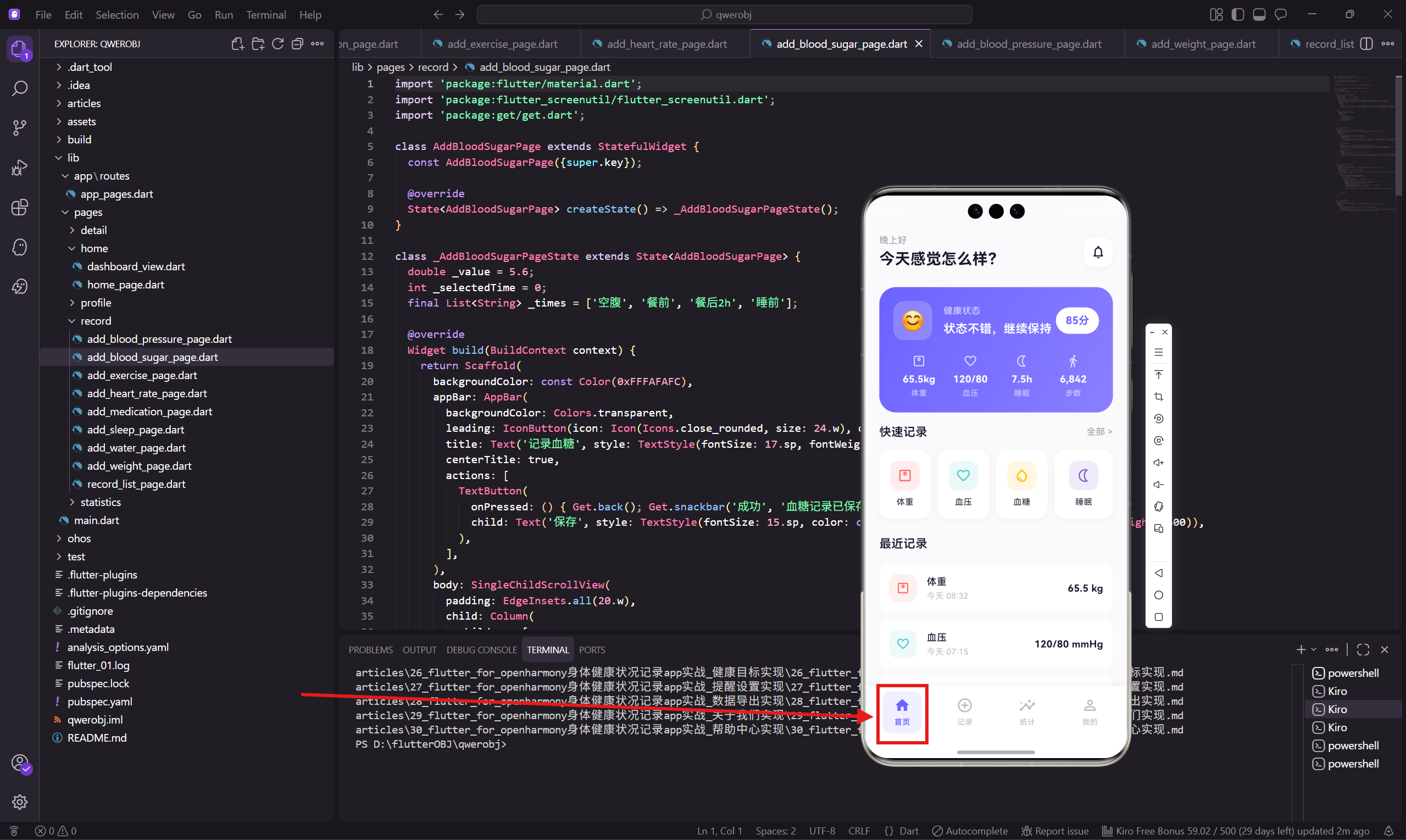
本文介绍了如何从零开始实现一个健康类App的首页仪表盘界面。文章详细讲解了使用Flutter框架构建页面的关键步骤,包括项目依赖配置、整体页面结构设计,以及各个功能模块的具体实现方法。 主要内容包括: 使用flutter_screenutil进行屏幕适配,确保界面在不同设备上显示一致 采用CustomScrollView配合Sliver系列组件构建高性能滚动页面 实现动态问候语功能,根据时间自动切
#
前言
在健康类App中,首页仪表盘承担着信息聚合和快速入口的重要职责。用户打开App第一眼看到的就是这个界面,所以我们需要在有限的屏幕空间内,展示最关键的健康数据,同时提供便捷的操作入口。
这篇文章会带你从零开始,一步步实现一个功能完整、视觉美观的健康仪表盘页面。我们会用到 flutter_screenutil 做屏幕适配,用 GetX 处理路由跳转。
项目依赖配置
开始写代码之前,先确认 pubspec.yaml 里已经添加了必要的依赖:
dependencies:
  flutter_screenutil: ^5.9.0
  get: ^4.6.5
flutter_screenutil 这个库在鸿蒙设备适配上表现不错,能帮我们处理不同屏幕尺寸的适配问题。.w、.h、.sp、.r 这些扩展方法用起来很顺手。
页面整体结构
首页仪表盘采用 CustomScrollView 配合 Sliver 系列组件来构建,这样做的好处是滚动性能更好,而且可以灵活组合不同类型的列表项。
class DashboardView extends StatelessWidget {
const DashboardView({super.key});
Widget build(BuildContext context) {
return Scaffold(
backgroundColor: const Color(0xFFFAFAFC),
body: SafeArea(
child: CustomScrollView(
slivers: [
SliverToBoxAdapter(child: _buildGreeting()),
SliverToBoxAdapter(child: _buildTodayCard()),
SliverToBoxAdapter(child: _buildQuickEntry()),
SliverToBoxAdapter(child: _buildRecentTitle()),
SliverList(
delegate: SliverChildBuilderDelegate(
(context, index) => _buildRecentItem(index),
childCount: 5,
),
),
SliverToBoxAdapter(child: SizedBox(height: 100.h)),
],
),
),
);
}
}
这里用了浅灰色 #FAFAFC 作为背景色,视觉上比纯白更柔和一些。SafeArea 包裹整个内容区域,避免被状态栏或底部导航遮挡。
最后那个 SizedBox(height: 100.h) 是给底部导航栏留出空间,不然最后一条记录会被挡住。
问候语模块
问候语会根据当前时间自动切换,早上显示"早上好",下午显示"下午好",晚上显示"晚上好"。这个小细节能让用户感觉App更有温度。
Widget _buildGreeting() {
  final hour = DateTime.now().hour;
  String greeting = hour < 12 ? '早上好' : (hour < 18 ? '下午好' : '晚上好');

  return Padding(
    padding: EdgeInsets.fromLTRB(20.w, 16.h, 20.w, 8.h),
    child: Row(
      mainAxisAlignment: MainAxisAlignment.spaceBetween,
      children: [
        Column(
          crossAxisAlignment: CrossAxisAlignment.start,
          children: [
            Text(greeting, style: TextStyle(fontSize: 13.sp, color: Colors.grey[500])),
            SizedBox(height: 2.h),
            Text('今天感觉怎么样?', style: TextStyle(
              fontSize: 22.sp,
              fontWeight: FontWeight.w700,
              color: const Color(0xFF1A1A2E)
            )),
          ],
        ),
        GestureDetector(
          onTap: () => Get.toNamed('/reminder-settings'),
          child: Container(
            padding: EdgeInsets.all(10.w),
            decoration: BoxDecoration(
              color: Colors.white,
              borderRadius: BorderRadius.circular(14.r),
              boxShadow: [BoxShadow(
                color: Colors.black.withOpacity(0.04),
                blurRadius: 8,
                offset: const Offset(0, 2)
              )],
            ),
            child: Icon(Icons.notifications_none_rounded, size: 22.w, color: const Color(0xFF1A1A2E)),
          ),
        ),
      ],
    ),
  );
}
右上角放了一个通知图标,点击可以跳转到提醒设置页面。图标外面套了一层白色容器,加上轻微的阴影,看起来像是浮在页面上的按钮。
DateTime.now().hour 获取当前小时数,用简单的三元表达式判断时间段。这种写法比 if-else 更简洁。
健康状态卡片
这是整个页面的视觉焦点,用渐变背景突出显示。卡片里包含健康评分、状态描述,以及体重、血压、睡眠、步数四个核心指标。
Widget _buildTodayCard() {
  return Container(
    margin: EdgeInsets.symmetric(horizontal: 20.w, vertical: 16.h),
    padding: EdgeInsets.all(20.w),
    decoration: BoxDecoration(
      gradient: const LinearGradient(
        begin: Alignment.topLeft,
        end: Alignment.bottomRight,
        colors: [Color(0xFF6C63FF), Color(0xFF8B7FFF)],
      ),
      borderRadius: BorderRadius.circular(24.r),
    ),
    child: Column(
      children: [
        Row(
          children: [
            Container(
              width: 56.w,
              height: 56.w,
              decoration: BoxDecoration(
                color: Colors.white.withOpacity(0.2),
                borderRadius: BorderRadius.circular(16.r),
              ),
              child: Center(
                child: Text('😊', style: TextStyle(fontSize: 28.sp)),
              ),
            ),
            SizedBox(width: 16.w),
            Expanded(
              child: Column(
                crossAxisAlignment: CrossAxisAlignment.start,
                children: [
                  Text('健康状态', style: TextStyle(fontSize: 13.sp, color: Colors.white70)),
                  SizedBox(height: 4.h),
                  Text('状态不错,继续保持', style: TextStyle(
                    fontSize: 17.sp,
                    fontWeight: FontWeight.w600,
                    color: Colors.white
                  )),
                ],
              ),
            ),
            Container(
              padding: EdgeInsets.symmetric(horizontal: 14.w, vertical: 8.h),
              decoration: BoxDecoration(
                color: Colors.white,
                borderRadius: BorderRadius.circular(20.r),
              ),
              child: Text('85分', style: TextStyle(
                fontSize: 15.sp,
                fontWeight: FontWeight.w700,
                color: const Color(0xFF6C63FF)
              )),
            ),
          ],
        ),
        SizedBox(height: 20.h),
        Row(
          children: [
            _buildMiniStat('体重', '65.5kg', Icons.monitor_weight_outlined),
            _buildMiniStat('血压', '120/80', Icons.favorite_border_rounded),
            _buildMiniStat('睡眠', '7.5h', Icons.nightlight_outlined),
            _buildMiniStat('步数', '6,842', Icons.directions_walk_rounded),
          ],
        ),
      ],
    ),
  );
}
渐变色从 #6C63FF 到 #8B7FFF,是一个紫色系的渐变,看起来比较现代。左上角用 emoji 表情代替图标,这样更生动一些。
健康评分用白色胶囊形状的容器包裹,和紫色背景形成对比,很容易吸引用户注意。
迷你统计项组件
四个核心指标用同一个组件来渲染,通过参数传入不同的数据:
Widget _buildMiniStat(String label, String value, IconData icon) {
  return Expanded(
    child: Column(
      children: [
        Icon(icon, size: 20.w, color: Colors.white70),
        SizedBox(height: 6.h),
        Text(value, style: TextStyle(
          fontSize: 14.sp,
          fontWeight: FontWeight.w600,
          color: Colors.white
        )),
        SizedBox(height: 2.h),
        Text(label, style: TextStyle(fontSize: 11.sp, color: Colors.white60)),
      ],
    ),
  );
}
用 Expanded 让四个指标平均分配宽度。图标用 Colors.white70 稍微透明一点,和纯白的数值形成层次感。标签文字用 Colors.white60 更淡一些,突出数值本身。
快速记录入口
这部分提供四个常用的记录入口,用户可以快速添加体重、血压、血糖、睡眠数据。
Widget _buildQuickEntry() {
  final items = [
    {'icon': Icons.monitor_weight_outlined, 'label': '体重', 'route': '/add-weight', 'color': const Color(0xFFFF6B6B)},
    {'icon': Icons.favorite_border_rounded, 'label': '血压', 'route': '/add-blood-pressure', 'color': const Color(0xFF4ECDC4)},
    {'icon': Icons.water_drop_outlined, 'label': '血糖', 'route': '/add-blood-sugar', 'color': const Color(0xFFFFBE0B)},
    {'icon': Icons.nightlight_outlined, 'label': '睡眠', 'route': '/add-sleep', 'color': const Color(0xFF845EC2)},
  ];

  return Padding(
    padding: EdgeInsets.symmetric(horizontal: 20.w),
    child: Column(
      crossAxisAlignment: CrossAxisAlignment.start,
      children: [
        Row(
          mainAxisAlignment: MainAxisAlignment.spaceBetween,
          children: [
            Text('快速记录', style: TextStyle(
              fontSize: 17.sp,
              fontWeight: FontWeight.w600,
              color: const Color(0xFF1A1A2E)
            )),
            GestureDetector(
              onTap: () => Get.toNamed('/record-list'),
              child: Text('全部 >', style: TextStyle(fontSize: 13.sp, color: Colors.grey[500])),
            ),
          ],
        ),
        SizedBox(height: 14.h),
        Row(
          children: items.map((item) => Expanded(
            child: GestureDetector(
              onTap: () => Get.toNamed(item['route'] as String),
              child: Container(
                margin: EdgeInsets.only(right: item == items.last ? 0 : 10.w),
                padding: EdgeInsets.symmetric(vertical: 16.h),
                decoration: BoxDecoration(
                  color: Colors.white,
                  borderRadius: BorderRadius.circular(16.r),
                  boxShadow: [BoxShadow(
                    color: Colors.black.withOpacity(0.03),
                    blurRadius: 8,
                    offset: const Offset(0, 2)
                  )],
                ),
                child: Column(
                  children: [
                    Container(
                      padding: EdgeInsets.all(10.w),
                      decoration: BoxDecoration(
                        color: (item['color'] as Color).withOpacity(0.12),
                        borderRadius: BorderRadius.circular(12.r),
                      ),
                      child: Icon(item['icon'] as IconData, size: 22.w, color: item['color'] as Color),
                    ),
                    SizedBox(height: 8.h),
                    Text(item['label'] as String, style: TextStyle(
                      fontSize: 12.sp,
                      color: const Color(0xFF1A1A2E)
                    )),
                  ],
                ),
              ),
            ),
          )).toList(),
        ),
      ],
    ),
  );
}
每个入口卡片都有自己的主题色,图标背景用主题色的 12% 透明度,既能区分不同类型,又不会太刺眼。
items.last 判断是不是最后一个元素,最后一个不需要右边距。这个小技巧在处理列表间距时很常用。
最近记录列表
最近记录用 SliverList 来渲染,配合 SliverChildBuilderDelegate 实现懒加载。
Widget _buildRecentTitle() {
  return Padding(
    padding: EdgeInsets.fromLTRB(20.w, 24.h, 20.w, 12.h),
    child: Text('最近记录', style: TextStyle(
      fontSize: 17.sp,
      fontWeight: FontWeight.w600,
      color: const Color(0xFF1A1A2E)
    )),
  );
}

Widget _buildRecentItem(int index) {
  final records = [
    {'type': '体重', 'value': '65.5 kg', 'time': '今天 08:32', 'icon': Icons.monitor_weight_outlined, 'color': const Color(0xFFFF6B6B)},
    {'type': '血压', 'value': '120/80 mmHg', 'time': '今天 07:15', 'icon': Icons.favorite_border_rounded, 'color': const Color(0xFF4ECDC4)},
    {'type': '睡眠', 'value': '7小时32分', 'time': '昨晚', 'icon': Icons.nightlight_outlined, 'color': const Color(0xFF845EC2)},
    {'type': '运动', 'value': '跑步 3.2km', 'time': '昨天 18:20', 'icon': Icons.directions_run_rounded, 'color': const Color(0xFF00C9A7)},
    {'type': '饮水', 'value': '1,800 ml', 'time': '昨天', 'icon': Icons.local_drink_outlined, 'color': const Color(0xFF4D96FF)},
  ];

  final record = records[index];
  return Container(
    margin: EdgeInsets.symmetric(horizontal: 20.w, vertical: 6.h),
    padding: EdgeInsets.all(14.w),
    decoration: BoxDecoration(
      color: Colors.white,
      borderRadius: BorderRadius.circular(14.r),
    ),
    child: Row(
      children: [
        Container(
          padding: EdgeInsets.all(10.w),
          decoration: BoxDecoration(
            color: (record['color'] as Color).withOpacity(0.1),
            borderRadius: BorderRadius.circular(12.r),
          ),
          child: Icon(record['icon'] as IconData, size: 20.w, color: record['color'] as Color),
        ),
        SizedBox(width: 14.w),
        Expanded(
          child: Column(
            crossAxisAlignment: CrossAxisAlignment.start,
            children: [
              Text(record['type'] as String, style: TextStyle(
                fontSize: 14.sp,
                fontWeight: FontWeight.w500,
                color: const Color(0xFF1A1A2E)
              )),
              SizedBox(height: 2.h),
              Text(record['time'] as String, style: TextStyle(
                fontSize: 12.sp,
                color: Colors.grey[400]
              )),
            ],
          ),
        ),
        Text(record['value'] as String, style: TextStyle(
          fontSize: 14.sp,
          fontWeight: FontWeight.w600,
          color: const Color(0xFF1A1A2E)
        )),
      ],
    ),
  );
}
每条记录左边是带颜色的图标,中间是类型和时间,右边是具体数值。这种三栏布局在列表项设计中很常见,信息层次清晰。
图标背景用 10% 透明度的主题色,比快速入口那里的 12% 更淡一点,因为列表项本身就比较密集,颜色太重会显得杂乱。
小结
这个首页仪表盘涵盖了健康App最核心的功能入口。通过合理的布局和配色,在一屏之内展示了问候语、健康评分、核心指标、快速入口和最近记录。
几个值得注意的设计细节:
- 渐变卡片突出健康状态,是整个页面的视觉中心
- 统一的圆角(14r、16r、24r)让界面看起来更协调
- 轻微的阴影增加层次感,但不会太重
- 颜色系统每种记录类型都有固定的主题色,方便用户识别
下一篇我们会讲主页框架的实现,包括底部导航栏和页面切换逻辑。
欢迎加入开源鸿蒙跨平台社区:https://openharmonycrossplatform.csdn.net

开源鸿蒙跨平台开发社区汇聚开发者与厂商,共建“一次开发,多端部署”的开源生态,致力于降低跨端开发门槛,推动万物智联创新。
更多推荐

 23
23 0
0- 0


 已为社区贡献30条内容

所有评论(0)