Flutter for OpenHarmony 教育百科实战:百科搜索
本文介绍了基于维基百科API实现的百科搜索功能,包含搜索、随机文章和热门话题推荐三大功能。文章详细阐述了状态变量设计、API调用方法及页面布局实现,包括搜索框、随机按钮等UI组件的交互逻辑。系统能根据搜索状态智能显示内容:未搜索时展示推荐话题,加载中显示进度条,错误时提供友好提示。随机文章功能采用"洗牌"图标,让用户能轻松发现新知识。整体设计遵循用户熟悉的交互模式,提供流畅的知
百科搜索功能让用户可以查询维基百科的内容,获取各种知识。维基百科的API非常强大,不仅可以搜索文章,还可以获取随机文章、每日精选等。这个页面我做了三个功能:搜索、随机文章和热门话题推荐。
说实话,维基百科的API文档看起来挺复杂的,但实际用起来还好。我用的是REST API,返回的数据格式比较友好,包含文章标题、摘要、缩略图等信息。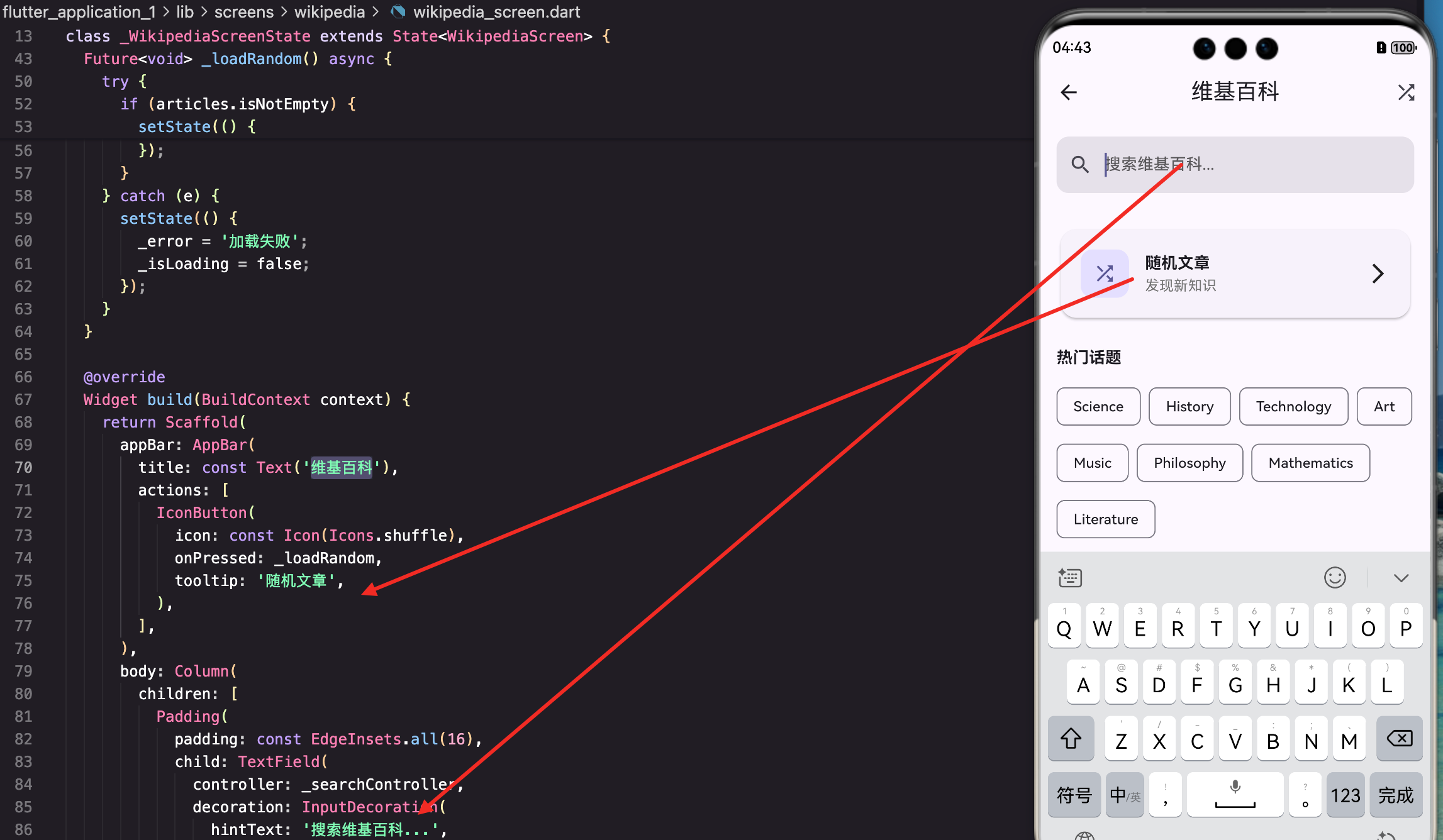
状态变量设计
百科搜索页面需要管理文章数据和各种状态:
class WikipediaScreen extends StatefulWidget {
const WikipediaScreen({super.key});
@override
State createState() => _WikipediaScreenState();
}
class _WikipediaScreenState extends State {
final _searchController = TextEditingController();
Map<String, dynamic>? _article;
bool _isLoading = false;
bool _hasSearched = false;
String? _error;
}
_article存储当前显示的文章,可能来自搜索结果或随机获取。_error存储错误信息,用于显示友好的错误提示。
搜索方法
调用维基百科API搜索文章:
Future _search() async {
if (_searchController.text.isEmpty) return;
setState(() {
_isLoading = true;
_hasSearched = true;
_error = null;
});
try {
final article = await ApiService.searchWikipedia(_searchController.text);
setState(() {
_article = article;
_isLoading = false;
});
} catch (e) {
setState(() {
_error = ‘未找到相关文章’;
_isLoading = false;
});
}
}
搜索前重置错误信息,搜索失败时设置友好的错误提示而不是显示技术性的错误信息。用户不需要知道具体是什么错误,只需要知道"没找到"就行。
随机文章
获取随机的维基百科文章:
Future _loadRandom() async {
setState(() {
_isLoading = true;
_hasSearched = true;
_error = null;
});
try {
final articles = await ApiService.getWikipediaRandom();
if (articles.isNotEmpty) {
setState(() {
_article = articles.first;
_isLoading = false;
});
}
} catch (e) {
setState(() {
_error = ‘加载失败’;
_isLoading = false;
});
}
}
随机文章功能让用户可以发现新知识,增加探索的乐趣。每次点击都会获取一篇不同的文章,有点像"手气不错"的感觉。
页面布局
AppBar包含随机按钮:
@override
Widget build(BuildContext context) {
return Scaffold(
appBar: AppBar(
title: const Text(‘维基百科’),
actions: [
IconButton(
icon: const Icon(Icons.shuffle),
onPressed: _loadRandom,
tooltip: ‘随机文章’,
),
],
),
随机按钮使用shuffle图标(洗牌),tooltip提供悬停提示。这个图标很形象,用户一看就知道是随机的意思。
body: Column(
  children: [
    Padding(
      padding: const EdgeInsets.all(16),
      child: TextField(
        controller: _searchController,
        decoration: InputDecoration(
          hintText: '搜索维基百科...',
          prefixIcon: const Icon(Icons.search),
          suffixIcon: _searchController.text.isNotEmpty
              ? IconButton(
                  icon: const Icon(Icons.clear),
                  onPressed: () {
                    _searchController.clear();
                    setState(() {
                      _article = null;
                      _hasSearched = false;
                    });
                  },
                )
              : null,
        ),
        onSubmitted: (_) => _search(),
        onChanged: (_) => setState(() {}),
      ),
    ),
    Expanded(child: _buildContent()),
  ],
),
);
}
搜索框的设计和其他搜索页面保持一致,用户已经熟悉这种交互模式了。
内容区域构建
根据状态显示不同内容:
Widget _buildContent() {
if (!_hasSearched) {
return _buildSuggestions();
}
if (_isLoading) {
return const Center(child: CircularProgressIndicator());
}
if (_error != null) {
return EmptyWidget(message: _error!, icon: Icons.article);
}
if (_article == null) {
return const EmptyWidget(message: ‘未找到文章’, icon: Icons.article);
}
return _buildArticle();
}
未搜索时显示推荐话题,加载中显示进度指示器,有错误显示错误信息,有文章显示文章内容。
推荐话题
显示热门话题供用户快速搜索:
Widget _buildSuggestions() {
final suggestions = [‘Science’, ‘History’, ‘Technology’, ‘Art’, ‘Music’, ‘Philosophy’, ‘Mathematics’, ‘Literature’];
return ListView(
padding: const EdgeInsets.all(16),
children: [
Card(
child: InkWell(
onTap: _loadRandom,
borderRadius: BorderRadius.circular(12),
child: Padding(
padding: const EdgeInsets.all(20),
child: Row(
children: [
Container(
padding: const EdgeInsets.all(12),
decoration: BoxDecoration(
color: Theme.of(context).colorScheme.primaryContainer,
borderRadius: BorderRadius.circular(12),
),
child: Icon(Icons.shuffle, color: Theme.of(context).colorScheme.primary),
),
const SizedBox(width: 16),
Expanded(
child: Column(
crossAxisAlignment: CrossAxisAlignment.start,
children: [
Text(‘随机文章’, style: Theme.of(context).textTheme.titleMedium?.copyWith(fontWeight: FontWeight.bold)),
Text(‘发现新知识’, style: TextStyle(color: Colors.grey[600])),
],
),
),
const Icon(Icons.arrow_forward_ios),
],
),
),
),
),
顶部是一个醒目的随机文章入口,点击后获取一篇随机文章。这个入口比AppBar里的按钮更显眼,适合第一次使用的用户。
  const SizedBox(height: 24),
  Text('热门话题', style: Theme.of(context).textTheme.titleMedium?.copyWith(fontWeight: FontWeight.bold)),
  const SizedBox(height: 12),
  Wrap(
    spacing: 8,
    runSpacing: 8,
    children: suggestions.map((topic) => ActionChip(
      label: Text(topic),
      onPressed: () {
        _searchController.text = topic;
        _search();
      },
    )).toList(),
  ),
],
);
}
热门话题用ActionChip展示,点击后自动填入搜索框并执行搜索。这些话题是我手动选的,都是维基百科上内容比较丰富的类别。
为什么用英文话题?
因为维基百科的英文版内容最丰富,用英文搜索能找到更多结果。当然,如果用户想搜中文,直接在搜索框输入就行。
文章展示
显示搜索到的文章内容:
Widget _buildArticle() {
final title = _article![‘title’] ?? ‘’;
final extract = _article![‘extract’] ?? ‘’;
final thumbnail = _article![‘thumbnail’]?[‘source’];
final contentUrl = _article![‘content_urls’]?[‘desktop’]?[‘page’];
return SingleChildScrollView(
padding: const EdgeInsets.all(16),
child: Column(
crossAxisAlignment: CrossAxisAlignment.start,
children: [
if (thumbnail != null)
Card(
clipBehavior: Clip.antiAlias,
child: NetworkImageWidget(
imageUrl: thumbnail,
height: 200,
width: double.infinity,
borderRadius: 0,
),
),
const SizedBox(height: 16),
Text(
title,
style: Theme.of(context).textTheme.headlineSmall?.copyWith(fontWeight: FontWeight.bold),
),
const SizedBox(height: 16),
Text(
extract,
style: const TextStyle(height: 1.6),
),
如果文章有缩略图就显示在顶部,然后是标题和摘要。height: 1.6增加行高,让长文本更易阅读。
    const SizedBox(height: 24),
    if (contentUrl != null)
      SizedBox(
        width: double.infinity,
        child: ElevatedButton.icon(
          onPressed: () async {
            final uri = Uri.parse(contentUrl);
            if (await canLaunchUrl(uri)) {
              await launchUrl(uri, mode: LaunchMode.externalApplication);
            }
          },
          icon: const Icon(Icons.open_in_new),
          label: const Text('阅读完整文章'),
        ),
      ),
  ],
),
);
}
底部有一个"阅读完整文章"按钮,点击后在浏览器中打开维基百科原文页面。因为API只返回摘要,想看完整内容还是得去官网。
资源释放
页面销毁时释放控制器:
@override
void dispose() {
_searchController.dispose();
super.dispose();
}
关于维基百科API
维基百科有好几套API,我用的是REST API(也叫Wikimedia REST API),它的优点是:
- 返回JSON格式,解析方便
- 包含摘要、缩略图等预处理好的数据
- 支持多种语言版本
API的基础URL是https://en.wikipedia.org/api/rest_v1/,常用的端点有:
/page/summary/{title}- 获取文章摘要/page/random/summary- 获取随机文章
如果想用中文维基百科,把en换成zh就行。
小结
百科搜索页面展示了如何实现一个知识探索功能。随机文章功能增加了探索的乐趣,热门话题推荐降低了用户的使用门槛。文章展示页面简洁明了,同时提供跳转到原文的入口,让用户可以深入阅读。
下一篇我们来看数字趣闻功能的实现,了解如何展示有趣的数字知识。
本文是Flutter for OpenHarmony教育百科实战系列的第十二篇。
欢迎加入开源鸿蒙跨平台社区:https://openharmonycrossplatform.csdn.net

开源鸿蒙跨平台开发社区汇聚开发者与厂商,共建“一次开发,多端部署”的开源生态,致力于降低跨端开发门槛,推动万物智联创新。
更多推荐

 27
27 0
0- 0


 已为社区贡献24条内容

所有评论(0)