Flutter for OpenHarmony 万能游戏库App实战 - 首页导航和底部导航栏实现
本文介绍了如何构建高效的Flutter应用导航系统,主要实现底部导航栏、页面切换和状态管理功能。通过NavigationBar和IndexedStack组件组合,实现页面快速切换且保持状态。文章详细讲解了导航栏设计、页面切换机制、样式自定义和动画效果优化,并提供了完整代码示例。这种架构能显著提升用户体验,使应用导航更加流畅高效。
应用的导航结构是用户体验的基础。这篇文章我们来实现一个完整的导航系统,包括底部导航栏、页面切换、以及导航状态管理。通过这个功能,我们能展示如何构建一个高效的应用导航框架。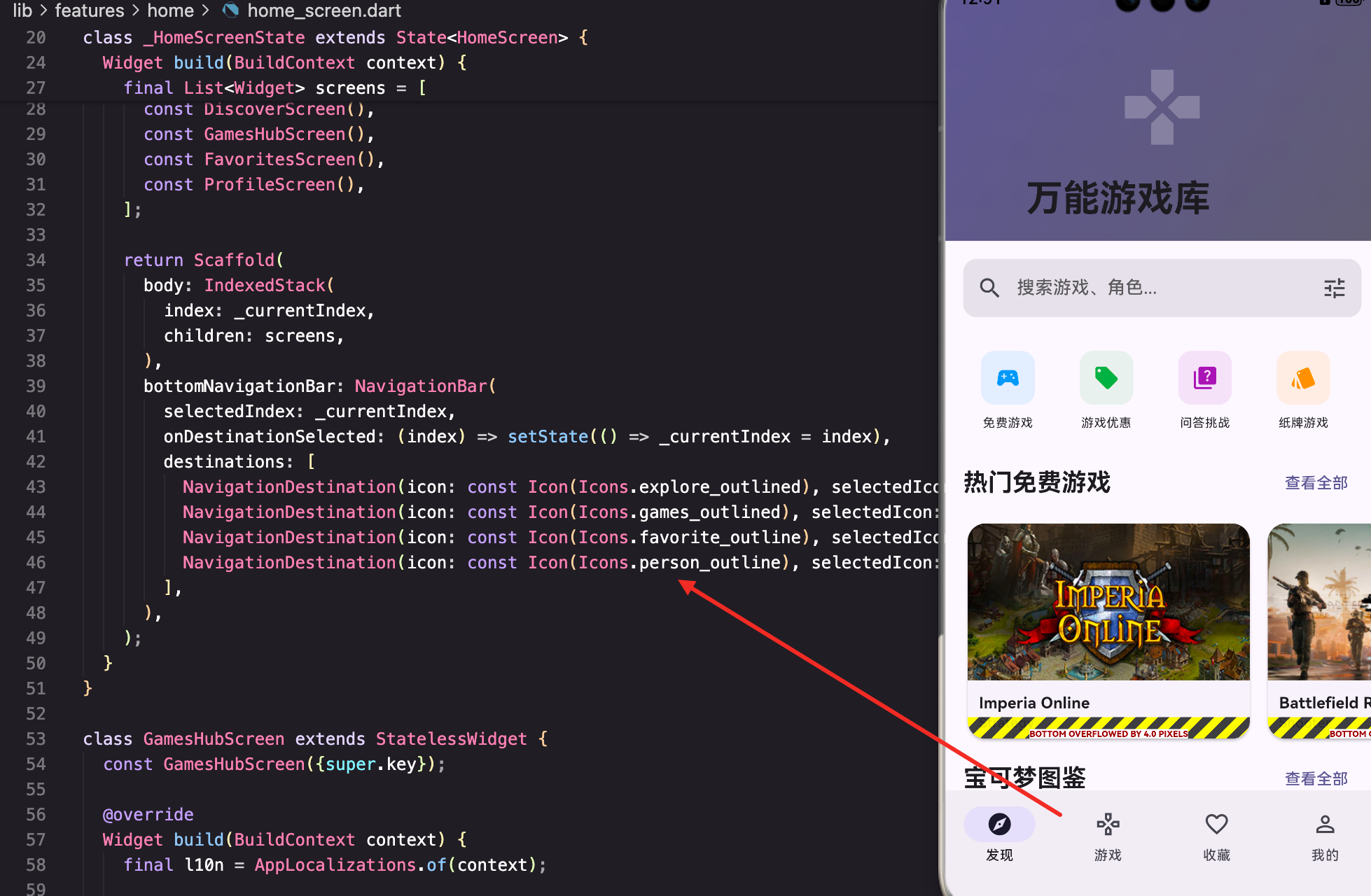
应用导航的整体架构
现代移动应用通常采用底部导航栏的设计,让用户能快速切换不同的功能模块。我们用NavigationBar和IndexedStack来实现:
class HomeScreen extends StatefulWidget {
const HomeScreen({super.key});
State<HomeScreen> createState() => _HomeScreenState();
}
class _HomeScreenState extends State<HomeScreen> {
int _currentIndex = 0;
Widget build(BuildContext context) {
final l10n = AppLocalizations.of(context);
final List<Widget> screens = [
const DiscoverScreen(),
const GamesHubScreen(),
const FavoritesScreen(),
const ProfileScreen(),
];
return Scaffold(
body: IndexedStack(
index: _currentIndex,
children: screens,
),
bottomNavigationBar: NavigationBar(
selectedIndex: _currentIndex,
onDestinationSelected: (index) => setState(() => _currentIndex = index),
destinations: [
NavigationDestination(icon: const Icon(Icons.explore_outlined), selectedIcon: const Icon(Icons.explore), label: l10n.discover),
NavigationDestination(icon: const Icon(Icons.games_outlined), selectedIcon: const Icon(Icons.games), label: l10n.games),
NavigationDestination(icon: const Icon(Icons.favorite_outline), selectedIcon: const Icon(Icons.favorite), label: l10n.favorites),
NavigationDestination(icon: const Icon(Icons.person_outline), selectedIcon: const Icon(Icons.person), label: l10n.profile),
],
),
);
}
}
_currentIndex追踪当前选中的导航项。当用户点击导航栏时,setState更新_currentIndex,这样IndexedStack就会显示对应的页面。
IndexedStack是一个特殊的Stack,它只显示index对应的子Widget,其他子Widget虽然不可见但仍然保持状态。这样用户切换页面后再切回来时,页面的状态不会丢失。
NavigationBar的设计
NavigationBar是Flutter 3.0引入的新导航组件,相比BottomNavigationBar有更好的视觉效果:
      bottomNavigationBar: NavigationBar(
        selectedIndex: _currentIndex,
        onDestinationSelected: (index) => setState(() => _currentIndex = index),
        destinations: [
          NavigationDestination(
            icon: const Icon(Icons.explore_outlined),
            selectedIcon: const Icon(Icons.explore),
            label: '发现',
          ),
          NavigationDestination(
            icon: const Icon(Icons.games_outlined),
            selectedIcon: const Icon(Icons.games),
            label: '游戏',
          ),
          NavigationDestination(
            icon: const Icon(Icons.favorite_outline),
            selectedIcon: const Icon(Icons.favorite),
            label: '收藏',
          ),
          NavigationDestination(
            icon: const Icon(Icons.person_outline),
            selectedIcon: const Icon(Icons.person),
            label: '我的',
          ),
        ],
      ),
NavigationBar支持icon和selectedIcon两个图标,这样能清楚地表示选中和未选中的状态。
destinations列表定义了导航栏的所有项。每个NavigationDestination包含图标和标签。
onDestinationSelected回调在用户点击导航项时触发,我们在这里更新_currentIndex。
页面切换的实现
使用IndexedStack来管理页面切换有几个优点:
      body: IndexedStack(
        index: _currentIndex,
        children: screens,
      ),
IndexedStack会保持所有子Widget的状态。这意味着当用户从"发现"页面切换到"游戏"页面,再切回"发现"页面时,"发现"页面的滚动位置、输入框内容等状态都会被保留。
这与使用PageView或Navigator.push不同。PageView会销毁不可见的页面,Navigator.push会创建新的页面实例。
导航栏的自定义样式
我们可以通过Theme来自定义NavigationBar的样式:
class MyApp extends StatelessWidget {
const MyApp({super.key});
Widget build(BuildContext context) {
return MaterialApp(
title: '万能游戏库',
theme: ThemeData(
useMaterial3: true,
colorScheme: ColorScheme.fromSeed(seedColor: Colors.blue),
navigationBarTheme: NavigationBarThemeData(
labelTextStyle: MaterialStateProperty.all(
const TextStyle(fontSize: 12, fontWeight: FontWeight.w500),
),
iconTheme: MaterialStateProperty.resolveWith((states) {
if (states.contains(MaterialState.selected)) {
return IconThemeData(
color: Theme.of(context).colorScheme.primary,
size: 28,
);
}
return const IconThemeData(
color: Colors.grey,
size: 24,
);
}),
),
),
home: const HomeScreen(),
);
}
}
navigationBarTheme允许我们自定义导航栏的外观。labelTextStyle设置标签的文字样式。
iconTheme用MaterialStateProperty.resolveWith来根据状态返回不同的图标样式。selected状态时用主色,未选中时用灰色。
导航栏的动画效果
NavigationBar内置了平滑的动画效果,当用户点击导航项时会有过渡动画:
      bottomNavigationBar: NavigationBar(
        selectedIndex: _currentIndex,
        animationDuration: const Duration(milliseconds: 500),
        onDestinationSelected: (index) {
          setState(() => _currentIndex = index);
          // 可以在这里添加页面切换的额外逻辑
        },
        destinations: [
          // ...
        ],
      ),
animationDuration控制导航栏的动画时长。默认是300毫秒,我们可以根据需要调整。
当用户点击导航项时,图标会有缩放和颜色变化的动画,这样能提供更好的视觉反馈。
页面间的通信
有时候我们需要在不同页面间传递数据。比如从"发现"页面收藏一个游戏后,"收藏"页面需要更新。我们可以用Provider来实现:
class _HomeScreenState extends State<HomeScreen> {
int _currentIndex = 0;
void _onGameFavorited() {
// 当游戏被收藏时,如果用户在"收藏"页面,页面会自动更新
// 因为我们用了Consumer监听FavoritesProvider
}
Widget build(BuildContext context) {
final List<Widget> screens = [
const DiscoverScreen(),
const GamesHubScreen(),
Consumer<FavoritesProvider>(
builder: (context, favorites, _) {
return FavoritesScreen(key: ValueKey(favorites.favorites.length));
},
),
const ProfileScreen(),
];
return Scaffold(
body: IndexedStack(
index: _currentIndex,
children: screens,
),
bottomNavigationBar: NavigationBar(
selectedIndex: _currentIndex,
onDestinationSelected: (index) => setState(() => _currentIndex = index),
destinations: [
// ...
],
),
);
}
}
用Consumer包装FavoritesScreen,这样当收藏列表改变时,FavoritesScreen会重新构建。
ValueKey用来强制重新构建Widget。当favorites.length改变时,ValueKey会改变,Flutter会销毁旧的FavoritesScreen并创建新的。
导航栏的深层链接支持
为了支持深层链接(比如从通知点击进入特定页面),我们可以这样实现:
class _HomeScreenState extends State<HomeScreen> {
int _currentIndex = 0;
void _navigateToPage(int index) {
setState(() => _currentIndex = index);
}
void initState() {
super.initState();
// 检查是否有深层链接
_handleDeepLink();
}
Future<void> _handleDeepLink() async {
// 这里可以处理来自通知或其他来源的深层链接
// 比如:如果用户点击了"查看我的收藏"通知,就导航到收藏页面
final shouldNavigateToFavorites = false; // 从某个地方获取这个值
if (shouldNavigateToFavorites) {
_navigateToPage(2); // 导航到收藏页面
}
}
Widget build(BuildContext context) {
// ...
}
}
initState中调用_handleDeepLink来检查是否有深层链接。
_navigateToPage方法用来导航到指定的页面。
导航栏的可访问性
为了提高应用的可访问性,我们应该为导航栏项添加语义标签:
      bottomNavigationBar: NavigationBar(
        selectedIndex: _currentIndex,
        onDestinationSelected: (index) => setState(() => _currentIndex = index),
        destinations: [
          NavigationDestination(
            icon: const Icon(Icons.explore_outlined),
            selectedIcon: const Icon(Icons.explore),
            label: '发现',
            tooltip: '发现新游戏',
          ),
          NavigationDestination(
            icon: const Icon(Icons.games_outlined),
            selectedIcon: const Icon(Icons.games),
            label: '游戏',
            tooltip: '浏览游戏分类',
          ),
          NavigationDestination(
            icon: const Icon(Icons.favorite_outline),
            selectedIcon: const Icon(Icons.favorite),
            label: '收藏',
            tooltip: '查看我的收藏',
          ),
          NavigationDestination(
            icon: const Icon(Icons.person_outline),
            selectedIcon: const Icon(Icons.person),
            label: '我的',
            tooltip: '个人中心',
          ),
        ],
      ),
tooltip为每个导航项添加了提示文字。当用户长按导航项时会显示这个提示。
这对使用屏幕阅读器的用户很有帮助。
导航栏的性能优化
当应用有很多页面时,IndexedStack会保持所有页面的状态,这可能会消耗大量内存。我们可以用LazyIndexedStack来优化:
      body: IndexedStack(
        index: _currentIndex,
        children: [
          if (_currentIndex == 0) const DiscoverScreen(),
          if (_currentIndex == 1) const GamesHubScreen(),
          if (_currentIndex == 2) const FavoritesScreen(),
          if (_currentIndex == 3) const ProfileScreen(),
        ],
      ),
这样只有当前选中的页面会被构建。其他页面在用户切换到它们时才会被构建。
这种方法的缺点是页面状态不会被保留,但对于内存受限的设备来说是一个很好的权衡。
总结
这篇文章我们实现了一个完整的应用导航系统。涉及到的知识点包括:
- NavigationBar - 使用Material 3的新导航组件
- IndexedStack - 管理多个页面的状态
- 状态管理 - 使用Provider在页面间通信
- 深层链接 - 支持从外部进入特定页面
- 可访问性 - 为导航项添加语义标签
- 性能优化 - 根据需要选择合适的页面管理方式
一个好的导航系统是应用用户体验的基础。通过清晰的导航结构、平滑的页面切换、以及完善的状态管理,我们能创造一个直观易用的应用。
欢迎加入开源鸿蒙跨平台社区:https://openharmonycrossplatform.csdn.net

开源鸿蒙跨平台开发社区汇聚开发者与厂商,共建“一次开发,多端部署”的开源生态,致力于降低跨端开发门槛,推动万物智联创新。
更多推荐


 20
20 0
0- 0


 已为社区贡献30条内容

所有评论(0)