Flutter与OpenHarmony打卡滑动开关组件
本文介绍了如何在Flutter和OpenHarmony平台上实现滑动开关组件。Flutter版本通过AnimationController控制滑块动画和颜色过渡,提供丰富的自定义选项;OpenHarmony版本则利用Stack布局和animateTo函数实现类似效果。两种实现都包含了状态切换动画、颜色变化和触摸交互功能,适用于移动应用的设置界面。文章还提及了带标签的开关扩展实现,为开发者提供了完整
前言
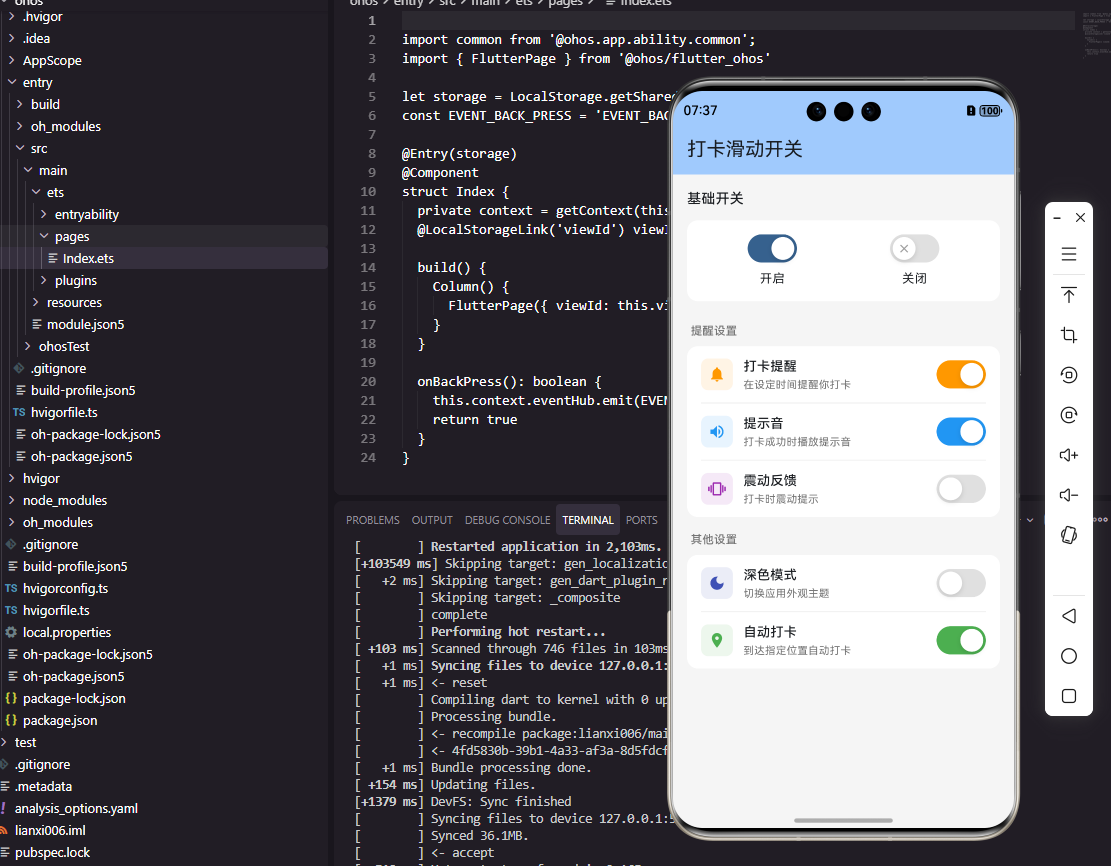
滑动开关是移动应用中常见的二态选择组件,用于开启或关闭某项功能。在打卡工具类应用中,滑动开关可以用于控制提醒开关、深色模式、声音反馈等设置项。本文将详细介绍如何在Flutter和OpenHarmony平台上实现美观且交互流畅的滑动开关组件。
滑动开关的设计需要考虑视觉状态、动画效果和触摸反馈。一个优秀的开关组件应该有清晰的开关状态区分,平滑的切换动画,以及良好的触摸响应。我们将实现一个支持自定义样式的滑动开关组件。
Flutter滑动开关实现
首先创建自定义滑动开关:
class CustomSwitch extends StatefulWidget {
final bool value;
final ValueChanged<bool> onChanged;
final Color? activeColor;
final Color? inactiveColor;
final double width;
final double height;
const CustomSwitch({
Key? key,
required this.value,
required this.onChanged,
this.activeColor,
this.inactiveColor,
this.width = 50,
this.height = 28,
}) : super(key: key);
State<CustomSwitch> createState() => _CustomSwitchState();
}
CustomSwitch提供了丰富的自定义选项。value是当前开关状态,onChanged是状态变化回调。activeColor和inactiveColor分别设置开启和关闭状态的颜色。width和height控制开关的尺寸,默认值符合常见的开关比例。
实现开关动画和交互:
class _CustomSwitchState extends State<CustomSwitch>
with SingleTickerProviderStateMixin {
late AnimationController _controller;
late Animation<double> _animation;
void initState() {
super.initState();
_controller = AnimationController(
duration: const Duration(milliseconds: 200),
vsync: this,
);
_animation = CurvedAnimation(parent: _controller, curve: Curves.easeInOut);
if (widget.value) _controller.value = 1.0;
}
void didUpdateWidget(CustomSwitch oldWidget) {
super.didUpdateWidget(oldWidget);
if (widget.value != oldWidget.value) {
widget.value ? _controller.forward() : _controller.reverse();
}
}
void _handleTap() {
widget.onChanged(!widget.value);
}
Widget build(BuildContext context) {
final activeColor = widget.activeColor ?? Colors.green;
final inactiveColor = widget.inactiveColor ?? Colors.grey.shade300;
final thumbSize = widget.height - 4;
return GestureDetector(
onTap: _handleTap,
child: AnimatedBuilder(
animation: _animation,
builder: (context, child) {
return Container(
width: widget.width,
height: widget.height,
decoration: BoxDecoration(
borderRadius: BorderRadius.circular(widget.height / 2),
color: Color.lerp(inactiveColor, activeColor, _animation.value),
),
child: Stack(
children: [
Positioned(
left: 2 + (widget.width - thumbSize - 4) * _animation.value,
top: 2,
child: Container(
width: thumbSize,
height: thumbSize,
decoration: BoxDecoration(
shape: BoxShape.circle,
color: Colors.white,
boxShadow: [
BoxShadow(
color: Colors.black.withOpacity(0.2),
blurRadius: 4,
offset: const Offset(0, 2),
),
],
),
),
),
],
),
);
},
),
);
}
void dispose() {
_controller.dispose();
super.dispose();
}
}
开关使用AnimationController控制滑块位置和背景颜色的动画。Color.lerp在两种颜色之间进行插值,实现平滑的颜色过渡。滑块位置通过动画值计算,从左侧移动到右侧。白色圆形滑块带有阴影效果,增加立体感。didUpdateWidget确保外部状态变化时也能触发动画。
OpenHarmony滑动开关实现
在鸿蒙系统中创建滑动开关:
@Component
struct CustomSwitch {
  @Prop isOn: boolean = false
  @Prop activeColor: string = '#4CAF50'
  @Prop inactiveColor: string = '#E0E0E0'
  @Prop width: number = 50
  @Prop height: number = 28
  private onChange: (value: boolean) => void = () => {}
  @State thumbPosition: number = 0

  aboutToAppear() {
    this.thumbPosition = this.isOn ? this.width - this.height + 2 : 2
  }

  handleTap() {
    const newValue = !this.isOn
    animateTo({ duration: 200, curve: Curve.EaseInOut }, () => {
      this.thumbPosition = newValue ? this.width - this.height + 2 : 2
    })
    this.onChange(newValue)
  }

  build() {
    Stack() {
      // 背景轨道
      Column()
        .width(this.width)
        .height(this.height)
        .borderRadius(this.height / 2)
        .backgroundColor(this.isOn ? this.activeColor : this.inactiveColor)

      // 滑块
      Column()
        .width(this.height - 4)
        .height(this.height - 4)
        .borderRadius((this.height - 4) / 2)
        .backgroundColor(Color.White)
        .shadow({ radius: 4, color: 'rgba(0,0,0,0.2)', offsetY: 2 })
        .position({ x: this.thumbPosition, y: 2 })
    }
    .width(this.width)
    .height(this.height)
    .onClick(() => this.handleTap())
  }
}
鸿蒙的滑动开关使用Stack层叠背景轨道和滑块。animateTo函数为滑块位置变化添加动画效果。position属性精确控制滑块位置,通过thumbPosition状态驱动动画。backgroundColor根据isOn状态切换颜色,实现开关状态的视觉反馈。
带标签的开关
实现带文字标签的开关组件:
class LabeledSwitch extends StatelessWidget {
final String label;
final String? description;
final bool value;
final ValueChanged<bool> onChanged;
final IconData? icon;
const LabeledSwitch({
Key? key,
required this.label,
this.description,
required this.value,
required this.onChanged,
this.icon,
}) : super(key: key);
Widget build(BuildContext context) {
return InkWell(
onTap: () => onChanged(!value),
child: Padding(
padding: const EdgeInsets.symmetric(vertical: 12, horizontal: 16),
child: Row(
children: [
if (icon != null) ...[
Icon(icon, color: Colors.grey.shade600),
const SizedBox(width: 16),
],
Expanded(
child: Column(
crossAxisAlignment: CrossAxisAlignment.start,
children: [
Text(label, style: const TextStyle(fontSize: 16)),
if (description != null)
Text(
description!,
style: TextStyle(fontSize: 13, color: Colors.grey.shade600),
),
],
),
),
CustomSwitch(value: value, onChanged: onChanged),
],
),
),
);
}
}
LabeledSwitch将开关与标签组合,适用于设置页面的开关项。InkWell让整行都可点击,提升操作便捷性。可选的icon在左侧显示图标,description在标签下方显示说明文字。这种设计是设置页面的标准布局模式。
设置页面开关列表
实现打卡应用的设置开关列表:
class SettingsSwitchList extends StatelessWidget {
final Map<String, bool> settings;
final Function(String, bool) onSettingChanged;
static const settingsConfig = [
{'key': 'reminder', 'label': '打卡提醒', 'description': '每天定时提醒打卡', 'icon': Icons.notifications},
{'key': 'sound', 'label': '声音反馈', 'description': '打卡成功时播放声音', 'icon': Icons.volume_up},
{'key': 'vibration', 'label': '震动反馈', 'description': '打卡成功时震动', 'icon': Icons.vibration},
{'key': 'darkMode', 'label': '深色模式', 'description': '使用深色主题', 'icon': Icons.dark_mode},
{'key': 'autoSync', 'label': '自动同步', 'description': '自动同步打卡数据到云端', 'icon': Icons.sync},
];
const SettingsSwitchList({
Key? key,
required this.settings,
required this.onSettingChanged,
}) : super(key: key);
Widget build(BuildContext context) {
return Column(
children: settingsConfig.map((config) {
final key = config['key'] as String;
return LabeledSwitch(
label: config['label'] as String,
description: config['description'] as String,
icon: config['icon'] as IconData,
value: settings[key] ?? false,
onChanged: (value) => onSettingChanged(key, value),
);
}).toList(),
);
}
}
SettingsSwitchList是打卡应用设置页面的开关列表组件。settingsConfig定义了所有设置项的配置,包括键名、标签、描述和图标。settings Map存储当前的设置状态,onSettingChanged回调处理设置变更。这种配置驱动的设计让添加新设置项变得简单。
OpenHarmony设置开关
鸿蒙中实现设置开关列表:
@Component
struct SettingsSwitchList {
  @Link settings: Record<string, boolean>

  settingsConfig: Array<{key: string, label: string, description: string, icon: Resource}> = [
    { key: 'reminder', label: '打卡提醒', description: '每天定时提醒打卡', icon: $r('app.media.notification') },
    { key: 'sound', label: '声音反馈', description: '打卡成功时播放声音', icon: $r('app.media.volume') },
    { key: 'vibration', label: '震动反馈', description: '打卡成功时震动', icon: $r('app.media.vibration') },
  ]

  build() {
    Column() {
      ForEach(this.settingsConfig, (config) => {
        this.SettingItem(config)
      })
    }
  }

  @Builder
  SettingItem(config: {key: string, label: string, description: string, icon: Resource}) {
    Row() {
      Image(config.icon)
        .width(24)
        .height(24)
        .fillColor('#666666')
        .margin({ right: 16 })

      Column() {
        Text(config.label)
          .fontSize(16)
        Text(config.description)
          .fontSize(13)
          .fontColor('#999999')
          .margin({ top: 2 })
      }
      .layoutWeight(1)
      .alignItems(HorizontalAlign.Start)

      Toggle({ type: ToggleType.Switch, isOn: this.settings[config.key] ?? false })
        .selectedColor('#4CAF50')
        .onChange((isOn: boolean) => {
          this.settings[config.key] = isOn
        })
    }
    .width('100%')
    .padding({ left: 16, right: 16, top: 12, bottom: 12 })
    .onClick(() => {
      this.settings[config.key] = !(this.settings[config.key] ?? false)
    })
  }
}
鸿蒙使用Toggle组件实现开关功能,type设为Switch显示滑动开关样式。@Link装饰器实现双向绑定,开关状态变化会自动同步到父组件。整行可点击,提升操作便捷性。ForEach遍历配置数组生成设置项列表。
总结
本文详细介绍了在Flutter和OpenHarmony平台上实现滑动开关组件的完整方案。滑动开关通过平滑的动画效果和清晰的状态区分,为用户提供了直观的开关交互。带标签的开关组件适用于设置页面,配置驱动的设计让开关列表的管理更加便捷。两个平台的实现都注重动画流畅性和触摸响应,确保开关操作体验优秀。
欢迎加入开源鸿蒙跨平台社区:https://openharmonycrossplatform.csdn.net

开源鸿蒙跨平台开发社区汇聚开发者与厂商,共建“一次开发,多端部署”的开源生态,致力于降低跨端开发门槛,推动万物智联创新。
更多推荐

 6
6 0
0- 0


 已为社区贡献8条内容

所有评论(0)