Flutter与OpenHarmony打卡底部导航组件
本文介绍了在Flutter和OpenHarmony平台上实现底部导航组件的详细方法。Flutter部分使用NavItem数据模型和CustomBottomNav组件,通过AnimatedSwitcher实现图标切换动画;OpenHarmony部分采用类似的组件结构,利用@Prop装饰器实现状态管理。两种实现都支持自定义颜色、图标和标签样式,并提供了中心突出按钮的扩展方案。关键点包括:数据与UI分离
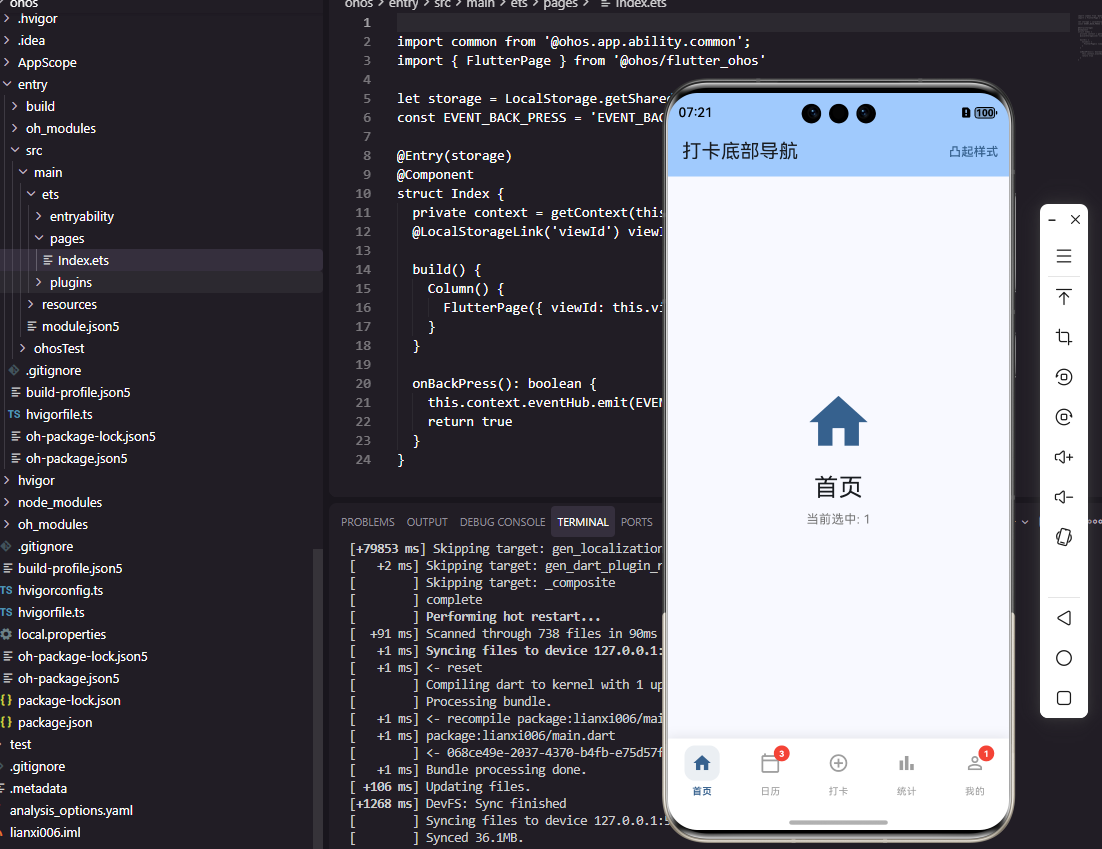
前言
底部导航栏是移动应用中最常见的导航模式之一,它让用户能够在应用的主要功能模块之间快速切换。在打卡工具类应用中,底部导航通常包含首页、打卡、统计、我的等核心入口。本文将详细介绍如何在Flutter和OpenHarmony平台上实现美观且功能完善的底部导航组件。
底部导航的设计需要考虑图标清晰度、标签可读性、选中状态反馈和切换动画等因素。一个优秀的底部导航应该让用户一眼就能识别各个功能入口,同时提供流畅的切换体验。我们将实现一个支持自定义样式、动画效果和中心突出按钮的底部导航组件。
Flutter底部导航实现
首先定义导航项数据模型:
class NavItem {
  final IconData icon;
  final IconData activeIcon;
  final String label;

  const NavItem({
    required this.icon,
    required this.activeIcon,
    required this.label,
  });
}

class CustomBottomNav extends StatelessWidget {
  final int currentIndex;
  final List<NavItem> items;
  final Function(int) onTap;
  final Color? activeColor;
  final Color? inactiveColor;

  const CustomBottomNav({
    Key? key,
    required this.currentIndex,
    required this.items,
    required this.onTap,
    this.activeColor,
    this.inactiveColor,
  }) : super(key: key);
}
NavItem定义了导航项的图标和标签,支持选中和未选中两种图标状态。CustomBottomNav组件接收当前选中索引、导航项列表、点击回调和颜色配置。这种设计将数据和UI分离,使组件更加灵活和可复用。
构建导航栏主体:
Widget build(BuildContext context) {
return Container(
height: 60,
decoration: BoxDecoration(
color: Colors.white,
boxShadow: [
BoxShadow(
color: Colors.black.withOpacity(0.1),
blurRadius: 10,
offset: const Offset(0, -2),
),
],
),
child: Row(
mainAxisAlignment: MainAxisAlignment.spaceAround,
children: items.asMap().entries.map((entry) {
return _buildNavItem(entry.key, entry.value);
}).toList(),
),
);
}
导航栏使用Container包裹,设置固定高度和顶部阴影效果。阴影向上投射,让导航栏看起来"浮"在内容之上。Row布局配合spaceAround让导航项均匀分布。asMap().entries将列表转换为带索引的可迭代对象,便于判断当前项是否选中。
实现单个导航项:
Widget _buildNavItem(int index, NavItem item) {
  final isSelected = index == currentIndex;
  final color = isSelected
      ? (activeColor ?? Colors.blue)
      : (inactiveColor ?? Colors.grey);

  return GestureDetector(
    onTap: () => onTap(index),
    behavior: HitTestBehavior.opaque,
    child: SizedBox(
      width: 60,
      child: Column(
        mainAxisAlignment: MainAxisAlignment.center,
        children: [
          AnimatedSwitcher(
            duration: const Duration(milliseconds: 200),
            child: Icon(
              isSelected ? item.activeIcon : item.icon,
              key: ValueKey(isSelected),
              color: color,
              size: 24,
            ),
          ),
          const SizedBox(height: 4),
          Text(
            item.label,
            style: TextStyle(
              fontSize: 11,
              color: color,
              fontWeight: isSelected ? FontWeight.w600 : FontWeight.normal,
            ),
          ),
        ],
      ),
    ),
  );
}
导航项包含图标和标签两部分。AnimatedSwitcher为图标切换添加淡入淡出动画,ValueKey确保选中状态变化时触发动画。选中项使用activeColor和粗体文字,未选中项使用inactiveColor和正常字重。HitTestBehavior.opaque确保整个区域都可点击,提升操作便捷性。
OpenHarmony底部导航实现
在鸿蒙系统中定义导航组件:
interface NavItem {
  icon: Resource
  activeIcon: Resource
  label: string
}

@Component
struct CustomBottomNav {
  @Prop currentIndex: number = 0
  @Prop items: NavItem[] = []
  private onTap: (index: number) => void = () => {}
  @Prop activeColor: string = '#007AFF'
  @Prop inactiveColor: string = '#999999'
}
鸿蒙的导航组件使用相同的数据结构设计。icon和activeIcon使用Resource类型引用应用内的图片资源。@Prop装饰器标识这些属性从父组件传入,当父组件更新currentIndex时,导航栏会自动更新选中状态的显示。
构建导航栏:
build() {
  Row() {
    ForEach(this.items, (item: NavItem, index: number) => {
      this.NavItem(item, index)
    })
  }
  .width('100%')
  .height(60)
  .backgroundColor(Color.White)
  .justifyContent(FlexAlign.SpaceAround)
  .shadow({
    radius: 10,
    color: 'rgba(0,0,0,0.1)',
    offsetY: -2
  })
}
Row容器水平排列所有导航项,justifyContent设为SpaceAround实现均匀分布。shadow属性添加顶部阴影效果,offsetY为负值让阴影向上投射。ForEach遍历导航项数组,为每个项生成对应的UI组件。
实现导航项:
@Builder
NavItem(item: NavItem, index: number) {
  Column() {
    Image(index === this.currentIndex ? item.activeIcon : item.icon)
      .width(24)
      .height(24)
      .fillColor(index === this.currentIndex ? this.activeColor : this.inactiveColor)

    Text(item.label)
      .fontSize(11)
      .fontColor(index === this.currentIndex ? this.activeColor : this.inactiveColor)
      .fontWeight(index === this.currentIndex ? FontWeight.Medium : FontWeight.Normal)
      .margin({ top: 4 })
  }
  .width(60)
  .height('100%')
  .justifyContent(FlexAlign.Center)
  .onClick(() => {
    this.onTap(index)
  })
}
导航项使用Column垂直排列图标和标签。根据当前索引判断是否选中,选中项使用activeIcon和activeColor,未选中项使用普通图标和inactiveColor。fillColor属性为图标着色,让同一套图标资源可以显示不同颜色。onClick事件触发导航切换。
中心突出按钮
Flutter中实现带中心突出按钮的导航栏:
class BottomNavWithFab extends StatelessWidget {
final int currentIndex;
final List<NavItem> items;
final Function(int) onTap;
final VoidCallback onFabPressed;
Widget build(BuildContext context) {
return Stack(
alignment: Alignment.bottomCenter,
children: [
Container(
height: 60,
margin: const EdgeInsets.only(top: 30),
decoration: BoxDecoration(
color: Colors.white,
boxShadow: [
BoxShadow(
color: Colors.black.withOpacity(0.1),
blurRadius: 10,
),
],
),
child: Row(
mainAxisAlignment: MainAxisAlignment.spaceAround,
children: _buildNavItems(),
),
),
_buildCenterButton(),
],
);
}
Widget _buildCenterButton() {
return Positioned(
top: 0,
child: GestureDetector(
onTap: onFabPressed,
child: Container(
width: 56,
height: 56,
decoration: BoxDecoration(
shape: BoxShape.circle,
color: Colors.orange,
boxShadow: [
BoxShadow(
color: Colors.orange.withOpacity(0.4),
blurRadius: 12,
offset: const Offset(0, 4),
),
],
),
child: const Icon(Icons.add, color: Colors.white, size: 28),
),
),
);
}
}
中心突出按钮是打卡应用的常见设计,将最重要的打卡操作放在导航栏中心位置,通过突出的视觉效果吸引用户注意。Stack布局让按钮可以"浮"在导航栏上方,橙色背景和阴影效果增强了按钮的视觉重量。这种设计既美观又实用,是打卡类应用的经典交互模式。
构建两侧导航项:
List<Widget> _buildNavItems() {
  final leftItems = items.sublist(0, items.length ~/ 2);
  final rightItems = items.sublist(items.length ~/ 2);

  return [
    ...leftItems.asMap().entries.map((e) => _buildNavItem(e.key, e.value)),
    const SizedBox(width: 56), // 中心按钮占位
    ...rightItems.asMap().entries.map((e) =>
        _buildNavItem(e.key + leftItems.length, e.value)),
  ];
}
导航项被分成左右两组,中间留出空间给突出按钮。sublist方法将列表分割,SizedBox作为占位符确保中心区域不被其他导航项占用。索引计算需要考虑分组,右侧项的索引要加上左侧项的数量。
导航切换动画
实现页面切换动画:
class AnimatedNavigation extends StatefulWidget {
final List<Widget> pages;
final List<NavItem> navItems;
State<AnimatedNavigation> createState() => _AnimatedNavigationState();
}
class _AnimatedNavigationState extends State<AnimatedNavigation> {
int _currentIndex = 0;
Widget build(BuildContext context) {
return Scaffold(
body: AnimatedSwitcher(
duration: const Duration(milliseconds: 300),
transitionBuilder: (child, animation) {
return FadeTransition(
opacity: animation,
child: SlideTransition(
position: Tween<Offset>(
begin: const Offset(0.1, 0),
end: Offset.zero,
).animate(animation),
child: child,
),
);
},
child: KeyedSubtree(
key: ValueKey(_currentIndex),
child: widget.pages[_currentIndex],
),
),
bottomNavigationBar: CustomBottomNav(
currentIndex: _currentIndex,
items: widget.navItems,
onTap: (index) => setState(() => _currentIndex = index),
),
);
}
}
AnimatedSwitcher配合自定义transitionBuilder实现页面切换动画。FadeTransition提供淡入淡出效果,SlideTransition提供轻微的滑动效果,两者组合让切换更加流畅自然。KeyedSubtree确保每个页面有唯一的key,触发AnimatedSwitcher的动画。
OpenHarmony页面切换
鸿蒙中实现页面切换:
@Component
struct MainPage {
  @State currentIndex: number = 0

  @Builder
  PageContent() {
    Tabs({ barPosition: BarPosition.End, index: this.currentIndex }) {
      TabContent() {
        HomePage()
      }
      TabContent() {
        CheckInPage()
      }
      TabContent() {
        StatsPage()
      }
      TabContent() {
        ProfilePage()
      }
    }
    .barHeight(0)
    .onChange((index: number) => {
      this.currentIndex = index
    })
  }

  build() {
    Column() {
      this.PageContent()
      CustomBottomNav({
        currentIndex: this.currentIndex,
        items: this.navItems,
        onTap: (index: number) => { this.currentIndex = index }
      })
    }
  }
}
鸿蒙使用Tabs组件管理多个页面,barPosition设为End将标签栏放在底部,barHeight设为0隐藏默认标签栏,使用自定义的CustomBottomNav替代。onChange回调在页面切换时更新currentIndex,保持导航栏和页面内容的同步。这种实现方式利用了系统组件的页面管理能力,同时保持了自定义导航栏的灵活性。
总结
本文详细介绍了在Flutter和OpenHarmony平台上实现底部导航组件的完整方案。底部导航作为应用的核心导航方式,需要在视觉设计、交互体验和功能完整性等方面进行精心设计。中心突出按钮的设计突出了打卡这一核心功能,页面切换动画提升了整体的流畅感。两个平台的实现都注重用户体验,确保导航操作简单直观、响应迅速。
欢迎加入开源鸿蒙跨平台社区:https://openharmonycrossplatform.csdn.net

开源鸿蒙跨平台开发社区汇聚开发者与厂商,共建“一次开发,多端部署”的开源生态,致力于降低跨端开发门槛,推动万物智联创新。
更多推荐

 28
28 0
0- 0


 已为社区贡献8条内容

所有评论(0)