Flutter&OpenHarmony商城App筛选排序组件开发
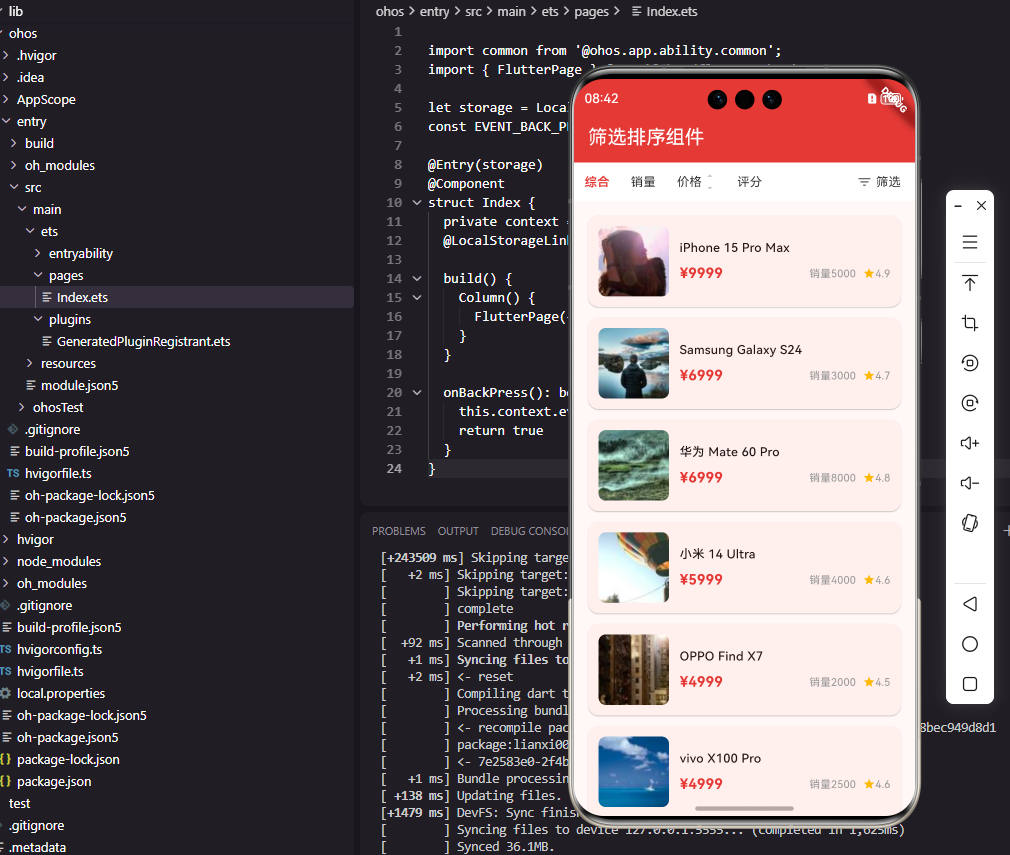
本文介绍了电商应用中筛选排序组件的开发实现。首先设计了筛选数据模型,包括FilterOption(筛选维度)和FilterValue(筛选值)类,支持单选、多选和范围三种筛选类型。然后详细讲解了排序栏组件的实现,包含综合、销量、价格等排序选项,其中价格排序支持升序降序切换。最后展示了筛选按钮的设计,用于触发筛选面板。这些组件采用Flutter开发,通过合理的交互设计和视觉呈现,帮助用户高效筛选和排
前言
筛选排序是商城应用中帮助用户快速找到目标商品的重要功能。当商品数量众多时,用户需要通过价格区间、品牌、规格等条件筛选商品,或者按照销量、价格、评分等维度排序。一个设计良好的筛选排序组件能够显著提升用户的商品发现效率。本文将详细介绍如何在Flutter和OpenHarmony平台上开发筛选排序相关组件。
筛选排序的设计需要在功能完整性和操作便捷性之间取得平衡。筛选条件过多会增加用户的认知负担,条件过少又无法满足精确查找的需求。通过合理的条件分组和交互设计,我们可以让用户快速设置筛选条件,高效地找到心仪的商品。
Flutter筛选数据模型
首先定义筛选条件的数据模型:
class FilterOption {
  final String id;
  final String name;
  final List<FilterValue> values;
  final FilterType type;

  const FilterOption({
    required this.id,
    required this.name,
    required this.values,
    required this.type,
  });
}

class FilterValue {
  final String id;
  final String label;
  final dynamic value;

  const FilterValue({
    required this.id,
    required this.label,
    required this.value,
  });
}
FilterOption类定义了筛选维度,如"品牌"、"价格区间"等。name是筛选维度的显示名称,values是该维度下的所有可选值,type是筛选类型枚举。FilterValue类定义了具体的筛选值,label是显示文字,value是实际的筛选值。这种数据模型的设计支持多种筛选类型,具有良好的扩展性。
筛选类型枚举:
enum FilterType {
  single,    // 单选
  multiple,  // 多选
  range,     // 范围
}

enum SortType {
  comprehensive,  // 综合
  salesDesc,      // 销量降序
  priceAsc,       // 价格升序
  priceDesc,      // 价格降序
  ratingDesc,     // 评分降序
}
FilterType枚举定义了三种筛选类型:单选适用于互斥的选项如配送方式,多选适用于可叠加的选项如品牌,范围适用于数值区间如价格。SortType枚举定义了常见的排序方式,综合排序通常是默认选项,其他排序方式让用户可以按特定维度查看商品。
排序栏组件
class SortBar extends StatelessWidget {
final SortType currentSort;
final ValueChanged<SortType>? onSortChanged;
final VoidCallback? onFilterTap;
final int filterCount;
const SortBar({
Key? key,
required this.currentSort,
this.onSortChanged,
this.onFilterTap,
this.filterCount = 0,
}) : super(key: key);
Widget build(BuildContext context) {
return Container(
height: 44,
color: Colors.white,
child: Row(
children: [
_buildSortItem('综合', SortType.comprehensive),
_buildSortItem('销量', SortType.salesDesc),
_buildPriceSortItem(),
const Spacer(),
_buildFilterButton(),
],
),
);
}
}
SortBar组件展示排序选项和筛选入口。currentSort记录当前选中的排序方式,filterCount显示已选筛选条件数量。Row水平排列排序选项和筛选按钮,Spacer将筛选按钮推到右侧。Container设置44像素高度和白色背景,与商品列表形成视觉分隔。这种布局是电商应用中最常见的排序栏设计。
排序项组件:
Widget _buildSortItem(String label, SortType type) {
  final isSelected = currentSort == type;

  return GestureDetector(
    onTap: () => onSortChanged?.call(type),
    child: Container(
      padding: const EdgeInsets.symmetric(horizontal: 16),
      alignment: Alignment.center,
      child: Text(
        label,
        style: TextStyle(
          fontSize: 14,
          color: isSelected
            ? const Color(0xFFE53935)
            : const Color(0xFF333333),
          fontWeight: isSelected
            ? FontWeight.w600
            : FontWeight.normal,
        ),
      ),
    ),
  );
}
每个排序项显示排序名称,选中时使用红色粗体突出显示。Container设置水平内边距增加点击区域,alignment居中显示文字。GestureDetector处理点击事件,切换排序方式。这种设计让用户能够清晰地识别当前的排序方式,并方便地切换。
价格排序项:
Widget _buildPriceSortItem() {
  final isPriceSort = currentSort == SortType.priceAsc ||
                      currentSort == SortType.priceDesc;
  final isAsc = currentSort == SortType.priceAsc;

  return GestureDetector(
    onTap: () {
      if (isPriceSort) {
        onSortChanged?.call(
          isAsc ? SortType.priceDesc : SortType.priceAsc
        );
      } else {
        onSortChanged?.call(SortType.priceAsc);
      }
    },
    child: Container(
      padding: const EdgeInsets.symmetric(horizontal: 16),
      child: Row(
        children: [
          Text(
            '价格',
            style: TextStyle(
              fontSize: 14,
              color: isPriceSort
                ? const Color(0xFFE53935)
                : const Color(0xFF333333),
              fontWeight: isPriceSort
                ? FontWeight.w600
                : FontWeight.normal,
            ),
          ),
          const SizedBox(width: 2),
          Column(
            mainAxisAlignment: MainAxisAlignment.center,
            children: [
              Icon(
                Icons.arrow_drop_up,
                size: 14,
                color: isAsc
                  ? const Color(0xFFE53935)
                  : const Color(0xFFCCCCCC),
              ),
              Icon(
                Icons.arrow_drop_down,
                size: 14,
                color: currentSort == SortType.priceDesc
                  ? const Color(0xFFE53935)
                  : const Color(0xFFCCCCCC),
              ),
            ],
          ),
        ],
      ),
    ),
  );
}
价格排序项支持升序和降序切换,使用上下箭头图标表示排序方向。点击时在升序和降序之间切换,如果当前不是价格排序则默认切换到升序。箭头图标根据当前排序方向高亮显示,让用户清楚地知道当前是按价格升序还是降序排列。这种交互设计符合用户的操作习惯。
筛选按钮组件
Widget _buildFilterButton() {
  return GestureDetector(
    onTap: onFilterTap,
    child: Container(
      padding: const EdgeInsets.symmetric(horizontal: 16),
      child: Row(
        children: [
          const Icon(
            Icons.filter_list,
            size: 18,
            color: Color(0xFF666666),
          ),
          const SizedBox(width: 4),
          const Text(
            '筛选',
            style: TextStyle(
              fontSize: 14,
              color: Color(0xFF333333),
            ),
          ),
          if (filterCount > 0)
            Container(
              margin: const EdgeInsets.only(left: 4),
              padding: const EdgeInsets.symmetric(
                horizontal: 5,
                vertical: 1,
              ),
              decoration: BoxDecoration(
                color: const Color(0xFFE53935),
                borderRadius: BorderRadius.circular(8),
              ),
              child: Text(
                filterCount.toString(),
                style: const TextStyle(
                  fontSize: 10,
                  color: Colors.white,
                ),
              ),
            ),
        ],
      ),
    ),
  );
}
筛选按钮显示筛选图标、文字和已选条件数量。当有筛选条件被选中时,显示红色角标提示用户当前有生效的筛选。GestureDetector处理点击事件,打开筛选面板。Row水平排列图标、文字和角标。这种设计让用户能够快速了解筛选状态,并方便地进入筛选设置。
筛选面板组件
class FilterPanel extends StatefulWidget {
final List<FilterOption> options;
final Map<String, List<String>> selectedValues;
final ValueChanged<Map<String, List<String>>>? onApply;
final VoidCallback? onReset;
const FilterPanel({
Key? key,
required this.options,
required this.selectedValues,
this.onApply,
this.onReset,
}) : super(key: key);
State<FilterPanel> createState() => _FilterPanelState();
}
class _FilterPanelState extends State<FilterPanel> {
late Map<String, List<String>> _tempSelected;
void initState() {
super.initState();
_tempSelected = Map.from(widget.selectedValues);
}
Widget build(BuildContext context) {
return Container(
height: MediaQuery.of(context).size.height * 0.7,
decoration: const BoxDecoration(
color: Colors.white,
borderRadius: BorderRadius.vertical(top: Radius.circular(16)),
),
child: Column(
children: [
_buildHeader(),
Expanded(child: _buildContent()),
_buildFooter(),
],
),
);
}
}
FilterPanel组件以底部弹出面板的形式展示筛选选项。selectedValues存储当前已选的筛选值,_tempSelected是临时选择状态,用户确认后才应用到实际筛选。Container设置70%屏幕高度和顶部圆角,Column垂直排列头部、内容和底部按钮。这种设计让用户可以在不影响当前结果的情况下调整筛选条件。
筛选内容区:
Widget _buildContent() {
  return ListView.builder(
    padding: const EdgeInsets.all(16),
    itemCount: widget.options.length,
    itemBuilder: (context, index) {
      return _buildFilterSection(widget.options[index]);
    },
  );
}

Widget _buildFilterSection(FilterOption option) {
  return Column(
    crossAxisAlignment: CrossAxisAlignment.start,
    children: [
      Text(
        option.name,
        style: const TextStyle(
          fontSize: 14,
          fontWeight: FontWeight.w600,
          color: Color(0xFF333333),
        ),
      ),
      const SizedBox(height: 12),
      Wrap(
        spacing: 10,
        runSpacing: 10,
        children: option.values.map((value) {
          return _buildFilterChip(option, value);
        }).toList(),
      ),
      const SizedBox(height: 20),
    ],
  );
}
筛选内容区使用ListView展示所有筛选维度。每个维度包含名称和选项列表,Wrap实现选项的流式布局。名称使用14像素粗体,选项之间保持10像素间距。这种布局可以适应不同数量的筛选选项,具有良好的灵活性。
筛选选项标签:
Widget _buildFilterChip(FilterOption option, FilterValue value) {
  final selectedList = _tempSelected[option.id] ?? [];
  final isSelected = selectedList.contains(value.id);

  return GestureDetector(
    onTap: () {
      setState(() {
        if (option.type == FilterType.single) {
          _tempSelected[option.id] = isSelected ? [] : [value.id];
        } else {
          if (isSelected) {
            selectedList.remove(value.id);
          } else {
            selectedList.add(value.id);
          }
          _tempSelected[option.id] = selectedList;
        }
      });
    },
    child: Container(
      padding: const EdgeInsets.symmetric(horizontal: 14, vertical: 8),
      decoration: BoxDecoration(
        color: isSelected
          ? const Color(0xFFFFF0F0)
          : const Color(0xFFF5F5F5),
        borderRadius: BorderRadius.circular(4),
        border: isSelected
          ? Border.all(color: const Color(0xFFE53935))
          : null,
      ),
      child: Text(
        value.label,
        style: TextStyle(
          fontSize: 13,
          color: isSelected
            ? const Color(0xFFE53935)
            : const Color(0xFF666666),
        ),
      ),
    ),
  );
}
筛选选项标签根据选中状态显示不同样式。选中时使用红色边框和浅红色背景,未选中时使用灰色背景。点击行为根据筛选类型不同:单选类型点击已选项会取消选择,多选类型可以同时选择多个。这种交互设计符合用户对单选和多选的认知习惯。
OpenHarmony排序栏实现
@Component
struct SortBar {
  @Prop currentSort: string = 'comprehensive'
  @Prop filterCount: number = 0
  private onSortChanged: (sort: string) => void = () => {}
  private onFilterTap: () => void = () => {}

  build() {
    Row() {
      this.SortItem('综合', 'comprehensive')
      this.SortItem('销量', 'salesDesc')
      this.PriceSortItem()
      Blank()
      this.FilterButton()
    }
    .width('100%')
    .height(44)
    .backgroundColor(Color.White)
  }
}
OpenHarmony的排序栏使用Row水平排列排序选项和筛选按钮。@Prop装饰的属性从父组件接收当前排序方式和筛选数量。Blank组件占据中间空间,将筛选按钮推到右侧。样式设置包括100%宽度、44像素高度和白色背景。这种实现方式与Flutter版本结构一致。
排序项ArkUI实现:
@Builder
SortItem(label: string, type: string) {
  Text(label)
    .fontSize(14)
    .fontColor(this.currentSort === type ? '#E53935' : '#333333')
    .fontWeight(this.currentSort === type
      ? FontWeight.Medium
      : FontWeight.Normal)
    .padding({ left: 16, right: 16 })
    .height('100%')
    .onClick(() => this.onSortChanged(type))
}
@Builder装饰器定义了排序项的构建方法。Text组件显示排序名称,根据选中状态设置不同的颜色和字重。padding设置水平内边距,height设为100%填充父容器高度。onClick事件处理器在用户点击时触发排序切换。这种实现方式简洁高效。
筛选按钮ArkUI实现
@Builder
FilterButton() {
  Row() {
    Image($r('app.media.filter'))
      .width(18)
      .height(18)

    Text('筛选')
      .fontSize(14)
      .fontColor('#333333')
      .margin({ left: 4 })

    if (this.filterCount > 0) {
      Text(this.filterCount.toString())
        .fontSize(10)
        .fontColor(Color.White)
        .backgroundColor('#E53935')
        .borderRadius(8)
        .padding({ left: 5, right: 5, top: 1, bottom: 1 })
        .margin({ left: 4 })
    }
  }
  .padding({ left: 16, right: 16 })
  .height('100%')
  .onClick(() => this.onFilterTap())
}
筛选按钮使用Row水平排列图标、文字和角标。Image加载筛选图标,Text显示"筛选"文字。条件渲染在filterCount大于0时显示红色角标。onClick事件处理器在用户点击时打开筛选面板。这种实现方式与Flutter版本的视觉效果一致。
底部操作栏
Widget _buildFooter() {
  return Container(
    padding: const EdgeInsets.all(16),
    decoration: const BoxDecoration(
      border: Border(
        top: BorderSide(color: Color(0xFFEEEEEE)),
      ),
    ),
    child: Row(
      children: [
        Expanded(
          child: OutlinedButton(
            onPressed: () {
              setState(() {
                _tempSelected.clear();
              });
              widget.onReset?.call();
            },
            child: const Text('重置'),
          ),
        ),
        const SizedBox(width: 16),
        Expanded(
          child: ElevatedButton(
            onPressed: () {
              widget.onApply?.call(_tempSelected);
            },
            style: ElevatedButton.styleFrom(
              backgroundColor: const Color(0xFFE53935),
            ),
            child: const Text('确定'),
          ),
        ),
      ],
    ),
  );
}
底部操作栏包含重置和确定两个按钮。重置按钮清空所有临时选择并触发重置回调,确定按钮将临时选择应用到实际筛选。两个按钮使用Expanded平分宽度,OutlinedButton用于次要操作,ElevatedButton用于主要操作。这种设计让用户可以方便地重置或应用筛选条件。
总结
本文详细介绍了Flutter和OpenHarmony平台上筛选排序组件的开发过程。筛选排序作为商城应用的核心功能,其设计质量直接影响用户的商品发现效率。通过排序栏、筛选面板、筛选标签等组件的合理设计,我们为用户提供了便捷的商品筛选和排序功能。在实际项目中,还可以进一步添加筛选条件联动、历史筛选记录、智能推荐筛选等功能。
欢迎加入开源鸿蒙跨平台社区:https://openharmonycrossplatform.csdn.net

开源鸿蒙跨平台开发社区汇聚开发者与厂商,共建“一次开发,多端部署”的开源生态,致力于降低跨端开发门槛,推动万物智联创新。
更多推荐


 14
14 0
0- 0


 已为社区贡献16条内容

所有评论(0)