Flutter&OpenHarmony商城App空状态组件开发
本文介绍了在Flutter和OpenHarmony平台上开发空状态组件的实现方法。空状态组件用于展示无数据时的占位内容,如空购物车、无搜索结果等场景。文章详细讲解了基础组件的开发过程,包括图片/图标展示区、标题描述文本和操作按钮的实现。通过预设组件封装常见场景(如EmptyCart、EmptyOrder等),提供了开箱即用的解决方案,确保界面一致性和开发效率。组件设计注重用户体验,通过清晰的视觉层
前言
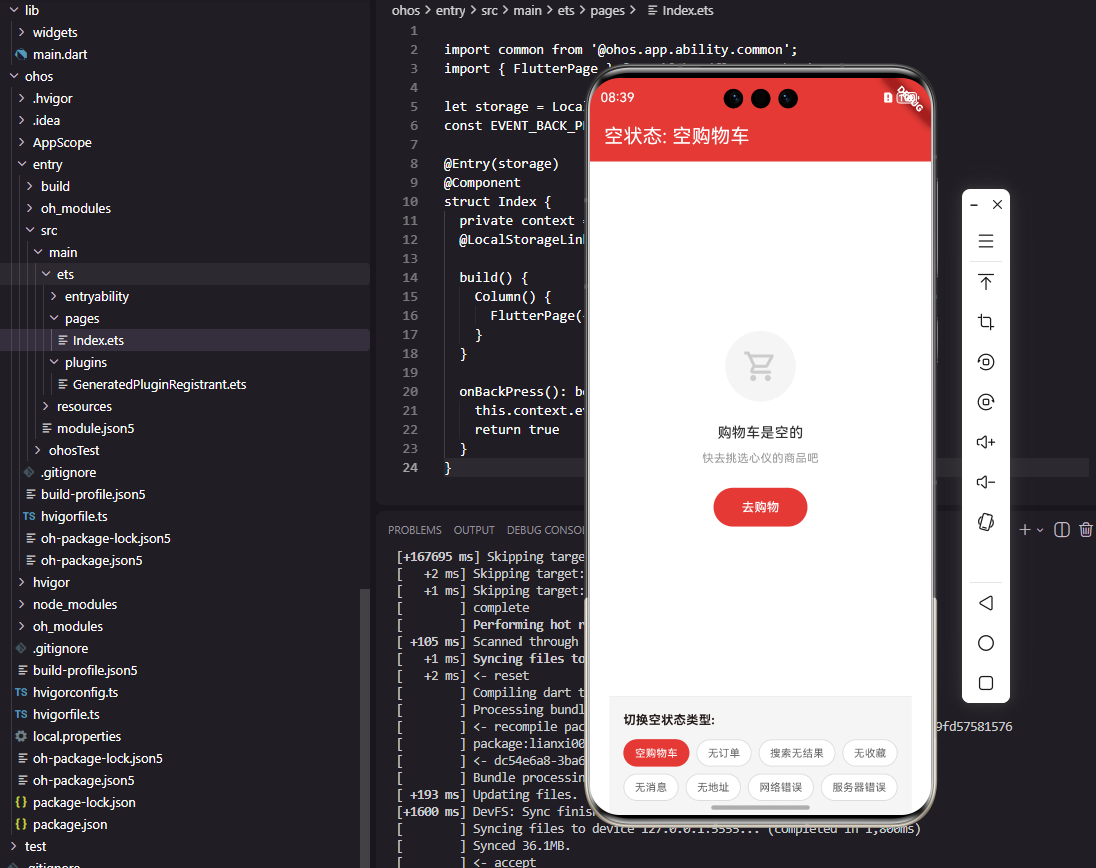
空状态是商城应用中当列表或页面没有数据时显示的占位内容,如空购物车、无搜索结果、无订单等场景。一个设计良好的空状态组件不仅能够告知用户当前状态,还能引导用户进行下一步操作。本文将详细介绍如何在Flutter和OpenHarmony平台上开发空状态组件。
空状态的设计需要考虑用户的情感体验和操作引导。空白页面会让用户感到困惑和失落,而友好的空状态提示可以缓解这种负面情绪,并通过操作按钮引导用户采取行动,如去购物、重新搜索等。
Flutter空状态基础组件
首先实现空状态的基础组件:
class EmptyState extends StatelessWidget {
final String? image;
final IconData? icon;
final String title;
final String? description;
final String? buttonText;
final VoidCallback? onButtonTap;
const EmptyState({
Key? key,
this.image,
this.icon,
required this.title,
this.description,
this.buttonText,
this.onButtonTap,
}) : super(key: key);
Widget build(BuildContext context) {
return Center(
child: Padding(
padding: const EdgeInsets.all(32),
child: Column(
mainAxisSize: MainAxisSize.min,
children: [
_buildImage(),
const SizedBox(height: 24),
_buildTitle(),
if (description != null) ...[
const SizedBox(height: 8),
_buildDescription(),
],
if (buttonText != null) ...[
const SizedBox(height: 24),
_buildButton(),
],
],
),
),
);
}
}
EmptyState组件接收图片或图标、标题、描述和操作按钮等参数。image和icon二选一用于显示空状态插图,title是必需的主标题,description是可选的详细说明,buttonText和onButtonTap用于显示操作按钮。Center使内容居中显示,Column垂直排列各个元素,条件渲染确保只显示有值的元素。
图片区域组件:
Widget _buildImage() {
  if (image != null) {
    return Image.asset(
      image!,
      width: 120,
      height: 120,
    );
  }

  if (icon != null) {
    return Container(
      width: 80,
      height: 80,
      decoration: BoxDecoration(
        color: const Color(0xFFF5F5F5),
        shape: BoxShape.circle,
      ),
      child: Icon(
        icon,
        size: 40,
        color: const Color(0xFFCCCCCC),
      ),
    );
  }

  return const SizedBox.shrink();
}
图片区域优先显示自定义图片,其次显示图标,都没有时返回空组件。自定义图片使用120像素尺寸,适合展示精美的空状态插图。图标使用圆形灰色背景包裹,40像素尺寸在视觉上足够醒目。这种设计支持不同风格的空状态展示需求。
标题和描述组件:
Widget _buildTitle() {
  return Text(
    title,
    style: const TextStyle(
      fontSize: 16,
      fontWeight: FontWeight.w500,
      color: Color(0xFF333333),
    ),
    textAlign: TextAlign.center,
  );
}

Widget _buildDescription() {
  return Text(
    description!,
    style: const TextStyle(
      fontSize: 13,
      color: Color(0xFF999999),
      height: 1.5,
    ),
    textAlign: TextAlign.center,
  );
}
标题使用16像素中等字重,作为空状态的主要信息传达。描述使用13像素灰色文字,提供补充说明。两者都使用居中对齐,与整体布局保持一致。1.5倍行高确保多行描述文字清晰易读。这种设计让用户能够快速理解当前的空状态原因。
操作按钮组件
Widget _buildButton() {
  return GestureDetector(
    onTap: onButtonTap,
    child: Container(
      padding: const EdgeInsets.symmetric(
        horizontal: 32,
        vertical: 12,
      ),
      decoration: BoxDecoration(
        color: const Color(0xFFE53935),
        borderRadius: BorderRadius.circular(22),
      ),
      child: Text(
        buttonText!,
        style: const TextStyle(
          fontSize: 14,
          color: Colors.white,
          fontWeight: FontWeight.w500,
        ),
      ),
    ),
  );
}
操作按钮使用红色背景和圆角胶囊形状,在空状态页面中非常醒目。按钮引导用户采取下一步行动,如"去购物"、"重新搜索"等。Container设置水平和垂直内边距,确保按钮有足够的点击区域。白色文字与红色背景形成强烈对比,确保按钮清晰可见。
预设空状态组件
class EmptyCart extends StatelessWidget {
final VoidCallback? onGoShopping;
const EmptyCart({Key? key, this.onGoShopping}) : super(key: key);
Widget build(BuildContext context) {
return EmptyState(
icon: Icons.shopping_cart_outlined,
title: '购物车是空的',
description: '快去挑选心仪的商品吧',
buttonText: '去购物',
onButtonTap: onGoShopping,
);
}
}
class EmptyOrder extends StatelessWidget {
final VoidCallback? onGoShopping;
const EmptyOrder({Key? key, this.onGoShopping}) : super(key: key);
Widget build(BuildContext context) {
return EmptyState(
icon: Icons.receipt_long_outlined,
title: '暂无订单',
description: '您还没有任何订单记录',
buttonText: '去购物',
onButtonTap: onGoShopping,
);
}
}
预设空状态组件封装了常见场景的空状态配置。EmptyCart用于空购物车场景,EmptyOrder用于无订单场景。每个预设组件使用合适的图标、标题、描述和按钮文字,调用者只需传入回调函数即可使用。这种封装方式减少了重复代码,保证了空状态展示的一致性。
更多预设组件:
class EmptySearch extends StatelessWidget {
final String? keyword;
final VoidCallback? onRetry;
const EmptySearch({
Key? key,
this.keyword,
this.onRetry,
}) : super(key: key);
Widget build(BuildContext context) {
return EmptyState(
icon: Icons.search_off,
title: '未找到相关商品',
description: keyword != null
? '没有找到"$keyword"相关的商品\n换个关键词试试吧'
: '换个关键词试试吧',
buttonText: '重新搜索',
onButtonTap: onRetry,
);
}
}
class EmptyFavorite extends StatelessWidget {
final VoidCallback? onGoShopping;
const EmptyFavorite({Key? key, this.onGoShopping}) : super(key: key);
Widget build(BuildContext context) {
return EmptyState(
icon: Icons.favorite_border,
title: '暂无收藏',
description: '快去收藏喜欢的商品吧',
buttonText: '去逛逛',
onButtonTap: onGoShopping,
);
}
}
EmptySearch用于搜索无结果场景,支持显示搜索关键词。EmptyFavorite用于收藏夹为空场景。每个预设组件都选择了语义相关的图标,如搜索使用search_off图标,收藏使用favorite_border图标。描述文字根据场景提供有针对性的引导。
OpenHarmony空状态实现
@Component
struct EmptyState {
  @Prop icon: Resource | null = null
  @Prop title: string = ''
  @Prop description: string = ''
  @Prop buttonText: string = ''
  private onButtonTap: () => void = () => {}

  build() {
    Column() {
      if (this.icon) {
        this.IconArea()
      }

      Text(this.title)
        .fontSize(16)
        .fontWeight(FontWeight.Medium)
        .fontColor('#333333')
        .margin({ top: 24 })

      if (this.description) {
        Text(this.description)
          .fontSize(13)
          .fontColor('#999999')
          .textAlign(TextAlign.Center)
          .margin({ top: 8 })
      }

      if (this.buttonText) {
        this.ActionButton()
      }
    }
    .width('100%')
    .padding(32)
    .justifyContent(FlexAlign.Center)
  }
}
OpenHarmony的空状态组件使用Column垂直排列各个元素。@Prop装饰的属性从父组件接收配置数据。条件渲染使用if语句,只有当属性有值时才显示对应元素。justifyContent设为FlexAlign.Center使内容垂直居中。这种实现方式与Flutter版本结构一致。
图标区域ArkUI实现:
@Builder
IconArea() {
  Column() {
    Image(this.icon)
      .width(40)
      .height(40)
  }
  .width(80)
  .height(80)
  .backgroundColor('#F5F5F5')
  .borderRadius(40)
  .justifyContent(FlexAlign.Center)
}
@Builder装饰器定义了图标区域的构建方法。Column包裹Image组件并设置居中对齐。外层设置80像素尺寸和圆形背景,Image设置40像素尺寸。borderRadius设为宽度的一半实现圆形效果。这种实现方式与Flutter版本的视觉效果一致。
操作按钮ArkUI实现:
@Builder
ActionButton() {
  Text(this.buttonText)
    .fontSize(14)
    .fontColor(Color.White)
    .fontWeight(FontWeight.Medium)
    .padding({ left: 32, right: 32, top: 12, bottom: 12 })
    .backgroundColor('#E53935')
    .borderRadius(22)
    .margin({ top: 24 })
    .onClick(() => this.onButtonTap())
}
操作按钮使用Text组件配合样式设置实现。padding设置内边距,backgroundColor设置红色背景,borderRadius设置圆角。onClick事件处理器在用户点击时触发回调。这种实现方式简洁高效。
网络错误状态
class NetworkError extends StatelessWidget {
final VoidCallback? onRetry;
const NetworkError({Key? key, this.onRetry}) : super(key: key);
Widget build(BuildContext context) {
return EmptyState(
icon: Icons.wifi_off,
title: '网络连接失败',
description: '请检查网络设置后重试',
buttonText: '重新加载',
onButtonTap: onRetry,
);
}
}
class ServerError extends StatelessWidget {
final VoidCallback? onRetry;
const ServerError({Key? key, this.onRetry}) : super(key: key);
Widget build(BuildContext context) {
return EmptyState(
icon: Icons.error_outline,
title: '服务器开小差了',
description: '请稍后再试',
buttonText: '重新加载',
onButtonTap: onRetry,
);
}
}
NetworkError和ServerError组件用于网络请求失败的场景。网络错误使用wifi_off图标,服务器错误使用error_outline图标。描述文字告知用户可能的原因,按钮提供重试操作。这种设计帮助用户理解错误原因并采取相应行动。
空状态工厂方法
class EmptyStateFactory {
  static Widget create(EmptyStateType type, {VoidCallback? onAction}) {
    switch (type) {
      case EmptyStateType.cart:
        return EmptyCart(onGoShopping: onAction);
      case EmptyStateType.order:
        return EmptyOrder(onGoShopping: onAction);
      case EmptyStateType.favorite:
        return EmptyFavorite(onGoShopping: onAction);
      case EmptyStateType.search:
        return EmptySearch(onRetry: onAction);
      case EmptyStateType.network:
        return NetworkError(onRetry: onAction);
      case EmptyStateType.server:
        return ServerError(onRetry: onAction);
    }
  }
}

enum EmptyStateType {
  cart,
  order,
  favorite,
  search,
  network,
  server,
}
EmptyStateFactory工厂类根据类型创建对应的空状态组件。EmptyStateType枚举定义了所有支持的空状态类型。调用者只需指定类型和回调函数,工厂方法会返回配置好的空状态组件。这种设计模式使空状态的使用更加统一和便捷。
总结
本文详细介绍了Flutter和OpenHarmony平台上空状态组件的开发过程。空状态作为用户体验的重要组成部分,其设计质量直接影响用户对应用的感受。通过基础空状态组件、预设场景组件、错误状态组件等的合理设计,我们为用户提供了友好的空状态展示和操作引导。在实际项目中,还可以进一步添加动画效果、个性化推荐等功能。
欢迎加入开源鸿蒙跨平台社区:https://openharmonycrossplatform.csdn.net

开源鸿蒙跨平台开发社区汇聚开发者与厂商,共建“一次开发,多端部署”的开源生态,致力于降低跨端开发门槛,推动万物智联创新。
更多推荐

 22
22 0
0- 0


 已为社区贡献28条内容

所有评论(0)