electron 托盘图标闪烁_electron聊天室|vue+electron-vue仿微信客户端|electron桌面聊天
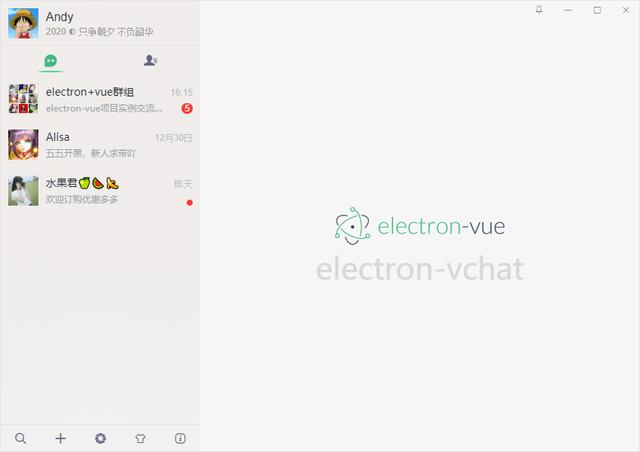
一、项目概况基于Electron+vue+electron-vue+vuex+Nodejs+vueVideoPlayer+electron-builder等技术仿制微信电脑端界面聊天室实例,实现消息发送/动态表情,图片/视频预览,拖拽图片/粘贴截图发送,朋友圈/红包/换肤等功能。二、效果图三、技术栈框架技术:electron + electron-vue + vue状态管理:Vuex地址路由:Vu
一、项目概况
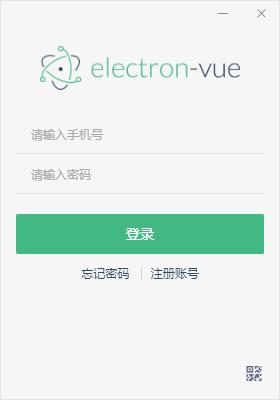
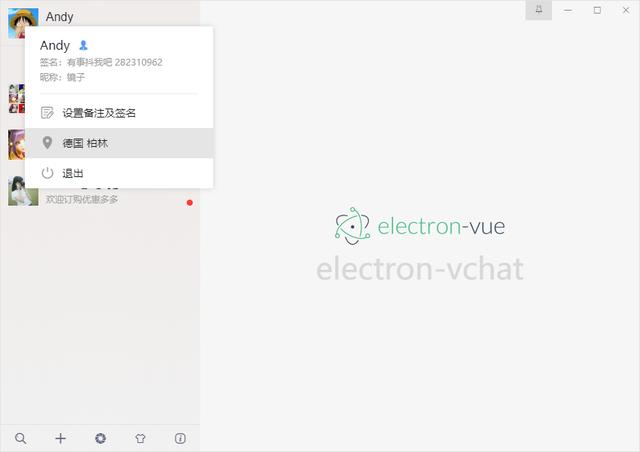
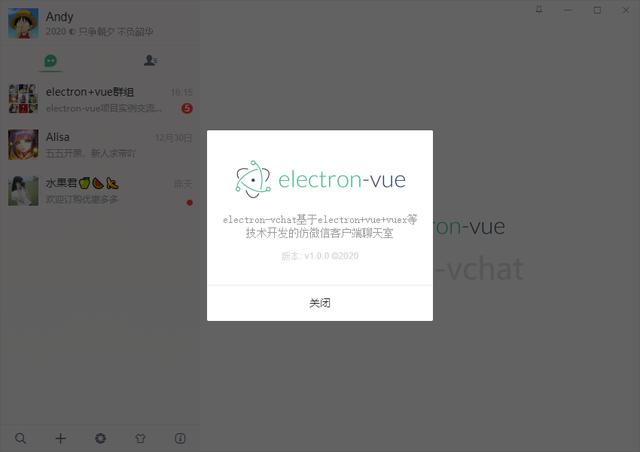
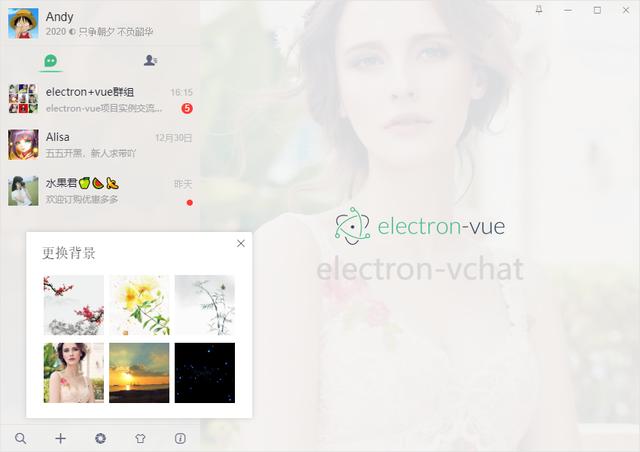
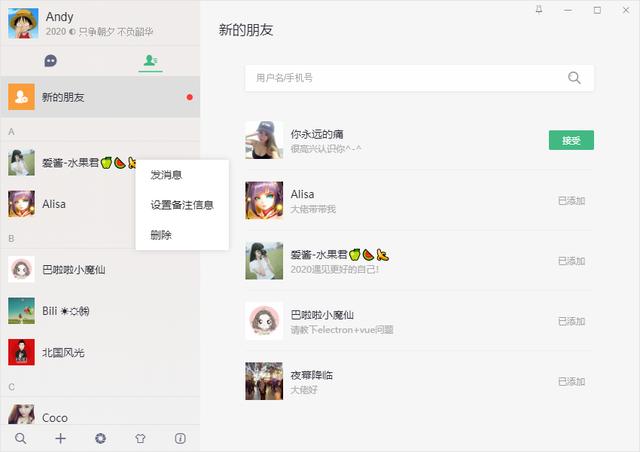
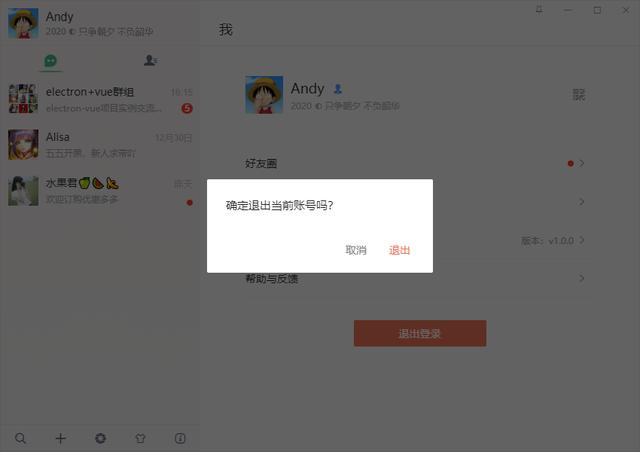
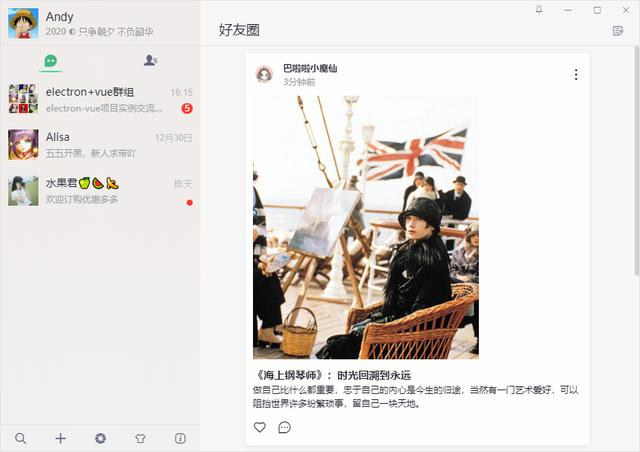
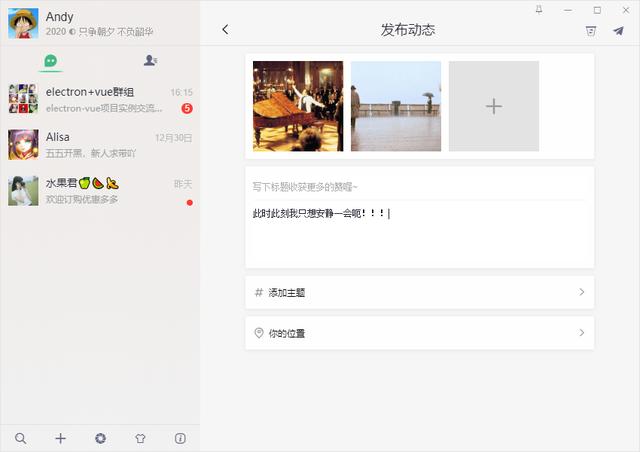
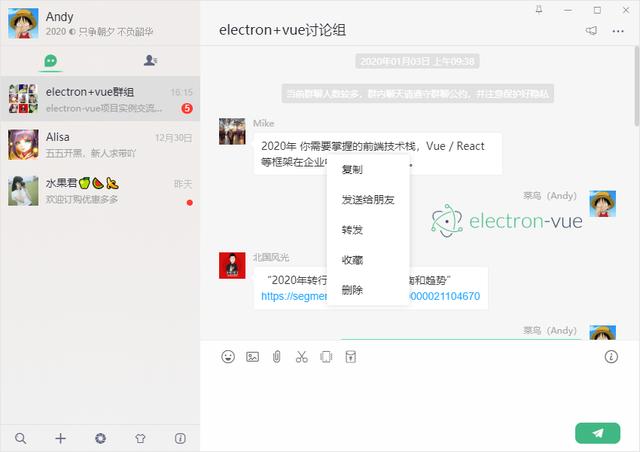
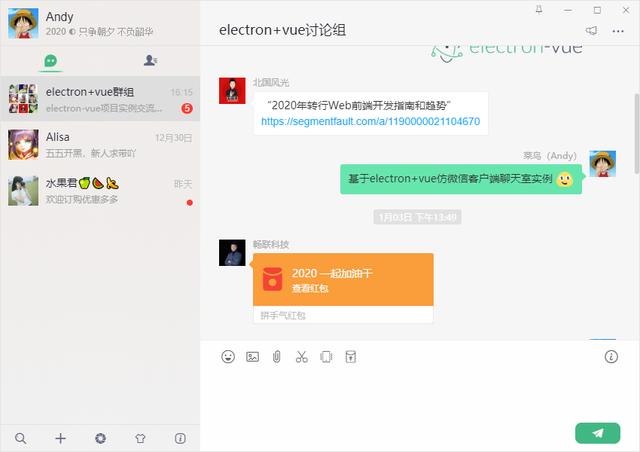
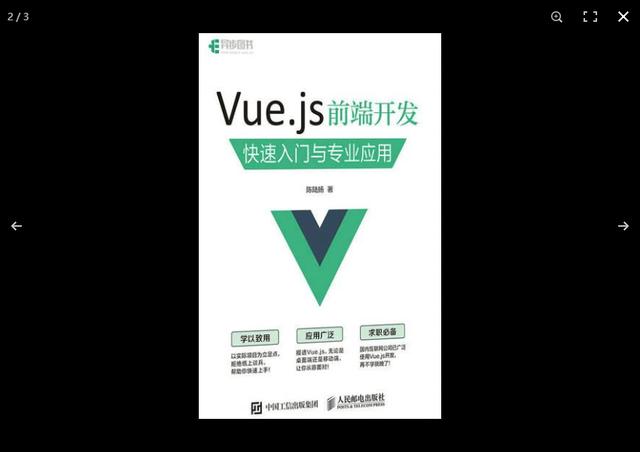
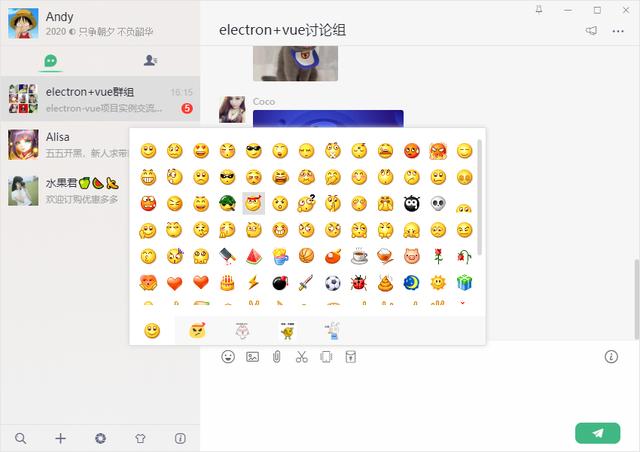
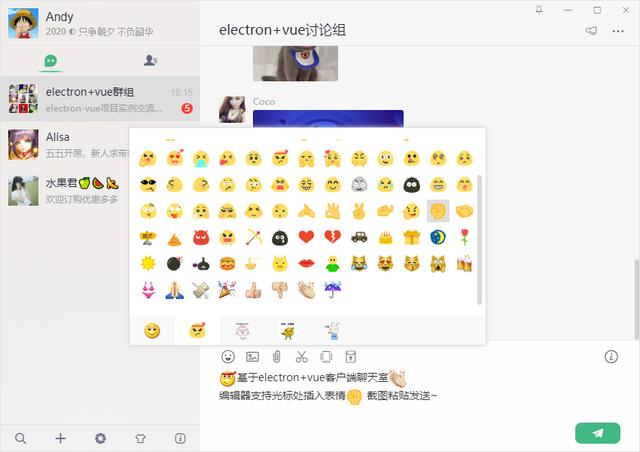
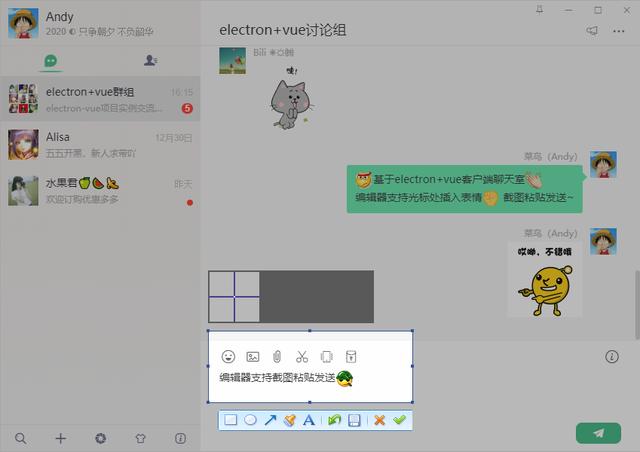
基于Electron+vue+electron-vue+vuex+Nodejs+vueVideoPlayer+electron-builder等技术仿制微信电脑端界面聊天室实例,实现消息发送/动态表情,图片/视频预览,拖拽图片/粘贴截图发送,朋友圈/红包/换肤等功能。
二、效果图
三、技术栈
- 框架技术:electron + electron-vue + vue
- 状态管理:Vuex
- 地址路由:Vue-router
- 字体图标:阿里iconfont字体图标库
- 弹窗插件:wcPop
- 打包工具:electron-builder
- 环境配置:Node.js + Chromium
- 图片预览:vue-photo-preview
- 视频组件:vue-video-player

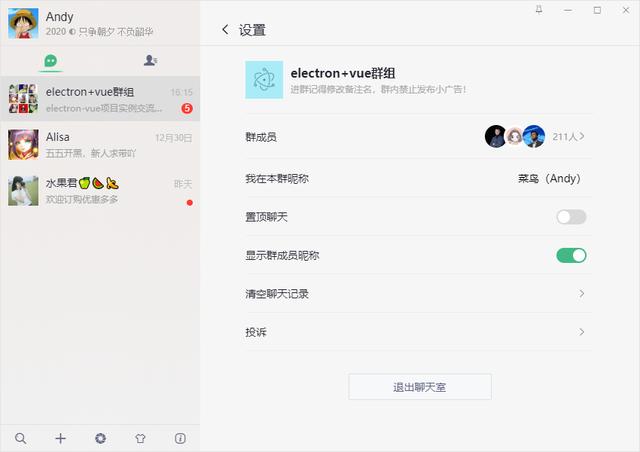
如何配置开发环境及使用electron-vue,这里不作多介绍,可查阅官网及搜资料
https://simulatedgreg.gitbooks.io/electron-vue/content/cn/
https://github.com/SimulatedGREG/electron-vue
注意:由于electron-vue作者长时间未更新,里面electron版本v2.0.4太旧,如遇问题,可升级到最新版本
◆ Electron主进程index.js
通过BrowserWindow创建和控制浏览器窗口,官网有详细介绍,这里略过...
https://electronjs.org/docs/api/browser-window

...let mainWinlet traylet forceQuit = falselet logined = false/** * 创建主窗口============================= */function createMainWin() { mainWin = new BrowserWindow({ // 背景颜色 // backgroundColor: '#ebebeb', width: Common.WIN_SIZE_MAIN.width, height: Common.WIN_SIZE_MAIN.height, title: Common.WIN_TITLE, useContentSize: true, autoHideMenuBar: true, // 无边框窗口 frame: false, resizable: true, // 窗口创建的时候是否显示. 默认值为true show: false, webPreferences: { // devTools: false, webSecurity: false } }) mainWin.setMenu(null) mainWin.loadURL(Common.WIN_LOAD_URL()) mainWin.once('ready-to-show', () => { mainWin.show() mainWin.focus() }) // 点击关闭最小到托盘判断 mainWin.on('close', (e) => { if(logined && !forceQuit) { e.preventDefault() mainWin.hide() }else { mainWin = null app.quit() } }) initialIPC() apptray.createTray()}app.on('ready', createMainWin)app.on('activate', () => { if(mainWin === null) { createMainWin() }})...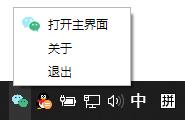
如上图:创建托盘图标及闪烁效果
/** * 托盘图标事件 */let flashTrayTimer = nulllet trayIco1 = `${__static}/icon.ico`let trayIco2 = `${__static}/empty.ico`let apptray = { // 创建托盘图标 createTray() { tray = new Tray(trayIco1) const menu = Menu.buildFromTemplate([ { label: '打开主界面', icon: `${__static}/tray-ico1.png`, click: () => { if(mainWin.isMinimized()) mainWin.restore() mainWin.show() mainWin.focus() this.flashTray(false) } }, { label: '关于', }, { label: '退出', click: () => { if(process.platform !== 'darwin') { mainWin.show() // 清空登录信息 mainWin.webContents.send('clearLoggedInfo') forceQuit = true mainWin = null app.quit() } } }, ]) tray.setContextMenu(menu) tray.setToolTip('electron-vchat v1.0.0') // 托盘点击事件 tray.on('click', () => { if(mainWin.isMinimized()) mainWin.restore() mainWin.show() mainWin.focus() this.flashTray(false) }) }, // 托盘图标闪烁 flashTray(flash) { let hasIco = false if(flash) { if(flashTrayTimer) return flashTrayTimer = setInterval(() => { tray.setImage(hasIco ? trayIco1 : trayIco2) hasIco = !hasIco }, 500) }else { if(flashTrayTimer) { clearInterval(flashTrayTimer) flashTrayTimer = null } tray.setImage(trayIco1) } }, // 销毁托盘图标 destroyTray() { this.flashTray(false) tray.destroy() tray = null }}◆ 渲染进程主页面main.js及app.vue
/** * @Desc 主入口main.js * @about Q:282310962 wx:xy190310 */import Vue from 'vue'import axios from 'axios'import App from './App'import router from './router'import store from './store'// 引入组件配置import $components from './components'Vue.use($components)if (!process.env.IS_WEB) Vue.use(require('vue-electron'))Vue.http = Vue.prototype.$http = axios/* eslint-disable no-new */new Vue({ components: { App }, router, store, template: ''}).$mount('#app')至于状态管理及路由配置基本和vue里面使用一样,这里也略过...
◆ electron自定义最大/小化、关闭按钮、无边框窗口拖动
配置BrowserWindow里面frame:false就会是无边框窗口,这时就可以自定义最大/小,关闭按钮,那么问题来了,无边框窗口如何进行拖动尼?
- 1、通过mousedown、mousemove等事件处理
- 2、设置需要拖动区css属性 -webkit-app-region
.elv__drag{-webkit-app-region: drag; -webkit-user-select:none; -moz-user-select:none; -ms-user-select:none; user-select:none;}.elv__nodrag{-webkit-app-region: no-drag;}
注意:默认设置-webkit-app-region: drag后,下面的元素不能点击操作,可通过设置需点击元素no-drag即可。
import { app, remote, ipcRenderer } from 'electron'import { mapState, mapMutations } from 'vuex'let currentWin = remote.getCurrentWindow()export default { props: { title: String, }, data () { return {// 是否置顶 isAlwaysOnTop: false, // 窗口是否可以最小化 isMinimizable: true, // 窗口是否可以最大化 isMaximizable: true, } }, computed: { ...mapState(['isWinMaxed']) }, mounted() {if(!currentWin.isMinimizable()) { this.isMinimizable = false } if(!currentWin.isMaximizable()) { this.isMaximizable = false } if(this.isWinMaxed && currentWin.isMaximizable()) { currentWin.maximize() } // 监听是否最大化 currentWin.on('maximize', () => { this.SET_WINMAXIMIZE(true) }) currentWin.on('unmaximize', () => { this.SET_WINMAXIMIZE(false) }) }, methods: { ...mapMutations(['SET_WINMAXIMIZE']), // 置顶窗口 handleFixTop() { this.isAlwaysOnTop = !this.isAlwaysOnTop currentWin.setAlwaysOnTop(this.isAlwaysOnTop) }, // 最小化 handleMin() { currentWin.minimize() }, // 最大化 handleMax() { if(!currentWin.isMaximizable()) return if(currentWin.isMaximized()) { currentWin.unmaximize() this.SET_WINMAXIMIZE(false) }else { currentWin.maximize() this.SET_WINMAXIMIZE(true) } }, // 关闭 handleQuit() { currentWin.close() } }}◆ 聊天编辑器光标处插入表情、div可编辑contenteditable="true"双向绑定
如何实现electron vue中向编辑框contenteditable光标处插入动态表情,类似QQ、微信聊天编辑器??
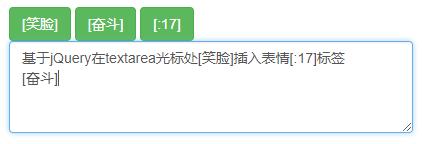
- 1、使用input、textarea文本框实现
通过给input或textarea文本框插入[奋斗]、(:17 等表情符标签,展示信息的时候解析标签就行
[笑脸] [奋斗] [:17]
- 2、运用h5中div可编辑contenteditable="true"实现
在vue页面设置contenteditable="true" 实现富文本文本框效果,由于div不能绑定v-model,只能使用vue提供的自定义组件v-model功能。
https://cn.vuejs.org/v2/guide/components-custom-events.html#%E8%87%AA%E5%AE%9A%E4%B9%89%E7%BB%84%E4%BB%B6%E7%9A%84-v-model
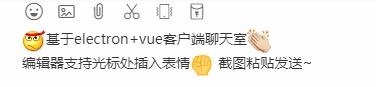
思路:新建一个chatInputEdit.vue组件,通过监听数据变化返回父组件数据
1):调用chatInputEdit.vue组件,并给其绑定v-model
... ...export default { data () { return { editorText: '', ... } }, ...}2):v-model中传入的值在子组件prop中获取并监听value变化
export default { props: { value: { type: String, default: '' } }, data () { return { editorText: this.value, ... } }, watch: { value() { ... } },}3):监听获取到的值赋值给子组件中的v-html参数,就打通双向绑定链路了
/** * contenteditable光标处插入内容 */insertHtmlAtCaret(html) { let sel, range; if(!this.$refs.editor.childNodes.length) { this.$refs.editor.focus() } if (window.getSelection) { // IE9 and non-IE sel = window.getSelection(); if (sel.getRangeAt && sel.rangeCount) { range = sel.getRangeAt(0); range.deleteContents(); let el = document.createElement("div"); el.appendChild(html) var frag = document.createDocumentFragment(), node, lastNode; while ((node = el.firstChild)) { lastNode = frag.appendChild(node); } range.insertNode(frag); if (lastNode) { range = range.cloneRange(); range.setStartAfter(lastNode); range.collapse(true); sel.removeAllRanges(); sel.addRange(range); } } } else if (document.selection && document.selection.type != "Control") { // IE < 9 document.selection.createRange().pasteHTML(html); }}◆ electron+vue实现微信截图功能
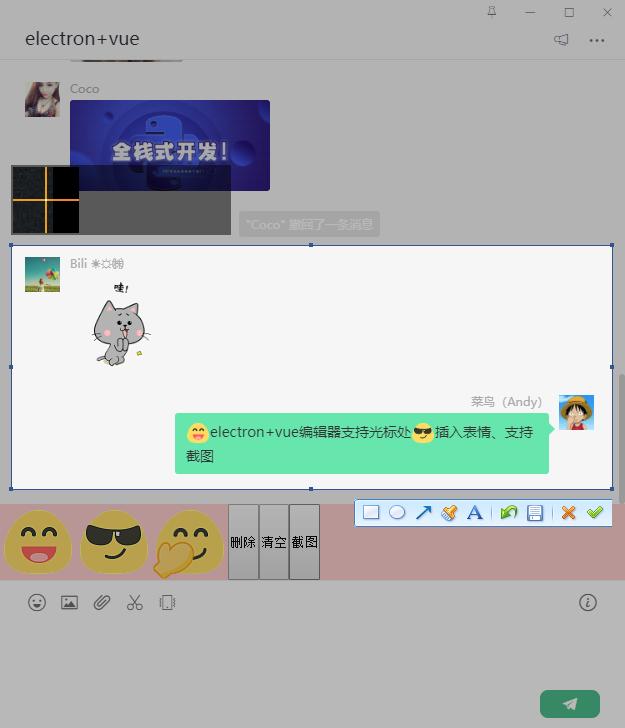
Node中通过的execFile方法执行exe文件,exe调用同级目录下的微信截图dll,调出截图工具
handleCaptureScreen() { return new Promise((resolve) => { const { execFile } = require('child_process') var screenWin = execFile('./static/PrintScr.exe') screenWin.on('exit', function(code) { let pngs = require('electron').clipboard.readImage().toPNG() let imgData = new Buffer.from(pngs, 'base64') let imgs = 'data:image/png;base64,' + btoa(new Uint8Array(imgData).reduce((data, byte) => data + String.fromCharCode(byte), '')) resolve(imgs) }) })},Okay。以上就是基于electron+vue开发仿微信客户端聊天实例分享,希望能有些帮助!!
最后附上两个最近实例项目
uniapp+vue实现抖音短视频|陌陌app直播:https://www.cnblogs.com/xiaoyan2017/p/11835641.html
taro+react多端 (h5/小程序/App) 聊天实例:https://www.cnblogs.com/xiaoyan2017/p/12039544.html
本文为博主原创文章,未经博主允许不得转载,欢迎大家一起交流 QQ(282310962) wx(xy190310)

开源鸿蒙跨平台开发社区汇聚开发者与厂商,共建“一次开发,多端部署”的开源生态,致力于降低跨端开发门槛,推动万物智联创新。
更多推荐
 0
0 0
0- 0


 已为社区贡献1条内容

所有评论(0)