如何使用electron将Vue项目打包为本地exe文件
起初electron和electron-builder安装失败,转为Nativefier,后者虽然安装和使用简便,但是只能将在线的网站转换为可执行文件,因此无论如何都要攻克electron的打包难关,过程中参考了大量的博客和AI助手,最终才梳理清楚了整体的流程。本方法不需要科学上网,绝对简单、可行、详细。
教程目录
一、创建Vue工程
1、Node.js和Vue的安装可以直接参考我的博客:全网最详细的nodejs卸载和安装教程
2、vue create [project]创建Vue工程,然后根据需求编写Vue组件即可,完成后使用npm run serve启动程序。
二、拿下Electron
1、简介
Electron是一个开源框架,可借助JavaScript、HTML和CSS构建跨平台桌面应用。它结合Chromium和Node.js,开发者能复用Web技术。众多知名应用如VS Code、Slack都用它开发,具备高效、灵活的特点。
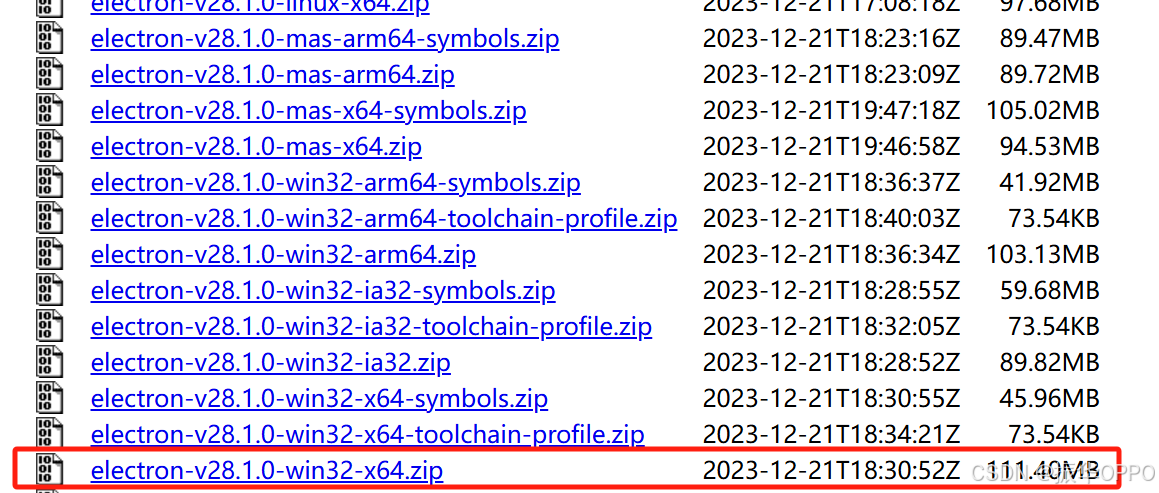
它在Github官方仓库中可以找到各个版本,但是我们国内有很出色的镜像源:
https://registry.npmmirror.com/binary.html?path=electron/28.1.0/
electron-builder是一个为Electron应用量身打造的打包工具。它能把Electron应用打包成可在不同操作系统(如Windows、Mac、Linux)上直接安装运行的格式。支持自动更新、签名等功能,操作简单且功能强大,能大幅提升应用发布效率。
本文选择最稳定的版本进行搭配安装:
| 依赖 | 版本 |
|---|---|
| electron | 28.1.0 |
| electron-builder | 26.0.12 |
2、安装electron
2.1、设置镜像
set ELECTRON_MIRROR=https://npmmirror.com/mirrors/electron/
2.2、安装依赖包
npm install electron@28.1.0 --save-dev --ignore-scripts
安装成功如下:
2.4、移动到目录music-score\node_modules\electron下

2.5、修改install.js脚本
为安装时下载依赖成功,需要注释掉downloadArtifact方法,添加extractFile("electron-v28.1.0-win32-x64.zip");
#!/usr/bin/env node

const { version } = require('./package');

const childProcess = require('child_process');
const fs = require('fs');
const os = require('os');
const path = require('path');
const extract = require('extract-zip');
const { downloadArtifact } = require('@electron/get');

if (process.env.ELECTRON_SKIP_BINARY_DOWNLOAD) {
  process.exit(0);
}

const platformPath = getPlatformPath();

if (isInstalled()) {
  process.exit(0);
}

const platform = process.env.npm_config_platform || process.platform;
let arch = process.env.npm_config_arch || process.arch;

if (platform === 'darwin' && process.platform === 'darwin' && arch === 'x64' &&
  process.env.npm_config_arch === undefined) {
  // When downloading for macOS ON macOS and we think we need x64 we should
  // check if we're running under rosetta and download the arm64 version if appropriate
  try {
    const output = childProcess.execSync('sysctl -in sysctl.proc_translated');
    if (output.toString().trim() === '1') {
      arch = 'arm64';
    }
  } catch {
    // Ignore failure
  }
}

extractFile("electron-v28.1.0-win32-x64.zip");
// downloads if not cached
// downloadArtifact({
//   version,
//   artifactName: 'electron',
//   force: process.env.force_no_cache === 'true',
//   cacheRoot: process.env.electron_config_cache,
//   checksums: process.env.electron_use_remote_checksums ? undefined : require('./checksums.json'),
//   platform,
//   arch
// }).then(extractFile).catch(err => {
//   console.error(err.stack);
//   process.exit(1);
// });

function isInstalled() {
  try {
    if (fs.readFileSync(path.join(__dirname, 'dist', 'version'), 'utf-8').replace(/^v/, '') !== version) {
      return false;
    }

    if (fs.readFileSync(path.join(__dirname, 'path.txt'), 'utf-8') !== platformPath) {
      return false;
    }
  } catch (ignored) {
    return false;
  }

  const electronPath = process.env.ELECTRON_OVERRIDE_DIST_PATH || path.join(__dirname, 'dist', platformPath);

  return fs.existsSync(electronPath);
}

// unzips and makes path.txt point at the correct executable
function extractFile(zipPath) {
  const distPath = process.env.ELECTRON_OVERRIDE_DIST_PATH || path.join(__dirname, 'dist');

  return extract(zipPath, { dir: path.join(__dirname, 'dist') }).then(() => {
    // If the zip contains an "electron.d.ts" file,
    // move that up
    const srcTypeDefPath = path.join(distPath, 'electron.d.ts');
    const targetTypeDefPath = path.join(__dirname, 'electron.d.ts');
    const hasTypeDefinitions = fs.existsSync(srcTypeDefPath);

    if (hasTypeDefinitions) {
      fs.renameSync(srcTypeDefPath, targetTypeDefPath);
    }

    // Write a "path.txt" file.
    return fs.promises.writeFile(path.join(__dirname, 'path.txt'), platformPath);
  });
}

function getPlatformPath() {
  const platform = process.env.npm_config_platform || os.platform();

  switch (platform) {
    case 'mas':
    case 'darwin':
      return 'Electron.app/Contents/MacOS/Electron';
    case 'freebsd':
    case 'openbsd':
    case 'linux':
      return 'electron';
    case 'win32':
      return 'electron.exe';
    default:
      throw new Error('Electron builds are not available on platform: ' + platform);
  }
}
2.6、在electron目录下,重新执行安装命令node install.js
这样就会自动解压到当前目录,可以看到多了一个dist目录,至此electron安装完成。
3、安装electron-builder
3.1、设置环境变量
set ELECTRON_BUILDER_BINARIES_MIRROR=https://npmmirror.com/mirrors/electron-builder-binaries/
3.2、安装
npm install electron-builder@26.0.12 --save-dev

4、测试
在项目根目录新建test-electron.js,代码如下:
const { app } = require('electron')
console.log('Electron版本:', process.versions.electron)
app.quit()
终端执行npx electron ./src/test-electron.js
显示版本号则说明安装成功。
三、配置Vue程序
3.1、vue.config.js
需要定义公共路径和输出目录。
const { defineConfig } = require('@vue/cli-service')
module.exports = defineConfig({
  transpileDependencies: true,
  publicPath: './',
  outputDir: 'dist'
})
3.2、package.json
最主要的就是build键属性,定义了软件的基本信息。
{
  "name": "music-score",
  "version": "0.1.0",
  "description": "use five hours to convert web to app",
  "main": "electron-main.js",
  "author": "duzhenhua",
  "license": "ISC",
  "private": true,
  "build": {
    "appId": "com.dzh.musicscore",
    "productName": "MusicScore",
    "directories": {
      "output": "build"
    },
    "win": {
      "target": "portable",
      "icon": "public/icon.ico"
    },
    "files": [
      "dist/**/*",
      "electron-main.js",
      "package.json"
    ],
    "electronDownload": {
      "mirror": "https://npmmirror.com/mirrors/electron/"
    }
  },
  "scripts": {
    "serve": "vue-cli-service serve",
    "build": "vue-cli-service build",
    "lint": "vue-cli-service lint",
    "postinstall": "node node_modules/electron/install.js",
    "test": "echo \"Error: no test specified\" && exit 1",
    "electron:build": "electron-builder",
    "start": "electron ."
  },
  "dependencies": {
    "@element-plus/icons-vue": "^2.3.1",
    "core-js": "^3.8.3",
    "element-plus": "^2.9.7",
    "vue": "^3.2.13"
  },
  "devDependencies": {
    "@babel/core": "^7.12.16",
    "@babel/eslint-parser": "^7.12.16",
    "@vue/cli-plugin-babel": "~5.0.0",
    "@vue/cli-plugin-eslint": "~5.0.0",
    "@vue/cli-service": "~5.0.0",
    "electron": "^28.1.0",
    "electron-builder": "^26.0.12",
    "eslint": "^7.32.0",
    "eslint-plugin-vue": "^8.0.3"
  },
  "eslintConfig": {
    "root": true,
    "env": {
      "node": true
    },
    "extends": [
      "plugin:vue/vue3-essential",
      "eslint:recommended"
    ],
    "parserOptions": {
      "parser": "@babel/eslint-parser"
    },
    "rules": {}
  },
  "browserslist": [
    "> 1%",
    "last 2 versions",
    "not dead",
    "not ie 11"
  ]
}
3.3、electron-main.js
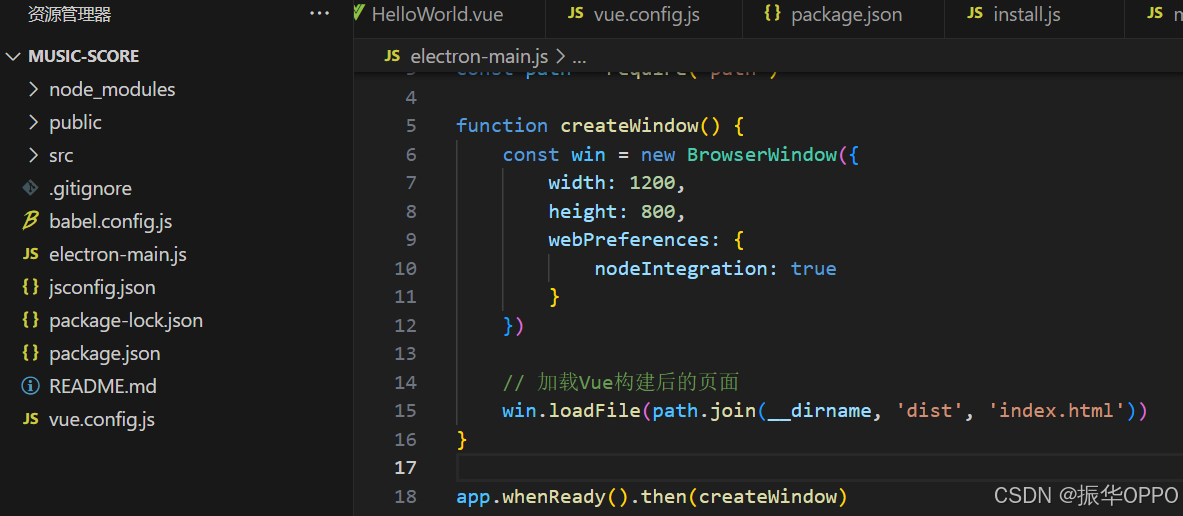
在项目根目录新建electron-main.js文件,代码如下:
// electron-main.js
const { app, BrowserWindow } = require('electron')
const path = require('path')

function createWindow() {
    const win = new BrowserWindow({
        width: 1200,
        height: 800,
        webPreferences: {
            nodeIntegration: true
        }
    })

    // 加载Vue构建后的页面
    win.loadFile(path.join(__dirname, 'dist', 'index.html'))
}

app.whenReady().then(createWindow)
四、打包Vue程序
4.1、npm run build
在根目录执行编译命令,然后会在dist目录中生成css、js和html文件。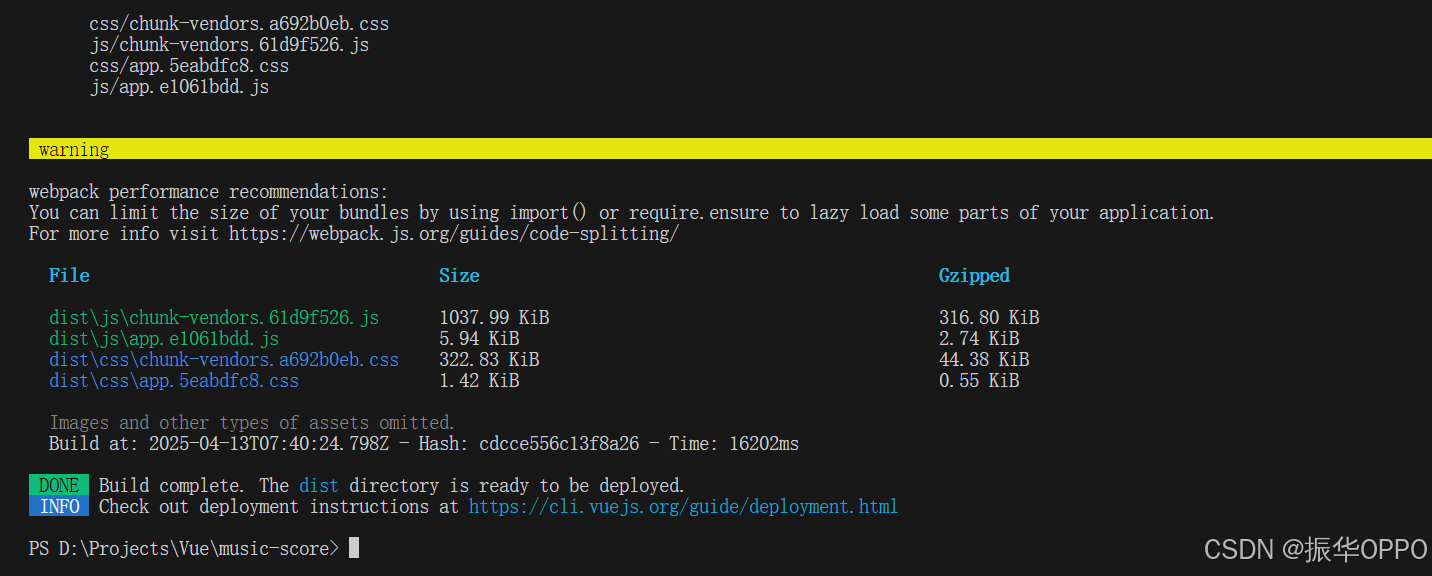
在资源管理器中打开index.html文件,如果可以正常在浏览器中显示就说明程序没问题。

4.2、npx electron-builder --win --x64 --config.asar=false
在根目录执行打包命令,10s不到就可以打包完成。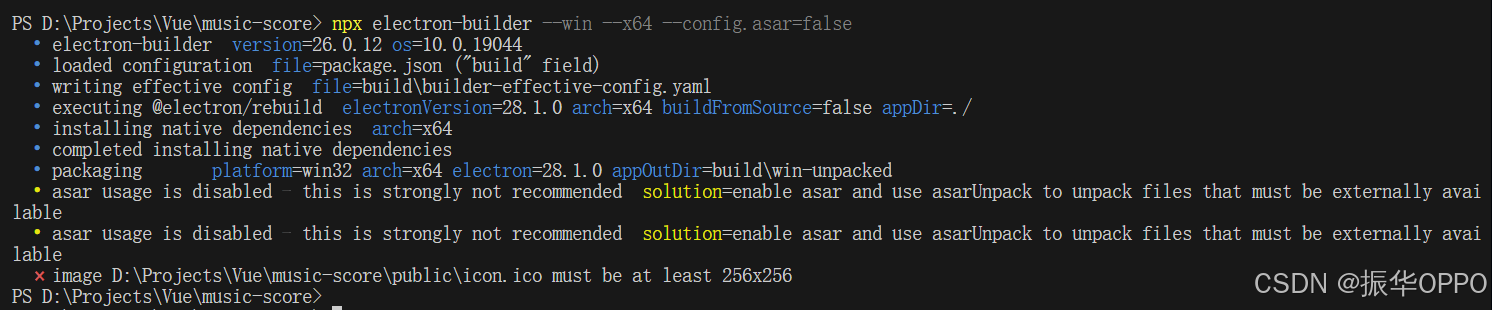
会在build目录下生成win-unpacked目录,如下:
build/
└── win-unpacked/
├── music-score.exe
└── resources/
├── app.asar
└── electron.asar
其中music-score.exe是我们需要的可执行文件,resources目录是依赖文件,我们只需要将win-unpacked压缩,就可以在任何装有Windows系统的电脑上解压运行。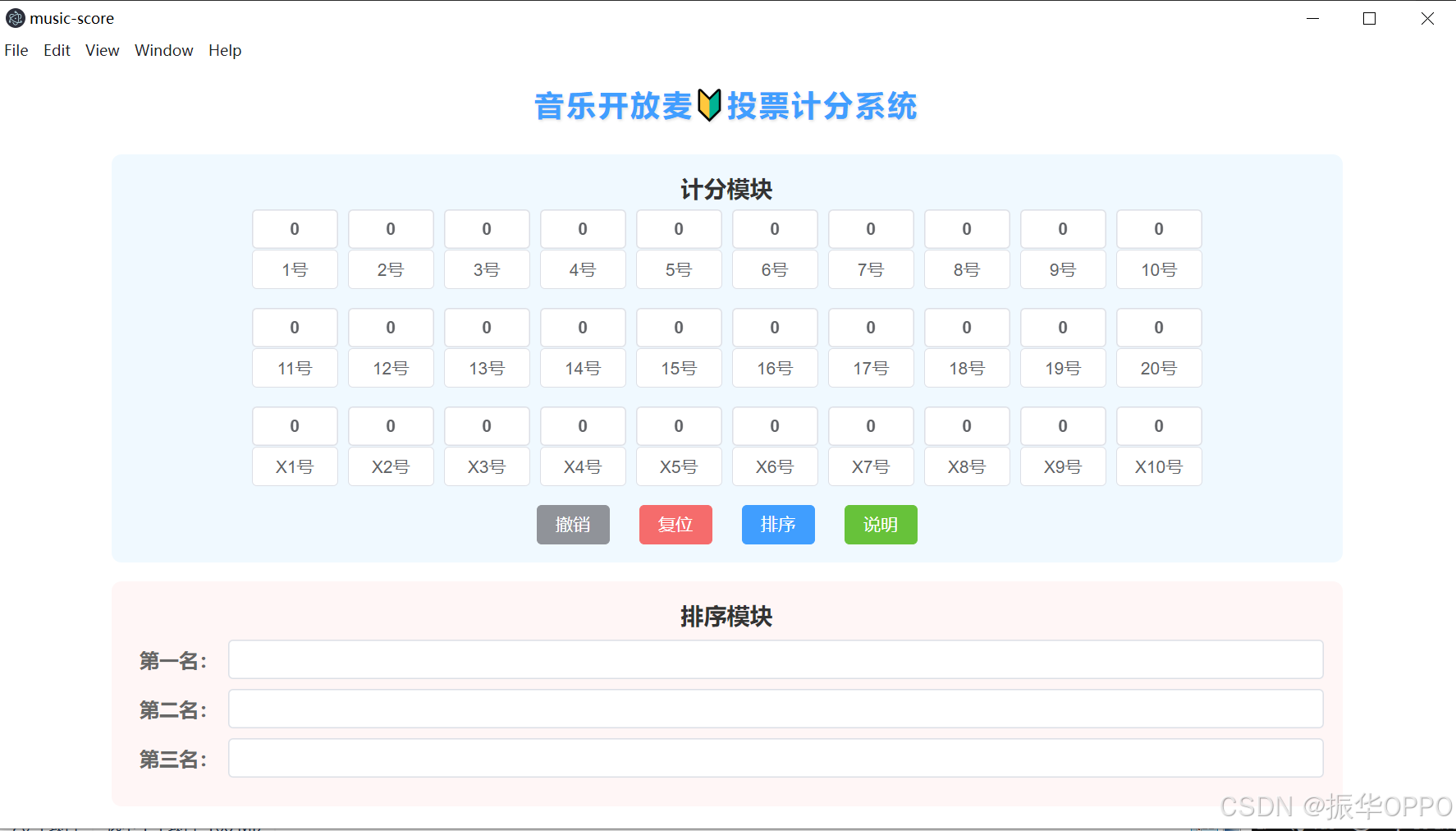
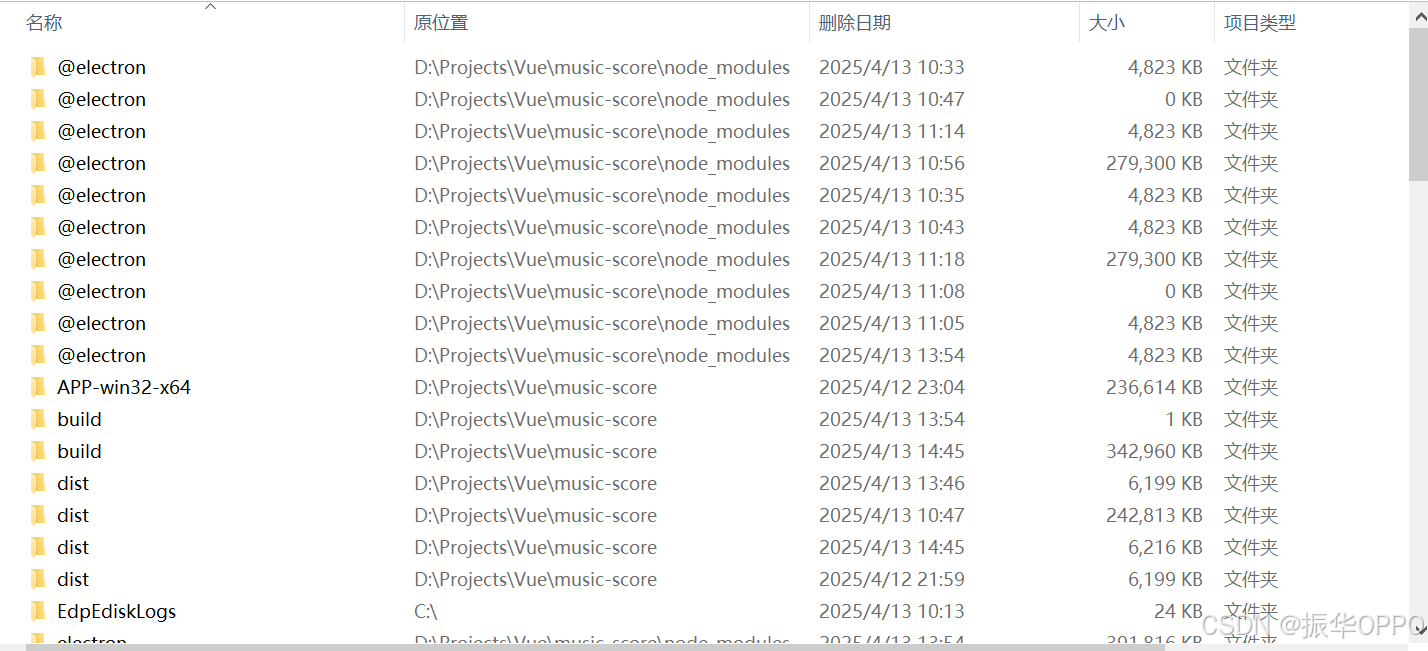
最后附上摸索花费的6小时以及回收站的文件,什么时候才能顺利地实现每个想法呢?

开源鸿蒙跨平台开发社区汇聚开发者与厂商,共建“一次开发,多端部署”的开源生态,致力于降低跨端开发门槛,推动万物智联创新。
更多推荐
 34
34 0
0- 0


 已为社区贡献1条内容

所有评论(0)