134.Online Shop App 【MVVM和Firebase】
包名修改: 我的项目名称是219.2。(什么资源文件之类的见视频评论区)
·
详细教学地址:教学视,频 (需要魔法)
(什么资源文件之类的见视频评论区)
1.依赖的添加
gradle:
plugins {
    alias(libs.plugins.android.application)
    alias(libs.plugins.kotlin.android)
}

android {
    namespace = "com.uilover.project2192" // 修改 namespace
    compileSdk = 35

    defaultConfig {
        applicationId = "com.uilover.project2192" // 修改 applicationId
        minSdk = 24
        targetSdk = 35
        versionCode = 1
        versionName = "1.0"

        testInstrumentationRunner = "androidx.test.runner.AndroidJUnitRunner"
    }

    buildTypes {
        release {
            isMinifyEnabled = false
            proguardFiles(
                getDefaultProguardFile("proguard-android-optimize.txt"),
                "proguard-rules.pro"
            )
        }
    }
    compileOptions {
        sourceCompatibility = JavaVersion.VERSION_1_8
        targetCompatibility = JavaVersion.VERSION_1_8
    }
    kotlinOptions {
        jvmTarget = "1.8"
    }
    buildFeatures{
        viewBinding = true
    }
}

dependencies {

    implementation(libs.androidx.core.ktx)
    implementation(libs.androidx.appcompat)
    implementation(libs.material)
    implementation(libs.androidx.activity)
    implementation(libs.androidx.constraintlayout)
    implementation(libs.androidx.navigation.fragment.ktx)
    implementation(libs.androidx.navigation.ui.ktx)
    testImplementation(libs.junit)
    androidTestImplementation(libs.androidx.junit)
    androidTestImplementation(libs.androidx.espresso.core)

    implementation("com.github.bumptech.glide:glide:4.12.0")
    implementation("com.google.code.gson:gson:2.9.1")
}
manifest:
<?xml version="1.0" encoding="utf-8"?>
<manifest xmlns:android="http://schemas.android.com/apk/res/android"
    xmlns:tools="http://schemas.android.com/tools"
    package="com.uilover.project2192"> <!-- 修改 package -->

    <application
        android:allowBackup="true"
        android:dataExtractionRules="@xml/data_extraction_rules"
        android:fullBackupContent="@xml/backup_rules"
        android:icon="@mipmap/ic_launcher"
        android:label="@string/app_name"
        android:roundIcon="@mipmap/ic_launcher_round"
        android:supportsRtl="true"
        android:theme="@style/Theme.Project2192"
        tools:targetApi="31">
        <activity
            android:name=".MainActivity"
            android:exported="true">
            <intent-filter>
                <action android:name="android.intent.action.MAIN" />

                <category android:name="android.intent.category.LAUNCHER" />
            </intent-filter>
        </activity>
    </application>

</manifest>
包名修改: 我的项目名称是219.2
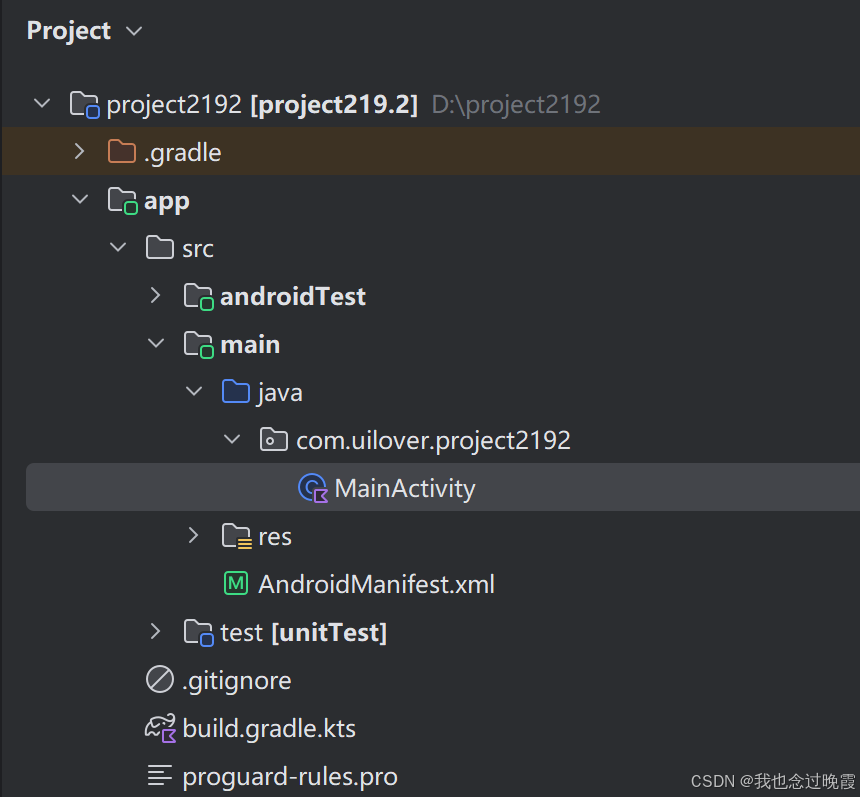
(然后Test和Test的同理都要改掉,改成uilover)
现在是第一部分注解:(有重复方法的我没写出来)
activity_intro.xml:
<?xml version="1.0" encoding="utf-8"?>
<!--
"http://schemas.android.com/apk/res-auto":
这是命名空间的 URI (Uniform Resource Identifier)。它是一个字符串,用于唯一标识该命名空间。
tools: 前缀用于在 XML 布局文件中引用 tools 命名空间中定义的属性。
使用 tools: 前缀的属性只在设计时生效,它们不会被编译到 APK 文件中,也不会影响应用程序在设备上的运行时的行为。
tools:context: 这是 tools 命名空间中的一个属性,用于指定布局文件的上下文 (context)。
.Activity.IntroActivity: 这是属性的值,它指定了与该布局文件关联的 Activity 或 Fragment 的类名。
-->
<androidx.constraintlayout.widget.ConstraintLayout xmlns:android="http://schemas.android.com/apk/res/android"
xmlns:app="http://schemas.android.com/apk/res-auto"
xmlns:tools="http://schemas.android.com/tools"
android:id="@+id/main"
android:layout_width="match_parent"
android:layout_height="match_parent"
android:background="@color/lightGreen"
tools:context=".Activity.IntroActivity">
<androidx.constraintlayout.widget.ConstraintLayout
android:layout_width="wrap_content"
android:layout_height="wrap_content"
android:background="@drawable/top_bg"
app:layout_constraintEnd_toEndOf="parent"
app:layout_constraintStart_toStartOf="parent"
app:layout_constraintTop_toTopOf="parent">
<!--centerCrop 的作用:
centerCrop 缩放类型会以以下方式处理图片:
缩放图片: 缩放图片,使其宽度和高度都大于或等于 ImageView 的宽度和高度。
居中裁剪: 将缩放后的图片居中显示,并裁剪超出 ImageView 边界的部分。-->
<ImageView
android:id="@+id/imageView"
android:layout_width="wrap_content"
android:layout_height="wrap_content"
android:scaleType="centerCrop"
app:layout_constraintEnd_toEndOf="parent"
app:layout_constraintStart_toStartOf="parent"
app:layout_constraintTop_toTopOf="parent"
app:srcCompat="@drawable/stand" />
</androidx.constraintlayout.widget.ConstraintLayout>
<!--android:gravity: 这是 Android 框架提供的属性,用于设置 View 内容的对齐方式。
"center": 这是属性的值,它指定了内容在其自身边界内居中对齐。-->
<LinearLayout
android:layout_width="275dp"
android:layout_height="293dp"
android:background="@drawable/bottom_bg"
android:orientation="vertical"
android:gravity="center"
app:layout_constraintBottom_toBottomOf="parent"
app:layout_constraintEnd_toEndOf="parent"
app:layout_constraintStart_toStartOf="parent">
<!--
android:textStyle: 这是 Android 框架提供的属性,用于设置文本的样式。
"bold": 这是 android:textStyle 属性的值,它指定文本的样式为粗体。
android:textAlignment: 这是 Android 框架提供的属性,用于设置文本的对齐方式。
"center": 这是 android:textAlignment 属性的值,它指定文本在其容器中居中对齐。
-->
<TextView
android:id="@+id/textView"
android:layout_width="match_parent"
android:layout_height="wrap_content"
android:text="LIVE YOUR\n
PERFECT"
android:textStyle="bold"
android:textSize="33sp"
android:textColor="@color/white"
android:textAlignment="center"/>
<TextView
android:id="@+id/textView2"
android:layout_width="match_parent"
android:layout_height="wrap_content"
android:textAlignment="center"
android:textColor="@color/white"
android:layout_marginTop="24dp"
android:lineSpacingExtra="10dp"
android:text="Smart, gorgeous & fashionable\n
collection makes you cool"/>
<TextView
android:id="@+id/startBtn"
android:layout_width="match_parent"
android:layout_height="wrap_content"
android:text="Get Started"
android:textAlignment="center"
android:textColor="@color/white"
android:textSize="16sp"
android:textStyle="bold"
android:layout_marginTop="32dp"/>
</LinearLayout>
</androidx.constraintlayout.widget.ConstraintLayout>IntroActivity:
package com.uilover.project2192.Activity

import android.content.Intent
import android.os.Bundle
import androidx.activity.enableEdgeToEdge
import androidx.appcompat.app.AppCompatActivity
import androidx.core.view.ViewCompat
import androidx.core.view.WindowInsetsCompat
import com.uilover.project2192.MainActivity
import com.uilover.project2192.R
import com.uilover.project2192.databinding.ActivityIntroBinding

class IntroActivity : AppCompatActivity() {

    //如果你的布局文件名为 activity_intro.xml,那么 View Binding 会生成一个名为 ActivityIntroBinding 的类。
    lateinit var binding: ActivityIntroBinding

    override fun onCreate(savedInstanceState: Bundle?) {
        super.onCreate(savedInstanceState)

        //.inflate() 方法是 LayoutInflater 类的一个方法,LayoutInflater 类用于从 XML 布局文件中实例化 View 对象。
        //.inflate() 方法用于将 XML 布局文件转换为 View 对象,以便在 Android 应用程序中使用。
        binding = ActivityIntroBinding.inflate(layoutInflater)
        setContentView(binding.root)

        /*
        startActivity(...):
        这是 Android 系统提供的方法,用于启动一个新的 Activity。
        它接受一个 Intent 对象作为参数,Intent 对象描述了要启动的 Activity。

        当 startBtn 按钮被点击时,启动一个新的 Activity,即 MainActivity。
         */
        binding.apply {
            startBtn.setOnClickListener { startActivity(Intent(this@IntroActivity, MainActivity::class.java)) }
        }
    }
}
BaseActivity.kt
package com.uilover.project2192.Activity

import android.os.Bundle
import android.view.WindowManager
import androidx.activity.enableEdgeToEdge
import androidx.appcompat.app.AppCompatActivity
import androidx.core.view.ViewCompat
import androidx.core.view.WindowInsetsCompat
import com.uilover.project2192.R

open class BaseActivity : AppCompatActivity() {
    override fun onCreate(savedInstanceState: Bundle?) {
        super.onCreate(savedInstanceState)

        /*
        在 Android 中,Window 是一个抽象类,代表一个顶级的视觉区域,用于显示用户界面。
        每个 Activity 都有一个 Window 对象,用于显示 Activity 的用户界面。
        Window 对象负责管理 View 层次结构、处理输入事件、控制屏幕亮度等。

        .setFlags(flags, mask):
        这是 Window 类的一个方法,用于设置 Window 的标志位。
        flags 参数: 指定要设置的标志位。
        mask 参数: 指定要修改哪些标志位。只有在掩码中为 1 的位才会被修改。

        FLAG_LAYOUT_NO_LIMITS:
        这是一个整数常量,表示 Window 的布局不应受到屏幕边界的限制。
        当设置了此标志位时,Window 可以扩展到屏幕之外,包括状态栏和导航栏区域。

        在 window.setFlags(flags, mask) 方法中,flags 参数指定要设置的标志位,而 mask 参数指定要修改哪些标志位
        通常需要写两句一样的,是为了确保只修改要设置的标志位,而不会影响其他的标志位。

        标志位(Flags)是一种在计算机科学中广泛使用的技术,用于表示一个对象或状态的特定属性或特征
        它们通常是二进制位,每个位代表一个不同的属性,可以设置为 0 或 1,分别表示该属性的禁用或启用状态。
         */
        window.setFlags(
            WindowManager.LayoutParams.FLAG_LAYOUT_NO_LIMITS,
            WindowManager.LayoutParams.FLAG_LAYOUT_NO_LIMITS
        )
    }
}
light_green_bottom_corner_bg.xml:
<?xml version="1.0" encoding="utf-8"?>
<selector xmlns:android="http://schemas.android.com/apk/res/android">

    <!--
        <item> 是一个标签,用于定义一个元素。
        <shape> 是一个 XML 标签,用于定义一个几何形状,可以作为 View 的背景或其他可绘制对象的组成部分。
        android:shape="rectangle" 表示定义一个矩形。
        <corners> 是一个 XML 标签,用于定义形状的圆角。

        android:bottomLeftRadius="30dp":
        用于指定左下角的圆角半径。

        android:bottomRightRadius="30dp":
        这是一个属性,用于指定右下角的圆角半径。
    -->
    <item>
        <shape android:shape="rectangle">
            <solid android:color="@color/lightGreen"/>
            <corners android:bottomLeftRadius="30dp"
                android:bottomRightRadius="30dp"/>
        </shape>
    </item>
</selector>
main.xml:
<?xml version="1.0" encoding="utf-8"?>
<!--
"match_parent":
这是一个属性值,用于指定 View 的宽度应与其父 View 的宽度相匹配。
android:fitsSystemWindows:
这是一个 Android XML 属性,可以应用于任何 View(例如 LinearLayout, FrameLayout, TextView 等)。
它用于指示 View 是否应该调整其内容,以适应系统窗口的 insets(内边距)。
系统窗口的 insets 是指系统窗口(例如状态栏、导航栏)占据的空间。
-->
<androidx.constraintlayout.widget.ConstraintLayout xmlns:android="http://schemas.android.com/apk/res/android"
xmlns:app="http://schemas.android.com/apk/res-auto"
xmlns:tools="http://schemas.android.com/tools"
android:layout_width="match_parent"
android:layout_height="match_parent"
android:background="@color/white"
android:fitsSystemWindows="true"
tools:context=".Activity.MainActivity">
<!--
NestedScrollView 是 Android 中一个用于实现垂直滚动功能的 View 容器,特别适用于处理嵌套滚动和提供平滑滚动体验的场景。
-->
<androidx.core.widget.NestedScrollView
android:layout_width="match_parent"
android:layout_height="match_parent">
<LinearLayout
android:layout_width="match_parent"
android:layout_height="wrap_content"
android:orientation="vertical"
android:paddingBottom="100dp">
<androidx.constraintlayout.widget.ConstraintLayout
android:layout_width="match_parent"
android:layout_height="300dp">
<androidx.constraintlayout.widget.ConstraintLayout
android:id="@+id/constraintLayout"
android:layout_width="match_parent"
android:layout_height="260dp"
android:background="@drawable/light_green_bottom_corner_bg"
app:layout_constraintEnd_toEndOf="parent"
app:layout_constraintStart_toStartOf="parent"
app:layout_constraintTop_toTopOf="parent">
<ImageView
android:id="@+id/imageView2"
android:layout_width="wrap_content"
android:layout_height="wrap_content"
android:layout_marginEnd="24dp"
app:layout_constraintBottom_toBottomOf="parent"
app:layout_constraintEnd_toEndOf="parent"
app:layout_constraintTop_toTopOf="parent"
app:srcCompat="@drawable/top_choes" />
<TextView
android:id="@+id/textView3"
android:layout_width="wrap_content"
android:layout_height="wrap_content"
android:layout_marginStart="16dp"
android:text="Spring Sale"
android:textColor="@color/white"
android:textSize="30sp"
android:textStyle="bold"
app:layout_constraintBottom_toBottomOf="@+id/imageView2"
app:layout_constraintEnd_toStartOf="@+id/imageView2"
app:layout_constraintStart_toStartOf="parent"
app:layout_constraintTop_toTopOf="@+id/imageView2" />
<TextView
android:id="@+id/textView4"
android:layout_width="wrap_content"
android:layout_height="wrap_content"
android:text="Save up to 30$\n on sale Sneakers"
android:textColor="@color/white"
android:textSize="17sp"
app:layout_constraintStart_toStartOf="@+id/textView3"
app:layout_constraintTop_toBottomOf="@+id/textView3" />
</androidx.constraintlayout.widget.ConstraintLayout>
<!--
当 android:layout_width 设置为 0dp 时,通常与 layout_constraintHorizontal_weight 属性一起使用,以实现灵活的布局。
这意味着该 View 的宽度将由其他约束条件和权重来决定,而不是由其内容的大小来决定。
android:drawablePadding="8dp"
设置 TextView 的文本内容与其 Drawable的间距
android:elevation="3dp"
设置 View 的 Z 轴高度,控制 View 的阴影效果和视觉层级。 Elevation 值越高,View 看起来就越“浮”在其他 View 之上,阴影也越明显。
android:ems="10"
在 Android 中,android:ems 属性主要用于 TextView 及其子类(如 EditText),它用来指定该控件的宽度应相当于 10 个大写字母 "M" 的宽度。
android:hint="Search anything"
android:hint="Search anything" 是一个常用于 EditText 或 TextView 控件的属性,用于在没有输入内容时显示一段提示文本
这段提示文本(在本例中是 "Search anything")能告诉用户这个输入框的目的,例如提示用户可以在此输入搜索关键词。
android:hint 属性主要用于输入控件(例如 EditText),用于在控件中没有输入内容时显示一段占位提示文本,以指导用户应该输入什么类型的数据。
android:inputType="text" 是用于告诉 Android 系统,这个输入控件(例如 EditText)期望接收文本输入。
EditText 控件的 android:inputType="text" 属性表示该控件只接受普通文本输入。
当用户点击这个输入区域时,系统会显示适合输入文本的键盘界面。
android:padding="8dp" 设置的是 EditText 内部内容(例如 hint 文本或用户输入的文本)与 EditText 控件的四个边缘(上、下、左、右)之间的全局内边距。
-->
<EditText
android:id="@+id/editTextText"
android:layout_width="0dp"
android:layout_height="50dp"
android:layout_marginStart="24dp"
android:layout_marginEnd="24dp"
android:background="@drawable/white_bg"
android:drawableStart="@drawable/search_icon"
android:drawablePadding="8dp"
android:elevation="3dp"
android:ems="10"
android:hint="Search anything"
android:inputType="text"
android:padding="8dp"
android:textColor="@color/grey"
android:textColorHint="@color/grey"
android:textSize="16sp"
app:layout_constraintBottom_toBottomOf="@+id/constraintLayout"
app:layout_constraintEnd_toEndOf="parent"
app:layout_constraintStart_toStartOf="parent"
app:layout_constraintTop_toBottomOf="@+id/constraintLayout" />
</androidx.constraintlayout.widget.ConstraintLayout>
<!--
android:layout_marginHorizontal="24dp" 告诉 Android 系统
在该 View 的左边缘和右边缘与其相邻 View 或父 View 的边缘之间添加 24dp 的间距。
-->
<LinearLayout
android:layout_width="match_parent"
android:layout_height="match_parent"
android:layout_marginHorizontal="24dp"
android:layout_marginTop="16dp"
android:orientation="horizontal">
<!--
android:layout_weight="1"
"1":
这是一个权重值,表示 View 将占据可用空间的 1 份。
LinearLayout 会根据每个子 View 的 layout_weight 值,按比例分配剩余的可用空间。
例如,如果两个子 View 的 layout_weight 分别为 1 和 2,那么它们将分别占据剩余空间的 1/3 和 2/3。
第一个子视图设置了 weight,其余的子视图如果没有设置 weight,则由他们的内容决定大小,剩下的空间都给第一个子视图。-->
<TextView
android:id="@+id/textView5"
android:layout_width="wrap_content"
android:layout_height="wrap_content"
android:layout_weight="1"
android:text="Categories"
android:textColor="@color/black"
android:textSize="18sp"
android:textStyle="bold" />
<TextView
android:id="@+id/textView6"
android:layout_width="wrap_content"
android:layout_height="wrap_content"
android:text="See all"
android:textColor="@color/green" />
</LinearLayout>
<androidx.constraintlayout.widget.ConstraintLayout
android:layout_width="match_parent"
android:layout_height="match_parent"
android:minHeight="70dp">
<!--
RecyclerView 是 Android 中一个强大且灵活的 UI 组件,用于以高效的方式显示大量数据集合。
android:clipToPadding="false" 表示 View 不会裁剪其 Padding 区域的内容,允许子 View 或绘制的内容超出 Padding 区域。
通常情况下,超出 padding 区域的内容是通过用户的滑动操作来显示的,尤其是在 ScrollView 或 RecyclerView 等可滚动 View 中。
通过滑动操作,用户可以查看完整的、超出屏幕或 padding 区域的内容。
-->
<androidx.recyclerview.widget.RecyclerView
android:id="@+id/viewCategory"
android:layout_width="match_parent"
android:layout_height="match_parent"
android:clipToPadding="false"
android:paddingStart="8dp"
android:paddingEnd="8dp"
app:layout_constraintEnd_toEndOf="parent"
app:layout_constraintStart_toStartOf="parent"
app:layout_constraintTop_toTopOf="parent" />
<!--
ProgressBar 是 Android 中用于显示任务进度的 UI 组件。
style="?android:attr/progressBarStyle" 表示将系统默认的 ProgressBar 样式应用到该 View 上
这可以保证 ProgressBar 在不同的设备和 Android 版本上具有一致的外观。
默认情况下通常会显示一个圆形的不确定型 ProgressBar,用于表示任务正在进行中,但无法确定任务的进度。
-->
<ProgressBar
android:id="@+id/progressBarCategory"
style="?android:attr/progressBarStyle"
android:layout_width="wrap_content"
android:layout_height="wrap_content"
app:layout_constraintBottom_toBottomOf="parent"
app:layout_constraintEnd_toEndOf="parent"
app:layout_constraintStart_toStartOf="parent"
app:layout_constraintTop_toTopOf="@+id/viewCategory" />
</androidx.constraintlayout.widget.ConstraintLayout>
<LinearLayout
android:layout_width="match_parent"
android:layout_height="match_parent"
android:layout_marginHorizontal="24dp"
android:layout_marginTop="16dp"
android:orientation="horizontal">
<TextView
android:layout_width="wrap_content"
android:layout_height="wrap_content"
android:layout_weight="1"
android:text="Best Seller Product"
android:textColor="@color/black"
android:textSize="18sp"
android:textStyle="bold" />
<TextView
android:layout_width="wrap_content"
android:layout_height="wrap_content"
android:text="See all"
android:textColor="@color/green" />
</LinearLayout>
<androidx.constraintlayout.widget.ConstraintLayout
android:layout_width="match_parent"
android:layout_height="match_parent"
android:minHeight="70dp">
<androidx.recyclerview.widget.RecyclerView
android:id="@+id/viewBestSeller"
android:layout_width="match_parent"
android:layout_height="match_parent"
android:clipToPadding="false"
android:paddingStart="8dp"
android:paddingEnd="8dp"
app:layout_constraintEnd_toEndOf="parent"
app:layout_constraintStart_toStartOf="parent"
app:layout_constraintTop_toTopOf="parent" />
<ProgressBar
android:id="@+id/progressBarBestSeller"
style="?android:attr/progressBarStyle"
android:layout_width="wrap_content"
android:layout_height="wrap_content"
app:layout_constraintBottom_toBottomOf="parent"
app:layout_constraintEnd_toEndOf="parent"
app:layout_constraintStart_toStartOf="parent"
app:layout_constraintTop_toTopOf="@+id/viewBestSeller" />
</androidx.constraintlayout.widget.ConstraintLayout>
</LinearLayout>
</androidx.core.widget.NestedScrollView>
<androidx.coordinatorlayout.widget.CoordinatorLayout
android:layout_width="match_parent"
android:layout_height="70dp"
android:layout_marginStart="16dp"
android:layout_marginEnd="16dp"
android:layout_marginBottom="24dp"
app:layout_constraintBottom_toBottomOf="parent"
app:layout_constraintEnd_toEndOf="parent"
app:layout_constraintStart_toStartOf="parent">
<com.google.android.material.bottomnavigation.BottomNavigationView
android:layout_width="match_parent"
android:layout_gravity="bottom"
android:background="@drawable/green_bg"
android:layout_height="70dp">
<LinearLayout
android:layout_width="match_parent"
android:layout_height="wrap_content"
android:layout_gravity="center_vertical">
<LinearLayout
android:layout_width="0dp"
android:layout_height="match_parent"
android:layout_weight="0.2"
android:orientation="vertical">
<ImageView
android:id="@+id/imageView3"
android:layout_width="22dp"
android:layout_height="22dp"
android:layout_gravity="center"
android:layout_marginTop="8dp"
app:srcCompat="@drawable/btn_1" />
<TextView
android:id="@+id/textView7"
android:layout_width="match_parent"
android:layout_height="wrap_content"
android:layout_marginTop="4dp"
android:text="Explorer"
android:textAlignment="center"
android:textColor="@color/white"
android:textSize="10sp" />
</LinearLayout>
<LinearLayout
android:id="@+id/cartBtn"
android:layout_width="0dp"
android:layout_height="match_parent"
android:layout_weight="0.2"
android:orientation="vertical">
<ImageView
android:layout_width="22dp"
android:layout_height="22dp"
android:layout_gravity="center"
android:layout_marginTop="8dp"
app:srcCompat="@drawable/btn_2" />
<TextView
android:layout_width="match_parent"
android:layout_height="wrap_content"
android:layout_marginTop="4dp"
android:text="Cart"
android:textAlignment="center"
android:textColor="@color/white"
android:textSize="10sp" />
</LinearLayout>
<LinearLayout
android:layout_width="0dp"
android:layout_height="match_parent"
android:layout_weight="0.2"
android:orientation="vertical">
<ImageView
android:layout_width="22dp"
android:layout_height="22dp"
android:layout_gravity="center"
android:layout_marginTop="8dp"
app:srcCompat="@drawable/btn_3" />
<TextView
android:layout_width="match_parent"
android:layout_height="wrap_content"
android:layout_marginTop="4dp"
android:text="Wishlist"
android:textAlignment="center"
android:textColor="@color/white"
android:textSize="10sp" />
</LinearLayout>
<LinearLayout
android:layout_width="0dp"
android:layout_height="match_parent"
android:layout_weight="0.2"
android:orientation="vertical">
<ImageView
android:layout_width="22dp"
android:layout_height="22dp"
android:layout_gravity="center"
android:layout_marginTop="8dp"
app:srcCompat="@drawable/btn_4" />
<TextView
android:layout_width="match_parent"
android:layout_height="wrap_content"
android:layout_marginTop="4dp"
android:text="My Order"
android:textAlignment="center"
android:textColor="@color/white"
android:textSize="10sp" />
</LinearLayout>
<LinearLayout
android:layout_width="0dp"
android:layout_height="match_parent"
android:layout_weight="0.2"
android:orientation="vertical">
<ImageView
android:layout_width="22dp"
android:layout_height="22dp"
android:layout_gravity="center"
android:layout_marginTop="8dp"
app:srcCompat="@drawable/btn_5" />
<TextView
android:layout_width="match_parent"
android:layout_height="wrap_content"
android:layout_marginTop="4dp"
android:text="Profile"
android:textAlignment="center"
android:textColor="@color/white"
android:textSize="10sp" />
</LinearLayout>
</LinearLayout>
</com.google.android.material.bottomnavigation.BottomNavigationView>
</androidx.coordinatorlayout.widget.CoordinatorLayout>
</androidx.constraintlayout.widget.ConstraintLayout>MainRepository.kt:
package com.uilover.project2192.Repository

import androidx.lifecycle.LiveData
import androidx.lifecycle.MutableLiveData
import com.google.firebase.database.DataSnapshot
import com.google.firebase.database.DatabaseError
import com.google.firebase.database.FirebaseDatabase
import com.google.firebase.database.Query
import com.google.firebase.database.ValueEventListener
import com.uilover.project2192.Model.CategoryModel

class MainRepository {

    /*
    Firebase Realtime Database,它是一种云托管的 NoSQL 数据库,数据以 JSON 格式存储,实时同步到每个连接的客户端。

    FirebaseDatabase 类:
    FirebaseDatabase 类是 Firebase Realtime Database SDK 的核心类。
    它提供了与 Firebase Realtime Database 交互的方法,例如读取数据、写入数据、监听数据更改等。

    getInstance() 方法:
    getInstance() 是 FirebaseDatabase 类的一个静态方法。
    它返回一个 FirebaseDatabase 实例,该实例可以用于与 Firebase Realtime Database 交互。

    MutableLiveData 是 Android Jetpack 中的一个类,它是 LiveData 的一个子类,允许您在任何线程中修改其持有的数据。


    MutableList 是 Kotlin 标准库中的一个接口,表示一个可变的列表。 它允许您添加、删除和修改元素。

    firebaseDatabase.getReference() 是 Firebase Realtime Database SDK 中用于获取数据库引用的方法
    它允许您在 Android 应用程序中与 Firebase Realtime Database 交互,例如读取数据、写入数据和监听数据更改
    可以使用字符串参数指定要引用的数据库路径,省略参数则返回根目录的引用。

    val ref = firebaseDatabase.getReference("Category")
    firebaseDatabase.getReference("Category")
    firebaseDatabase: 这是你的 FirebaseDatabase 实例,通过 FirebaseDatabase.getInstance() 获取。 它是与你的数据库交互的入口点。
    getReference(): 这是 FirebaseDatabase 对象的一个方法。 它用于创建一个 DatabaseReference,指向数据库中的特定路径。
    "Category": 这是你引用的路径(或者说键)
        在这个例子中,你指向的是数据库根目录下的一个名为 "Category" 的节点。 如果 "Category" 节点不存在,当你向它写入数据时,它会被创建。

    addValueEventListener(): 这是 DatabaseReference 对象的一个方法
    它用于添加一个 ValueEventListener,这个监听器会在指定位置的数据发生变化时被触发。

    ValueEventListener 是 Firebase Realtime Database SDK 中用于监听数据库数据变化的接口。

    ValueEventListener 接口定义了两个重要的方法:
    onDataChange(DataSnapshot dataSnapshot): 当指定位置的数据发生变化时,这个方法会被调用
        DataSnapshot 对象包含了当前位置的所有数据。 你可以通过 dataSnapshot.getValue() 来获取数据。
    onCancelled(DatabaseError databaseError): 当读取数据被取消时(例如,由于权限问题或网络错误),这个方法会被调用
        DatabaseError 对象包含了错误的详细信息。

    DataSnapshot 是 Firebase Realtime Database SDK 中的一个类,它包含了数据库中某个位置的数据的快照。
    快照 (Snapshot): DataSnapshot 就像是数据库中某个时刻的数据的副本
        它包含了指定位置的所有数据以及数据的元数据(例如,数据的键)。

    mutableListOf() 是 Kotlin 标准库中用于创建一个可变列表的函数。

    snapshot.getChildren() 让你能够遍历 snapshot 对象的所有直接子节点。

    “直接子节点” 指的是 snapshot 对象所代表的节点下一级的节点,而不是更深层级的节点
    snapshot.getChildren() 方法只返回 snapshot 对象的直接子节点。

    childSnapshot.getValue() 是 Firebase Realtime Database SDK 中 DataSnapshot 对象的一个方法
        用于获取 childSnapshot 对象所包含的数据的值。

     categoryLiveData.value = lists
    value: 这是 LiveData 类的一个属性,用于获取或设置 LiveData 对象所持有的数据值。
     */
    private val firebaseDatabase = FirebaseDatabase.getInstance()

    fun loadCategory(): LiveData<MutableList<CategoryModel>> {
        val categoryLiveData = MutableLiveData<MutableList<CategoryModel>>()
        val ref = firebaseDatabase.getReference("Category")

        ref.addValueEventListener(object : ValueEventListener {
            override fun onDataChange(snapshot: DataSnapshot) {
                val lists = mutableListOf<CategoryModel>()
                for (chilldSnapshot in snapshot.children) {
                    val list = chilldSnapshot.getValue(CategoryModel::class.java)
                    if (list != null) {
                        lists.add(list)
                    }
                }
                categoryLiveData.value = lists
            }

            /*
            DatabaseError 是 Firebase Realtime Database SDK 中的一个类,用于表示数据库操作过程中发生的错误。
            DatabaseError 类: DatabaseError 类用于封装这些错误的信息。 它包含以下属性:
            code: 一个整数,表示错误的类型。 Firebase 定义了一系列错误代码
                例如 PERMISSION_DENIED、NETWORK_ERROR、DISCONNECTED 等。
            message: 一个字符串,包含错误的描述信息。
            details: 一个字符串,包含错误的详细信息(可选)。

            TODO("Not yet implemented") 是一个 Kotlin 标准库中的函数,用于标记代码中尚未实现的部分。 它表示代码需要稍后完成。
             */
            override fun onCancelled(error: DatabaseError) {
                TODO("Not yet implemented")
            }
        })
        return categoryLiveData
    }
}
MainViewModel:
package com.uilover.project2192.ViewModel

import androidx.lifecycle.LiveData
import androidx.lifecycle.ViewModel
import com.uilover.project2192.Model.CategoryModel
import com.uilover.project2192.Repository.MainRepository

/*
ViewModel() 是 Android Jetpack 库中的 ViewModel 类的一个构造函数
ViewModel 用于以生命周期感知的方式存储和管理 UI 相关的数据。

继承 ViewModel 类可以使 MainViewModel 具有生命周期感知能力,从而避免 Activity 重建时数据丢失等问题。

这段代码通常用于 Android 应用程序中,用于在 Activity 或 Fragment 中显示分类数据
Activity 或 Fragment 可以观察 category 属性,并在数据发生变化时更新 UI。
 */
class MainViewModel : ViewModel() {
    private val repository = MainRepository()

    val category: LiveData<MutableList<CategoryModel>> = repository.loadCategory()
}
CategoryModel:
package com.uilover.project2192.Adapter

import android.content.Intent
import android.content.res.ColorStateList
import android.os.Handler
import android.os.Looper
import android.view.LayoutInflater
import android.view.ViewGroup
import androidx.core.content.ContextCompat
import androidx.core.widget.ImageViewCompat
import androidx.recyclerview.widget.RecyclerView
import com.bumptech.glide.Glide
import com.uilover.project2192.Activity.ListItemsActivity
import com.uilover.project2192.Model.CategoryModel
import com.uilover.project2192.R
import com.uilover.project2192.databinding.ViewholderCategoryBinding

/*
RecyclerView.Adapter 是 Android 中 RecyclerView 组件的一个核心类,用于提供数据并创建 RecyclerView 中显示的视图
    你需要创建一个子类来实现它。

.ViewHolder 是 RecyclerView.Adapter 中的一个内部类,用于保存视图的引用,以提高性能。

匿名类是一种没有显式名称的类。 它通常用于创建只需要使用一次的类的实例。 使用匿名类可以简化代码、提高可读性。

RecyclerView.Adapter<CategoryAdapter.Viewholder>() {} 表示创建一个继承自 RecyclerView.Adapter 的匿名类
并指定其 ViewHolder 类型为 CategoryAdapter.Viewholder
这种写法通常用于快速创建一个简单的 Adapter,而无需显式定义一个类。

inner class Viewholder(val binding: ViewholderCategoryBinding) :
        RecyclerView.ViewHolder(binding.root)

表示在 Kotlin 中定义一个内部类 Viewholder,它继承自 RecyclerView.ViewHolder,并使用 View Binding 来访问视图。
inner 关键字表示这是一个内部类。 内部类可以访问外部类的成员变量和方法。
ViewholderCategoryBinding 是 View Binding 自动生成的类,用于访问 viewholder_category.xml 布局文件中的视图。
 在 View Binding 中,binding.root 返回布局文件的根视图。

创建一个 ViewHolder 类: 创建一个 Viewholder 类,用于保存列表项布局中各个视图的引用。
继承 RecyclerView.ViewHolder: 使 Viewholder 类继承自 RecyclerView.ViewHolder 类
    以便它可以作为 RecyclerView 的 ViewHolder 使用。
使用 View Binding: 使用 View Binding 来访问视图,从而避免使用 findViewById() 方法,提高代码的类型安全性和可读性。
访问外部类成员: 因为是内部类,所以它可以访问外部类的成员变量和方法。

使用内部类 ViewHolder 的主要原因在于它能够方便地访问外部类(Adapter)的成员,并且在逻辑上更紧密地与 Adapter 关联。
 */
class CategoryAdapter(val items: MutableList<CategoryModel>) :
    RecyclerView.Adapter<CategoryAdapter.Viewholder>() {
    inner class Viewholder(val binding: ViewholderCategoryBinding) :
        RecyclerView.ViewHolder(binding.root)

    //初始化为-1表示没有选中的项
    private var selectedPosition = -1
    private var lastSelectedPosition = -1

    /*
    ViewGroup 是 Android UI 框架中的一个基类,用于容纳和管理多个 View 对象
    通过使用不同的 ViewGroup 子类,可以构建复杂的 UI 布局结构。

    onCreateViewHolder 方法是 RecyclerView.Adapter 类中的一个抽象方法。 它用于创建新的 ViewHolder 对象。

    ViewholderCategoryBinding 是 View Binding 自动生成的类,用于访问 viewholder_category.xml 布局文件中的视图。

     inflate 方法用于加载布局文件。 View Binding 会自动为每个布局文件生成一个 Binding 类。

     LayoutInflater 用于将 XML 布局文件转换为 View 对象。 LayoutInflater.from(parent.context) 获取一个 LayoutInflater 对象
     (LayoutInflater 是 Android 中一个用于将 XML 布局文件转换为 View 对象的类。)
     parent.context 获取父 ViewGroup 的 Context 对象。

     onCreateViewHolder 方法用于创建新的 ViewHolder 对象
     在该方法中,我们首先使用 ViewholderCategoryBinding.inflate 方法加载布局文件
     然后创建一个新的 Viewholder 对象,并将 binding 对象传递给 Viewholder 的构造函数。
     */
    override fun onCreateViewHolder(parent: ViewGroup, viewType: Int): CategoryAdapter.Viewholder {
        val binding = ViewholderCategoryBinding.inflate(
            LayoutInflater.from(parent.context), parent, false
        )
        return Viewholder(binding)
    }

    /*
    onBindViewHolder 方法是 RecyclerView.Adapter 类中的一个抽象方法。 它用于绑定数据到 ViewHolder 对象。
     */
    override fun onBindViewHolder(holder: CategoryAdapter.Viewholder, position: Int) {
        val item = items[position]
        holder.binding.titleCat.text = item.title

        /*
        Glide.with(holder.itemView.context).load(item.picUrl).into(holder.binding.picCat)
        这段代码使用 Glide 库加载图片并显示在 ImageView 中。

        holder.itemView.context 获取 holder 中视图的 Context 对象
        Context 对象提供了访问应用资源、启动 Activity 等功能。

        Glide.with() 方法用于创建一个 Glide 请求构建器。
        Glide.with(holder.itemView.context) 创建一个与 holder 中视图的 Context 对象关联的 Glide 请求构建器
        这意味着 Glide 将使用该 Context 对象来加载和显示图片。

        Glide 是一个流行的 Android 图片加载库,它提供了简单易用的 API 来加载、缓存和显示图片。

        .load() 方法用于指定要加载的图片来源。
        .load(item.picUrl) 指定要加载的图片 URL
        item.picUrl 是 CategoryModel 对象中的一个属性,它保存了图片的 URL。

        .into() 方法用于指定要将加载的图片显示到哪个 ImageView 中。

        holder.binding.picCat 表示要显示图片的 ImageView 对象。 holder 是 ViewHolder 对象
        binding 是 View Binding 对象,picCat 是 binding 对象中对 ImageView 视图的引用。

        .into(holder.binding.picCat) 将加载的图片显示到 holder.binding.picCat ImageView 中。
         */
        Glide.with(holder.itemView.context)
            .load(item.picUrl)
            .into(holder.binding.picCat)

        /*
        .setBackgroundResource() 方法用于设置视图的背景资源。

        ImageView 是 Android UI 框架中的一个视图组件,用于显示图片。
        ImageViewCompat 允许你在不同的 Android 版本中使用相同的代码来设置 ImageView 的着色列表。

        setImageTintList(ImageView view, ColorStateList tintList):
        setImageTintList() 方法用于设置 ImageView 的着色列表。

        ImageView view 参数表示要设置着色列表的 ImageView 对象。

        ColorStateList tintList 参数表示要设置的着色列表
        ColorStateList 是一个颜色状态列表,它允许你为不同的视图状态(例如,按下、选中、禁用等)指定不同的颜色。

        ContextCompat 是 AndroidX 库中的一个类,它提供了一些与 Context 相关的兼容性方法。
        ContextCompat 允许你在不同的 Android 版本中使用相同的代码来获取颜色资源。

        valueOf() 方法用于创建一个 ColorStateList 对象,该对象只有一个状态,即默认状态,并且颜色为指定的颜色值。

        ColorStateList 对象是 Android 中的一个类,用于存储与不同视图状态相关联的颜色值
        简单来说,它就是一个颜色“调色板”,可以根据控件的状态(比如按下、选中、禁用等)自动切换颜色。

        这段代码实现了一个简单的选中效果,通过改变背景颜色和图片颜色来突出显示用户选择的列表项。
         */
        if (selectedPosition==position){
            holder.binding.picCat.setBackgroundResource(R.drawable.green_bg)
            ImageViewCompat.setImageTintList(
                holder.binding.picCat,
                ColorStateList.valueOf(ContextCompat.getColor(holder.itemView.context,R.color.white))
            )
        }else{
            holder.binding.picCat.setBackgroundResource(R.drawable.grey_circle_bg)
            ImageViewCompat.setImageTintList(
                holder.binding.picCat,
                ColorStateList.valueOf(ContextCompat.getColor(holder.itemView.context,R.color.black))
            )
        }

        /*
        那可是原视图视图没有button呀?,怎么被点击

        holder.binding.root.setOnClickListener 是将点击事件设置给了 LinearLayout,而不是 Button
        当用户点击 LinearLayout 中的任何区域时,onClick 方法都会被调用。

        RecyclerView.NO_POSITION 是 RecyclerView 类中的一个常量
        表示 RecyclerView 中某个 ViewHolder 没有有效的 adapter 位置。


        延迟 500 毫秒跳转到 ListItemsActivity 的原因可能是为了:
        提供视觉反馈: 给用户一个视觉反馈,让他们看到 item 被选中后再跳转,增强用户体验。
        避免快速跳转: 防止用户误触,如果用户只是想快速滑动 RecyclerView,而不是点击 item,延迟跳转可以避免不必要的页面跳转。

        notifyItemChanged(int position) 是 RecyclerView.Adapter 类中的一个方法
        用于通知 RecyclerView 适配器(Adapter)中指定位置(position)的数据已经发生了改变,需要刷新该位置的 ViewHolder。

        为什么要写这两个交换:
         lastSelectedPosition=selectedPosition
         selectedPosition=position

         先记录 lastSelectedPosition
         然后分别 notifyItemChanged(lastSelectedPosition) 和 notifyItemChanged(selectedPosition)
         目的是为了正确地管理 RecyclerView 中 item 的选中状态和取消选中状态,确保只有一个 item 处于选中状态
         如果只 notifyItemChanged(position),那么新的 item 会显示选中状态,但是之前的 item 仍然会保持选中状态
         导致多个 item 同时处于选中状态。


         Handler(Looper.getMainLooper()) 用于创建一个与主线程(也称为 UI 线程)关联的 Handler 对象。

         Handler 是一个类,用于在不同的线程之间传递消息。
         Looper 是一个消息循环机制,用于在一个线程中循环处理消息队列中的消息。
         Looper.getMainLooper() 方法用于获取主线程的 Looper 对象。

         Handler(Looper.getMainLooper()).postDelayed(Runnable r, long delayMillis)
         用于将一个 Runnable 对象发送到主线程的消息队列中,并延迟指定的时间后执行。

         .postDelayed(Runnable r, long delayMillis) 是 Handler 类中的一个方法。
         作用: 将一个 Runnable 对象发送到与 Handler 关联的线程的消息队列中,并延迟指定的时间后执行。

         itemView 是 ViewHolder 对象中的一个属性,它表示当前 item 的根视图 (root view)。

         */
        holder.binding.root.setOnClickListener{
            if(position!=RecyclerView.NO_POSITION){
                lastSelectedPosition=selectedPosition
                selectedPosition=position
                notifyItemChanged(lastSelectedPosition)
                notifyItemChanged(selectedPosition)
            }
            Handler(Looper.getMainLooper()).postDelayed({
                val intent=Intent(holder.itemView.context,ListItemsActivity::class.java).apply {
                    putExtra("id",item.id.toString())
                    putExtra("title",item.title)
                }
                ContextCompat.startActivity(holder.itemView.context,intent,null)
            },500)
        }
    }

    override fun getItemCount(): Int = items.size
}
Main.kt:(视频第47分钟时候的)
package com.uilover.project2192

import android.os.Bundle
import android.view.View
import androidx.activity.enableEdgeToEdge
import androidx.appcompat.app.AppCompatActivity
import androidx.core.view.ViewCompat
import androidx.core.view.WindowInsetsCompat
import androidx.lifecycle.Observer
import androidx.recyclerview.widget.LinearLayoutManager
import com.uilover.project2192.Activity.BaseActivity
import com.uilover.project2192.Adapter.CategoryAdapter
import com.uilover.project2192.Model.CategoryModel
import com.uilover.project2192.ViewModel.MainViewModel
import com.uilover.project2192.databinding.ActivityMainBinding

class MainActivity : BaseActivity() {
    private val viewModel = MainViewModel()
    private lateinit var binding: ActivityMainBinding

    override fun onCreate(savedInstanceState: Bundle?) {
        super.onCreate(savedInstanceState)

        /*
        .inflate(layoutInflater)` 是一个用于将 XML 布局文件转换为 View 对象的常用方法

        LayoutInflater 是一个类,用于从 XML 布局文件创建 View 对象。

        .inflate() 是一个在 Android 开发中用来从 XML 布局资源创建 View 对象的方法
        你可以把它想象成把一个设计图(XML 布局文件)变成一个实际的 UI 元素。

        setContentView() 是 Android Activity 类中的一个方法,它的作用是:
        将一个 XML 布局文件或者一个 View 对象设置为当前 Activity 的用户界面。
         */
        binding = ActivityMainBinding.inflate(layoutInflater)
        setContentView(binding.root)

        initCategories()
    }

    /*
    this@MainActivity 是 Kotlin 中一种特殊的语法,用于明确指定 this 指的是 MainActivity 的实例。
   false: 这是一个布尔值,指定是否反向排列 item 视图。

    在 Observer{ ... } 这个 lambda 表达式中,it 指代的是 onChanged(T t) 方法接收到的参数 t
    也就是 viewModel.category 发送的新数据。
     */
    private fun initCategories() {
        binding.progressBarCategory.visibility= View.VISIBLE
        viewModel.category.observe(this, Observer{
            binding.viewCategory.layoutManager=
                LinearLayoutManager(this@MainActivity,LinearLayoutManager.HORIZONTAL,false)
            binding.viewCategory.adapter=CategoryAdapter(it)
            binding.progressBarCategory.visibility=View.GONE
        })
    }
}
二阶段注释:
view_holder_best_seller.xml:
<?xml version="1.0" encoding="utf-8"?>
<androidx.constraintlayout.widget.ConstraintLayout xmlns:android="http://schemas.android.com/apk/res/android"
    xmlns:app="http://schemas.android.com/apk/res-auto"
    xmlns:tools="http://schemas.android.com/tools"
    android:layout_width="match_parent"
    android:layout_height="150dp"
    android:layout_margin="8dp">

    <FrameLayout
        android:id="@+id/frameLayout"
        android:layout_width="match_parent"
        android:layout_height="match_parent"
        android:layout_marginTop="24dp"
        android:background="@drawable/light_green_bg"
        app:layout_constraintBottom_toBottomOf="parent"
        app:layout_constraintEnd_toEndOf="parent"
        app:layout_constraintStart_toStartOf="parent"
        app:layout_constraintTop_toTopOf="parent">

    </FrameLayout>

    <!--
        android:scaleType 是 ImageView 的一个 XML 属性,用于控制图片如何缩放和显示在 ImageView 的边界内
        centerInside 是 android:scaleType 的一个可选值,表示将图片缩放到完全显示在 ImageView 内部
        并在保持图片宽高比的前提下,将图片居中显示。-->
    <ImageView
        android:id="@+id/pic"
        android:layout_width="164dp"
        android:layout_height="wrap_content"
        android:layout_marginEnd="16dp"
        android:scaleType="centerInside"
        app:layout_constraintEnd_toEndOf="parent"
        app:layout_constraintTop_toTopOf="parent"
        app:srcCompat="@drawable/shoes_sample" />

    <!--
        app:tint 是一个用于 ImageView 的属性,用于设置图片的着色颜色。-->
    <ImageView
        android:id="@+id/logo"
        android:layout_width="24dp"
        android:layout_height="24dp"
        android:layout_marginStart="16dp"
        android:layout_marginTop="8dp"
        app:layout_constraintStart_toStartOf="parent"
        app:layout_constraintTop_toTopOf="@+id/frameLayout"
        app:srcCompat="@drawable/cat_sample"
        app:tint="@color/white" />

    <!--
        android:singleLine="true"
        限制 TextView 显示为单行
        android:singleLine 是一个用于 TextView 及其子类(例如 EditText)的 XML 属性,用于限制文本显示为单行
        当设置为 true 时,TextView 会将文本限制在一行内显示,超出部分会被截断。-->
    <TextView
        android:id="@+id/titleTxt"
        android:layout_width="wrap_content"
        android:layout_height="wrap_content"
        android:text="title"
        android:textStyle="bold"
        android:textColor="@color/white"
        android:textSize="16sp"
        android:singleLine="true"
        android:layout_marginTop="8dp"
        app:layout_constraintStart_toStartOf="@+id/logo"
        app:layout_constraintTop_toBottomOf="@+id/logo" />

    <RatingBar
        android:id="@+id/ratingBar"
        style="@style/Widget.AppCompat.RatingBar.Small"
        android:layout_width="wrap_content"
        android:layout_height="wrap_content"
        android:numStars="5"
        android:progressTint="@color/white"
        android:rating="4"
        app:layout_constraintBottom_toTopOf="@+id/priceTxt"
        app:layout_constraintStart_toStartOf="@+id/titleTxt"
        app:layout_constraintTop_toBottomOf="@+id/titleTxt" />

    <TextView
        android:id="@+id/priceTxt"
        android:layout_width="wrap_content"
        android:layout_height="wrap_content"
        android:layout_marginBottom="8dp"
        android:text="$-"
        android:textSize="18sp"
        android:textColor="@color/white"
        android:textStyle="bold"
        app:layout_constraintBottom_toBottomOf="parent"
        app:layout_constraintStart_toStartOf="@+id/ratingBar" />

</androidx.constraintlayout.widget.ConstraintLayout>
MainRespository:
package com.uilover.project2192.Repository

import androidx.lifecycle.LiveData
import androidx.lifecycle.MutableLiveData
import com.google.firebase.database.DataSnapshot
import com.google.firebase.database.DatabaseError
import com.google.firebase.database.FirebaseDatabase
import com.google.firebase.database.Query
import com.google.firebase.database.ValueEventListener
import com.uilover.project2192.Model.CategoryModel
import com.uilover.project2192.Model.ItemsModel

class MainRepository {

    private val firebaseDatabase = FirebaseDatabase.getInstance()

    fun loadCategory(): LiveData<MutableList<CategoryModel>> {
        val categoryLiveData = MutableLiveData<MutableList<CategoryModel>>()
        val ref = firebaseDatabase.getReference("Category")

        ref.addValueEventListener(object : ValueEventListener {
            override fun onDataChange(snapshot: DataSnapshot) {
                val lists = mutableListOf<CategoryModel>()
                for (chilldSnapshot in snapshot.children) {
                    val list = chilldSnapshot.getValue(CategoryModel::class.java)
                    if (list != null) {
                        lists.add(list)
                    }
                }
                categoryLiveData.value = lists
            }

            override fun onCancelled(error: DatabaseError) {
                TODO("Not yet implemented")
            }
        })
        return categoryLiveData
    }

    fun loadBestSeller(): LiveData<MutableList<ItemsModel>> {
        val bestSellerLiveData = MutableLiveData<MutableList<ItemsModel>>()
        val ref = firebaseDatabase.getReference("BestSeller")

        /*
        ValueEventListener:Firebase Realtime Database 的数据监听器

        ValueEventListener 是 Firebase Realtime Database 的一个接口,用于监听数据库中特定路径的数据变化
        当数据库中指定路径的数据发生变化时,ValueEventListener 会收到通知,并可以执行相应的操作。

        DataSnapshot:Firebase Realtime Database 的数据快照

        DataSnapshot 是 Firebase Realtime Database 的一个类,用于表示数据库中某个路径的数据快照
        它包含了指定路径的数据,以及一些元数据,例如数据的键和优先级
        DataSnapshot 对象是在 ValueEventListener 的 onDataChange() 方法中传递的,用于访问最新的数据。

        snapshot.children 是 DataSnapshot 对象的一个属性,它返回一个 Iterable<DataSnapshot>,包含了当前 DataSnapshot 对象的所有子节点
        你可以使用 snapshot.children 来遍历一个节点下的所有子节点,并访问它们的数据。

        .getValue():获取 Firebase Realtime Database DataSnapshot 的值
         */
        ref.addValueEventListener(object : ValueEventListener {
            override fun onDataChange(snapshot: DataSnapshot) {
                val lists = mutableListOf<ItemsModel>()
                for (childSnapshot in snapshot.children) {
                    val list = childSnapshot.getValue(ItemsModel::class.java)
                    if (list != null) {
                        lists.add(list)
                    }
                }
                bestSellerLiveData.value = lists
            }

            override fun onCancelled(error: DatabaseError) {
                TODO("Not yet implemented")
            }

        })
        return bestSellerLiveData
    }
}
BestSellerAdapter
package com.uilover.project2192.Adapter

import android.content.Intent
import android.view.LayoutInflater
import android.view.ViewGroup
import androidx.recyclerview.widget.RecyclerView
import com.bumptech.glide.Glide
import com.uilover.project2192.Model.ItemsModel
import com.uilover.project2192.databinding.ViewholderBestSellerBinding

/*
RecyclerView.Adapter 就像一个桥梁,连接数据和视图,让 RecyclerView 能够高效地显示大量数据。

BestSellerAdapter.ViewHolder 是一个通常在 BestSellerAdapter 类内部定义的静态内部类
它是 RecyclerView.ViewHolder 的子类,用于保存 RecyclerView 中每一个 item 的视图组件的引用
这样做可以避免在 RecyclerView 滚动时重复查找视图组件,提高性能。
 */
class BestSellerAdapter(val items: MutableList<ItemsModel>) :
    RecyclerView.Adapter<BestSellerAdapter.Viewholder>() {
    class Viewholder(val binding: ViewholderBestSellerBinding) :
        RecyclerView.ViewHolder(binding.root)


    /*
    ViewGroup 是一个特殊的 View,它可以包含其他的 View (包括其他的 ViewGroup)
    因此,ViewGroup 可以看作是 Android 视图的容器,用于组织和管理界面上的各种视图组件。
     */
    override fun onCreateViewHolder(
        parent: ViewGroup,
        viewType: Int
    ): BestSellerAdapter.Viewholder {
        val binding =
            ViewholderBestSellerBinding.inflate(LayoutInflater.from(parent.context), parent, false)
        return Viewholder(binding)
    }

    /*
    .toFloat():将数值或字符串转换为浮点数

    .into() 方法用于指定要将加载的图片显示到的 ImageView 对象。
     */
    override fun onBindViewHolder(holder: BestSellerAdapter.Viewholder, position: Int) {
        holder.binding.titleTxt.text=items[position].title
        holder.binding.priceTxt.text=items[position].price.toString()+" USD"
        holder.binding.ratingBar.rating=items[position].rating.toFloat()

        Glide.with(holder.itemView.context)
            .load(items[position].picUrl[0])
            .into(holder.binding.pic)

        Glide.with(holder.itemView.context)
            .load(items[position].logo)
            .into(holder.binding.logo)

    }

    override fun getItemCount(): Int =items.size
}
3阶段注释:
MainViewModel:
package com.uilover.project2192.ViewModel

import androidx.lifecycle.LiveData
import androidx.lifecycle.ViewModel
import com.uilover.project2192.Model.CategoryModel
import com.uilover.project2192.Model.ItemsModel
import com.uilover.project2192.Repository.MainRepository

class MainViewModel : ViewModel() {
    private val repository = MainRepository()

    val category: LiveData<MutableList<CategoryModel>> = repository.loadCategory()
    val bestSeller: LiveData<MutableList<ItemsModel>> = repository.loadBestSeller()

    fun loadItems(categoryId: String): LiveData<MutableList<ItemsModel>> {
        return repository.loadItems(categoryId)
    }
}
/*
UI 数据的准备和管理:
MainViewModel 负责从 MainRepository 获取 UI 所需的数据,例如:
category: LiveData<MutableList<CategoryModel>> - 用于存储和观察分类列表数据。
bestSeller: LiveData<MutableList<ItemsModel>> - 用于存储和观察畅销商品列表数据。
ViewModel 将数据封装成 LiveData 对象,使得 View 可以观察这些数据,并在数据发生变化时自动更新 UI。

数据逻辑的处理:
MainViewModel 可以包含一些数据处理逻辑,例如:
loadItems(categoryId: String): 根据分类 ID 从 MainRepository 加载商品列表数据。
ViewModel 可以根据 View 的请求,调用 Repository 的方法,并对返回的数据进行处理,然后将处理后的数据提供给 View。

MainViewModel 类在整个 app 中扮演着重要的角色,它负责:
从 MainRepository 获取 UI 所需的数据。
对数据进行处理和转换。
将数据封装成 LiveData 对象,提供给 View 观察。
具有生命周期感知能力,避免内存泄漏。
在配置变更后保持数据不变。
 */
MainReposity:
package com.uilover.project2192.Repository

import androidx.lifecycle.LiveData
import androidx.lifecycle.MutableLiveData
import com.google.firebase.database.DataSnapshot
import com.google.firebase.database.DatabaseError
import com.google.firebase.database.FirebaseDatabase
import com.google.firebase.database.Query
import com.google.firebase.database.ValueEventListener
import com.uilover.project2192.Model.CategoryModel
import com.uilover.project2192.Model.ItemsModel

class MainRepository {

    private val firebaseDatabase = FirebaseDatabase.getInstance()

    fun loadCategory(): LiveData<MutableList<CategoryModel>> {
        val categoryLiveData = MutableLiveData<MutableList<CategoryModel>>()
        val ref = firebaseDatabase.getReference("Category")

        ref.addValueEventListener(object : ValueEventListener {
            override fun onDataChange(snapshot: DataSnapshot) {
                val lists = mutableListOf<CategoryModel>()
                for (chilldSnapshot in snapshot.children) {
                    val list = chilldSnapshot.getValue(CategoryModel::class.java)
                    if (list != null) {
                        lists.add(list)
                    }
                }
                categoryLiveData.value = lists
            }

            override fun onCancelled(error: DatabaseError) {
                TODO("Not yet implemented")
            }
        })
        return categoryLiveData
    }

    fun loadBestSeller(): LiveData<MutableList<ItemsModel>> {
        val bestSellerLiveData = MutableLiveData<MutableList<ItemsModel>>()
        val ref = firebaseDatabase.getReference("BestSeller")

        /*
        ValueEventListener:Firebase Realtime Database 的数据监听器

        ValueEventListener 是 Firebase Realtime Database 的一个接口,用于监听数据库中特定路径的数据变化
        当数据库中指定路径的数据发生变化时,ValueEventListener 会收到通知,并可以执行相应的操作。

        DataSnapshot:Firebase Realtime Database 的数据快照

        DataSnapshot 是 Firebase Realtime Database 的一个类,用于表示数据库中某个路径的数据快照
        它包含了指定路径的数据,以及一些元数据,例如数据的键和优先级
        DataSnapshot 对象是在 ValueEventListener 的 onDataChange() 方法中传递的,用于访问最新的数据。

        snapshot.children 是 DataSnapshot 对象的一个属性,它返回一个 Iterable<DataSnapshot>,包含了当前 DataSnapshot 对象的所有子节点
        你可以使用 snapshot.children 来遍历一个节点下的所有子节点,并访问它们的数据。

        .getValue():获取 Firebase Realtime Database DataSnapshot 的值
         */
        ref.addValueEventListener(object : ValueEventListener {
            override fun onDataChange(snapshot: DataSnapshot) {
                val lists = mutableListOf<ItemsModel>()
                for (childSnapshot in snapshot.children) {
                    val list = childSnapshot.getValue(ItemsModel::class.java)
                    if (list != null) {
                        lists.add(list)
                    }
                }
                bestSellerLiveData.value = lists
            }

            override fun onCancelled(error: DatabaseError) {
                TODO("Not yet implemented")
            }

        })
        return bestSellerLiveData
    }

    /*
    Query 是 Firebase Realtime Database SDK 中的一个类,用于表示数据库查询。

    .orderByChild("categoryId") 是 DatabaseReference 类的一个方法,用于指定按照 categoryId 属性对数据进行排序。

    .equalTo(categoryId) 是 Query 类的一个方法,用于指定查询条件,只返回 categoryId 属性等于指定值的节点。

    addListenerForSingleValueEvent(ValueEventListener listener):
    addListenerForSingleValueEvent 是 Query 类的一个方法,用于从数据库中异步地读取一次数据。
    该方法接收一个 ValueEventListener 对象作为参数。
    ValueEventListener 对象用于处理从数据库返回的数据和错误。

    ValueEventListener 是一个接口,用于监听数据库中的数据变化。
    ValueEventListener 接口包含两个方法:
    onDataChange(DataSnapshot snapshot):当数据发生变化时,该方法会被调用。 snapshot 对象包含了数据的快照。
    onCancelled(DatabaseError error):当数据读取被取消或发生错误时,该方法会被调用。

    DataSnapshot 是 Firebase Realtime Database SDK 中的一个类,用于表示数据库中某个位置的数据的快照。
    ("快照" (snapshot) 的意思是指在某个特定时刻,对数据的完整、一致的拷贝或状态的记录
    就像用相机拍照一样,快照捕捉了当时的状态,即使原始数据之后发生了变化,快照仍然保留了那个时刻的数据。)
     */
    fun loadItems(categoryId: String): LiveData<MutableList<ItemsModel>> {
        val itemsLiveData = MutableLiveData<MutableList<ItemsModel>>()
        val ref = firebaseDatabase.getReference("Items")
        val query: Query = ref.orderByChild("categoryId").equalTo(categoryId)

        query.addListenerForSingleValueEvent(object : ValueEventListener {
            override fun onDataChange(snapshot: DataSnapshot) {
                val lists = mutableListOf<ItemsModel>()
                for (childSnapshot in snapshot.children) {
                    val list = childSnapshot.getValue(ItemsModel::class.java)
                    if (list != null) {
                        lists.add(list)
                    }
                }
                itemsLiveData.value = lists
            }

            override fun onCancelled(error: DatabaseError) {
                TODO("Not yet implemented")
            }

        })
        return itemsLiveData
    }
}
viewholder_item1.xml:
<?xml version="1.0" encoding="utf-8"?>
<androidx.constraintlayout.widget.ConstraintLayout xmlns:android="http://schemas.android.com/apk/res/android"
    xmlns:app="http://schemas.android.com/apk/res-auto"
    xmlns:tools="http://schemas.android.com/tools"
    android:layout_width="match_parent"
    android:layout_height="150dp"
    android:layout_margin="8dp">

    <!--FrameLayout 是 Android 中最简单的一种布局容器
    它被设计用来在屏幕上占据一个矩形区域,并在该区域内显示一个单独的视图
    你可以将一个或多个子视图添加到 FrameLayout 中,但它们都会被堆叠在一起,后面的视图会覆盖前面的视图。-->
    <FrameLayout
        android:id="@+id/frameLayout"
        android:layout_width="match_parent"
        android:layout_height="match_parent"
        android:layout_marginTop="24dp"
        android:background="@drawable/white_bg"
        app:layout_constraintBottom_toBottomOf="parent"
        app:layout_constraintEnd_toEndOf="parent"
        app:layout_constraintStart_toStartOf="parent"
        app:layout_constraintTop_toTopOf="parent">

    </FrameLayout>

    <!--android:scaleType 是 Android 中 ImageView 的一个属性,用于控制图片在 ImageView 中的缩放方式
    centerInside 是 android:scaleType 的一个取值,表示将图片等比例缩放,使图片完全显示在 ImageView 内部,并居中显示。-->
    <ImageView
        android:id="@+id/pic"
        android:layout_width="164dp"
        android:layout_height="wrap_content"
        android:layout_marginEnd="16dp"
        android:scaleType="centerInside"
        app:layout_constraintEnd_toEndOf="parent"
        app:layout_constraintTop_toTopOf="parent"
        app:srcCompat="@drawable/shoes_sample" />

    <ImageView
        android:id="@+id/logo"
        android:layout_width="24dp"
        android:layout_height="24dp"
        android:layout_marginStart="16dp"
        android:layout_marginTop="8dp"
        app:layout_constraintStart_toStartOf="parent"
        app:layout_constraintTop_toTopOf="@+id/frameLayout"
        app:srcCompat="@drawable/cat_sample"
        app:tint="@color/black" />

    <TextView
        android:id="@+id/titleTxt"
        android:layout_width="wrap_content"
        android:layout_height="wrap_content"
        android:layout_marginTop="8dp"
        android:singleLine="true"
        android:text="title"
        android:textColor="@color/black"
        android:textSize="16sp"
        android:textStyle="bold"
        app:layout_constraintStart_toStartOf="@+id/logo"
        app:layout_constraintTop_toBottomOf="@+id/logo" />

    <RatingBar
        android:id="@+id/ratingBar"
        style="@style/Widget.AppCompat.RatingBar.Small"
        android:layout_width="wrap_content"
        android:layout_height="wrap_content"
        android:numStars="5"
        android:progressTint="@color/green"
        android:rating="4"
        app:layout_constraintBottom_toTopOf="@+id/priceTxt"
        app:layout_constraintStart_toStartOf="@+id/titleTxt"
        app:layout_constraintTop_toBottomOf="@+id/titleTxt" />

    <TextView
        android:id="@+id/priceTxt"
        android:layout_width="wrap_content"
        android:layout_height="wrap_content"
        android:layout_marginBottom="8dp"
        android:text="$-"
        android:textColor="@color/green"
        android:textSize="18sp"
        android:textStyle="bold"
        app:layout_constraintBottom_toBottomOf="parent"
        app:layout_constraintStart_toStartOf="@+id/ratingBar" />

</androidx.constraintlayout.widget.ConstraintLayout>
ListItemsAdapter:
package com.uilover.project2192.Adapter

import android.content.Context
import android.content.Intent
import android.view.LayoutInflater
import android.view.ViewGroup
import androidx.recyclerview.widget.RecyclerView
import com.bumptech.glide.Glide
import com.uilover.project2192.Model.ItemsModel
import com.uilover.project2192.databinding.ViewholderItem1Binding
import com.uilover.project2192.databinding.ViewholderItem2Binding

/*
Adapter 是一个设计模式,用于将数据源中的数据转换为视图组件可以显示的数据。
在 Android 中,Adapter 用于将数据绑定到 ListView、GridView、RecyclerView 等视图组件上。
Adapter 负责创建视图、绑定数据和管理视图的回收利用。

RecyclerView.Adapter 负责创建 ViewHolder、绑定数据和管理 ViewHolder 的回收利用。
ViewHolder 是一个设计模式,用于缓存视图组件的引用,从而避免重复查找视图组件,提高性能。

RecyclerView.ViewHolder 是 RecyclerView 专用的 ViewHolder。
它是一个抽象类,你需要自定义一个类继承自 RecyclerView.ViewHolder,并在其中保存 item 视图中各个子视图的引用。

 */
class ListItemsAdapter(val items: MutableList<ItemsModel>) :
    RecyclerView.Adapter<RecyclerView.ViewHolder>() {

    companion object {
        const val TYPE_ITEM1 = 0
        const val TYPE_ITEM2 = 1
    }

    private var context: Context? = null

    //左右视图交替
    override fun getItemViewType(position: Int): Int {
        return if (position % 2 == 0) TYPE_ITEM1 else TYPE_ITEM2
    }

    class ViewholderItem1(val binding: ViewholderItem1Binding) :
        RecyclerView.ViewHolder(binding.root)

    class ViewholderItem2(val binding: ViewholderItem2Binding) :
        RecyclerView.ViewHolder(binding.root)

    /*
    ViewholderItem1Binding 是一个自动生成的类,它包含了 viewholder_item1.xml 布局文件中所有视图的引用。

    inflate() 方法用于将 viewholder_item1.xml 布局文件转换为 View 对
    并创建一个 ViewholderItem1Binding 对象,该对象包含了 viewholder_item1.xml 布局文件中所有视图的引用。

    ViewholderItem1(binding):
    这行代码创建一个 ViewholderItem1 类型的 ViewHolder 对象,并将 binding 对象作为参数传递给 ViewholderItem1 的构造函数。
     */
    override fun onCreateViewHolder(
        parent: ViewGroup,
        viewType: Int
    ): RecyclerView.ViewHolder {
        context = parent.context
        return when (viewType) {
            TYPE_ITEM1 -> {
                val binding = ViewholderItem1Binding.inflate(
                    LayoutInflater.from(context),
                    parent, false
                )
                ViewholderItem1(binding)
            }

            TYPE_ITEM2 -> {
                val binding = ViewholderItem2Binding.inflate(
                    LayoutInflater.from(context),
                    parent, false
                )
                ViewholderItem2(binding)
            }

            else -> throw IllegalArgumentException("Invalid view type")
        }
    }

    override fun onBindViewHolder(holder: RecyclerView.ViewHolder, position: Int) {
        val item = items[position]
        /*
        bindCommonData 函数的作用是将通用的数据(标题、价格、评分、图片 URL 和 logo)绑定到 ViewHolder 中的视图上
        这个函数封装了设置这些通用数据的逻辑,使得在 onBindViewHolder 方法中可以更简洁地设置不同类型的 ViewHolder 的视图。
         */
        fun bindCommonData(
            titleTxt: String,
            priceTxt: String,
            rating: Float,
            picUrl: String,
            logo: String
        ) {
            when (holder) {
                is ViewholderItem1 -> {
                    holder.binding.titleTxt.text = titleTxt
                    holder.binding.priceTxt.text = priceTxt
                    holder.binding.ratingBar.rating = rating

                    Glide.with(holder.itemView.context)
                        .load(picUrl)
                        .into(holder.binding.pic)

                    Glide.with(holder.itemView.context)
                        .load(logo)
                        .into(holder.binding.logo)

                }

                is ViewholderItem2 -> {
                    holder.binding.titleTxt.text = titleTxt
                    holder.binding.priceTxt.text = priceTxt
                    holder.binding.ratingBar.rating = rating

                    Glide.with(holder.itemView.context)
                        .load(picUrl)
                        .into(holder.binding.pic)

                    Glide.with(holder.itemView.context)
                        .load(logo)
                        .into(holder.binding.logo)
                }
            }


        }
        /*
        这行代码是调用 bindCommonData 函数,并将从 item 对象中提取的数据作为参数传递给该函数
        它的作用是将 item 对象中的通用数据(标题、价格、评分、图片 URL 和 logo)绑定到当前 ViewHolder 中的视图上。
         */
        bindCommonData(
            item.title,
            "${item.price} USD",
            item.rating.toFloat(),
            item.picUrl[0],
            item.logo
        )
    }

    override fun getItemCount(): Int = items.size
}
ListItemsActivity:
package com.uilover.project2192.Activity

import android.os.Bundle
import android.view.View
import androidx.appcompat.app.AppCompatActivity
import androidx.lifecycle.Observer
import androidx.recyclerview.widget.LinearLayoutManager
import com.uilover.project2192.Adapter.ListItemsAdapter
import com.uilover.project2192.ViewModel.MainViewModel
import com.uilover.project2192.databinding.ActivityListItemsBinding


class ListItemsActivity : BaseActivity() {
    lateinit var binding: ActivityListItemsBinding
    //创建一个 MainViewModel 类的实例。
    private val viewModel = MainViewModel()
    private var id: String = ""
    private var title: String = ""

    override fun onCreate(savedInstanceState: Bundle?) {
        super.onCreate(savedInstanceState)
        binding = ActivityListItemsBinding.inflate(layoutInflater)
        setContentView(binding.root)

        getBundle()
        initList()

    }

    private fun initList() {
        binding.apply {
            progressBar.visibility = View.VISIBLE
            viewModel.loadItems(id).observe(this@ListItemsActivity, Observer {
                listView.layoutManager =
                    LinearLayoutManager(this@ListItemsActivity, LinearLayoutManager.VERTICAL, false)
                listView.adapter = ListItemsAdapter(it)
                progressBar.visibility = View.GONE
            })

            /*
            finish() 是 Android Activity 类的一个方法,用于关闭当前的 Activity。
            当 finish() 方法被调用时,系统会从 Activity 栈中移除当前的 Activity,并返回到上一个 Activity (如果存在)。
             */
            backBtn.setOnClickListener { finish() }
        }
    }

    private fun getBundle() {
        id = intent.getStringExtra("id")!!
        title = intent.getStringExtra("title")!!

        binding.categoryTxt.text = title
    }
}
activity_datail.xml:
<?xml version="1.0" encoding="utf-8"?>
<androidx.constraintlayout.widget.ConstraintLayout xmlns:android="http://schemas.android.com/apk/res/android"
    xmlns:app="http://schemas.android.com/apk/res-auto"
    xmlns:tools="http://schemas.android.com/tools"
    android:id="@+id/main"
    android:background="@color/white"
    android:layout_width="match_parent"
    android:layout_height="match_parent"
    tools:context=".Activity.DetailActivity">

    <ScrollView
        android:layout_width="match_parent"
        android:layout_height="match_parent">

        <LinearLayout
            android:layout_width="match_parent"
            android:layout_height="wrap_content"
            android:orientation="vertical" >

            <androidx.constraintlayout.widget.ConstraintLayout
                android:layout_width="match_parent"
                android:layout_height="wrap_content"
                android:background="@color/lightGreen"
                android:paddingTop="48dp">

                <!--tools:srcCompat="@tools:sample/backgrounds/scenic":在 Android Studio 预览中显示示例图片

                    tools:srcCompat 属性只在 Android Studio 的布局预览中生效,不会被编译到 APK 中,也不会影响应用程序的运行时行为。
                    在实际运行时,ImageView 不会显示示例图片
                    除非你在代码中或 XML 布局文件中使用 android:src 或 app:srcCompat 属性设置了实际的图片资源。
                -->
                <ImageView
                    android:id="@+id/picMain"
                    android:layout_width="wrap_content"
                    android:layout_height="250dp"
                    android:layout_marginTop="8dp"
                    app:layout_constraintEnd_toEndOf="parent"
                    app:layout_constraintStart_toStartOf="parent"
                    app:layout_constraintTop_toBottomOf="@+id/backBtn"
                    tools:srcCompat="@tools:sample/backgrounds/scenic" />

                <ImageView
                    android:id="@+id/backBtn"
                    android:layout_width="wrap_content"
                    android:layout_height="wrap_content"
                    android:layout_marginStart="24dp"
                    app:layout_constraintStart_toStartOf="parent"
                    app:layout_constraintTop_toTopOf="parent"
                    app:srcCompat="@drawable/back" />

                <ImageView
                    android:id="@+id/favBtn"
                    android:layout_width="wrap_content"
                    android:layout_height="wrap_content"
                    android:layout_marginEnd="24dp"
                    app:layout_constraintEnd_toEndOf="parent"
                    app:layout_constraintTop_toTopOf="@+id/backBtn"
                    app:srcCompat="@drawable/fav_icon" />

                <!--android:clipToPadding="false":允许子视图绘制到 padding 区域-->
                <androidx.recyclerview.widget.RecyclerView
                    android:id="@+id/picList"
                    android:layout_width="wrap_content"
                    android:layout_height="wrap_content"
                    android:layout_marginBottom="8dp"
                    android:background="@drawable/white_bg"
                    android:clipToPadding="false"
                    android:paddingStart="4dp"
                    android:paddingEnd="4dp"
                    app:layout_constraintBottom_toBottomOf="parent"
                    app:layout_constraintEnd_toEndOf="parent"
                    app:layout_constraintStart_toStartOf="parent"
                    app:layout_constraintTop_toBottomOf="@+id/picMain" />
            </androidx.constraintlayout.widget.ConstraintLayout>

            <LinearLayout
                android:layout_width="match_parent"
                android:layout_height="match_parent"
                android:layout_margin="24dp"
                android:orientation="horizontal">

                <TextView
                    android:id="@+id/titleTxt"
                    android:layout_width="wrap_content"
                    android:layout_height="wrap_content"
                    android:layout_weight="1"
                    android:text="title"
                    android:textSize="22sp"
                    android:textColor="@color/black"
                    android:textStyle="bold"/>

                <TextView
                    android:id="@+id/priceTxt"
                    android:layout_width="wrap_content"
                    android:layout_height="wrap_content"
                    android:textSize="22sp"
                    android:textColor="@color/black"
                    android:textStyle="bold"
                    android:text="$0" />

            </LinearLayout>

            <LinearLayout
                android:layout_width="match_parent"
                android:layout_marginHorizontal="24dp"
                android:layout_height="match_parent"
                android:orientation="horizontal">

                <TextView
                    android:id="@+id/textView10"
                    android:layout_width="wrap_content"
                    android:layout_height="wrap_content"
                    android:layout_weight="1"
                    android:text="Select Size"
                    android:textStyle="bold"
                    android:textSize="14sp"
                    android:textColor="@color/black"/>

                <ImageView
                    android:id="@+id/imageView7"
                    android:layout_width="wrap_content"
                    android:layout_height="wrap_content"
                    android:layout_marginEnd="8dp"
                    android:layout_gravity="center_vertical"
                    app:srcCompat="@drawable/star" />

                <TextView
                    android:id="@+id/ratingTxt"
                    android:layout_width="wrap_content"
                    android:layout_height="wrap_content"

                    android:text="0" />
            </LinearLayout>

            <androidx.recyclerview.widget.RecyclerView
                android:id="@+id/sizeList"
                android:layout_width="match_parent"
                android:layout_height="match_parent"
                android:clipToPadding="false"
                android:paddingStart="12dp"
                android:paddingEnd="12dp"
                android:layout_marginTop="8dp"/>

            <TextView
                android:id="@+id/descriptionTxt"
                android:layout_width="match_parent"
                android:layout_height="wrap_content"
                android:layout_margin="16dp"
                android:text="TextView" />

            <LinearLayout
                android:layout_width="match_parent"
                android:layout_height="match_parent"
                android:layout_margin="8dp"
                android:orientation="horizontal">

                <androidx.appcompat.widget.AppCompatButton
                    android:id="@+id/AddToCartBtn"
                    android:background="@drawable/green_bg"
                    android:textColor="@color/white"
                    style="@android:style/Widget.Button"
                    android:layout_width="wrap_content"
                    android:layout_height="wrap_content"
                    android:layout_weight="1"
                    android:text="Add to Cart"
                    android:textSize="18sp"
                    android:layout_margin="8dp"/>

                <ImageView
                    android:id="@+id/cartBtn"
                    android:layout_width="50dp"
                    android:layout_height="50dp"
                    android:background="@drawable/white_bg_oval"
                    android:elevation="2dp"
                    android:padding="12dp"
                    android:layout_margin="8dp"
                    app:srcCompat="@drawable/btn_2"
                    app:tint="@color/black" />
            </LinearLayout>
        </LinearLayout>
    </ScrollView>
</androidx.constraintlayout.widget.ConstraintLayout>
四阶段(整个Helper包的注释)
ChangeNumberItemListener.kt:
package com.uilover.project2192.Helper

interface ChangeNumberItemsListener {
    fun onChanged()
}

/*
ChangeNumberItemsListener 接口的主要目的是为了监听数字项数量的变化,并在数量发生变化时执行特定的操作
换句话说,它定义了一种回调机制,允许其他组件(例如 Activity、Fragment 或 Adapter)在数字项数量发生变化时得到通知。

使用场景:
ChangeNumberItemsListener 接口通常用在以下场景中:

购物车应用: 当用户在购物车中添加或删除商品时,需要更新购物车中商品的总数量
可以使用 ChangeNumberItemsListener 接口来通知 Activity 或 Fragment 更新购物车总数量的显示。

计数器应用: 当计数器的值发生变化时,需要更新计数器值的显示
可以使用 ChangeNumberItemsListener 接口来通知 Activity 或 Fragment 更新计数器值的显示。

分页加载数据: 当加载更多数据时,需要更新已加载的数据项数量
可以使用 ChangeNumberItemsListener 接口来通知 Adapter 更新数据集,并刷新 RecyclerView 或 ListView 的显示。
 */


/*
整个Helper包:
总体功能
这个 Helper 包主要提供了一些辅助类,用于处理应用程序中的数据存储、购物车管理和图片存储等功能。它包含以下几个关键的类:
ChangeNumberItemsListener: 接口,用于监听购物车中商品数量的变化。
ManagmentCart: 类,用于管理购物车中的商品,包括添加、删除、修改商品数量等。
TinyDB: 类,用于简化 SharedPreferences 的使用
    提供更方便的方法来存储和读取各种类型的数据,例如字符串、整数、布尔值、列表和对象。

ChangeNumberItemsListener 接口:

作用:定义了一个回调接口,用于监听购物车中商品数量的变化
当购物车中的商品数量发生变化时,例如添加、删除或修改商品数量,实现该接口的类会收到通知,并执行相应的操作,比如更新UI。
onChanged() 方法:当购物车商品数量发生变化时,会调用这个方法。


ManagmentCart 类

作用:负责管理购物车中的商品。它使用 TinyDB 类来存储和读取购物车中的商品列表。
insertItems(item: ItemsModel) 方法:向购物车中添加商品
    如果购物车中已经存在同名的商品,则更新该商品的数量;否则,将新商品添加到购物车。
getListCart(): ArrayList<ItemsModel> 方法:获取购物车中的商品列表。
minusItem(listItems: ArrayList<ItemsModel>, position: Int, listener: ChangeNumberItemsListener) 方法
    从购物车中减少商品的数量。如果商品的数量减少到 0,则从购物车中删除该商品。
plusItem(listItems: ArrayList<ItemsModel>, position: Int, listener: ChangeNumberItemsListener) 方法
    向购物车中增加商品的数量。
getTotalFee(): Double 方法:计算购物车中所有商品的总价。


TinyDB 类

作用:提供了一种简单的方式来使用 SharedPreferences 存储和读取数据
它封装了 SharedPreferences 的常用操作,并提供了一些额外的功能,例如存储和读取对象、列表等。
putString(String key, String value)、getInt(String key)、getBoolean(String key) 等方法:
    用于存储和读取不同类型的数据。
putListString(String key, ArrayList<String> stringList)、getListString(String key) 等方法
    用于存储和读取字符串列表。
putObject(String key, Object obj)、getObject(String key, Class<T> classOfT) 方法
    用于存储和读取对象。这些方法使用 Gson 库将对象转换为 JSON 字符串,并将其存储在 SharedPreferences 中。
putListObject(String key, ArrayList<ItemsModel> playerList)、getListObject(String key) 方法
    用于存储和读取对象列表。
 */
managementCart:
package com.uilover.project2192.Helper

import android.content.Context
import android.widget.Toast
import com.uilover.project2192.Helper.ChangeNumberItemsListener
import com.uilover.project2192.Helper.TinyDB
import com.uilover.project2192.Model.ItemsModel


class ManagmentCart(val context: Context) {

    private val tinyDB = TinyDB(context)

    fun insertItems(item: ItemsModel) {
        var listFood = getListCart()
        //any 是集合和序列上的扩展函数,用于检查集合或序列中是否有元素满足指定的条件。
        //.indexOfFirst 是 Kotlin 标准库中集合和序列的一种扩展函数,用于查找集合或序列中第一个满足指定条件的元素的索引。
        val existAlready = listFood.any { it.title == item.title }
        val index = listFood.indexOfFirst { it.title == item.title }

        if (existAlready) {
            listFood[index].numberInCart = item.numberInCart
        } else {
            listFood.add(item)
        }
        tinyDB.putListObject("CartList", listFood)
        Toast.makeText(context, "Added to your Cart", Toast.LENGTH_SHORT).show()
    }

    fun getListCart(): ArrayList<ItemsModel> {
        return tinyDB.getListObject("CartList") ?: arrayListOf()
    }

    fun minusItem(listItems: ArrayList<ItemsModel>, position: Int, listener: ChangeNumberItemsListener) {
        if (listItems[position].numberInCart == 1) {
            listItems.removeAt(position)
        } else {
            listItems[position].numberInCart--
        }
        tinyDB.putListObject("CartList", listItems)
        listener.onChanged()
    }

    fun plusItem(listItems: ArrayList<ItemsModel>, position: Int, listener: ChangeNumberItemsListener) {
        listItems[position].numberInCart++
        tinyDB.putListObject("CartList", listItems)
        listener.onChanged()
    }

    fun getTotalFee(): Double {
        val listFood = getListCart()
        var fee = 0.0
        for (item in listFood) {
            fee += item.price * item.numberInCart
        }
        return fee
    }
}
TinyDB:
/*
 * Copyright 2014 KC Ochibili
 *
 * Licensed under the Apache License, Version 2.0 (the "License");
 * you may not use this file except in compliance with the License.
 * You may obtain a copy of the License at
 *
 * http://www.apache.org/licenses/LICENSE-2.0
 *
 * Unless required by applicable law or agreed to in writing, software
 * distributed under the License is distributed on an "AS IS" BASIS,
 * WITHOUT WARRANTIES OR CONDITIONS OF ANY KIND, either express or implied.
 * See the License for the specific language governing permissions and
 * limitations under the License.
 */

/*
 *  The "‚‗‚" character is not a comma, it is the SINGLE LOW-9 QUOTATION MARK unicode 201A
 *  and unicode 2017 that are used for separating the items in a list.
 */

package com.uilover.project2192.Helper;

import android.content.Context;
import android.content.SharedPreferences;
import android.graphics.Bitmap;
import android.graphics.Bitmap.CompressFormat;
import android.graphics.BitmapFactory;
import android.os.Environment;
import android.preference.PreferenceManager;
import android.text.TextUtils;
import android.util.Log;


import com.google.gson.Gson;
import com.uilover.project2192.Model.ItemsModel;

import java.io.File;
import java.io.FileOutputStream;
import java.io.IOException;
import java.util.ArrayList;
import java.util.Arrays;
import java.util.Map;


public class TinyDB {

    /*
    SharedPreferences 是 Android 提供的一种轻量级的键值对存储机制,用于在应用程序中持久化存储少量的数据
    它简单易用,适用于存储用户设置、应用程序状态等信息。 但是,它不适合存储大量的数据。
     */
    private SharedPreferences preferences;
    private String DEFAULT_APP_IMAGEDATA_DIRECTORY;
    private String lastImagePath = "";

    /*
    TinyDB(Context appContext): 这是 TinyDB 类的构造函数。 构造函数是一个特殊的方法,用于创建和初始化类的对象。

    成员变量是定义在类中,但不在任何方法内部声明的变量
    它们属于类的实例(对象),每个对象都有自己的一份成员变量的副本。 成员变量的生命周期与对象的生命周期相同。

    成员变量的副本:
    当根据类创建多个对象时,每个对象都会获得一份属于自己的成员变量的独立副本
    这意味着每个对象都可以独立地修改其成员变量的值,而不会影响其他对象。

    PreferenceManager:
    PreferenceManager 是 Android SDK 提供的一个实用工具类。
    它的主要作用是简化 SharedPreferences 的管理。
    它提供了一些静态方法,用于获取和操作 SharedPreferences。

    getDefaultSharedPreferences(Context appContext):
    这是一个 PreferenceManager 类的静态方法。
    它接受一个 Context 类型的参数 appContext。
    它的作用是获取应用程序的默认 SharedPreferences 对象。

    获取应用程序的默认 SharedPreferences 对象。
    使用传递进来的 appContext 作为上下文来获取 SharedPreferences。
     */
    public TinyDB(Context appContext) {
        preferences = PreferenceManager.getDefaultSharedPreferences(appContext);
    }

    /**
     * Check if external storage is writable or not
     *
     * @return true if writable, false otherwise
     */

    /*
    Environment:
    Environment 是 Android SDK 提供的一个类,用于访问系统的环境变量。
    它提供了一些静态常量和方法,用于获取设备的存储目录、外部存储状态等信息。

    Environment:
    Environment 是 Android SDK 提供的一个类,用于访问系统的环境变量。
    它提供了一些静态常量和方法,用于获取设备的存储目录、外部存储状态等信息。

    Environment.getExternalStorageState():
    这是一个 Environment 类的静态方法。
    它的作用是获取外部存储(例如 SD 卡)的当前状态。
    返回值是一个字符串,表示外部存储的状态。
     */
    public static boolean isExternalStorageWritable() {
        return Environment.MEDIA_MOUNTED.equals(Environment.getExternalStorageState());
    }

    /**
     * Check if external storage is readable or not
     *
     * @return true if readable, false otherwise
     */

    /*
    Environment.getExternalStorageState() 方法的返回值:

    Environment.getExternalStorageState() 方法返回的是一个 String 类型的值,它表示外部存储的当前状态。 可能的值包括:
    Environment.MEDIA_MOUNTED: 外部存储已挂载,可以读取和写入数据。
    Environment.MEDIA_UNMOUNTED: 外部存储未挂载。
    Environment.MEDIA_CHECKING: 外部存储正在进行磁盘检查。
    Environment.MEDIA_NOFS: 外部存储是空白的或使用不受支持的文件系统。
    Environment.MEDIA_SHARED: 外部存储正在通过 USB 共享。
    Environment.MEDIA_REMOVED: 外部存储已移除。
    Environment.MEDIA_BAD_REMOVAL: 外部存储已意外移除。
    Environment.MEDIA_UNMOUNTABLE: 外部存储无法挂载。
    Environment.MEDIA_MOUNTED_READ_ONLY: 外部存储已挂载,但只读。

    Environment.MEDIA_MOUNTED.equals(state): 检查外部存储是否已挂载,并且可读写。
    Environment.MEDIA_MOUNTED_READ_ONLY.equals(state): 检查外部存储是否已挂载,但只读。
     */
    public static boolean isExternalStorageReadable() {
        String state = Environment.getExternalStorageState();

        return Environment.MEDIA_MOUNTED.equals(state) ||
                Environment.MEDIA_MOUNTED_READ_ONLY.equals(state);
    }

    /**
     * Decodes the Bitmap from 'path' and returns it
     *
     * @param path image path
     * @return the Bitmap from 'path'
     */

    /*
    Bitmap 是 Android 中用于表示图像的数据结构。

    bitmapFromPath = BitmapFactory.decodeFile(path);
    这行代码尝试从指定路径加载图像,并将其解码为 Bitmap 对象。
    BitmapFactory 是 Android SDK 提供的一个类,用于创建 Bitmap 对象。
    BitmapFactory.decodeFile(path) 是一个静态方法,用于从指定路径解码图像文件。
    path: 图像文件的路径。
    如果解码成功,则将返回的 Bitmap 对象赋值给 bitmapFromPath 变量。
    如果解码失败,则会抛出一个异常。
     */
    public Bitmap getImage(String path) {
        Bitmap bitmapFromPath = null;
        try {
            bitmapFromPath = BitmapFactory.decodeFile(path);

        } catch (Exception e) {
            // TODO: handle exception
            e.printStackTrace();
        }

        return bitmapFromPath;
    }

    /**
     * Returns the String path of the last saved image
     *
     * @return string path of the last saved image
     */
    public String getSavedImagePath() {
        return lastImagePath;
    }

    /**
     * Saves 'theBitmap' into folder 'theFolder' with the name 'theImageName'
     *
     * @param theFolder    the folder path dir you want to save it to e.g "DropBox/WorkImages"
     * @param theImageName the name you want to assign to the image file e.g "MeAtLunch.png"
     * @param theBitmap    the image you want to save as a Bitmap
     * @return returns the full path(file system address) of the saved image
     */

    /*
    theFolder:表示保存图片的目标文件夹路径,例如 "DropBox/WorkImages"。
    theImageName:表示保存后图片的文件名,例如 "MeAtLunch.png"。
    theBitmap:表示要保存的 Bitmap 对象(即图片)。

    该方法会根据当前的 DEFAULT_APP_IMAGEDATA_DIRECTORY 和传入的图片名称来组合得到一个完整的文件路径
    (例如 "/storage/emulated/0/DropBox/WorkImages/MeAtLunch.png")。
     */
    public String putImage(String theFolder, String theImageName, Bitmap theBitmap) {
        if (theFolder == null || theImageName == null || theBitmap == null)
            return null;

        this.DEFAULT_APP_IMAGEDATA_DIRECTORY = theFolder;
        String mFullPath = setupFullPath(theImageName);

        if (!mFullPath.equals("")) {
            lastImagePath = mFullPath;
            saveBitmap(mFullPath, theBitmap);
        }

        return mFullPath;
    }

    /**
     * Saves 'theBitmap' into 'fullPath'
     *
     * @param fullPath  full path of the image file e.g. "Images/MeAtLunch.png"
     * @param theBitmap the image you want to save as a Bitmap
     * @return true if image was saved, false otherwise
     */

    /*
    String fullPath: 方法的第一个参数,表示图像文件的完整路径,例如 "Images/MeAtLunch.png"。
    Bitmap theBitmap: 方法的第二个参数,表示要保存的 Bitmap 对象。
     */
    public boolean putImageWithFullPath(String fullPath, Bitmap theBitmap) {
        return !(fullPath == null || theBitmap == null) && saveBitmap(fullPath, theBitmap);
    }

    // Getters

    /**
     * Creates the path for the image with name 'imageName' in DEFAULT_APP.. directory
     *
     * @param imageName name of the image
     * @return the full path of the image. If it failed to create directory, return empty string
     */

    /*
    Environment.getExternalStorageDirectory(): 获取外部存储目录的根路径。

    DEFAULT_APP_IMAGEDATA_DIRECTORY: 这是一个常量,表示应用程序的图像数据目录的名称。 例如,"MyAwesomeApp/Images"。

    isExternalStorageReadable(): 这是一个方法(未在此代码段中显示,但假设它存在),用于检查外部存储是否可读。
    isExternalStorageWritable(): 这是一个方法(未在此代码段中显示,但假设它存在),用于检查外部存储是否可写。
    !mFolder.exists(): 检查 mFolder 目录是否存在。
     */
    private String setupFullPath(String imageName) {
        File mFolder = new File(Environment.getExternalStorageDirectory(), DEFAULT_APP_IMAGEDATA_DIRECTORY);

        if (isExternalStorageReadable() && isExternalStorageWritable() && !mFolder.exists()) {
            if (!mFolder.mkdirs()) {
                Log.e("ERROR", "Failed to setup folder");
                return "";
            }
        }

        return mFolder.getPath() + '/' + imageName;
    }

    /**
     * Saves the Bitmap as a PNG file at path 'fullPath'
     *
     * @param fullPath path of the image file
     * @param bitmap   the image as a Bitmap
     * @return true if it successfully saved, false otherwise
     */

    /*
    String fullPath: 方法的第一个参数,表示图像文件的完整路径。
    Bitmap bitmap: 方法的第二个参数,表示要保存的 Bitmap 对象。
     */
    private boolean saveBitmap(String fullPath, Bitmap bitmap) {
        if (fullPath == null || bitmap == null)
            return false;

        //初始化三个布尔变量,用于记录文件是否创建成功、Bitmap 对象是否压缩成功以及输出流是否关闭成功。
        boolean fileCreated = false;
        boolean bitmapCompressed = false;
        boolean streamClosed = false;

        File imageFile = new File(fullPath);

        if (imageFile.exists())
            if (!imageFile.delete())
                return false;

        try {
            fileCreated = imageFile.createNewFile();

        } catch (IOException e) {
            e.printStackTrace();
        }

        FileOutputStream out = null;
        try {
            //尝试使用 bitmap.compress() 方法将 Bitmap 对象压缩为 PNG 格式,并将压缩后的数据写入输出流
            // 如果压缩成功,则将 bitmapCompressed 设置为 true。
            out = new FileOutputStream(imageFile);
            bitmapCompressed = bitmap.compress(CompressFormat.PNG, 100, out);

        } catch (Exception e) {
            e.printStackTrace();
            bitmapCompressed = false;

        } finally {
            if (out != null) {
                try {
                    out.flush();
                    out.close();
                    streamClosed = true;

                } catch (IOException e) {
                    e.printStackTrace();
                    streamClosed = false;
                }
            }
        }

        return (fileCreated && bitmapCompressed && streamClosed);
    }

    /**
     * Get int value from SharedPreferences at 'key'. If key not found, return 0
     *
     * @param key SharedPreferences key
     * @return int value at 'key' or 0 if key not found
     */
    /*
    该方法的作用是从 SharedPreferences 中获取指定键名对应的整数值。 如果指定的键名不存在,则返回默认值 0。
     */
    public int getInt(String key) {
        return preferences.getInt(key, 0);
    }

    /**
     * Get parsed ArrayList of Integers from SharedPreferences at 'key'
     *
     * @param key SharedPreferences key
     * @return ArrayList of Integers
     */

    /*
    TextUtils: TextUtils 是 Android SDK 中 android.text 包下的一个类。
    作用: TextUtils 类提供了一系列用于处理文本的实用方法,例如字符串分割、字符串连接、字符串判空等。

    TextUtils.split(String text, String expression): 这是 TextUtils 类的一个静态方法,用于将字符串 text 分割成字符串数组。

    TextUtils.split(..., "‚‗‚"): 使用 TextUtils.split() 方法将获取到的字符串分割成一个字符串数组
    分割符是 "‚‗‚"。 这意味着列表中的整数在 SharedPreferences 中存储为一个由 "‚‗‚" 分隔的字符串。

    Integer.parseInt(item): 这是一个静态方法,属于 Integer 类。
p   arseInt(...): 这个方法的作用是将一个字符串转换为整数类型。
     */
    public ArrayList<Integer> getListInt(String key) {
        String[] myList = TextUtils.split(preferences.getString(key, ""), "‚‗‚");
        ArrayList<String> arrayToList = new ArrayList<String>(Arrays.asList(myList));
        ArrayList<Integer> newList = new ArrayList<Integer>();

        for (String item : arrayToList)
            newList.add(Integer.parseInt(item));

        return newList;
    }

    /**
     * Get long value from SharedPreferences at 'key'. If key not found, return 0
     *
     * @param key SharedPreferences key
     * @return long value at 'key' or 0 if key not found
     */
    public long getLong(String key) {
        return preferences.getLong(key, 0);
    }

    /**
     * Get float value from SharedPreferences at 'key'. If key not found, return 0
     *
     * @param key SharedPreferences key
     * @return float value at 'key' or 0 if key not found
     */
    public float getFloat(String key) {
        return preferences.getFloat(key, 0);
    }

    /**
     * Get double value from SharedPreferences at 'key'. If exception thrown, return 0
     *
     * @param key SharedPreferences key
     * @return double value at 'key' or 0 if exception is thrown
     */
    public double getDouble(String key) {
        String number = getString(key);

        try {
            return Double.parseDouble(number);

        } catch (NumberFormatException e) {
            return 0;
        }
    }

    /**
     * Get parsed ArrayList of Double from SharedPreferences at 'key'
     *
     * @param key SharedPreferences key
     * @return ArrayList of Double
     */
    public ArrayList<Double> getListDouble(String key) {
        String[] myList = TextUtils.split(preferences.getString(key, ""), "‚‗‚");
        ArrayList<String> arrayToList = new ArrayList<String>(Arrays.asList(myList));
        ArrayList<Double> newList = new ArrayList<Double>();

        for (String item : arrayToList)
            newList.add(Double.parseDouble(item));

        return newList;
    }

    /**
     * Get parsed ArrayList of Integers from SharedPreferences at 'key'
     *
     * @param key SharedPreferences key
     * @return ArrayList of Longs
     */
    public ArrayList<Long> getListLong(String key) {
        String[] myList = TextUtils.split(preferences.getString(key, ""), "‚‗‚");
        ArrayList<String> arrayToList = new ArrayList<String>(Arrays.asList(myList));
        ArrayList<Long> newList = new ArrayList<Long>();

        for (String item : arrayToList)
            newList.add(Long.parseLong(item));

        return newList;
    }

    /**
     * Get String value from SharedPreferences at 'key'. If key not found, return ""
     *
     * @param key SharedPreferences key
     * @return String value at 'key' or "" (empty String) if key not found
     */
    public String getString(String key) {
        return preferences.getString(key, "");
    }

    /**
     * Get parsed ArrayList of String from SharedPreferences at 'key'
     *
     * @param key SharedPreferences key
     * @return ArrayList of String
     */
    public ArrayList<String> getListString(String key) {
        return new ArrayList<String>(Arrays.asList(TextUtils.split(preferences.getString(key, ""), "‚‗‚")));
    }

    /**
     * Get boolean value from SharedPreferences at 'key'. If key not found, return false
     *
     * @param key SharedPreferences key
     * @return boolean value at 'key' or false if key not found
     */
    public boolean getBoolean(String key) {
        return preferences.getBoolean(key, false);
    }

    /**
     * Get parsed ArrayList of Boolean from SharedPreferences at 'key'
     *
     * @param key SharedPreferences key
     * @return ArrayList of Boolean
     */
    public ArrayList<Boolean> getListBoolean(String key) {
        ArrayList<String> myList = getListString(key);
        ArrayList<Boolean> newList = new ArrayList<Boolean>();

        for (String item : myList) {
            if (item.equals("true")) {
                newList.add(true);
            } else {
                newList.add(false);
            }
        }

        return newList;
    }


    // Put methods

    /*
    Gson 是 Google 提供的一个 Java 库,用于在 Java 对象和 JSON 数据之间进行转换。
    Gson 对象将用于把 JSON 字符串转换成 ItemsModel 对象(反序列化)。

    这行代码使用 Gson 对象的 fromJson() 方法将 JSON 字符串 jObjString 转换成一个 ItemsModel 对象。
    ItemsModel.class 指定了要转换的目标类型是 ItemsModel 类。
     */
    public ArrayList<ItemsModel> getListObject(String key) {
        Gson gson = new Gson();

        ArrayList<String> objStrings = getListString(key);
        ArrayList<ItemsModel> playerList = new ArrayList<ItemsModel>();

        for (String jObjString : objStrings) {
            ItemsModel player = gson.fromJson(jObjString, ItemsModel.class);
            playerList.add(player);
        }
        return playerList;
    }

    public <T> T getObject(String key, Class<T> classOfT) {

        String json = getString(key);
        Object value = new Gson().fromJson(json, classOfT);
        if (value == null)
            throw new NullPointerException();
        return (T) value;
    }

    /**
     * Put int value into SharedPreferences with 'key' and save
     *
     * @param key   SharedPreferences key
     * @param value int value to be added
     */
    public void putInt(String key, int value) {
        checkForNullKey(key);
        preferences.edit().putInt(key, value).apply();
    }

    /**
     * Put ArrayList of Integer into SharedPreferences with 'key' and save
     *
     * @param key     SharedPreferences key
     * @param intList ArrayList of Integer to be added
     */
    public void putListInt(String key, ArrayList<Integer> intList) {
        checkForNullKey(key);
        Integer[] myIntList = intList.toArray(new Integer[intList.size()]);
        preferences.edit().putString(key, TextUtils.join("‚‗‚", myIntList)).apply();
    }

    /**
     * Put long value into SharedPreferences with 'key' and save
     *
     * @param key   SharedPreferences key
     * @param value long value to be added
     */
    public void putLong(String key, long value) {
        checkForNullKey(key);
        preferences.edit().putLong(key, value).apply();
    }

    /**
     * Put ArrayList of Long into SharedPreferences with 'key' and save
     *
     * @param key      SharedPreferences key
     * @param longList ArrayList of Long to be added
     */
    public void putListLong(String key, ArrayList<Long> longList) {
        checkForNullKey(key);
        Long[] myLongList = longList.toArray(new Long[longList.size()]);
        preferences.edit().putString(key, TextUtils.join("‚‗‚", myLongList)).apply();
    }

    /**
     * Put float value into SharedPreferences with 'key' and save
     *
     * @param key   SharedPreferences key
     * @param value float value to be added
     */
    public void putFloat(String key, float value) {
        checkForNullKey(key);
        preferences.edit().putFloat(key, value).apply();
    }

    /**
     * Put double value into SharedPreferences with 'key' and save
     *
     * @param key   SharedPreferences key
     * @param value double value to be added
     */
    public void putDouble(String key, double value) {
        checkForNullKey(key);
        putString(key, String.valueOf(value));
    }

    /**
     * Put ArrayList of Double into SharedPreferences with 'key' and save
     *
     * @param key        SharedPreferences key
     * @param doubleList ArrayList of Double to be added
     */
    public void putListDouble(String key, ArrayList<Double> doubleList) {
        checkForNullKey(key);
        Double[] myDoubleList = doubleList.toArray(new Double[doubleList.size()]);
        preferences.edit().putString(key, TextUtils.join("‚‗‚", myDoubleList)).apply();
    }

    /**
     * Put String value into SharedPreferences with 'key' and save
     *
     * @param key   SharedPreferences key
     * @param value String value to be added
     */
    public void putString(String key, String value) {
        checkForNullKey(key);
        checkForNullValue(value);
        preferences.edit().putString(key, value).apply();
    }

    /**
     * Put ArrayList of String into SharedPreferences with 'key' and save
     *
     * @param key        SharedPreferences key
     * @param stringList ArrayList of String to be added
     */
    public void putListString(String key, ArrayList<String> stringList) {
        checkForNullKey(key);
        String[] myStringList = stringList.toArray(new String[stringList.size()]);
        preferences.edit().putString(key, TextUtils.join("‚‗‚", myStringList)).apply();
    }

    /**
     * Put boolean value into SharedPreferences with 'key' and save
     *
     * @param key   SharedPreferences key
     * @param value boolean value to be added
     */
    public void putBoolean(String key, boolean value) {
        checkForNullKey(key);
        preferences.edit().putBoolean(key, value).apply();
    }

    /**
     * Put ArrayList of Boolean into SharedPreferences with 'key' and save
     *
     * @param key      SharedPreferences key
     * @param boolList ArrayList of Boolean to be added
     */
    public void putListBoolean(String key, ArrayList<Boolean> boolList) {
        checkForNullKey(key);
        ArrayList<String> newList = new ArrayList<String>();

        for (Boolean item : boolList) {
            if (item) {
                newList.add("true");
            } else {
                newList.add("false");
            }
        }

        putListString(key, newList);
    }

    /**
     * Put ObJect any type into SharedPrefrences with 'key' and save
     *
     * @param key SharedPreferences key
     * @param obj is the Object you want to put
     */
    public void putObject(String key, Object obj) {
        checkForNullKey(key);
        Gson gson = new Gson();
        putString(key, gson.toJson(obj));
    }

    public void putListObject(String key, ArrayList<ItemsModel> playerList) {
        checkForNullKey(key);
        Gson gson = new Gson();
        ArrayList<String> objStrings = new ArrayList<String>();
        for (ItemsModel player : playerList) {
            objStrings.add(gson.toJson(player));
        }
        putListString(key, objStrings);
    }

    /**
     * Remove SharedPreferences item with 'key'
     *
     * @param key SharedPreferences key
     */
    public void remove(String key) {
        preferences.edit().remove(key).apply();
    }

    /**
     * Delete image file at 'path'
     *
     * @param path path of image file
     * @return true if it successfully deleted, false otherwise
     */
    public boolean deleteImage(String path) {
        return new File(path).delete();
    }

    /**
     * Clear SharedPreferences (remove everything)
     */
    public void clear() {
        preferences.edit().clear().apply();
    }

    /**
     * Retrieve all values from SharedPreferences. Do not modify collection return by method
     *
     * @return a Map representing a list of key/value pairs from SharedPreferences
     */
    public Map<String, ?> getAll() {
        return preferences.getAll();
    }

    /**
     * Register SharedPreferences change listener
     *
     * @param listener listener object of OnSharedPreferenceChangeListener
     */
    public void registerOnSharedPreferenceChangeListener(
            SharedPreferences.OnSharedPreferenceChangeListener listener) {

        preferences.registerOnSharedPreferenceChangeListener(listener);
    }

    /**
     * Unregister SharedPreferences change listener
     *
     * @param listener listener object of OnSharedPreferenceChangeListener to be unregistered
     */
    public void unregisterOnSharedPreferenceChangeListener(
            SharedPreferences.OnSharedPreferenceChangeListener listener) {

        preferences.unregisterOnSharedPreferenceChangeListener(listener);
    }

    /**
     * null keys would corrupt the shared pref file and make them unreadable this is a preventive measure
     *
     * @param key the pref key to check
     */
    private void checkForNullKey(String key) {
        if (key == null) {
            throw new NullPointerException();
        }
    }

    /**
     * null keys would corrupt the shared pref file and make them unreadable this is a preventive measure
     *
     * @param value the pref value to check
     */
    private void checkForNullValue(String value) {
        if (value == null) {
            throw new NullPointerException();
        }
    }
}
开源鸿蒙跨平台开发社区汇聚开发者与厂商,共建“一次开发,多端部署”的开源生态,致力于降低跨端开发门槛,推动万物智联创新。
更多推荐

 8
8 0
0- 0


 已为社区贡献17条内容

所有评论(0)