Web开发学习笔记:Ionic4中根据滚动条滚动的距离设置返回顶部按钮显示与隐藏
·
以下代码使用IDE:vscode; 语言模式:TypeScript
1.在HTML页 中使用悬浮按钮当做返回顶部的按钮,并绑定ion-content的ionScroll事件
<ion-content padding (ionScroll)="ionScroll()" scroll-events='true'  id='Content' >
  <!-- slot="fixed":固定在底部,使悬浮按钮不会随着页面滚动 -->
  <ion-fab id="addData_FabBtn" vertical="bottom" horizontal="end" slot="fixed">
    <ion-fab-button hidden id='BackTop' (click)="backContentTop()" size='small'>
      <ion-icon name="arrow-round-up"></ion-icon>
    </ion-fab-button>
    <ion-fab-button (click)="fabBtnClick()" size='small'>
      <ion-icon name="add"></ion-icon>
    </ion-fab-button>
  </ion-fab>
  <ion-item *ngFor="let item of test" color="">
    item:{{item}}
  </ion-item>
</ion-content>
2.在对应HTML页面的ts文件中编写后端代码
2.1引入对应的依赖
import { Component, OnInit, Renderer2, ElementRef } from '@angular/core';
import { NavController, ToastController, IonContent } from '@ionic/angular';
2.2在构造函数中定义对应的声明
public test: any[]=[1,2,3,4,5,6,7,8,9,10,11,12,13,14,15,16,17,18,19,20];
constructor(
    public renderer2: Renderer2,
    public dbManagerService: DBManagerService,
    public elementRef: ElementRef,
    public ionContent: IonContent

  ) {

  }
2.3在ngOnInit方法中获取页面元素
// 初始化
  ngOnInit() {
    this.elContent = this.elementRef.nativeElement.querySelector('#Content');
    this.elBackTop = this.elementRef.nativeElement.querySelector('#BackTop');
  }
2.4获取实际滚动的元素,并根据滚动距离设置返回按钮的隐藏显示属性
ionScroll() {
    // getScrollElement():获取实际滚动发生的元素
    const scrollElement: Promise<HTMLElement> = this.elContent.getScrollElement() ;
    scrollElement.then((Element) => {
      if (Element.scrollTop > 110) { // 设置当滚动条距离顶部的距离为110时返回顶部按钮显示
        this.renderer2.removeAttribute(this.elBackTop, 'hidden');
      } else if (Element.scrollTop === 0) { // 设置当滚动条距离顶部的距离为0时返回顶部按钮隐藏
        this.renderer2.setAttribute(this.elBackTop, 'hidden', 'true');
      }
    });
  }
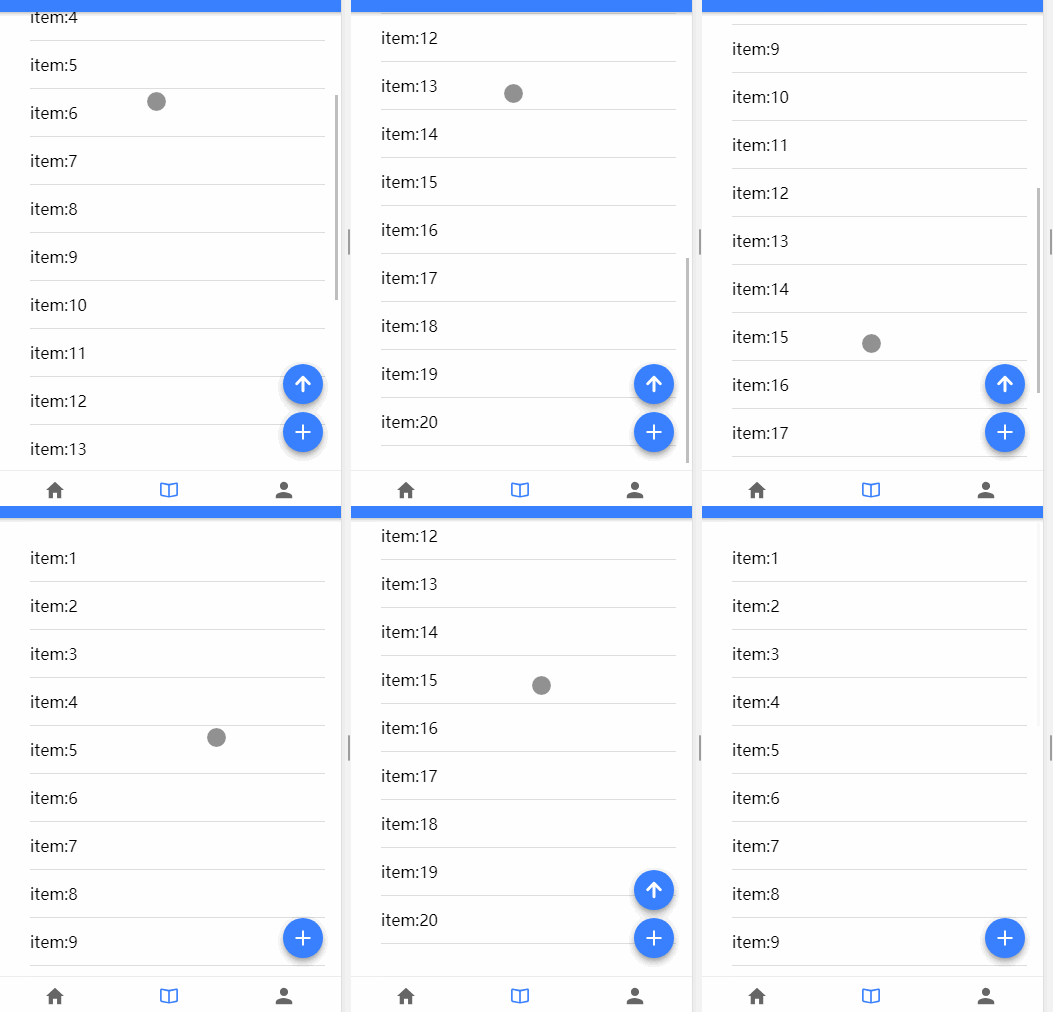
效果:

开源鸿蒙跨平台开发社区汇聚开发者与厂商,共建“一次开发,多端部署”的开源生态,致力于降低跨端开发门槛,推动万物智联创新。
更多推荐
 0
0 0
0- 0


 已为社区贡献5条内容

所有评论(0)