electron 页面Menu、鼠标右键Menu和自定义快捷键globalShortcut(五)
文章目录案例知识点说明:全局快捷键 和 菜单快捷键的区别?案例const { app, BrowserWindow, globalShortcut } = require('electron')const path = require('path')var mainWindow = null // 声明要打开的主窗口const { Menu } = require('electron')app.o
·
参考
案例
const { app, BrowserWindow, globalShortcut } = require('electron')
const path = require('path')
var mainWindow = null // 声明要打开的主窗口
const { Menu } = require('electron')

app.on('ready', () => {
  // 设置窗口的高度和宽度
  mainWindow = new BrowserWindow({
    width: 800,
    height: 800,
    webPreferences: {
      nodeIntegration: true, // 设置开启nodejs环境
      enableRemoteModule: true // enableRemoteModule保证renderer.js可以可以正常require('electron').remote,此选项默认关闭且网上很多资料没有提到
    }
  })
  // 加载 指定路径的页面
  mainWindow.loadFile('./src/index.html')
  // 菜单的配置
  var menuTemplate = [
    {
      label: '菜单1',
      submenu: [{
        label: '菜单11', // 子菜单的名字
        accelerator: 'ctrl+1', // 菜单的快捷键
        click: () => { // 点击 菜单触发的事件
          var newWin = new BrowserWindow({
            width: 400,
            height: 400,
            webPreferences: {
              nodeIntegration: true, // 设置开启nodejs环境
              enableRemoteModule: true // enableRemoteModule保证renderer.js可以可以正常require('electron').remote,此选项默认关闭且网上很多资料没有提到
            }
          })
          const pagePath = path.resolve(__dirname, './src/html/subPage.html')
          newWin.loadFile(pagePath)
          // 开启窗口之后,需要定义关闭窗口指针为空,防止内存溢出
          newWin.on('close', () => {
            newWin = null
          })
        }
      }, { label: '菜单11' }]
    },
    {
      label: '菜单2',
      submenu: [{ label: '菜单21' }, { label: '菜单22' }]
    }
  ]
  // 根据配置信息创建 menu 对象
  var menuObj = Menu.buildFromTemplate(menuTemplate)
  // 将对象作用当当前应用中
  Menu.setApplicationMenu(menuObj)

  // 全局注册 快捷键
  globalShortcut.register('ctrl+x', function() {
    console.log('ctrl+x is pressed')
  })

  // 开启渲染进程中的调试模式
  mainWindow.webContents.openDevTools()
  // 监听窗口关闭 销毁引用
  mainWindow.on('closed', () => {
    mainWindow = null
  })
})

// 退出的时候,注销所有的快捷键
app.on('will-quit', function() {
  console.log('unregister "ctrl+x"')
  // Unregister a shortcut.
  globalShortcut.unregister('ctrl+x')

  // Unregister all shortcuts.
  globalShortcut.unregisterAll()
})
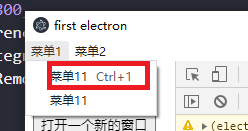
知识点说明:
- 菜单快捷键的配置属性是
accelerator - 全局注册需要使用
require('electron').globalShortcut - MenuItem 是在主进程中渲染的
- 退出窗口的事件是
will-quit,在此回调函数中需要注销对应的快捷键,防止快捷键一直被占用
全局快捷键 和 菜单快捷键的区别?
- 菜单快捷键是需要操作系统在当前APP处于激活的状态(即,用户正在使用该APP)
- 全局快捷键是不管APP 是否处于激活状态还是在后台运行,都会有效,都会处理相关事件
鼠标右键菜单
<!DOCTYPE html>
<html lang="en">
<head>
  <meta charset="UTF-8">
  <meta name="viewport" content="width=device-width, initial-scale=1.0">
  <title>first electron</title>
</head>
<body>

</body>
<script src="./js/readFile.js"></script>
<script>
// 定制鼠标右键菜单
const {remote, clipboard } = require('electron');
const Menu = remote.Menu;
const MenuItem = remote.MenuItem;

// 定制右键菜单
var menu = new Menu();
menu.append(new MenuItem({ label: 'MenuItem1', click: function() { console.log('item 1 clicked'); } }));
// 分割线
menu.append(new MenuItem({ type: 'separator' }));
// 多选,是被选中的状态
menu.append(new MenuItem({ label: 'MenuItem2', type: 'checkbox', checked: true }));

window.addEventListener('contextmenu', function (e) {
  // 要阻止默认鼠标右键的事件,然后处理自身的逻辑
  e.preventDefault();
  menu.popup(remote.getCurrentWindow());
}, false)

  </script>
</html>
效果如图: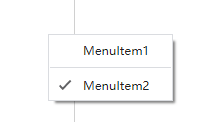
如何重新加载修改代码和打开调试工具的Menu?
如果自定menu之后,则开发者工具 和 重新加代码的能力就消失了,解决办法是 —— 还原这两个菜单,配置如下
  // 菜单的配置
  var menuTemplate = [
    {
      label: 'tools',
      submenu: [
        {
          label: 'Reload', // 重新加载代码
          accelerator: 'CmdOrCtrl+R',
          click: function (item, focusedWindow) {
            if (focusedWindow) {
              focusedWindow.reload()
            }
          }
        },
        {
          label: 'Toggle Developer Tools', // 打开开发者工具
          accelerator: (function() {
            if (process.platform === 'darwin') { return 'Alt+Command+I' } else { return 'Ctrl+Shift+I' }
          })(),
          click: function(item, focusedWindow) {
            if (focusedWindow) { focusedWindow.toggleDevTools() }
          }
        }
      ]
    }
  ]

开源鸿蒙跨平台开发社区汇聚开发者与厂商,共建“一次开发,多端部署”的开源生态,致力于降低跨端开发门槛,推动万物智联创新。
更多推荐
 1
1 0
0- 0


 已为社区贡献4条内容

所有评论(0)