

The RecyclerView widget is currently the most popular way to display a large, complex lists in android applications.
RecyclerView小部件是当前在Android应用程序中显示大型复杂列表的最流行方法。
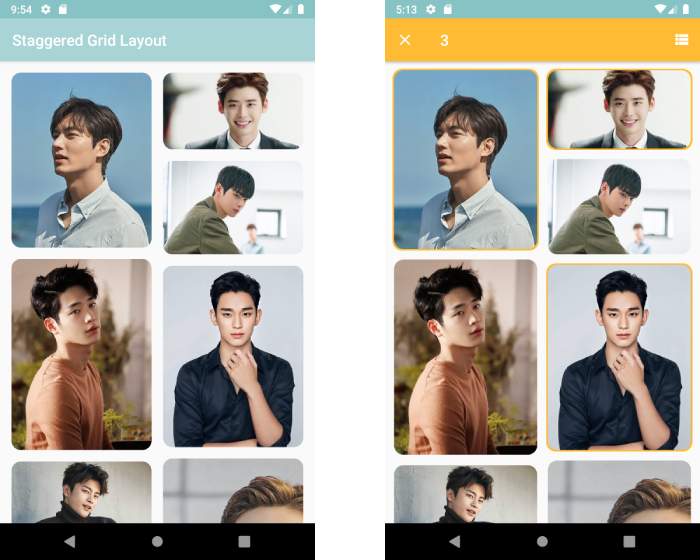
In this article I’ll show you how to implement the Staggered RecyclerView with multiple selection in Kotlin. Staggered view is a way of displaying items in different proportions based on their dimensions.
在本文中,我将向您展示如何在Kotlin中使用多个选择实现Staggered RecyclerView。 交错视图是一种根据尺寸显示不同比例的项目的方法。
先决条件 (Prerequisites)
To follow along, you’ll need:
要继续进行,您需要:
Some basic understanding of Android Studio
对Android Studio的一些基本了解
- A device or emulator running Android API level 21 or higher运行Android API级别21或更高版本的设备或模拟器
- A new Android Studio project with an empty activity. You can create a new project and select the “Empty Activity” template 活动为空的新Android Studio项目。 您可以创建一个新项目并选择“空活动”模板
1. Add the android dependencies to your build.gradle file
1.将android依赖项添加到您的build.gradle文件中
dependencies {
    ...
    implementation 'com.google.android.material:material:1.3.0-alpha02'
    implementation 'com.makeramen:roundedimageview:2.3.0'
    implementation 'androidx.recyclerview:recyclerview-selection:1.0.0'
}
2. Add a RecyclerView to the Layout
2.将RecyclerView添加到布局
Add the RecyclerView tag to your activity_main.xml
将RecyclerView标记添加到您的activity_main.xml
<?xml version="1.0" encoding="utf-8"?>
<androidx.constraintlayout.widget.ConstraintLayout xmlns:android="http://schemas.android.com/apk/res/android"
    xmlns:app="http://schemas.android.com/apk/res-auto"
    xmlns:tools="http://schemas.android.com/tools"
    android:layout_width="match_parent"
    android:layout_height="match_parent"
    tools:context=".MainActivity">


    <androidx.recyclerview.widget.RecyclerView
        android:id="@+id/postsRecyclerView"
        android:layout_width="match_parent"
        android:layout_height="match_parent"
        android:clipToPadding="false"
        android:paddingStart="0dp"
        android:paddingEnd="15dp"
        android:paddingBottom="15dp" />


</androidx.constraintlayout.widget.ConstraintLayout>
Also create a new XML layout file called post_item_container to specify the layout of the list items. Our list items will contain a LinearLayout with a RoundedImageView widget inside.
还创建一个名为post_item_container的新XML布局文件以指定列表项的布局。 我们的列表项将包含一个LinearLayout,其中带有RoundedImageView小部件。
<?xml version="1.0" encoding="utf-8"?>
<LinearLayout xmlns:android="http://schemas.android.com/apk/res/android"
    xmlns:app="http://schemas.android.com/apk/res-auto"
    android:layout_width="match_parent"
    android:layout_height="wrap_content">


    <com.makeramen.roundedimageview.RoundedImageView
        android:id="@+id/imagePost"
        android:layout_width="match_parent"
        android:layout_height="wrap_content"
        android:layout_marginStart="10dp"
        android:layout_marginTop="10dp"
        android:adjustViewBounds="true"
        android:background="@drawable/item_background"
        android:padding="2dp"
        app:riv_corner_radius="12dp">


    </com.makeramen.roundedimageview.RoundedImageView>
</LinearLayout>
Add the item_background.xml selector and selected_item_background.xml shape to show items that have been selected.
添加item_background.xml选择器和selected_item_background.xml形状以显示已选择的项目。
<?xml version="1.0" encoding="utf-8"?>
<selector xmlns:android="http://schemas.android.com/apk/res/android">
    <item android:drawable="@drawable/selected_item_background" android:state_activated="true" />
    <item android:drawable="@android:color/transparent" />
</selector>
3. Create a List of images
3.创建图像列表
We will work with a small list of items each containing an image name (String) and the image resource id (Int).
我们将处理一小部分项目,每个项目包含一个图像名称(字符串)和图像资源ID(整数)。
Make sure the image name is unique as we’ll use the names to identify each item.
确保图像名称是唯一的,因为我们将使用名称来标识每个项目。
Create a Kotlin data class called PostItem to store the data of each list item, and add the two properties name and id (we’ll call id “image”)
创建一个名为PostItem的Kotlin数据类来存储每个列表项的数据,并添加两个属性名称和id(我们将id称为“ image”)
data class PostItem(val name: String?, val image: Int)Now download 10 random images of your choice to display in our RecyclerView and put them in your app/src/main/res/drawable folder. I went with pictures of some of my favorite Korean male actors.
现在,下载10个您选择的随机图像,以显示在我们的RecyclerView中,并将它们放在您的app / src / main / res / drawable文件夹中。 我去看了一些我最喜欢的韩国男演员的照片。
Create a list of PostItem objects in the MainActivity
在MainActivity中创建PostItem对象的列表
imports...


class MainActivity : AppCompatActivity() {
...


  override fun onCreate(savedInstanceState: Bundle?) {
        super.onCreate(savedInstanceState)
        setContentView(R.layout.activity_main)

        ...

        val postItems: MutableList<PostItem> = mutableListOf()
        postItems.add(PostItem("Lee Minho", R.drawable.leeminho))
        postItems.add(PostItem("Lee Jong Suk", R.drawable.leejongsuk))
        postItems.add(PostItem("Cha Eun Woo", R.drawable.chaeunwoo))
        postItems.add(PostItem("Seo Kang Joon", R.drawable.seokangjoon))
        postItems.add(PostItem("Kim Soo Hyun", R.drawable.kimsoohyun))
        postItems.add(PostItem("Park Seo Joon", R.drawable.parkseojoon))
        postItems.add(PostItem("Seo In Guk", R.drawable.seoinguk))
        postItems.add(PostItem("Ji Chang Wook", R.drawable.jichangwook))
        postItems.add(PostItem("Yoo Seung Ho", R.drawable.yooseungho))
        postItems.add(PostItem("Lee Seung Gi", R.drawable.leeseunggi)

        ...
  }

  ...
}
4. Display the List
4.显示清单
To display our list of images we’ll need to create an Adapter. Adapters provide a binding from a specific data set to views that are displayed within a RecyclerView and they are called by the RecyclerViews to display data at a specific position. Your Adapter could look like this:
要显示图像列表,我们需要创建一个适配器。 适配器提供从特定数据集到RecyclerView内显示的视图的绑定,RecyclerViews调用它们以在特定位置显示数据。 您的适配器可能如下所示:
import android.content.Context
import android.view.LayoutInflater
import android.view.View
import android.view.ViewGroup
import androidx.recyclerview.widget.RecyclerView
import com.makeramen.roundedimageview.RoundedImageView


class PostsAdapter internal constructor(
    private val context: Context,
    private val postItems: List<PostItem>
) :
    RecyclerView.Adapter<PostsAdapter.ListViewHolder>() {


    private val inflater: LayoutInflater = LayoutInflater.from(context)


    inner class ListViewHolder(itemView: View) : RecyclerView.ViewHolder(itemView) {
        val postImageView: RoundedImageView = itemView.findViewById(R.id.imagePost)


        fun setPostImage(postItem: PostItem) {
            postImageView.setImageResource(postItem.image)
        }
    }


    override fun onCreateViewHolder(parent: ViewGroup, viewType: Int): ListViewHolder {
        val itemView = inflater.inflate(R.layout.post_item_container, parent, false)
        return ListViewHolder(itemView)
    }


    override fun onBindViewHolder(holder: ListViewHolder, position: Int) {
        holder.setPostImage(postItems[position])
    }


    override fun getItemCount(): Int {
        return postItems.size
    }


}
We’ll also need to initialize the RecyclerView in our MainActivity, set it’s layout manager and adapter. For the staggered view, use StaggeredGridLayoutManager and set the spanCount (number of columns) to 2, and the orientation to vertical. Check lines 12, 13 and 27 below.
我们还需要在MainActivity中初始化RecyclerView,设置其布局管理器和适配器。 对于交错视图,请使用StaggeredGridLayoutManager并将spanCount(列数)设置为2,方向设置为垂直。 检查下面的第12、13和27行。
imports...


class MainActivity : AppCompatActivity() {
...


  override fun onCreate(savedInstanceState: Bundle?) {
        super.onCreate(savedInstanceState)
        setContentView(R.layout.activity_main)

        ...

        val postsRecyclerView: RecyclerView = findViewById(R.id.postsRecyclerView)
        postsRecyclerView.layoutManager = StaggeredGridLayoutManager(2, StaggeredGridLayoutManager.VERTICAL)

        val postItems: MutableList<PostItem> = mutableListOf()
        postItems.add(PostItem("Lee Minho", R.drawable.leeminho))
        postItems.add(PostItem("Lee Jong Suk", R.drawable.leejongsuk))
        postItems.add(PostItem("Cha Eun Woo", R.drawable.chaeunwoo))
        postItems.add(PostItem("Seo Kang Joon", R.drawable.seokangjoon))
        postItems.add(PostItem("Kim Soo Hyun", R.drawable.kimsoohyun))
        postItems.add(PostItem("Park Seo Joon", R.drawable.parkseojoon))
        postItems.add(PostItem("Seo In Guk", R.drawable.seoinguk))
        postItems.add(PostItem("Ji Chang Wook", R.drawable.jichangwook))
        postItems.add(PostItem("Yoo Seung Ho", R.drawable.yooseungho))
        postItems.add(PostItem("Lee Seung Gi", R.drawable.leeseunggi)

        postsRecyclerView.adapter = PostsAdapter(this, postItems)

        ...
  }

  ...
}
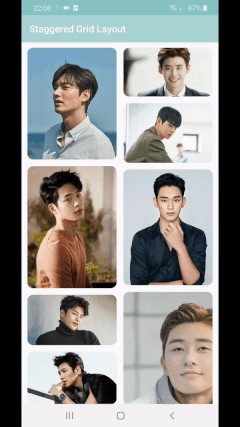
At this point you are ready to display the list. Run the app on your emulator or device to check. Your setup should be similar to the master branch of my repository here.
至此,您可以显示列表了。 在模拟器或设备上运行应用以进行检查。 您的设置应类似于此处的存储库的master分支。
5. Create a Selection Tracker
5.创建一个选择跟踪器
To enable multiple selection, we’ll need to add a SelectionTracker object in the Main Activity. We’ll initialize it using the SelectionTracker.Builder class and pass the following to its constructor:
要启用多个选择,我们需要在Main Activity中添加一个SelectionTracker对象。 我们将使用SelectionTracker.Builder类对其进行初始化,并将以下内容传递给其构造函数:
Selection ID: Give the tracker a unique ID of your choice. This is necessary as an activity or fragment may have multiple distinct selectable lists
选择ID:为跟踪器提供您选择的唯一ID。 这是必要的,因为活动或片段可能具有多个不同的可选列表
- RecyclerView widgetRecyclerView小部件
ItemKeyProvider: We must decide on the key type to use to identify selected items. Support is provided for three types:
Parcelable,String, andLongItemKeyProvider:我们必须决定用于识别所选项目的密钥类型。 提供了对三种类型的支持:
Parcelable,String和LongItemDetailsLookup: This provides the selection library access to information about items associated with the area under a
MotionEventItemDetailsLookup:这是提供与该地区相关下项目的选择库获取信息
MotionEventA StorageStrategy: This depends on the key type selected
一个存储策略:这取决于所选的密钥类型
I decided to use Parcelabletype as the key and so we have to convert the PostItem data class into a Parcelable. It will now look like this:
我决定使用Parcelable类型作为键,因此我们必须将PostItem数据类转换为Parcelable . 现在看起来像这样:
import android.os.Parcelable
import kotlinx.android.parcel.Parcelize


@Parcelize
data class PostItem(val name: String?, val image: Int) : Parcelable
Next we’ll implement the ItemKeyProvider class. Create a new Kotlin class called MyItemKeyProvider and add the following..
接下来,我们将实现ItemKeyProvider类。 创建一个名为MyItemKeyProvider的新Kotlin类,并添加以下内容。
import androidx.recyclerview.selection.ItemKeyProvider


class MyItemKeyProvider(private val adapter: PostsAdapter) :
    ItemKeyProvider<PostItem>(SCOPE_CACHED) {
    override fun getKey(position: Int): PostItem? {
        return adapter.getItem(position)
    }


    override fun getPosition(key: PostItem): Int {
        return adapter.getPosition(key.name!!)
    }
}
For this to work we’ll need to add some functions in the PostsAdapter.
为此,我们需要在PostsAdapter中添加一些功能。
imports...


class PostsAdapter internal constructor(
    private val context: Context,
    private val postItems: List<PostItem>
) :
   ...


    inner class ListViewHolder(itemView: View) : RecyclerView.ViewHolder(itemView) {
     ...

        fun getItemDetails(): ItemDetailsLookup.ItemDetails<PostItem> =
            object : ItemDetailsLookup.ItemDetails<PostItem>() {
                override fun getPosition(): Int = adapterPosition
                override fun getSelectionKey(): PostItem? = postItems[position]
            }
    }


    ...


    fun getItem(position: Int) = postItems[position]
    fun getPosition(name: String) = postItems.indexOfFirst { it.name == name }
}
We need line 21 and 22 in the code above for the ItemKeyProvider and the function getItemDetails() on line 12 will be used in the ItemDetailsLookup we are implementing next. Create a new Kotlin class called MyItemDetailsLookup.
我们需要上面代码中的第21和22行用于ItemKeyProvider,第12行中的函数getItemDetails()将在接下来要实现的ItemDetailsLookup中使用。 创建一个名为MyItemDetailsLookup的新Kotlin类。
import android.view.MotionEvent
import androidx.recyclerview.selection.ItemDetailsLookup
import androidx.recyclerview.widget.RecyclerView


class MyItemDetailsLookup(private val recyclerView: RecyclerView) :
    ItemDetailsLookup<PostItem>() {
    override fun getItemDetails(event: MotionEvent): ItemDetails<PostItem>? {
        val view = recyclerView.findChildViewUnder(event.x, event.y)
        if (view != null) {
            return (recyclerView.getChildViewHolder(view) as PostsAdapter.ListViewHolder)
                .getItemDetails()
        }
        return null
    }
}
For the StorageStrategy, we’ll use the built in method: createParcelableStorage(Class). Our selection tracker will now look like this
对于StorageStrategy ,我们将使用内置方法: createParcelableStorage(Class ). 现在,我们的选择跟踪器将如下所示
imports...


class MainActivity : AppCompatActivity(), ActionMode.Callback {
...


    private var tracker: SelectionTracker<PostItem>? = null


    override fun onCreate(savedInstanceState: Bundle?) {
        super.onCreate(savedInstanceState)
        setContentView(R.layout.activity_main)

        ...

         tracker = SelectionTracker.Builder<PostItem>(
            "mySelection",
            postsRecyclerView,
            MyItemKeyProvider(adapter),
            MyItemDetailsLookup(postsRecyclerView),
            StorageStrategy.createParcelableStorage(PostItem::class.java)
        ).withSelectionPredicate(
            SelectionPredicates.createSelectAnything()
        ).build()

        ...

    }

}
6. Connect the Selection Tracker to the Adapter
6.将选择跟踪器连接到适配器
The selection tracker is not very useful if it is not associated with our PostsAdapter, so we will create a public SelectionTracker variable in our adapter and also ensure selected items are activated to show the orange stroke. In the end your PostsAdapter should look like this
如果选择跟踪器未与PostsAdapter关联,则它不是很有用,因此我们将在适配器中创建一个公共SelectionTracker变量,并确保已激活选定项以显示橙色笔触。 最后,您的PostsAdapter应该看起来像这样
import android.content.Context
import android.view.LayoutInflater
import android.view.View
import android.view.ViewGroup
import androidx.recyclerview.selection.ItemDetailsLookup
import androidx.recyclerview.selection.SelectionTracker
import androidx.recyclerview.widget.RecyclerView
import com.makeramen.roundedimageview.RoundedImageView


class PostsAdapter internal constructor(
    private val context: Context,
    private val postItems: List<PostItem>
) :
    RecyclerView.Adapter<PostsAdapter.ListViewHolder>() {


    private val inflater: LayoutInflater = LayoutInflater.from(context)
    var tracker: SelectionTracker<PostItem>? = null


    inner class ListViewHolder(itemView: View) : RecyclerView.ViewHolder(itemView) {
        private val postImageView: RoundedImageView = itemView.findViewById(R.id.imagePost)
//        private val container: LinearLayout = itemView.findViewById(R.id.linear_layout_container)


        fun setPostImage(postItem: PostItem, isActivated: Boolean = false) {
            postImageView.setImageResource(postItem.image)
            itemView.isActivated = isActivated
        }


        fun getItemDetails(): ItemDetailsLookup.ItemDetails<PostItem> =
            object : ItemDetailsLookup.ItemDetails<PostItem>() {
                override fun getPosition(): Int = adapterPosition
                override fun getSelectionKey(): PostItem? = postItems[position]
            }
    }


    override fun onCreateViewHolder(parent: ViewGroup, viewType: Int): ListViewHolder {
        val itemView = inflater.inflate(R.layout.post_item_container, parent, false)
        return ListViewHolder(itemView)
    }


    override fun onBindViewHolder(holder: ListViewHolder, position: Int) {
        tracker?.let {
            holder.setPostImage(postItems[position], it.isSelected(postItems[position]))
        }


    }


    override fun getItemCount(): Int {
        return postItems.size
    }


    fun getItem(position: Int) = postItems[position]
    fun getPosition(name: String) = postItems.indexOfFirst { it.name == name }
}
We’ll need to set the tracker in our adapter. Add line 24 in the MainActivity just below the tracker as shown below.
我们需要在适配器中设置跟踪器。 如下所示,在Tracker下方的MainActivity中添加第24行。
imports...


class MainActivity : AppCompatActivity(), ActionMode.Callback {
...


    private var tracker: SelectionTracker<PostItem>? = null


    override fun onCreate(savedInstanceState: Bundle?) {
        super.onCreate(savedInstanceState)
        setContentView(R.layout.activity_main)

        ...

         tracker = SelectionTracker.Builder<PostItem>(
            "mySelection",
            postsRecyclerView,
            MyItemKeyProvider(adapter),
            MyItemDetailsLookup(postsRecyclerView),
            StorageStrategy.createParcelableStorage(PostItem::class.java)
        ).withSelectionPredicate(
            SelectionPredicates.createSelectAnything()
        ).build()

        adapter.tracker = tracker

        ...

    }

}
At this point if you run the app you should be able to select items in the list. Long press any item to enter selection mode.
此时,如果您运行该应用程序,则应该能够在列表中选择项目。 长按任何一项进入选择模式。
7. Add an Observer
7.添加一个观察者
Ideally you would want to see how many items you have selected and also perform some actions on them. To do this associate a SelectionObserver object with the selection tracker by calling the addObserver() method. Inside the onSelectionChanged() method of the observer, you can detect changes in the items selected.
理想情况下,您希望查看选择了多少个项目并对其执行一些操作。 为此,可以通过调用addObserver()方法将SelectionObserver对象与选择跟踪器相关联。 在观察者的onSelectionChanged()方法内部,您可以检测到所选项目中的更改。
imports...


class MainActivity : AppCompatActivity(), ActionMode.Callback {
...


    private var tracker: SelectionTracker<PostItem>? = null


    override fun onCreate(savedInstanceState: Bundle?) {
        super.onCreate(savedInstanceState)
        setContentView(R.layout.activity_main)

        ...

        tracker?.addObserver(
            object : SelectionTracker.SelectionObserver<Long>() {
                override fun onSelectionChanged() {
                    super.onSelectionChanged()
                    tracker?.let {
                        selectedPostItems = it.selection.toMutableList()
                        // DO WHATEVER YOU NEED WITH THE SELECTED ITEMS HERE
                    }
                }
            })

        ...

    }

}
You can display the number of items any way you like. I prefer to use ActionMode. Action modes can be used to provide alternative interaction modes and replace/overlay parts of the normal UI, in ourcase the Toolbar. Don’t worry about ActionMode so much, you can get more information about it here.
您可以按任何方式显示项目数。 我更喜欢使用ActionMode 。 动作模式可用于提供替代的交互模式,并替换/覆盖普通UI的部分,在本例中为工具栏。 不必太担心ActionMode,您可以在此处获得有关它的更多信息。
Add an action mode menu in the app/src/main/res/menu/ folder.
在app / src / main / res / menu /文件夹中添加操作模式菜单。
<?xml version="1.0" encoding="utf-8"?>
<menu xmlns:android="http://schemas.android.com/apk/res/android"
    xmlns:app="http://schemas.android.com/apk/res-auto">
    <item
        android:id="@+id/action_view_delete"
        android:icon="@drawable/ic_baseline_view_list_24"
        android:title="@string/view_list"
        app:showAsAction="always" />
</menu>
I originally wanted to delete the selected items but changed my mind and decided to just show a Toast for demonstration purposes. Btw include line 3 below in your strings.xml resources file found in the app/src/main/res/values folder.
我最初想删除选定的项目,但改变了主意,决定只展示Toast进行演示。 顺便说一句,在apps / src / main / res / values文件夹中的strings.xml资源文件中包括以下第3行。
<resources>
    ...
    <string name="view_list">View list</string>
</resources>
You can change the background color of the ActionModeBar to orange in the styles.xml resources file also found in the app/src/main/res/values folder (se code below). By default the close drawable is a back arrow, but you can change it to the “X” icon like I did below. First add a new Vector Asset, please follow this tutorial to open the Asset Studio, search for the “X” icon (also known as the close icon in the asset studio) and add it.
您也可以在app / src / main / res / values文件夹(下面的代码)中找到的styles.xml资源文件中,将ActionModeBar的背景颜色更改为橙色。 默认情况下,关闭可绘制对象是后退箭头,但是您可以像下面所做的那样将其更改为“ X”图标。 首先添加新的Vector资产,请按照本教程的说明打开Asset Studio,搜索“ X”图标(在Asset Studio中也称为“关闭”图标)并添加它。
<resources>
    <!-- Base application theme. -->
    <style name="AppTheme" parent="Theme.AppCompat.Light.DarkActionBar">
        <!-- Customize your theme here. -->
        <item name="colorPrimary">@color/colorPrimary</item>
        <item name="colorPrimaryDark">@color/colorPrimaryDark</item>
        <item name="colorAccent">@color/colorAccent</item>
        <item name="actionModeBackground">@android:color/holo_orange_light</item>
        <item name="actionModeCloseDrawable">@drawable/ic_baseline_close_24</item>
    </style>


</resources>
Finally, modify your MainActivity to look like this
最后,将MainActivity修改为如下所示
import androidx.appcompat.app.AppCompatActivity
import android.os.Bundle
import android.view.Menu
import android.view.MenuInflater
import android.view.MenuItem
import android.widget.Toast
import androidx.appcompat.view.ActionMode
import androidx.recyclerview.selection.SelectionPredicates
import androidx.recyclerview.selection.SelectionTracker
import androidx.recyclerview.selection.StorageStrategy
import androidx.recyclerview.widget.RecyclerView
import androidx.recyclerview.widget.StaggeredGridLayoutManager


class MainActivity : AppCompatActivity(), ActionMode.Callback {


    private var selectedPostItems: MutableList<PostItem> = mutableListOf()
    private var actionMode: ActionMode? = null
    private lateinit var adapter: PostsAdapter
    private var tracker: SelectionTracker<PostItem>? = null


    override fun onCreate(savedInstanceState: Bundle?) {
        super.onCreate(savedInstanceState)
        setContentView(R.layout.activity_main)
        val postsRecyclerView: RecyclerView = findViewById(R.id.postsRecyclerView)
        postsRecyclerView.isNestedScrollingEnabled = false
        postsRecyclerView.layoutManager =
            StaggeredGridLayoutManager(2, StaggeredGridLayoutManager.VERTICAL)


        val postItems: MutableList<PostItem> = mutableListOf()
        postItems.add(PostItem("Lee Minho", R.drawable.leeminho))
        postItems.add(PostItem("Lee Jong Suk", R.drawable.leejongsuk))
        postItems.add(PostItem("Cha Eun Woo", R.drawable.chaeunwoo))
        postItems.add(PostItem("Seo Kang Joon", R.drawable.seokangjoon))
        postItems.add(PostItem("Kim Soo Hyun", R.drawable.kimsoohyun))
        postItems.add(PostItem("Park Seo Joon", R.drawable.parkseojoon))
        postItems.add(PostItem("Seo In Guk", R.drawable.seoinguk))
        postItems.add(PostItem("Ji Chang Wook", R.drawable.jichangwook))
        postItems.add(PostItem("Yoo Seung Ho", R.drawable.yooseungho))
        postItems.add(PostItem("Lee Seung Gi", R.drawable.leeseunggi))


        adapter = PostsAdapter(this, postItems)
        postsRecyclerView.adapter = adapter


        tracker = SelectionTracker.Builder<PostItem>(
            "mySelection",
            postsRecyclerView,
            MyItemKeyProvider(adapter),
            MyItemDetailsLookup(postsRecyclerView),
            StorageStrategy.createParcelableStorage(PostItem::class.java)
        ).withSelectionPredicate(
            SelectionPredicates.createSelectAnything()
        ).build()


        adapter.tracker = tracker


        tracker?.addObserver(
            object : SelectionTracker.SelectionObserver<Long>() {
                override fun onSelectionChanged() {
                    super.onSelectionChanged()
                    tracker?.let {
                        selectedPostItems = it.selection.toMutableList()
                        if (selectedPostItems.isEmpty()) {
                            actionMode?.finish()
                        } else {
                            if (actionMode == null) actionMode =
                                startSupportActionMode(this@MainActivity)
                            actionMode?.title =
                                "${selectedPostItems.size}"
                        }
                    }
                }
            })
    }


    override fun onActionItemClicked(mode: ActionMode?, item: MenuItem?): Boolean {
        when (item?.itemId) {
            R.id.action_view_delete -> {
                Toast.makeText(
                    this,
                    selectedPostItems.toString(),
                    Toast.LENGTH_LONG
                ).show()
            }
        }
        return true
    }


    override fun onCreateActionMode(mode: ActionMode?, menu: Menu?): Boolean {
        mode?.let {
            val inflater: MenuInflater = it.menuInflater
            inflater.inflate(R.menu.action_mode_menu, menu)
            return true
        }
        return false
    }


    override fun onPrepareActionMode(mode: ActionMode?, menu: Menu?): Boolean {
        return true
    }


    override fun onDestroyActionMode(mode: ActionMode?) {
        adapter.tracker?.clearSelection()
        adapter.notifyDataSetChanged()
        actionMode = null
    }
}
If you run the app now you should see the number of items selected in the ActionMode bar and it should be orange.
如果现在运行该应用程序,则应该在ActionMode栏中看到所选项目的数量,并且应该为橙色。
结论 (Conclusion)
In this tutorial, I showed you how to create a RecyclerView with the Staggered Grid Layout and use the RecyclerView Selection library to select multiple items from the RecyclerView widget. You can learn more about the library from the Official Documentation.
在本教程中,我向您展示了如何使用交错网格布局创建RecyclerView以及如何使用RecyclerView选择库从RecyclerView小部件中选择多个项目。 您可以从官方文档中了解有关该库的更多信息。
You can also find the code on my github. Please ensure to check the “multiple-select” branch where I tried to implement selection from two lists.
您也可以在我的github上找到代码。 请确保检查我尝试从两个列表中进行选择的“多选”分支。



 已为社区贡献8条内容

所有评论(0)