【Flutter桌面篇】Flutter&Windows应用尝鲜(2)
git clone https://github.com/google/flutter-desktop-embedding.gitimport ‘package:window_size/window_size.dart’ as window_size;void main() {// Try to resize and reposition the window to be half the wid
Github上google的flutter-desktop-embedding是官方的桌面支持项目,
里面有很多官方提供的实用插件,可以下载看看。
git clone https://github.com/google/flutter-desktop-embedding.git
如果上面的main.dart有个×,八成是SDK没有配置好,可以在
Settings...-->Languaes &Frameworks-->Flutter面板配置
可以看出这个项目引用了很多本地的插件,这些插件是目前桌面开发很宝贵的资源。
flutter pub get之后,就可以运行示例项目了
如果你的电脑没有在
开发者模式,使用插件会出错。 你可以在设置-->更新和安全-->开发者选项里设置
Building with plugins requires symlink support. Please enable Developer Mode in your system settings
然后运行即可,项目运行效果如下:
2. 示例项目的几个插件
window_size屏幕尺寸插件
这个插件非常有用,桌面不同于手机。有窗口的概念,所以定义程序的窗口大小非常必要。
import ‘package:window_size/window_size.dart’ as window_size;
void main() {
// Try to resize and reposition the window to be half the width and height
// of its screen, centered horizontally and shifted up from center.
WidgetsFlutterBinding.ensureInitialized();
// 获取窗口信息,然后设置窗口信息
window_size.getWindowInfo().then((window) {
if (window.screen != null) {
final screenFrame = window.screen.visibleFrame;
final width = math.max((screenFrame.width / 2).roundToDouble(), 800.0);
final height = math.max((screenFrame.height / 2).roundToDouble(), 600.0);
final left = ((screenFrame.width - width) / 2).roundToDouble();
final top = ((screenFrame.height - height) / 3).roundToDouble();
final frame = Rect.fromLTWH(left, top, width, height);
//设置窗口信息
window_size.setWindowFrame(frame);
//设置窗口顶部标题
window_size
.setWindowTitle(‘Flutter Testbed on ${Platform.operatingSystem}’);
if (Platform.isMacOS) {
window_size.setWindowMinSize(Size(800, 600));
window_size.setWindowMaxSize(Size(1600, 1200));
}
}
});
runApp(new MyApp());
}
color_panel颜色选择插件
在
External Libraries#Flutter Plugin中 你可以看到插件信息,可以看到color_panel插件没有支持Windows。在点击左上角选择颜色时,并没有额外处理,所以会报错,这不太好。应该可以给个提示什么的。
file_chooser文件选择插件
非常实用的插件,支持
打开文件选择面板和文件保存面板
FlatButton(
child: const Text(‘OPEN’),
onPressed: () async {
String initialDirectory;
if (Platform.isMacOS || Platform.isWindows) {
initialDirectory =
(await getApplicationDocumentsDirectory()).path;
}
//打开文件选择面板
final result = await showOpenPanel(
allowsMultipleSelection: true,
initialDirectory: initialDirectory);
Scaffold.of(context).showSnackBar(SnackBar(
content: Text(_resultTextForFileChooserOperation(
_FileChooserType.open, result))));
},
)
FlatButton(
child: const Text(‘SAVE’),
onPressed: () {
//打开文件保存面板
showSavePanel(suggestedFileName: ‘save_test.txt’).then((result) {
Scaffold.of(context).showSnackBar(SnackBar(
content: Text(_resultTextForFileChooserOperation(
_FileChooserType.save, result)),
));
});
},
),
除此之外,还可以指定过滤类型
FlatButton(
child: const Text(‘OPEN MEDIA’),
onPressed: () async {
final result =
await showOpenPanel(allowedFileTypes: [
FileTypeFilterGroup(label: ‘Images’, fileExtensions: [
‘bmp’,
‘gif’,
‘jpeg’,
‘jpg’,
‘png’,
‘tiff’,
‘webp’,
]),
FileTypeFilterGroup(label: ‘Video’, fileExtensions: [
‘avi’,
‘mov’,
‘mpeg’,
‘mpg’,
‘webm’,
]),
]);
Scaffold.of(context).showSnackBar(SnackBar(
content: Text(_resultTextForFileChooserOperation(
_FileChooserType.open, result))));
},
),
url_launcher、url_launcher_fde插件
你会看到一些有
fde结尾的 插件,它们在plugins\flutter_plugins里,包里面有windows支持。使用的方式和之前一样,url_launcher主要用于一些链接的跳转。
FlatButton(
child: const Text(‘OPEN ON GITHUB’),
onPressed: () {
url_launcher
.launch(‘https://github.com/google/flutter-desktop-embedding’);
},
),
path_provider、path_provider_fde插件
用于获取文件夹,这个非常有用。
void _showDir() async{
Directory tempDir = await getTemporaryDirectory();
Directory appDir = await getApplicationSupportDirectory();
Directory appDocDir = await getApplicationDocumentsDirectory();
print(‘----getTemporaryDirectory----- t e m p D i r . p a t h − − − − − − ′ ) ; p r i n t ( ′ − − − − g e t A p p l i c a t i o n S u p p o r t D i r e c t o r y − − − − − {tempDir.path}------'); print('----getApplicationSupportDirectory----- tempDir.path−−−−−−′);print(′−−−−getApplicationSupportDirectory−−−−−{appDir.path}------’);
print(‘----getApplicationDocumentsDirectory-----${appDocDir.path}------’);
}
三、尾声
1. 说一下package和plugin的区别:
Flutter对于平台级的包是plugin,比如主要是和平台相关的功能,如
path_provider、sqlfilte,用纯Dart的开发的包是package,这和平台无关,可以跨平台使用,比如
bloc、provider、flutter_star
目前plugin支持Windows的不多,支持Windows的sqlite数据库插件可以用
moor_ffi
2. 关于Windows项目:
一直觉得Flutter只是个
中介者,每个平台的项目都是独立的。并非是
One For All(一者承担所有),而是All By One(所有的都可以做),比如
分享读者
作者2013年java转到Android开发,在小厂待过,也去过华为,OPPO等大厂待过,18年四月份进了阿里一直到现在。
被人面试过,也面试过很多人。深知大多数初中级Android工程师,想要提升技能,往往是自己摸索成长,不成体系的学习效果低效漫长,而且极易碰到天花板技术停滞不前!
我们整理了一份阿里P7级别的Android架构师全套学习资料,特别适合有3-5年以上经验的小伙伴深入学习提升。
主要包括阿里,以及字节跳动,腾讯,华为,小米,等一线互联网公司主流架构技术。如果你有需要,尽管拿走好了。
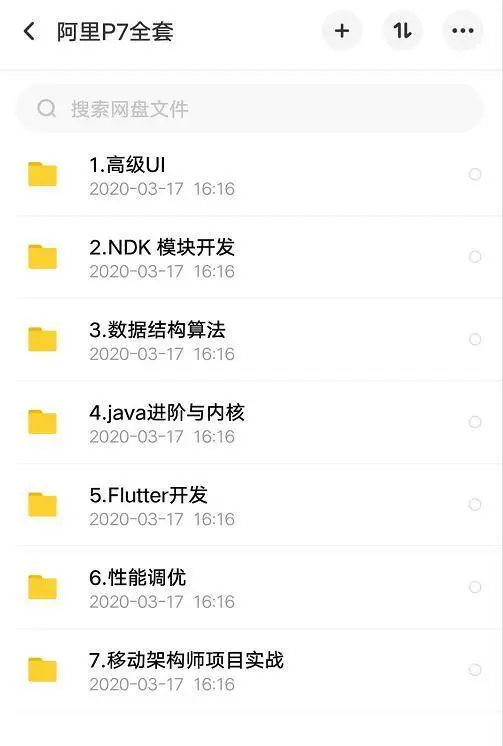
35岁中年危机大多是因为被短期的利益牵着走,过早压榨掉了价值,如果能一开始就树立一个正确的长远的职业规划。35岁后的你只会比周围的人更值钱。
《Android学习笔记总结+移动架构视频+大厂面试真题+项目实战源码》,点击传送门,即可获取!
网公司主流架构技术。如果你有需要,尽管拿走好了。
[外链图片转存中…(img-INDezWRF-1715158915992)]
35岁中年危机大多是因为被短期的利益牵着走,过早压榨掉了价值,如果能一开始就树立一个正确的长远的职业规划。35岁后的你只会比周围的人更值钱。
《Android学习笔记总结+移动架构视频+大厂面试真题+项目实战源码》,点击传送门,即可获取!

开源鸿蒙跨平台开发社区汇聚开发者与厂商,共建“一次开发,多端部署”的开源生态,致力于降低跨端开发门槛,推动万物智联创新。
更多推荐

 12
12 0
0- 0


 已为社区贡献3条内容

所有评论(0)