flutter学习6
1.Flutter Stack 组件Stack 表示堆的意思,我们可以用 Stack 或者 Stack 结合 Align 或者 Stack 结合 Positiond 来实 现页面的定位布局简单的只有两个元素import 'package:flutter/material.dart';import 'package:flutterapp/main-1.dart';void main() {runAp
1.Flutter Stack 组件
Stack 表示堆的意思,我们可以用 Stack 或者 Stack 结合 Align 或者 Stack 结合 Positiond 来实 现页面的定位布局
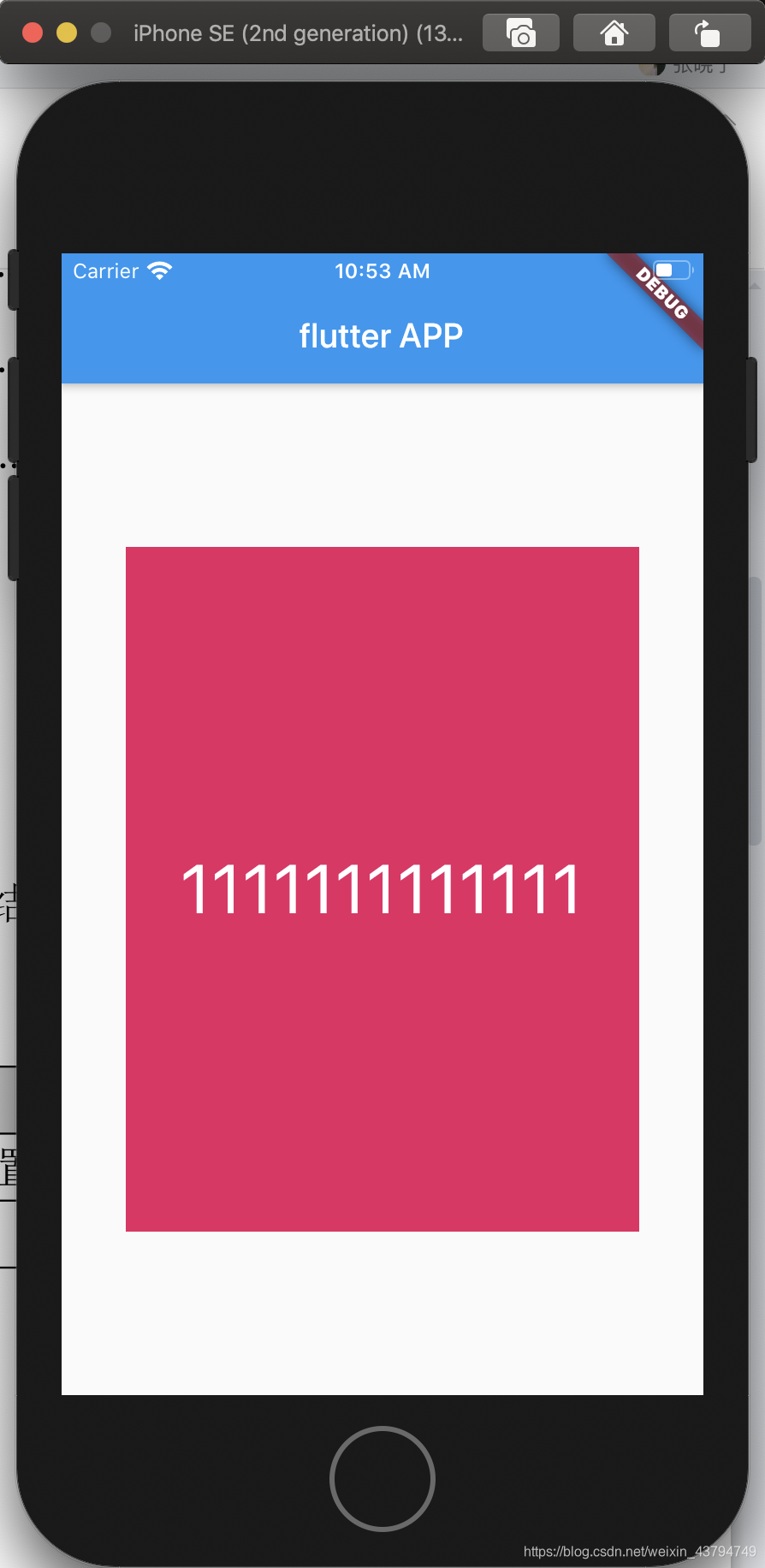
- 简单的只有两个元素
import 'package:flutter/material.dart';
import 'package:flutterapp/main-1.dart';

void main() {
  runApp(MyApp());
}

class MyApp extends StatelessWidget {
  @override
  Widget build(BuildContext context) {
    return MaterialApp(
      home: Scaffold(
        appBar: AppBar(
          title: Text('flutter APP'),
        ),
        body: HomeContent(),
      ),
    );
  }
}

class HomeContent extends StatelessWidget {
  @override
  Widget build(BuildContext context) {
    return Center(
      child: Stack(
      // alignment: Alignment.center,//直接写是相对于所有的元素来说的
      alignment: Alignment(0, 0),//00表示居中
      children: <Widget>[
        Container(
          width: 300.0,
          height: 400.0,
          color: Colors.pink,
        ),
        Text(
          '1111111111111',
          style: TextStyle(
            fontSize:40.0,
            color: Colors.white
          ),
        )
      ],
    ));
  }
}
2.Flutter Stack Align
Stack 组件中结合 Align 组件可以控制每个子元素的显示位置
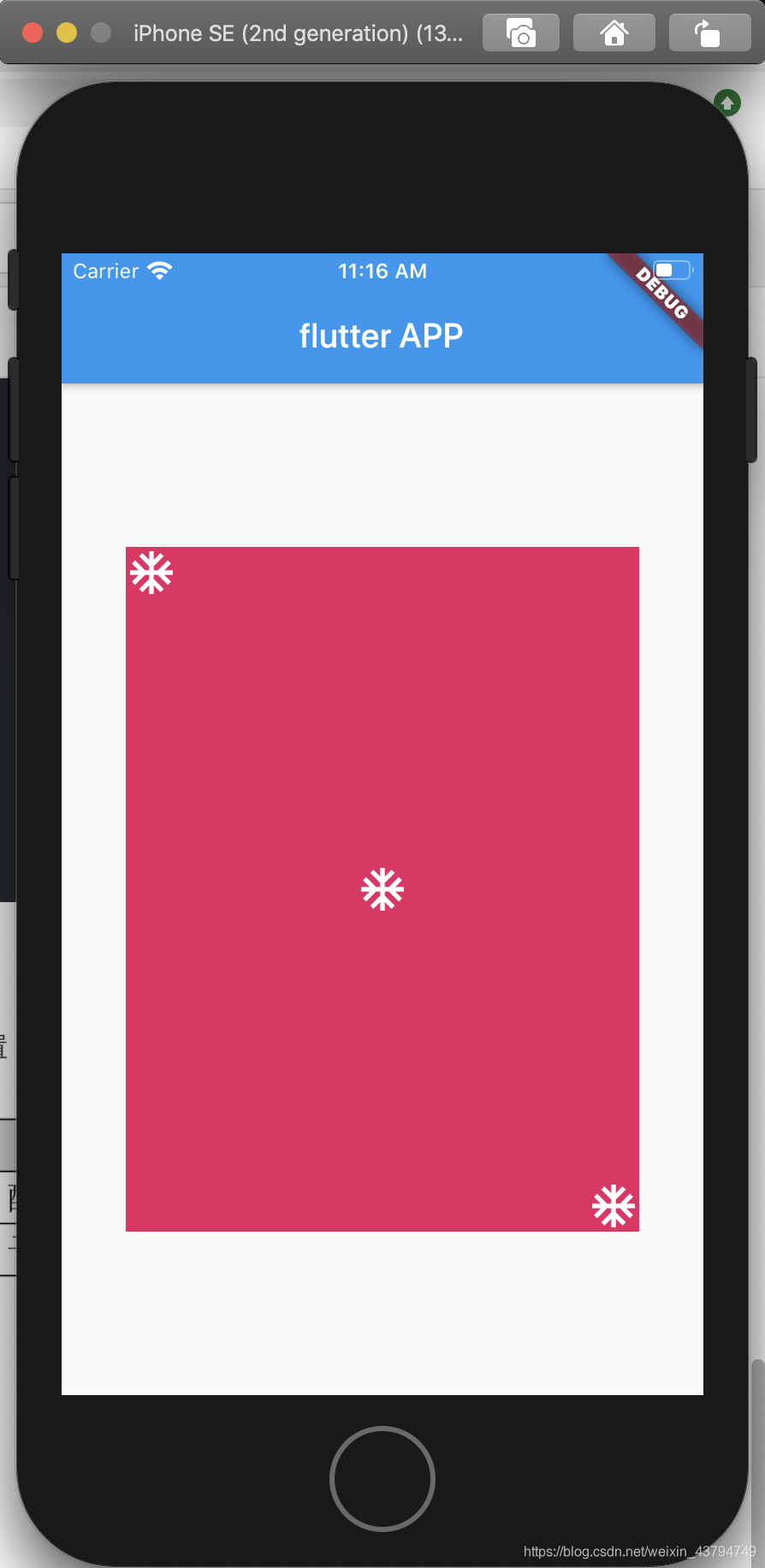
import 'package:flutter/material.dart';
import 'package:flutterapp/main-1.dart';

void main() {
  runApp(MyApp());
}

class MyApp extends StatelessWidget {
  @override
  Widget build(BuildContext context) {
    return MaterialApp(
      home: Scaffold(
        appBar: AppBar(
          title: Text('flutter APP'),
        ),
        body: HomeContent(),
      ),
    );
  }
}

class HomeContent extends StatelessWidget {
  @override
  Widget build(BuildContext context) {
    return Center(
      child: Container(
        width: 300.0,
        height: 400.0,
        color: Colors.pink,
        child: Stack(
          children: <Widget>[
            Align(
              alignment: Alignment.center,
              child: Icon(
                Icons.ac_unit,
                size: 30,
                color: Colors.white,
              ),
            ),
            Align(
              alignment: Alignment.topLeft,
              child: Icon(
                Icons.ac_unit,
                size: 30,
                color: Colors.white,
              ),
            ),
            Align(
              alignment: Alignment.bottomRight,
              child: Icon(
                Icons.ac_unit,
                size: 30,
                color: Colors.white,
              ),
            ),
          ],
        ),
      ),
    );
  }
}
3.Flutter Stack Positioned
Stack 组件中结合 Positioned 组件也可以控制每个子元素的显示位置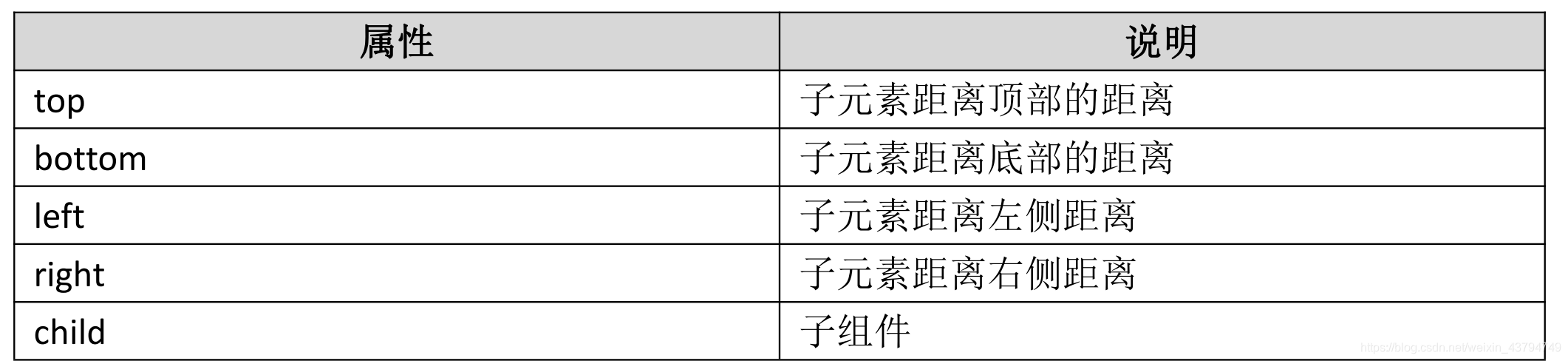
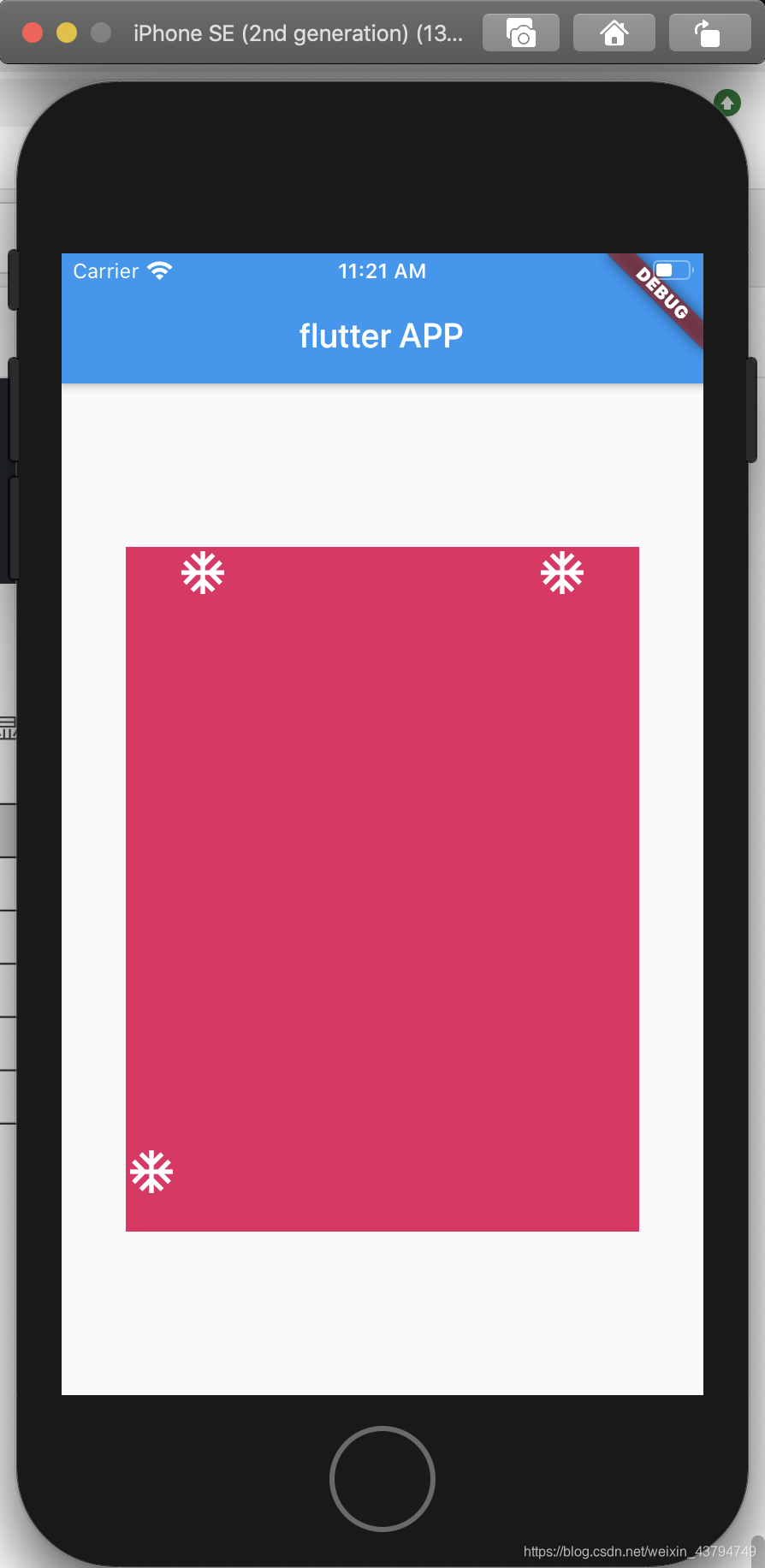 ```js
```js
import ‘package:flutter/material.dart’;
import ‘package:flutterapp/main-1.dart’;
void main() {
runApp(MyApp());
}
class MyApp extends StatelessWidget {
@override
Widget build(BuildContext context) {
return MaterialApp(
home: Scaffold(
appBar: AppBar(
title: Text(‘flutter APP’),
),
body: HomeContent(),
),
);
}
}
class HomeContent extends StatelessWidget {
@override
Widget build(BuildContext context) {
return Center(
child: Container(
width: 300.0,
height: 400.0,
color: Colors.pink,
child: Stack(
children: [
Positioned(
left: 30,
child: Icon(
Icons.ac_unit,
size: 30,
color: Colors.white,
),
),
Positioned(
bottom: 20,
child: Icon(
Icons.ac_unit,
size: 30,
color: Colors.white,
),
),
Positioned(
right: 30,
child: Icon(
Icons.ac_unit,
size: 30,
color: Colors.white,
),
),
],
),
),
);
}
}

开源鸿蒙跨平台开发社区汇聚开发者与厂商,共建“一次开发,多端部署”的开源生态,致力于降低跨端开发门槛,推动万物智联创新。
更多推荐
 0
0 0
0- 0


 已为社区贡献9条内容

所有评论(0)