flutter适配openHarmony 动画控制器
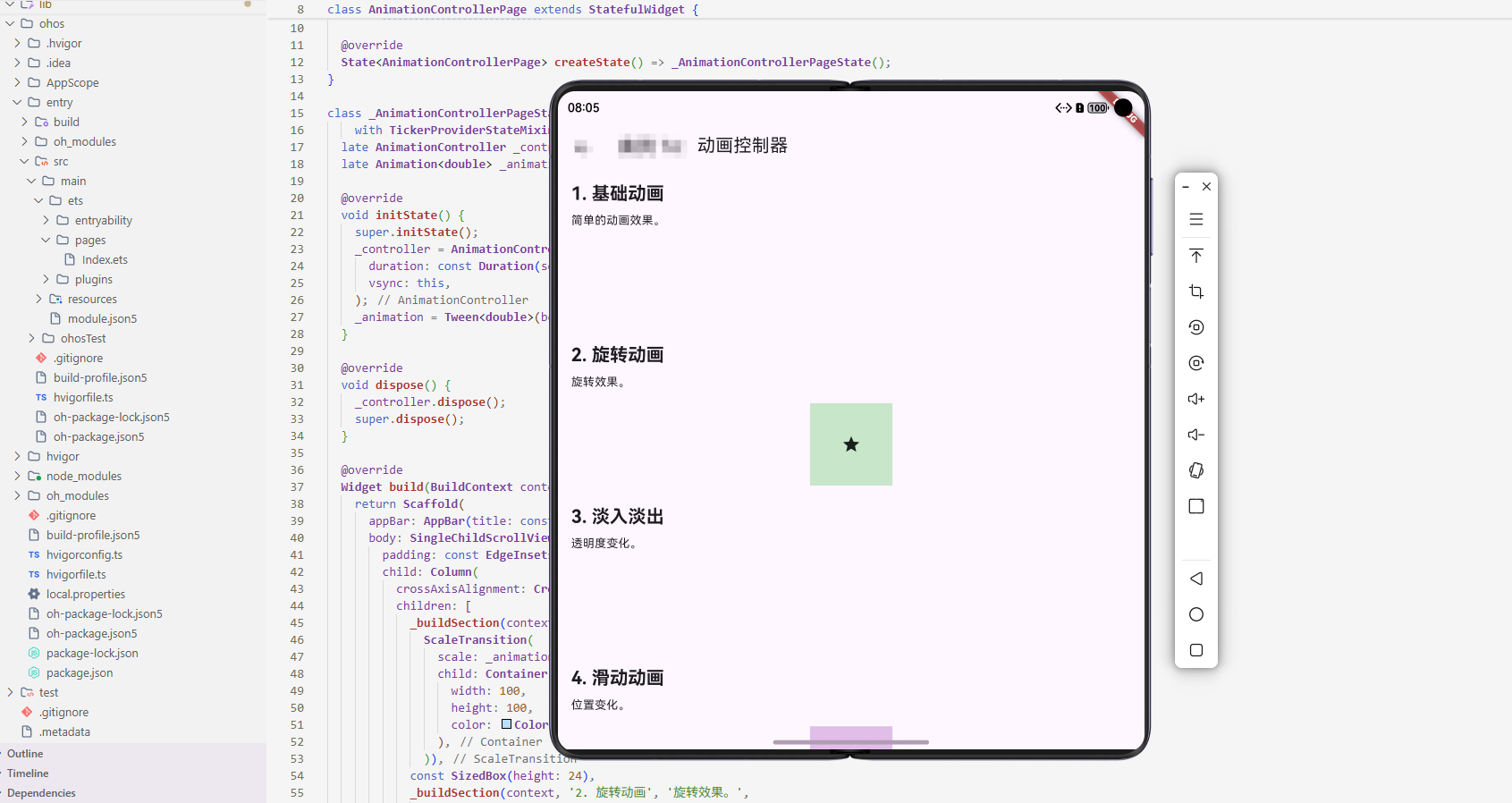
案例概述
AnimationController 是 Flutter 中用于控制动画的核心类。本案例展示了如何使用 AnimationController 创建各种动画效果。
核心概念
1. AnimationController
AnimationController 管理动画的时间和状态。
2. Animation
Animation 表示动画的值。
3. Tween
Tween 定义动画的起始值和结束值。
代码详解
示例 1:基础动画
class BasicAnimationExample extends StatefulWidget {
State<BasicAnimationExample> createState() => _BasicAnimationExampleState();
}
class _BasicAnimationExampleState extends State<BasicAnimationExample>
with SingleTickerProviderStateMixin {
late AnimationController _controller;
void initState() {
super.initState();
_controller = AnimationController(
duration: const Duration(seconds: 2),
vsync: this,
)..repeat();
}
void dispose() {
_controller.dispose();
super.dispose();
}
Widget build(BuildContext context) {
return RotationTransition(
turns: _controller,
child: const Icon(Icons.refresh, size: 48),
);
}
}
代码解释: 这个示例展示了 AnimationController 的最基础用法。通过 SingleTickerProviderStateMixin 获得 vsync 对象,确保动画与屏幕刷新同步。AnimationController 的 duration 设置为 2 秒,repeat() 让动画无限循环。RotationTransition 将 controller 直接作为 turns 参数,使图标持续旋转。在 dispose 中必须调用 _controller.dispose() 释放资源,避免内存泄漏。这种简单的旋转动画常见于加载指示器、刷新按钮等场景。
示例 2:缩放动画
class ScaleAnimationExample extends StatefulWidget {
State<ScaleAnimationExample> createState() => _ScaleAnimationExampleState();
}
class _ScaleAnimationExampleState extends State<ScaleAnimationExample>
with SingleTickerProviderStateMixin {
late AnimationController _controller;
late Animation<double> _animation;
void initState() {
super.initState();
_controller = AnimationController(
duration: const Duration(seconds: 1),
vsync: this,
)..repeat(reverse: true);
_animation = Tween<double>(begin: 0.5, end: 1.0).animate(_controller);
}
void dispose() {
_controller.dispose();
super.dispose();
}
Widget build(BuildContext context) {
return ScaleTransition(
scale: _animation,
child: Container(
width: 100,
height: 100,
color: Colors.blue,
),
);
}
}
代码解释: 这个示例引入了 Tween 的概念,用于定义动画的起始值和结束值。Tween<double>(begin: 0.5, end: 1.0) 定义了从 0.5 倍缩放到 1.0 倍(原始大小)的变化范围。repeat(reverse: true) 让动画在到达终点后反向播放,形成"缩放-恢复"的循环效果。通过 animate(_controller) 将 Tween 与 controller 绑定,controller 的进度值会自动映射到 Tween 定义的值范围。ScaleTransition 接收这个动画值,每一帧都更新容器的缩放比例。这种模式适合实现脉冲效果、强调动画等。
示例 3:位置动画
class PositionAnimationExample extends StatefulWidget {
State<PositionAnimationExample> createState() => _PositionAnimationExampleState();
}
class _PositionAnimationExampleState extends State<PositionAnimationExample>
with SingleTickerProviderStateMixin {
late AnimationController _controller;
late Animation<Offset> _animation;
void initState() {
super.initState();
_controller = AnimationController(
duration: const Duration(seconds: 2),
vsync: this,
)..repeat(reverse: true);
_animation = Tween<Offset>(
begin: Offset.zero,
end: const Offset(100, 0),
).animate(_controller);
}
void dispose() {
_controller.dispose();
super.dispose();
}
Widget build(BuildContext context) {
return SlideTransition(
position: _animation,
child: Container(
width: 100,
height: 100,
color: Colors.green,
),
);
}
}
代码解释: 这个示例演示了如何使用 Tween<Offset> 控制元素的位置变化。Offset(100, 0) 表示沿 X 轴向右移动 100 逻辑像素,Y 轴不变。SlideTransition 根据动画值平滑地改变元素位置,从 Offset.zero(原始位置)滑动到 Offset(100, 0),然后反向滑回。这种位置动画在抽屉菜单、侧滑面板、列表项展开等场景中非常常见。与直接改变 margin/padding 不同,SlideTransition 是基于变换的,性能更优,且不会影响布局。
示例 4:透明度动画
class OpacityAnimationExample extends StatefulWidget {
State<OpacityAnimationExample> createState() => _OpacityAnimationExampleState();
}
class _OpacityAnimationExampleState extends State<OpacityAnimationExample>
with SingleTickerProviderStateMixin {
late AnimationController _controller;
late Animation<double> _animation;
void initState() {
super.initState();
_controller = AnimationController(
duration: const Duration(seconds: 1),
vsync: this,
)..repeat(reverse: true);
_animation = Tween<double>(begin: 0.0, end: 1.0).animate(_controller);
}
void dispose() {
_controller.dispose();
super.dispose();
}
Widget build(BuildContext context) {
return FadeTransition(
opacity: _animation,
child: Container(
width: 100,
height: 100,
color: Colors.red,
),
);
}
}
代码解释: 这个示例展示了透明度(不透明度)动画。Tween<double>(begin: 0.0, end: 1.0) 定义了从完全透明(0)到完全不透明(1)的变化。FadeTransition 根据动画值调整元素的透明度,形成淡入淡出效果。repeat(reverse: true) 使元素在淡入和淡出之间循环。透明度动画常用于加载提示、骨架屏、弹窗进入/退出、图片加载等场景。由于 FadeTransition 只改变透明度而不改变布局,性能开销很小,即使在复杂界面中也能流畅运行。
示例 5:组合动画
class CombinedAnimationExample extends StatefulWidget {
State<CombinedAnimationExample> createState() => _CombinedAnimationExampleState();
}
class _CombinedAnimationExampleState extends State<CombinedAnimationExample>
with SingleTickerProviderStateMixin {
late AnimationController _controller;
late Animation<double> _scaleAnimation;
late Animation<double> _rotateAnimation;
void initState() {
super.initState();
_controller = AnimationController(
duration: const Duration(seconds: 2),
vsync: this,
)..repeat();
_scaleAnimation = Tween<double>(begin: 0.5, end: 1.0).animate(_controller);
_rotateAnimation = Tween<double>(begin: 0, end: 1).animate(_controller);
}
void dispose() {
_controller.dispose();
super.dispose();
}
Widget build(BuildContext context) {
return ScaleTransition(
scale: _scaleAnimation,
child: RotationTransition(
turns: _rotateAnimation,
child: Container(
width: 100,
height: 100,
color: Colors.purple,
),
),
);
}
}
代码解释: 这个示例展示了如何在单个 AnimationController 下组合多个不同的动画。_scaleAnimation 和 _rotateAnimation 都基于同一个 controller,但使用不同的 Tween 定义各自的值范围。通过嵌套 ScaleTransition 和 RotationTransition,元素同时进行缩放和旋转。这种组合动画在加载动画、欢迎屏幕、强调效果等场景中很常见。关键是所有动画共享同一个时间轴(controller),确保它们完全同步,避免出现"卡顿"或"不协调"的感觉。
高级话题
1. 动态/响应式设计
根据屏幕大小调整动画。
2. 动画与过渡
自定义动画效果。
3. 搜索/过滤/排序
在搜索中使用动画。
4. 选择与批量操作
支持批量操作。
5. 加载与缓存
显示加载动画。
6. 键盘导航
支持键盘快捷键。
7. 无障碍支持
提供无障碍支持。
8. 样式自定义
自定义样式。
9. 数据持久化/导出
保存状态。
10. 单元测试与集成测试
测试功能。
PC 端适配要点
- 根据屏幕大小调整动画
- 支持键盘快捷键
- 提供清晰的动画效果
实际应用场景
- 加载动画:显示加载状态
- 过渡动画:页面过渡
- 交互动画:用户交互反馈
- 装饰动画:装饰效果
扩展建议
- 学习高级动画库
- 研究性能优化
- 探索自定义效果
- 集成动画库
总结
AnimationController 是创建动画的核心工具。通过灵活使用 AnimationController,可以创建各种动画效果。
欢迎加入开源鸿蒙跨平台社区:https://openharmonycrossplatform.csdn.net

开源鸿蒙跨平台开发社区汇聚开发者与厂商,共建“一次开发,多端部署”的开源生态,致力于降低跨端开发门槛,推动万物智联创新。
更多推荐

 5
5 0
0- 0


 已为社区贡献18条内容

所有评论(0)