React Native 常用语法、Flexbox布局
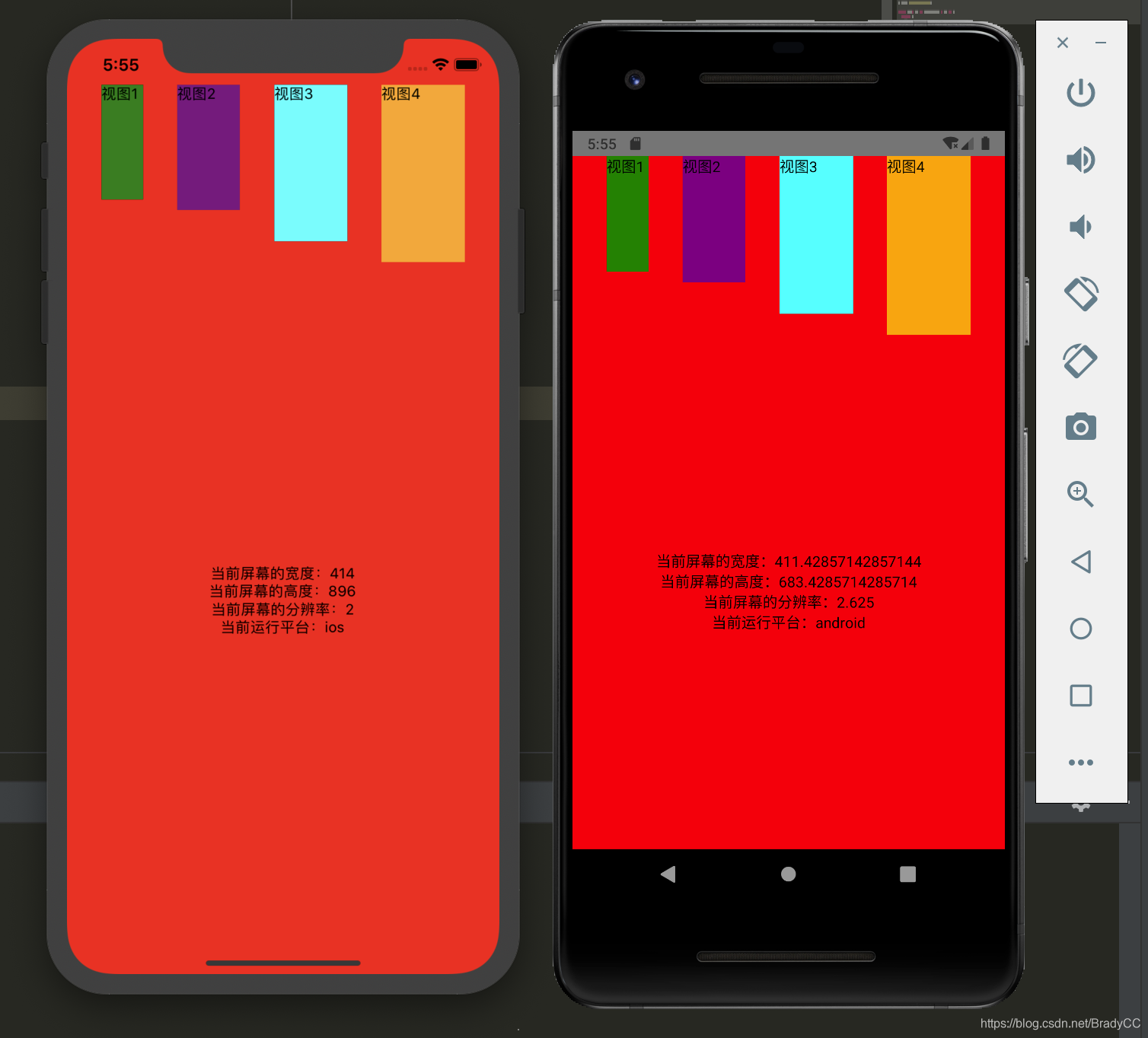
使用 react JSX 语法使用 react-native StyleSheet 设置样式(驼峰写法)使用 react-native Dimensions 获取设备宽、高、分辨率使用 react-native Platform 获取设置操作系统// App.jsimport React from 'react';import {SafeAreaView,Style...
·
- 使用 react JSX 语法
- 使用 react-native StyleSheet 设置样式(驼峰写法)
- 使用 react-native Dimensions 获取设备宽、高、分辨率
- 使用 react-native Platform 获取设置操作系统
// App.js
import React from 'react';
import {
  SafeAreaView,
  StyleSheet,
  Dimensions,
  Platform,
  View,
  Text,
  StatusBar,
} from 'react-native';

const App: () => React$Node = () => {
  return (
    <>
      <StatusBar barStyle="dark-content" />
      <SafeAreaView style={styles.safeAReaViewStyle}>
        <View style={styles.boxViewStyle}>
          <View style={{width: 40, height: 110, backgroundColor: 'green'}}>
            <Text>视图1</Text>
          </View>
          <View style={{width: 60, height: 120, backgroundColor: 'purple'}}>
            <Text>视图2</Text>
          </View>
          <View style={{width: 70, height: 150, backgroundColor: 'cyan'}}>
            <Text>视图3</Text>
          </View>
          <View style={{width: 80, height: 170, backgroundColor: 'orange'}}>
            <Text>视图4</Text>
          </View>
        </View>
        <View style={styles.dimensionsViewStyle}>
          <Text>当前屏幕的宽度:{Dimensions.get('window').width}</Text>
          <Text>当前屏幕的高度:{Dimensions.get('window').height}</Text>
          <Text>当前屏幕的分辨率:{Dimensions.get('window').scale}</Text>
          <Text>当前运行平台:{Platform.OS}</Text>
        </View>
      </SafeAreaView>
    </>
  );
};

const styles = StyleSheet.create({
  safeAReaViewStyle: {
    flex: 1,
    backgroundColor: 'red',
  },
  boxViewStyle: {
    flexDirection: 'row',
    justifyContent: 'space-evenly',
  },
  dimensionsViewStyle: {
    flex: 1,
    justifyContent: 'center',
    alignItems: 'center',
  },
});

export default App;

开源鸿蒙跨平台开发社区汇聚开发者与厂商,共建“一次开发,多端部署”的开源生态,致力于降低跨端开发门槛,推动万物智联创新。
更多推荐


 0
0 0
0- 0


 已为社区贡献4条内容

所有评论(0)