react 实现左右滑动效果_【Android初级】如何实现一个比相册更高大上的左右滑动特效...
点击上方蓝字关注在Android里面,想要实现一个类似相册的左右滑动效果,我们除了可以用Gallery、HorizontalScrollView、ViewPager等控件,还可以用一个叫做ViewFlipper的类来代替实现,它继承于 ViewAnimator。如见其名,这个类是跟动画有关,会将添加到它里面的两个或者多个View做一个动画,然后每次只显示一个子View,通过在 Vie...
·

点击上方蓝字关注
在Android里面,想要实现一个类似相册的左右滑动效果,我们除了可以用Gallery、HorizontalScrollView、ViewPager等控件,还可以用一个叫做 ViewFlipper 的类来代替实现,它继承于 ViewAnimator。如见其名,这个类是跟动画有关,会将添加到它里面的两个或者多个View做一个动画,然后每次只显示一个子View,通过在 View 之间切换时执行动画,最终达到一个类似相册能左右滑动的效果。本次功能要实现的两个基本效果- 最基本的左右滑动效果
- 从屏幕的45度方向进入和退出的效果
- 按照 ViewFlipper 的源码说明,它是将两个或多个View用动画展示出来。那么我就在 ViewFlipper 内放入两个布局,每个布局都包含一个 TextView 和 ImageView,分别用于显示文字和图片
- 既然要有动画效果,我准备使用Android的位移动画类 TranslateAnimation,设置起始的横纵坐标值
- 为了让效果明显,我会设置 ViewFlipper 的进入和退出屏幕的动画,并且在左滑时呈现一个动画、右滑时呈现另一个动画(需要判断是左滑还是右滑:重写 onTouchEvent 方法,比较横坐标X的值的变化)
1、主Activity
// import语句省略public class ViewFlipperDemo extends Activity { private static final String TAG = "ViewFlipperDemo"; private ViewFlipper mViewFlipper; private float mOldTouchValue; @Override protected void onCreate(Bundle onSavedInstance) { super.onCreate(onSavedInstance); // 设置为全屏 getWindow().setFlags(WindowManager.LayoutParams.FLAG_FULLSCREEN, WindowManager.LayoutParams.FLAG_FULLSCREEN); requestWindowFeature(Window.FEATURE_NO_TITLE); setContentView(R.layout.view_flipper_demo); mViewFlipper = findViewById(R.id.viewFlipper1); } @Override public boolean onTouchEvent(MotionEvent event) { switch (event.getAction()) { case MotionEvent.ACTION_DOWN: mOldTouchValue = event.getX(); break; case MotionEvent.ACTION_UP: float currentX = event.getX(); // 手指向右滑动: 手指向右滑动时横坐标 X 的值会变大,因此 currentX 的值更大 if (mOldTouchValue < currentX) { // 进入屏幕的动效 mViewFlipper.setInAnimation(AnimationHelper.inFromLeftAnimation()); // 退出屏幕的动效 mViewFlipper.setOutAnimation(AnimationHelper.outToRightAnimation()); mViewFlipper.showNext(); } // 横坐标的值变小,说明是左滑 if (mOldTouchValue > currentX) { // 进入屏幕的动效 mViewFlipper.setInAnimation(AnimationHelper.inFromRightAnimation()); // 退出屏幕的动效 mViewFlipper.setOutAnimation(AnimationHelper.outToLeftAnimation()); mViewFlipper.showPrevious(); } break; default: break; } return super.onTouchEvent(event); }}<LinearLayout xmlns:android="http://schemas.android.com/apk/res/android" android:layout_width="match_parent" android:layout_height="match_parent" android:orientation="vertical"> <TextView android:layout_width="match_parent" android:layout_height="wrap_content" android:textColor="@color/colorBlack" android:gravity="center" android:text="这是一个ViewFlipper样例" android:paddingTop="20dp"/> <ViewFlipper android:layout_width="match_parent" android:layout_height="match_parent" android:id="@+id/viewFlipper1"> <LinearLayout android:layout_width="match_parent" android:layout_height="match_parent" android:orientation="vertical" android:gravity="center"> <TextView android:layout_width="match_parent" android:layout_height="wrap_content" android:textColor="@color/colorBlue" android:gravity="center" android:text="这是第一个ViewFlipper页面"/> <ImageView android:layout_width="wrap_content" android:layout_height="wrap_content" android:src="@drawable/avasterdr"/> LinearLayout> <LinearLayout android:layout_width="match_parent" android:layout_height="match_parent" android:orientation="vertical" android:gravity="center" > <TextView android:layout_width="match_parent" android:layout_height="wrap_content" android:textColor="@color/colorBlue" android:gravity="center" android:text="这是第二个ViewFlipper页面"/> <ImageView android:layout_width="wrap_content" android:layout_height="wrap_content" android:src="@drawable/avastertony"/> LinearLayout> ViewFlipper>LinearLayout>public class AnimationHelper { // 左滑的进入动画 public static Animation inFromRightAnimation() { Animation inFromRight = new TranslateAnimation( Animation.RELATIVE_TO_PARENT, 1.0f, Animation.RELATIVE_TO_PARENT, 0.0f, Animation.RELATIVE_TO_PARENT, 0.0f, Animation.RELATIVE_TO_PARENT, 0.0f); inFromRight.setDuration(500); inFromRight.setInterpolator(new AccelerateInterpolator()); return inFromRight; } // 左滑的退出动画 public static Animation outToLeftAnimation() { Animation outToLeft = new TranslateAnimation( Animation.RELATIVE_TO_PARENT, 0.0f, Animation.RELATIVE_TO_PARENT, -1.0f, Animation.RELATIVE_TO_PARENT, 0.0f, Animation.RELATIVE_TO_PARENT, 0.0f); outToLeft.setDuration(500); outToLeft.setInterpolator(new AccelerateInterpolator()); return outToLeft; } // 右滑的进入动画 public static Animation inFromLeftAnimation() { Animation inFromLeft = new TranslateAnimation( Animation.RELATIVE_TO_PARENT, -1.0f, Animation.RELATIVE_TO_PARENT, 0.0f, Animation.RELATIVE_TO_PARENT, 0.0f, Animation.RELATIVE_TO_PARENT, 0.0f); inFromLeft.setDuration(500); inFromLeft.setInterpolator(new AccelerateInterpolator()); return inFromLeft; } // 右滑的退出动画 public static Animation outToRightAnimation() { Animation outToRight = new TranslateAnimation( Animation.RELATIVE_TO_PARENT, 0.0f, Animation.RELATIVE_TO_PARENT, 1.0f, Animation.RELATIVE_TO_PARENT, 0.0f, Animation.RELATIVE_TO_PARENT, 0.0f); outToRight.setDuration(500); outToRight.setInterpolator(new AccelerateInterpolator()); return outToRight; }} 可以看到,这个左右滑动效果没有任何酷炫的地方。我们不妨先来看看跟动画相关的几个重点地方:(1)函数 setInAnimation:是指 View 进入屏幕的动效(2)函数 setOutAnimation:是指 View 退出屏幕的动效(3)TranslateAnimation的构造函数的参数解释:1、fromXType/toXType/fromYType/toYType,取值共有三个:
- Animation.ABSOLUTE
- Animation.RELATIVE_TO_SELF
- Animation.RELATIVE_TO_PARENT
// 左滑的进入动画public static Animation inFromRightAnimation() { Animation inFromRight = new TranslateAnimation( Animation.RELATIVE_TO_PARENT, 1.0f, Animation.RELATIVE_TO_PARENT, 0.0f, Animation.RELATIVE_TO_PARENT, -1.0f, Animation.RELATIVE_TO_PARENT, 0.0f); inFromRight.setDuration(500); inFromRight.setInterpolator(new AccelerateInterpolator()); return inFromRight;}// 左滑的退出动画public static Animation outToLeftAnimation() { Animation outToLeft = new TranslateAnimation( Animation.RELATIVE_TO_PARENT, 0.0f, Animation.RELATIVE_TO_PARENT, -1.0f, Animation.RELATIVE_TO_PARENT, 0.0f, Animation.RELATIVE_TO_PARENT, 1.0f); outToLeft.setDuration(500); outToLeft.setInterpolator(new AccelerateInterpolator()); return outToLeft;}// 右滑的进入动画public static Animation inFromLeftAnimation() { Animation inFromLeft = new TranslateAnimation( Animation.RELATIVE_TO_PARENT, -1.0f, Animation.RELATIVE_TO_PARENT, 0.0f, Animation.RELATIVE_TO_PARENT, -1.0f, Animation.RELATIVE_TO_PARENT, 0.0f); inFromLeft.setDuration(500); inFromLeft.setInterpolator(new AccelerateInterpolator()); return inFromLeft;}// 右滑的退出动画public static Animation outToRightAnimation() { Animation outToRight = new TranslateAnimation( Animation.RELATIVE_TO_PARENT, 0.0f, Animation.RELATIVE_TO_PARENT, 1.0f, Animation.RELATIVE_TO_PARENT, 0.0f, Animation.RELATIVE_TO_PARENT, 1.0f); outToRight.setDuration(500); outToRight.setInterpolator(new AccelerateInterpolator()); return outToRight;} 之所以有 -1.0f 这个值,是因为屏幕上的横纵坐标值的分布可以用如下象限来表示:
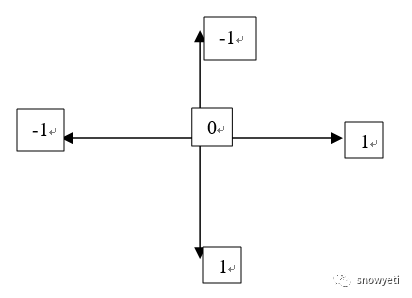 ViewFlipper中的 View 就位于象限的中心位置。因此,如果动画从左上角进入,那么它的起始横纵坐标就是(-1,-1)。大家可以按照这个思路去实现自己想要的动效。
往期推荐
【Android初级】如何让APP无法在指定的系统版本上运行
【Android初级】教你用两行代码实现“显示/隐藏密码”的效果
【Android初级】如何实现一个具有选择功能的对话框效果
【Android初级】如何实现一个“模拟后台下载”的加载效果
【Android初级】如何动态添加菜单项(附源码+避坑)
分享一个口语中可以替代“deceive”的地道表达
使用TypeFace设置TextView的文字字体(附源码)
利用startActivityForResult返回数据到前一个Activity(附源码+解析)
“Old school”除了指“旧学校”,还有...
使用setContentView实现页面的转换效果
3个月让你告别哑巴英语!
为什么我们经常听到的是"Merry Christmas"而不是"Happy Christmas"?

开源鸿蒙跨平台开发社区汇聚开发者与厂商,共建“一次开发,多端部署”的开源生态,致力于降低跨端开发门槛,推动万物智联创新。
更多推荐

 0
0 0
0- 0


 已为社区贡献1条内容

所有评论(0)