鸿蒙系统支持reactnative,鸿蒙开源三方组件--跨平台自适应布局yoga组件
介绍yoga是facebook打造的一个跨IOS、Android、Window平台在内的布局引擎,兼容Flexbox布局方式,让界面更加简单。Yoga官网:https://facebook.github.io/yoga/官网上描述的特性包括:完全兼容Flexbox布局,遵循W3C的规范支持java、C#、Objective-C、C四种语言底层代码使用C语言编写,性能不是问题支持流行框架如React

介绍
yoga是facebook打造的一个跨IOS、Android、Window平台在内的布局引擎,兼容Flexbox布局方式,让界面更加简单。
Yoga官网:https://facebook.github.io/yoga/
官网上描述的特性包括:
完全兼容Flexbox布局,遵循W3C的规范
支持java、C#、Objective-C、C四种语言
底层代码使用C语言编写,性能不是问题
支持流行框架如React Native
目前在已开源的鸿蒙组件(https://gitee.com/openharmony-tpc/yoga)的功能现状如下:
native层和接口已经打通
支持自定义xml属性来控制布局(通过YogaLayout)
设置布局中不支持Image控件(onDrawCanvas暂不支持主动回调,所以yoga没办法扫描到它),请使用Text控件替代
不支持VirtualYogaLayout
如何使用
首先我们在MainAbility中定义界面路由。
publicclass MainAbility extends Ability {
@Override
publicvoid onStart(Intent intent) {
super.onStart(intent);
super.setMainRoute(MainAbilitySlice.class.getName());
addActionRoute("action.dydrawnode.slice", DynamicsDrawNodeSlice.class.getName());
addActionRoute("action.showrow.slice", ShowRowAbilitySlice.class.getName());
addActionRoute("action.inflate.slice", BenchmarkInflateAbilitySlice.class.getName());
}
}
然后我们来到MainAbilitySlice,其实就是做了一个向其他界面跳转的动作,并提前加载yoga的so库。
publicclass MainAbilitySlice extends AbilitySlice {
static{
System.loadLibrary("yoga");
System.loadLibrary("yogacore");
System.loadLibrary("fb");
}
@Override
publicvoid onStart(Intent intent) {
super.onStart(intent);
setUIContent(ResourceTable.Layout_main_layout);
Button btn0= (Button) findComponentById(ResourceTable.Id_btn_1);
btn0.setClickedListener(component -> {
Intent intent1 = new Intent();
Operation operation = new Intent.OperationBuilder()
.withAction("action.dydrawnode.slice")
.build();
intent1.setOperation(operation);
startAbilityForResult(intent1, 1);
});
Button btn2= (Button) findComponentById(ResourceTable.Id_btn_2);
btn2.setClickedListener(component -> {
Intent intent1 = new Intent();
Operation operation = new Intent.OperationBuilder()
.withAction("action.showrow.slice")
.build();
intent1.setOperation(operation);
startAbilityForResult(intent1, 1);
});
Button btn1= (Button) findComponentById(ResourceTable.Id_btn_3);
btn1.setClickedListener(component -> {
Intent intent1 = new Intent();
Operation operation = new Intent.OperationBuilder()
.withAction("action.inflate.slice")
.build();
intent1.setOperation(operation);
startAbilityForResult(intent1, 1);
});
}
@Override
publicvoid onActive() {
super.onActive();
}
@Override
publicvoid onForeground(Intent intent) {
super.onForeground(intent);
}
}
第一个演示界面
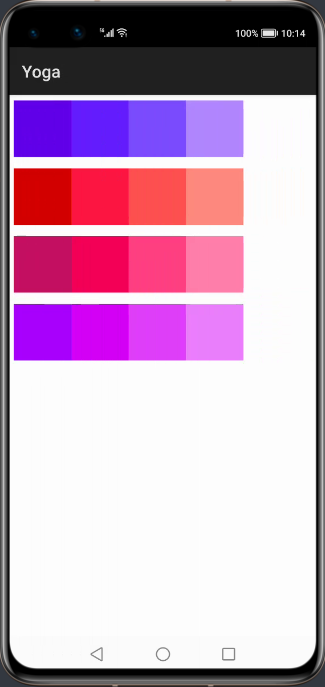
这里yoga向我们展示了动态布局的能力,效果图如下:
实现的代码如下:
publicclass DynamicsDrawNodeSlice extends AbilitySlice {
private staticfinalintVIEW_WIDTH = 200;
private staticfinalintVIEW_HEIGHT = 200;
private ArrayList mViewList = new ArrayList<>();
private ArrayList mYogaNodeList = new ArrayList<>();
private int[][] colors = newint[][]{
new int[]{0xff6200ea, 0xff651fff, 0xff7c4dff, 0xffb388ff},
new int[]{0xffd50000, 0xffff1744, 0xffff5252, 0xffff8a80},
new int[]{0xffc51162, 0xfff50057, 0xffff4081, 0xffff80ab},
new int[]{0xffaa00ff, 0xffd500f9, 0xffe040fb, 0xffea80fc}
};
@Override
protected void onStart(Intent intent) {
super.onStart(intent);
PositionLayout container = new PositionLayout(this);
DisplayAttributes displayAttributes = DisplayManager.getInstance().getDefaultDisplay(this).get().getAttributes();
floatscreenWidth = displayAttributes.width;
floatscreenHeight = displayAttributes.height;
YogaNode root = new YogaNodeJNIFinalizer();
root.setWidth(screenWidth);
root.setHeight(screenHeight);
root.setFlexDirection(YogaFlexDirection.COLUMN);
createRowNodeAndView(root, 0);
createRowNodeAndView(root, 1);
createRowNodeAndView(root, 2);
createRowNodeAndView(root, 3);
root.calculateLayout(screenWidth, screenHeight);
for(inti = 0; i
Component component = mViewList.get(i);
YogaNode yogaNode = mYogaNodeList.get(i);
YogaNode yogaNodeOwner = yogaNode.getOwner();
component.setTranslationX(yogaNodeOwner.getLayoutX() + yogaNodeOwner.getLayoutX());
component.setTranslationY(yogaNodeOwner.getLayoutY() + yogaNodeOwner.getLayoutY());
component.setLeft((int) (yogaNodeOwner.getLayoutX() + yogaNode.getLayoutX()));
component.setTop((int) (yogaNodeOwner.getLayoutY() + yogaNode.getLayoutY()));
container.addComponent(component);
}
super.setUIContent(container);
}
private void createRowNodeAndView(YogaNode root, intindex) {
YogaNode row = new YogaNodeJNIFinalizer();
row.setHeight(VIEW_HEIGHT);
row.setWidth(VIEW_WIDTH * 4);
row.setFlexDirection(YogaFlexDirection.ROW);
row.setMargin(YogaEdge.ALL, 20);
for(inti = 0; i
YogaNode yogaNode = new YogaNodeJNIFinalizer();
yogaNode.setWidth(VIEW_WIDTH);
yogaNode.setHeight(VIEW_HEIGHT);
Component component = createView(colors[index][i]);
row.addChildAt(yogaNode, i);
mYogaNodeList.add(yogaNode);
mViewList.add(component);
}
root.addChildAt(row, index);
}
private Component createView(intcolor) {
Component view= new Component(this);
ShapeElement background = new ShapeElement();
background.setRgbColor(convertColor(color));
view.setBackground(background);
ComponentContainer.LayoutConfig layoutConfig = new AdaptiveBoxLayout.LayoutConfig(VIEW_WIDTH, VIEW_HEIGHT);
view.setLayoutConfig(layoutConfig);
returnview;
}
/**
* 转换颜色
* @param color
* @returnRgbColor
*/
publicRgbColor convertColor(intcolor) {
intcolorInt = color;
intred = (colorInt & 0xff0000) >> 16;
intgreen = (colorInt & 0x00ff00) >> 8;
intblue = (colorInt & 0x0000ff);
returnnew RgbColor(red, green, blue);
}
}
代码中定义了一个root根布局,宽高为屏幕的宽高,接着定义了四个行布局,并向每个行布局里添加4个子布局,最重要的是在调用root.calculateLayout(screenWidth, screenHeight)后,便将每个子布局的位置给确定了下来,然后根据获取到的每个布局的参数,给每个Component设置位置。该演示只是借助yoga组件来确定每个Component位置,真正使渲染生效的还是基于鸿蒙的原生控件。
第二个演示界面
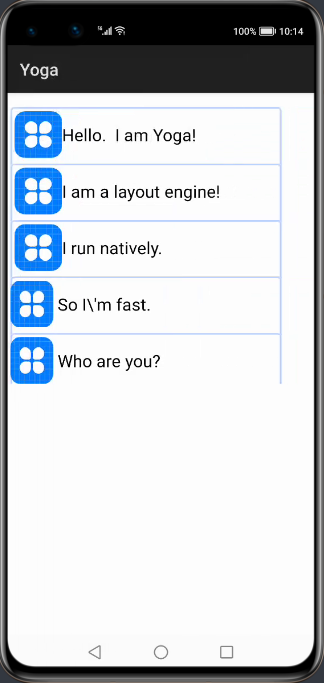
接下来展示如何使用yoga组件在xml里通过填写属性来控制item位置的能力,效果图如下:
代码如下:
xmlns:ohos="http://schemas.huawei.com/res/ohos"
xmlns:yoga="http://schemas.huawei.com/apk/res-auto"
ohos:height="match_parent"
ohos:width="match_parent"
>
ohos:height="60vp"
ohos:width="match_content"
yoga:yg_alignItems="center"
yoga:yg_flexDirection="row"
yoga:yg_marginHorizontal="15"
yoga:yg_marginStart="15"
yoga:yg_marginTop="50"
ohos:background_element="$graphic:item_element"
>
ohos:height="50vp"
ohos:width="50vp"
ohos:background_element="$media:icon"
yoga:yg_flex="0"
yoga:yg_marginStart="15"
/>
ohos:height="50vp"
ohos:width="220vp"
ohos:text="Hello. I am Yoga!"
ohos:text_color="#000000"
yoga:yg_flex="1"
yoga:yg_marginStart="15"
ohos:text_size="20fp"
/>
ohos:background_element="$graphic:item_element"
ohos:height="60vp"
ohos:width="match_content"
yoga:yg_alignItems="center"
yoga:yg_flexDirection="row"
yoga:yg_marginHorizontal="15"
yoga:yg_marginTop="20"
yoga:yg_marginStart="15"
>
ohos:height="50vp"
ohos:width="50vp"
ohos:background_element="$media:icon"
yoga:yg_flex="0"
yoga:yg_marginStart="15"
/>
ohos:height="50vp"
ohos:width="250vp"
ohos:text="I am a layout engine!"
ohos:text_color="#000000"
yoga:yg_flex="1"
yoga:yg_marginStart="15"
ohos:text_size="20fp"
/>
ohos:background_element="$graphic:item_element"
ohos:height="60vp"
ohos:width="match_content"
yoga:yg_alignItems="center"
yoga:yg_flexDirection="row"
yoga:yg_marginHorizontal="15"
yoga:yg_marginTop="20"
>
ohos:height="50vp"
ohos:width="50vp"
ohos:background_element="$media:icon"
yoga:yg_flex="0"
yoga:yg_marginStart="15"
/>
ohos:height="50vp"
ohos:width="250vp"
ohos:text="I run natively."
ohos:text_color="#000000"
yoga:yg_flex="1"
yoga:yg_marginStart="15"
ohos:text_size="20fp"
/>
ohos:background_element="$graphic:item_element"
ohos:height="60vp"
ohos:width="match_content"
yoga:yg_alignItems="center"
yoga:yg_flexDirection="row"
yoga:yg_marginHorizontal="15"
yoga:yg_marginTop="20"
>
ohos:height="50vp"
ohos:width="50vp"
ohos:background_element="$media:icon"
yoga:yg_flex="0"
/>
ohos:height="50vp"
ohos:width="200vp"
ohos:text="So I\'m fast."
ohos:text_color="#000000"
yoga:yg_flex="1"
yoga:yg_marginStart="15"
ohos:text_size="20fp"
/>
ohos:background_element="$graphic:item_element"
ohos:height="60vp"
ohos:width="match_content"
yoga:yg_alignItems="center"
yoga:yg_flexDirection="row"
yoga:yg_marginHorizontal="15"
yoga:yg_marginTop="20"
>
ohos:height="50vp"
ohos:width="50vp"
ohos:background_element="$media:icon"
yoga:yg_flex="0"
/>
ohos:height="50vp"
ohos:width="200vp"
ohos:text="Who are you?"
ohos:text_color="#000000"
yoga:yg_flex="1"
yoga:yg_marginStart="15"
ohos:text_size="20fp"
/>
这里YogaLayout其实可以看成FlexBox(详情请参考附录:FlexBox科普),可以通过参数调节子布局位置,我们可以使用YogaLayout上的yoga:yg_alignItems="center"属性使得item居中显示,并通过yoga:yg_flexDirection="row"属性使得之item横向排列。子item也可以通过设置yoga:yg_flex="1"来调整自己的权重。更多属性的使用大家也可以下载项目亲自体验。
集成方式
自行编译工程entity、yoga、yoga_layout、fb生成libyoga.so、libfb.so、libyogacore.so。
将其添加到要集成的libs文件夹内,在entity的gradle内添加如下代码。
方式一:
通过library生成har包,添加har包到libs文件夹内。
在entry的gradle内添加如下代码:
implementation fileTree(dir:'libs', include:['*.jar','*.har'])
方式二:
allprojects{
repositories{
mavenCentral()
}
}
implementation 'io.openharmony.tpc.thirdlib:yoga-layout:1.0.0'
implementation 'io.openharmony.tpc.thirdlib:yoga-yoga:1.0.0'
implementation 'io.openharmony.tpc.thirdlib:yoga-fb:1.0.0'
附录1:FlexBox科普
布局的传统解决方案,基于盒状模型,依赖display属性,position属性,float属性。它对于那些特殊布局非常不方便,比如,垂直居中就不容易实现。2009年,W3C提出了一种新的方案:flex。可以简便、完整、响应式地实现各种界面布局。目前,该方案已经得到了所有浏览器的支持。采用Flex布局的元素,称为Flex容器(flex container),简称“容器”。它的所有子元素置动成为容器成员,称为Flex项目(flex item),简称“项目”。
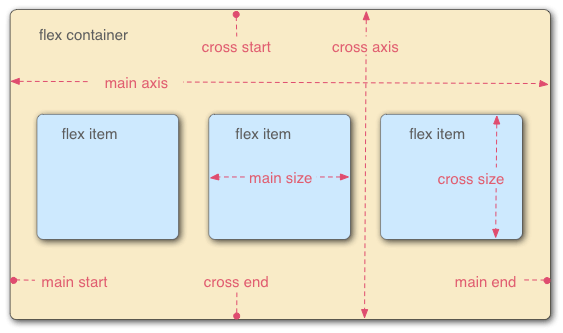
容器默认存在两根轴:水平的主轴(main axis)和垂直的交叉轴(cross axis)。主轴的开始位置(与边框的交叉点)叫main start,结束位置叫main end;交叉轴的开始位置叫cross start,结束位置叫cross end。项目默认沿主轴排列。单个项目占据的主轴空间叫main size,占据的交叉轴空间叫cross size。
附录2:相关资料

开源鸿蒙跨平台开发社区汇聚开发者与厂商,共建“一次开发,多端部署”的开源生态,致力于降低跨端开发门槛,推动万物智联创新。
更多推荐

 0
0 0
0- 0


 已为社区贡献1条内容

所有评论(0)