Flutter & OpenHarmony PC 端适配:SizedBox 固定尺寸布局
SizedBox组件使用指南 SizedBox是Flutter中用于精确控制布局尺寸的核心组件,主要功能包括: 基本用途: 创建固定尺寸容器(指定宽高) 作为占位符预留空间 在组件间添加固定间距 显示内容加载前的占位图 特殊构造方法: SizedBox():固定尺寸 SizedBox.expand():填满父容器 SizedBox.shrink():最小尺寸(0×0) 应用场景: 列表项间距控制
·
案例概述
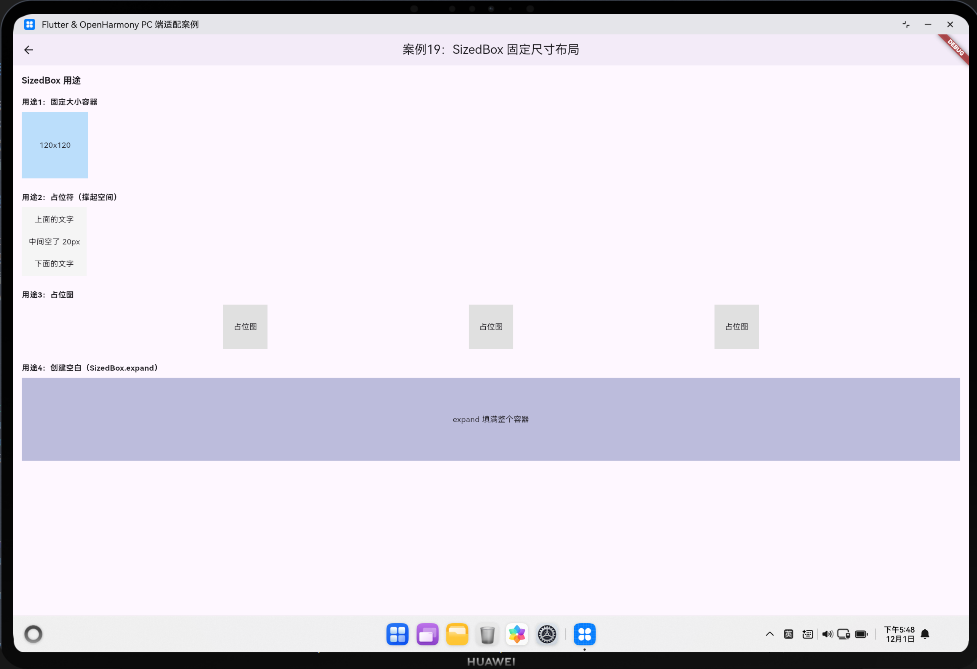
本案例展示 SizedBox 组件的多种用法。虽然 SizedBox 看起来简单,但它是构建精确布局的关键工具,用于创建固定尺寸的容器、占位符、间距等。
核心概念
1. SizedBox 的四个主要用途
- 固定大小容器:指定宽度和高度;
- 占位符:撑起空间,用于布局占位;
- 间距:在组件之间创建固定距离;
- 占位图:在加载真实内容前显示占位图。
2. SizedBox 的特殊构造函数
SizedBox(width: 100, height: 100):固定大小;SizedBox(width: 100):只指定宽度,高度由子组件决定;SizedBox.expand():填满父容器;SizedBox.shrink():最小尺寸(0×0)。
代码详解
1. 固定大小容器
SizedBox(
  width: 120,
  height: 120,
  child: Container(
    color: Colors.blue.shade100,
    child: const Center(child: Text('120x120')),
  ),
)
说明:
- 无论子组件多大,都会被限制在 120×120 内;
- 如果子组件超出,会被裁剪。
2. 创建间距
Column(
  children: [
    const Text('上面的文字'),
    const SizedBox(height: 20),
    const Text('中间空了 20px'),
    const SizedBox(height: 20),
    const Text('下面的文字'),
  ],
)
说明:
- 比
Padding更简洁,专门用于创建间距; - 在列表中频繁使用,提升代码可读性。
3. 占位图
SizedBox(
  width: 80,
  height: 80,
  child: Container(
    color: Colors.grey.shade300,
    child: const Center(child: Text('占位图')),
  ),
)
说明:
- 在加载真实图片前显示占位图;
- 占位图大小与真实图片相同,避免布局抖动。
4. SizedBox.expand
Stack(
  children: [
    Container(color: Colors.red.shade100),
    SizedBox.expand(
      child: Container(
        color: Colors.blue.withOpacity(0.3),
        child: const Center(child: Text('expand 填满整个容器')),
      ),
    ),
  ],
)
说明:
SizedBox.expand()填满父容器;- 等价于
SizedBox(width: double.infinity, height: double.infinity)。
深入理解:SizedBox 的设计哲学
1. SizedBox vs Container
- SizedBox:轻量级,只用于指定大小;
- Container:功能丰富,可以设置背景色、边框、阴影等。
选择原则:
- 只需要指定大小 → 用
SizedBox; - 需要装饰(背景、边框等) → 用
Container。
2. SizedBox vs Padding
- SizedBox:创建固定间距;
- Padding:为子组件添加内边距。
选择原则:
- 只是创建间距 → 用
SizedBox; - 需要为内容添加内边距 → 用
Padding。
3. SizedBox 在响应式设计中的角色
虽然 SizedBox 使用固定尺寸,但在响应式设计中仍然有用:
- 间距:间距通常是固定的(如 8px、16px、24px);
- 占位符:占位符大小应该与真实内容相同;
- 最小尺寸:某些组件需要最小尺寸保证可用性。
4. SizedBox 的性能考量
SizedBox 本身性能开销很小,但需要注意:
- 避免过度使用:不要用
SizedBox替代Expanded或Flexible; - 合理的尺寸:避免创建过大或过小的
SizedBox; - 结合其他布局:与
Row、Column、Stack等配合使用。
5. SizedBox 在实际项目中的应用
- 列表间距:在
ListView中用SizedBox创建项目间距; - 表单布局:在表单中用
SizedBox创建字段间距; - 占位图:在图片加载前显示占位图;
- 网格布局:在网格中用
SizedBox创建固定大小的卡片; - 动画:在动画中用
SizedBox创建中间状态。
通过合理使用 SizedBox,你可以构建出精确、整洁的布局,提升应用的视觉质量。
高级话题:SizedBox 的高级应用
1. SizedBox 作为响应式间距
根据屏幕宽度动态调整间距:
final spacing = MediaQuery.of(context).size.width < 600 ? 8.0 : 16.0;

Column(
  children: [
    Text('Item 1'),
    SizedBox(height: spacing),
    Text('Item 2'),
  ],
)
2. SizedBox 与 Spacer 的区别
SizedBox:固定尺寸Spacer:填满剩余空间
// 使用 SizedBox(固定 16px)
Row(
  children: [
    Text('Left'),
    SizedBox(width: 16),
    Text('Right'),
  ],
)

// 使用 Spacer(填满剩余空间)
Row(
  children: [
    Text('Left'),
    Spacer(),
    Text('Right'),
  ],
)
3. SizedBox 与占位图的最佳实践
在加载图片时使用占位图:
SizedBox(
  width: 200,
  height: 200,
  child: Image.network(
    url,
    fit: BoxFit.cover,
    loadingBuilder: (context, child, progress) {
      if (progress == null) return child;
      return Container(
        color: Colors.grey.shade300,
        child: Center(child: CircularProgressIndicator()),
      );
    },
  ),
)
4. SizedBox.expand 的高级用法
在 Stack 中创建全屏覆盖层:
Stack(
  children: [
    // 背景内容
    Container(child: Text('Background')),
    // 全屏覆盖层
    SizedBox.expand(
      child: Container(
        color: Colors.black.withOpacity(0.5),
        child: Center(child: CircularProgressIndicator()),
      ),
    ),
  ],
)
5. SizedBox 与动画的结合
在动画中使用 SizedBox 创建尺寸变化:
AnimatedBuilder(
  animation: _sizeAnimation,
  builder: (context, child) {
    return SizedBox(
      width: _sizeAnimation.value,
      height: _sizeAnimation.value,
      child: Container(color: Colors.blue),
    );
  },
)
6. SizedBox 与 Flexible 的结合
在需要最小尺寸的地方使用 SizedBox:
Row(
  children: [
    SizedBox(width: 100, child: TextField()),  // 最小宽度 100
    SizedBox(width: 8),
    Flexible(child: TextField()),  // 填满剩余空间
  ],
)
7. 创建响应式占位符网格
GridView.count(
  crossAxisCount: 3,
  children: List.generate(9, (index) {
    return SizedBox(
      width: 100,
      height: 100,
      child: Container(
        color: Colors.grey.shade300,
        child: Center(child: Text('占位 ${index + 1}')),
      ),
    );
  }),
)
8. SizedBox 与 ListView 的性能优化
使用 SizedBox 指定列表项高度以优化性能:
ListView.builder(
  itemExtent: 80,  // 固定高度,性能更好
  itemCount: 100,
  itemBuilder: (context, index) {
    return SizedBox(
      height: 80,
      child: ListTile(title: Text('Item $index')),
    );
  },
)
9. SizedBox 与 AspectRatio 的结合
在网格中结合使用:
GridView.count(
  crossAxisCount: 2,
  children: List.generate(4, (index) {
    return SizedBox(
      height: 200,
      child: AspectRatio(
        aspectRatio: 1,
        child: Container(color: Colors.blue),
      ),
    );
  }),
)
10. 使用 SizedBox 创建分隔符
Column(
  children: [
    Text('Section 1'),
    SizedBox(height: 16),
    Divider(),
    SizedBox(height: 16),
    Text('Section 2'),
  ],
)
11. SizedBox 的性能考量
避免创建过多的 SizedBox:
// 不推荐:过多的 SizedBox
Column(
  children: [
    SizedBox(height: 8),
    Text('Item 1'),
    SizedBox(height: 8),
    Text('Item 2'),
    SizedBox(height: 8),
    Text('Item 3'),
  ],
)

// 推荐:使用 spacing 参数或 Padding
Column(
  children: [
    Text('Item 1'),
    Text('Item 2'),
    Text('Item 3'),
  ],
)
12. SizedBox 与响应式设计的最佳实践
// 定义响应式间距常量
class Spacing {
  static double get small => 8.0;
  static double get medium => 16.0;
  static double get large => 24.0;

  static double get adaptive {
    final width = MediaQuery.of(context).size.width;
    if (width < 600) return small;
    if (width < 1200) return medium;
    return large;
  }
}

// 使用
Column(
  children: [
    Text('Item 1'),
    SizedBox(height: Spacing.medium),
    Text('Item 2'),
  ],
)
通过这些高级应用,你可以充分发挥 SizedBox 的潜力,构建出精确、高效的布局。

开源鸿蒙跨平台开发社区汇聚开发者与厂商,共建“一次开发,多端部署”的开源生态,致力于降低跨端开发门槛,推动万物智联创新
更多推荐
 10
10 0
0- 0


 已为社区贡献9条内容

所有评论(0)