快速上手ArkTS:构建多页面应用(OpenHarmony)
本文介绍了使用ArkTS开发HarmonyOS应用的基本流程:1.创建ArkTS工程:通过DevEco Studio选择EmptyAbility模板创建项目,配置兼容SDK版本;2.构建页面:使用Row/Column布局创建首页,添加Text和Button组件;3.创建第二个页面并配置路由;4.实现页面跳转:通过router实现两个页面间的相互跳转,包括pushUrl和back方法。文中提供了完整
1.创建ArkTS工程
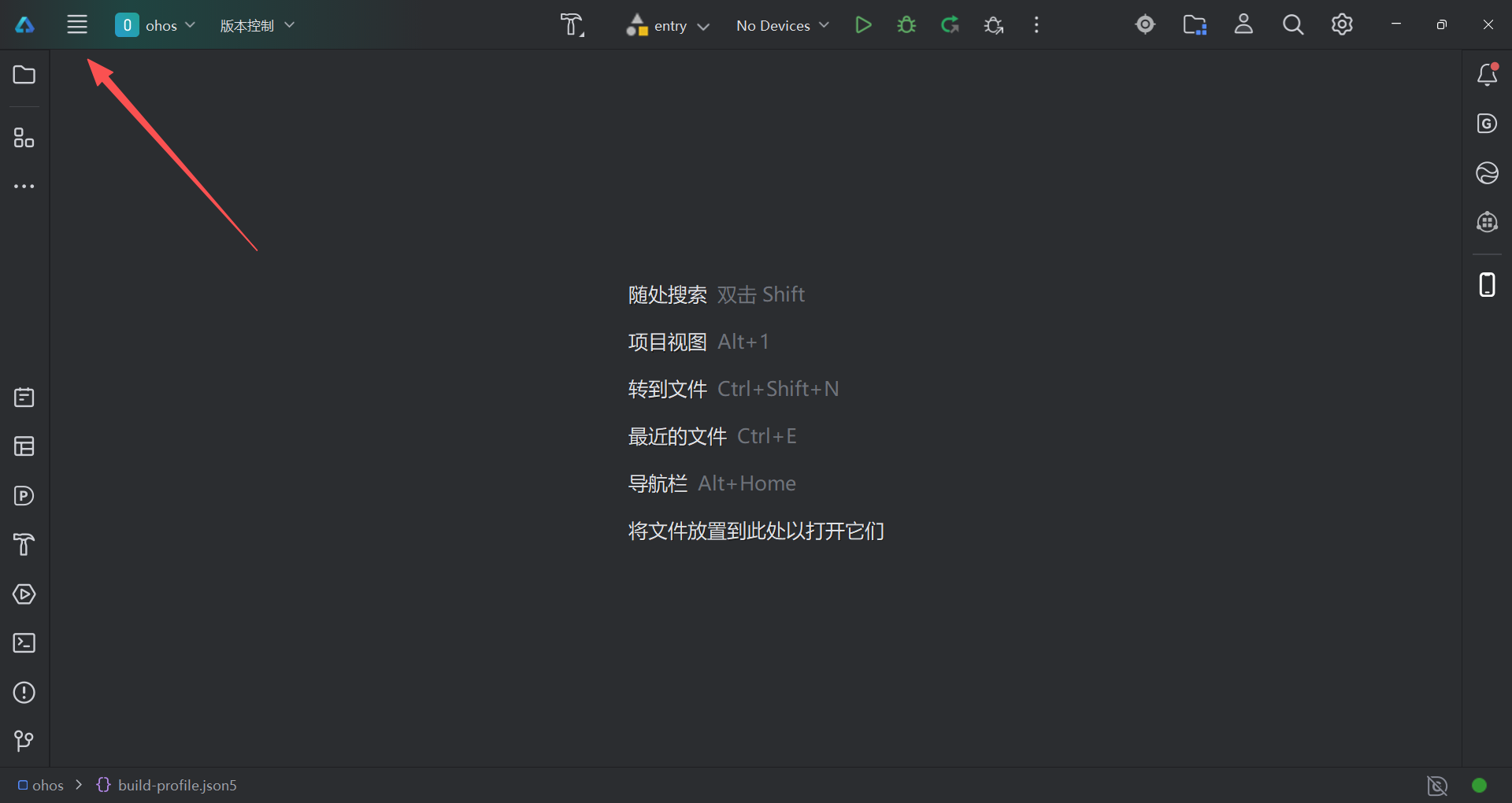
若首次打开DevEco Studio,请单击Create Project创建工程。如果已经打开了一个工程,请在菜单栏选择File > New > Create Project来创建一个新工程。
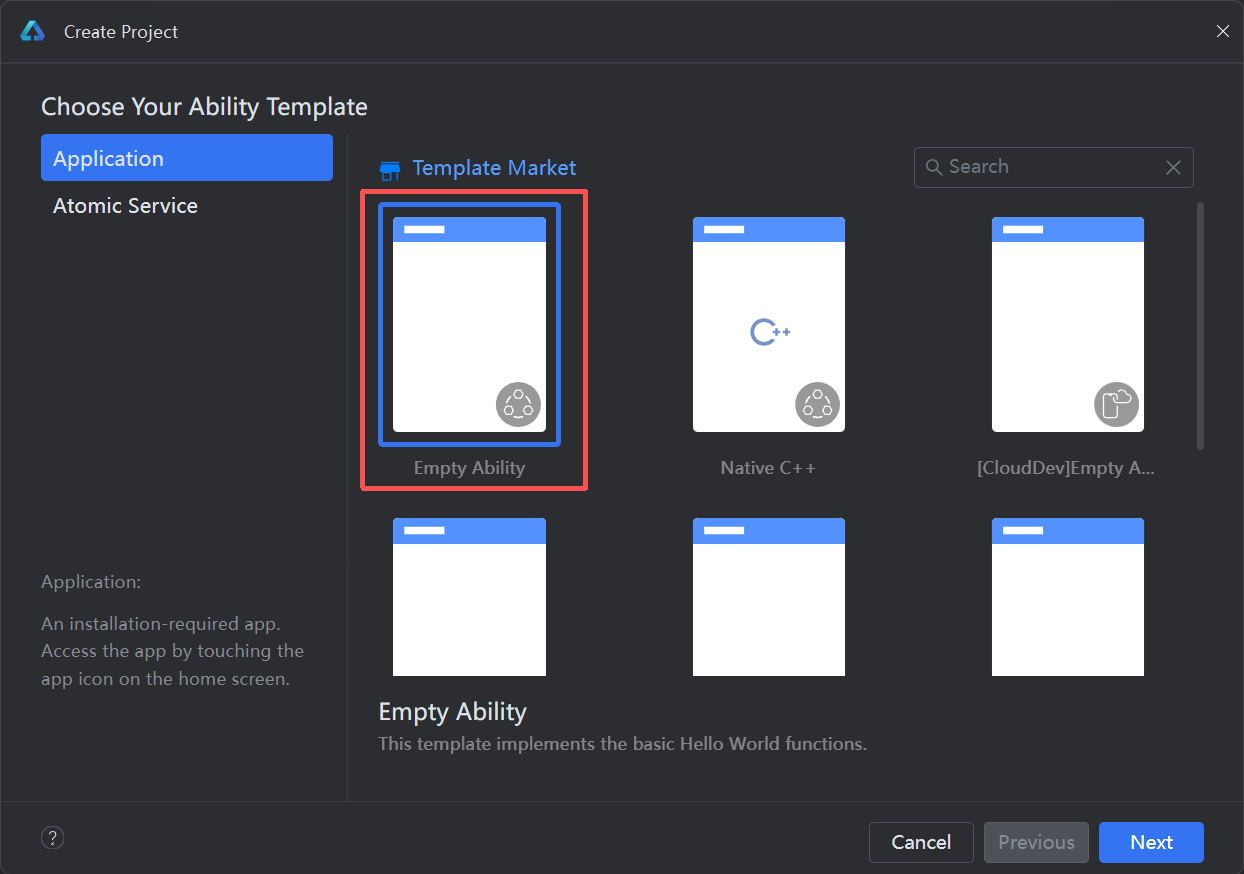
选择Application应用开发,选择模板Empty Ability,单击Next进行下一步配置。
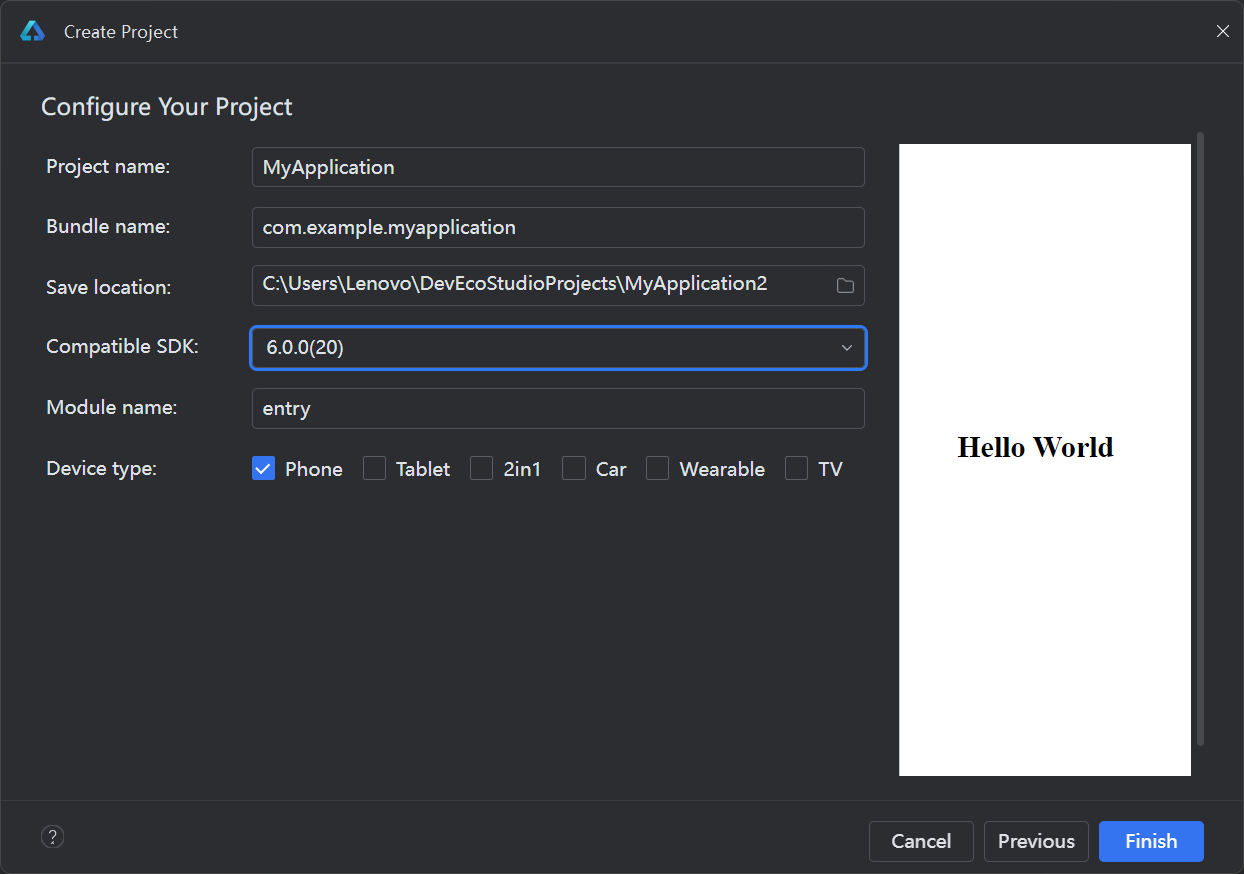
进入配置工程界面,Compatible SDK表示兼容的最低API Version,此处以选择6.0.0(20)为例,其他参数保持默认设置即可。
单击Finish,工具会自动生成示例代码和相关资源,等待工程创建完成。
ArkTS工程目录结构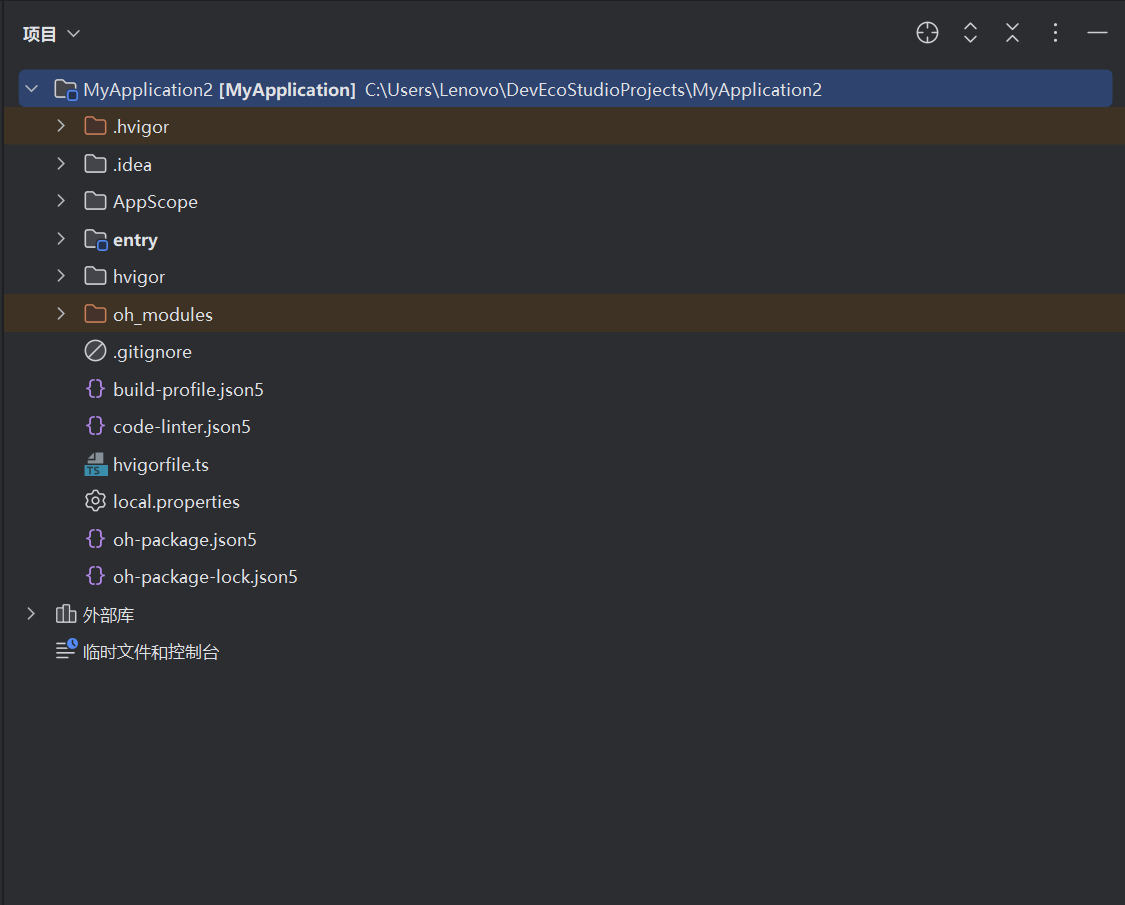
2.构建第一个页面
1.使用文本组件
工程同步完成后,在Project窗口,单击entry > src > main > ets > pages,打开Index.ets文件,将页面从RelativeContainer相对布局修改成Row/Column线性布局。
Index.ets文件的示例如下:
// Index.ets
@Entry
@Component
struct Index {
  @State message: string = 'Hello World';

  build() {
    Row() {
      Column() {
        Text(this.message)
          .fontSize(50)
          .fontWeight(FontWeight.Bold)
      }
      .width('100%')
    }
    .height('100%')
  }
}
2.添加按钮
在默认页面基础上,我们添加一个Button组件,作为按钮响应用户onClick事件,从而实现跳转到另一个页面。Index.ets文件的示例如下:
// Index.ets
@Entry
@Component
struct Index {
  @State message: string = 'Hello World';

  build() {
    Row() {
      Column() {
        Text(this.message)
          .fontSize(50)
          .fontWeight(FontWeight.Bold)
        // 添加按钮,以响应用户onClick事件
        Button() {
          Text('Next')
            .fontSize(30)
            .fontWeight(FontWeight.Bold)
        }
        .type(ButtonType.Capsule)
        .margin({
          top: 20
        })
        .backgroundColor('#0D9FFB')
        .width('40%')
        .height('5%')
      }
      .width('100%')
    }
    .height('100%')
  }
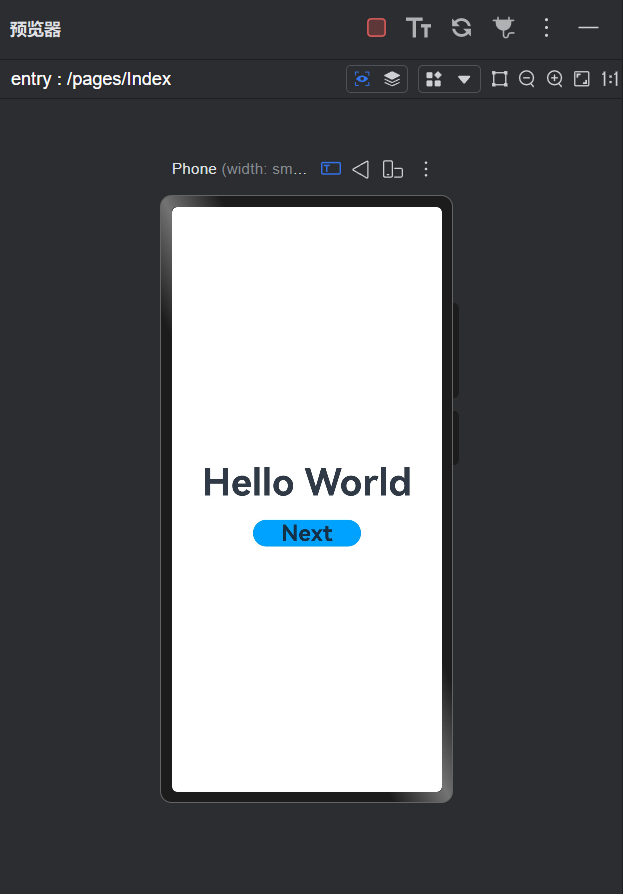
}3.在编辑窗口右上角的侧边工具栏,单击Previewer,打开预览器。第一个页面效果如下图所示:
3.构建第二个页面
1.创建第二个页面。
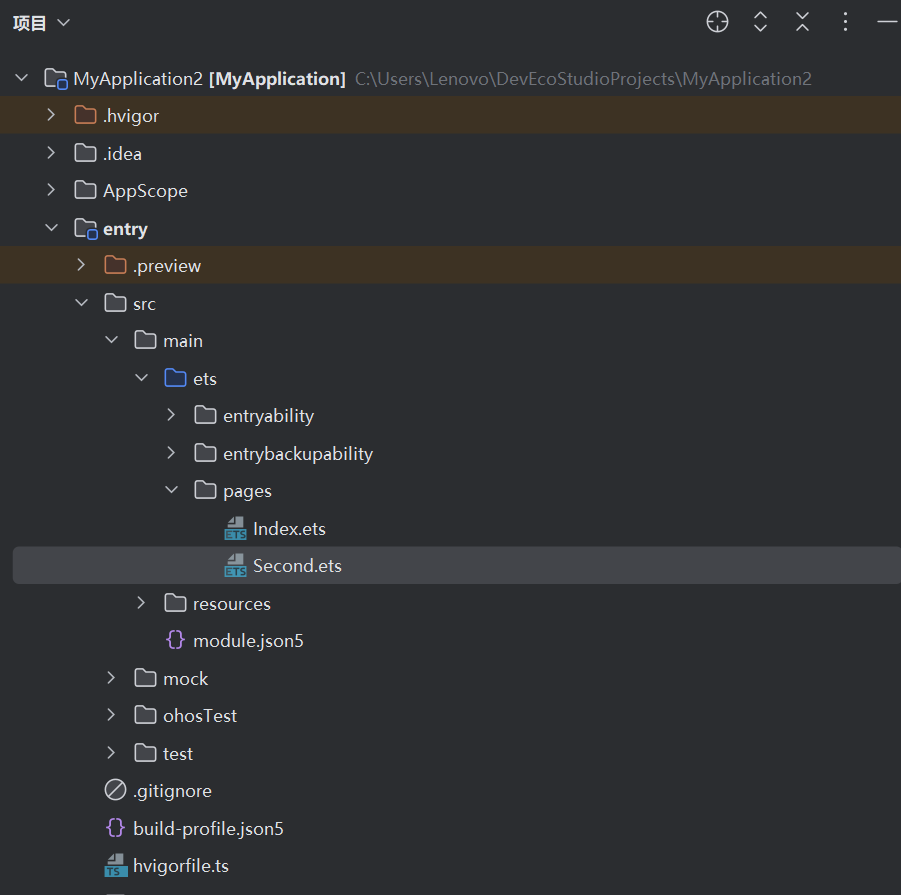
新建第二个页面文件。在Project窗口,打开entry > src > main > ets,右键单击pages文件夹,选择New > ArkTS File,命名为Second,单击回车键。可以看到文件目录结构如下:
配置第二个页面的路由。在Project窗口,打开entry > src > main > resources > base > profile,在main_pages.json文件中的"src"下配置第二个页面的路由"pages/Second"。示例如下:
{
  "src": [
    "pages/Index",
    "pages/Second"
  ]
}
2.添加文本及按钮。
参照第一个页面,在第二个页面添加Text组件、Button组件等,并设置其样式。Second.ets文件的示例如下:
// Second.ets
@Entry
@Component
struct Second {
  @State message: string = 'Hi there';

  build() {
    Row() {
      Column() {
        Text(this.message)
          .fontSize(50)
          .fontWeight(FontWeight.Bold)
        Button() {
          Text('Back')
            .fontSize(30)
            .fontWeight(FontWeight.Bold)
        }
        .type(ButtonType.Capsule)
        .margin({
          top: 20
        })
        .backgroundColor('#0D9FFB')
        .width('40%')
        .height('5%')
      }
      .width('100%')
    }
    .height('100%')
  }
}
4.实现页面间的跳转
页面间的导航可以通过页面路由router来实现。页面路由router根据页面url找到目标页面,从而实现跳转。
1.第一个页面跳转到第二个页面
在第一个页面中,跳转按钮绑定onClick事件,单击按钮时跳转到第二页。Index.ets文件的示例如下:
// Index.ets
import { BusinessError } from '@kit.BasicServicesKit';

@Entry
@Component
struct Index {
  @State message: string = 'Hello World';

  build() {
    Row() {
      Column() {
        Text(this.message)
          .fontSize(50)
          .fontWeight(FontWeight.Bold)
        // 添加按钮,以响应用户onClick事件
        Button() {
          Text('Next')
            .fontSize(30)
            .fontWeight(FontWeight.Bold)
        }
        .type(ButtonType.Capsule)
        .margin({
          top: 20
        })
        .backgroundColor('#0D9FFB')
        .width('40%')
        .height('5%')
        // 跳转按钮绑定onClick事件,单击时跳转到第二页
        .onClick(() => {
          console.info(`Succeeded in clicking the 'Next' button.`)
          // 获取UIContext
          let uiContext: UIContext = this.getUIContext();
          let router = uiContext.getRouter();
          // 跳转到第二页
          router.pushUrl({ url: 'pages/Second' }).then(() => {
            console.info('Succeeded in jumping to the second page.')

          }).catch((err: BusinessError) => {
            console.error(`Failed to jump to the second page. Code is ${err.code}, message is ${err.message}`)
          })
        })
      }
      .width('100%')
    }
    .height('100%')
  }
}
2.第二个页面返回到第一个页面。
在第二个页面中,返回按钮绑定onClick事件,单击按钮时返回到第一页。Second.ets文件的示例如下:
// Second.ets
import { BusinessError } from '@kit.BasicServicesKit';

@Entry
@Component
struct Second {
  @State message: string = 'Hi there';

  build() {
    Row() {
      Column() {
        Text(this.message)
          .fontSize(50)
          .fontWeight(FontWeight.Bold)
        Button() {
          Text('Back')
            .fontSize(30)
            .fontWeight(FontWeight.Bold)
        }
        .type(ButtonType.Capsule)
        .margin({
          top: 20
        })
        .backgroundColor('#0D9FFB')
        .width('40%')
        .height('5%')
        // 返回按钮绑定onClick事件,单击按钮时返回到第一页
        .onClick(() => {
          console.info(`Succeeded in clicking the 'Back' button.`)
          // 获取UIContext
          let uiContext: UIContext = this.getUIContext();
          let router = uiContext.getRouter();
          try {
            // 返回第一页
            router.back()
            console.info('Succeeded in returning to the first page.')
          } catch (err) {
            let code = (err as BusinessError).code;
            let message = (err as BusinessError).message;
            console.error(`Failed to return to the first page. Code is ${code}, message is ${message}`)
          }
        })
      }
      .width('100%')
    }
    .height('100%')
  }
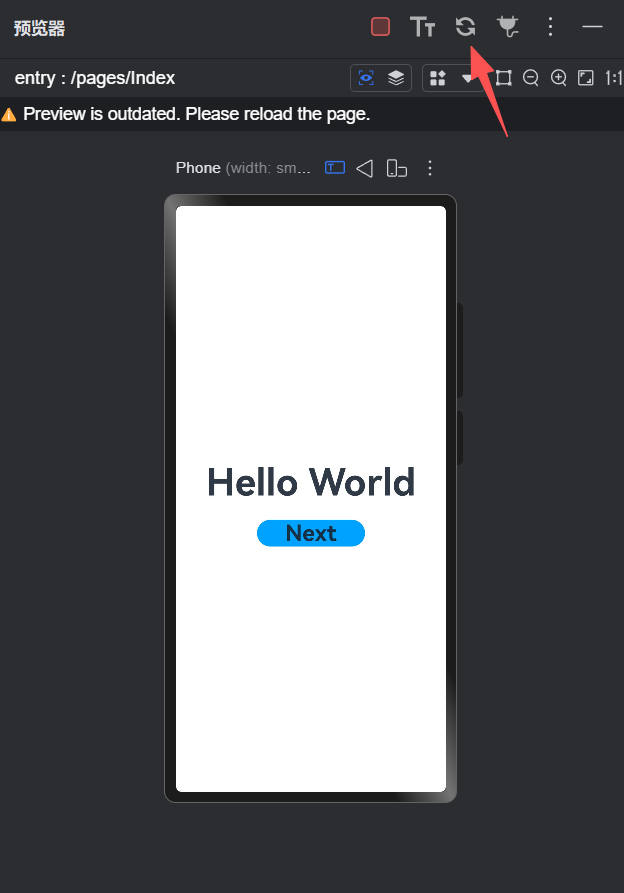
}3.打开Index.ets文件,单击预览器中的刷新按钮进行刷新。
效果如下图所示:(会进行换页)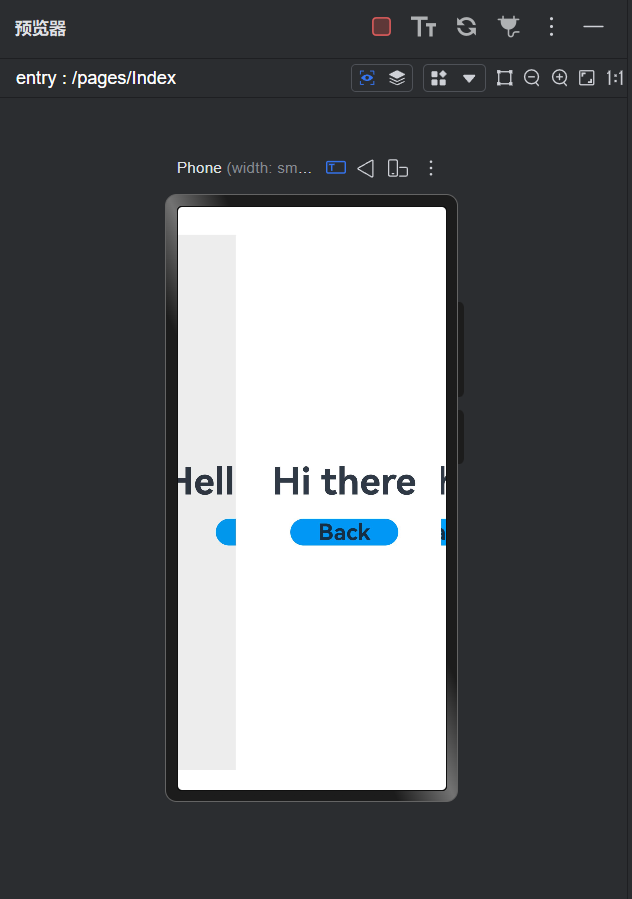

开源鸿蒙跨平台开发社区汇聚开发者与厂商,共建“一次开发,多端部署”的开源生态,致力于降低跨端开发门槛,推动万物智联创新。
更多推荐
 22
22 0
0- 0


 已为社区贡献4条内容

所有评论(0)