OpenHarmony 与 Flutter 的完美融合财务管理应用:数据导出引擎
OpenHarmony钱包应用v1.8.0版本新增数据导出功能,支持将交易数据导出为CSV、JSON和文本报告三种格式。CSV格式便于表格处理,JSON格式适合程序化分析,文本报告提供直观的收支统计。新版增加第五个Tab作为导出管理界面,用户可自由选择格式并预览导出内容。该功能完善了数据备份和分析能力,满足不同场景下的数据处理需求。
·
更新概述
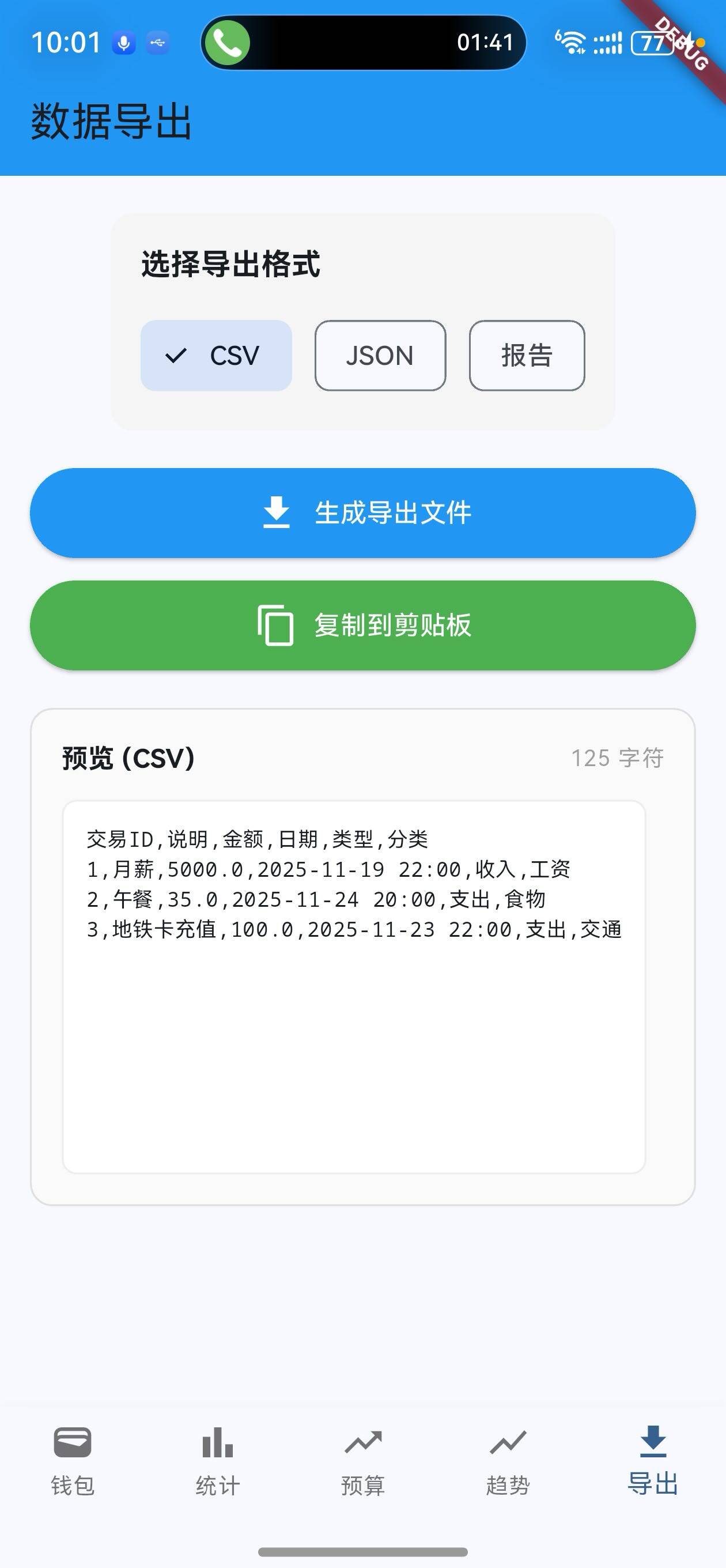
v1.8.0 版本为 OpenHarmony 钱包应用增加了强大的数据导出功能。用户现在可以将交易数据导出为 CSV、JSON 或文本报告格式,方便数据备份和分析。新增的第五个 Tab 提供了完整的导出管理界面。
核心功能更新
1. 数据导出服务
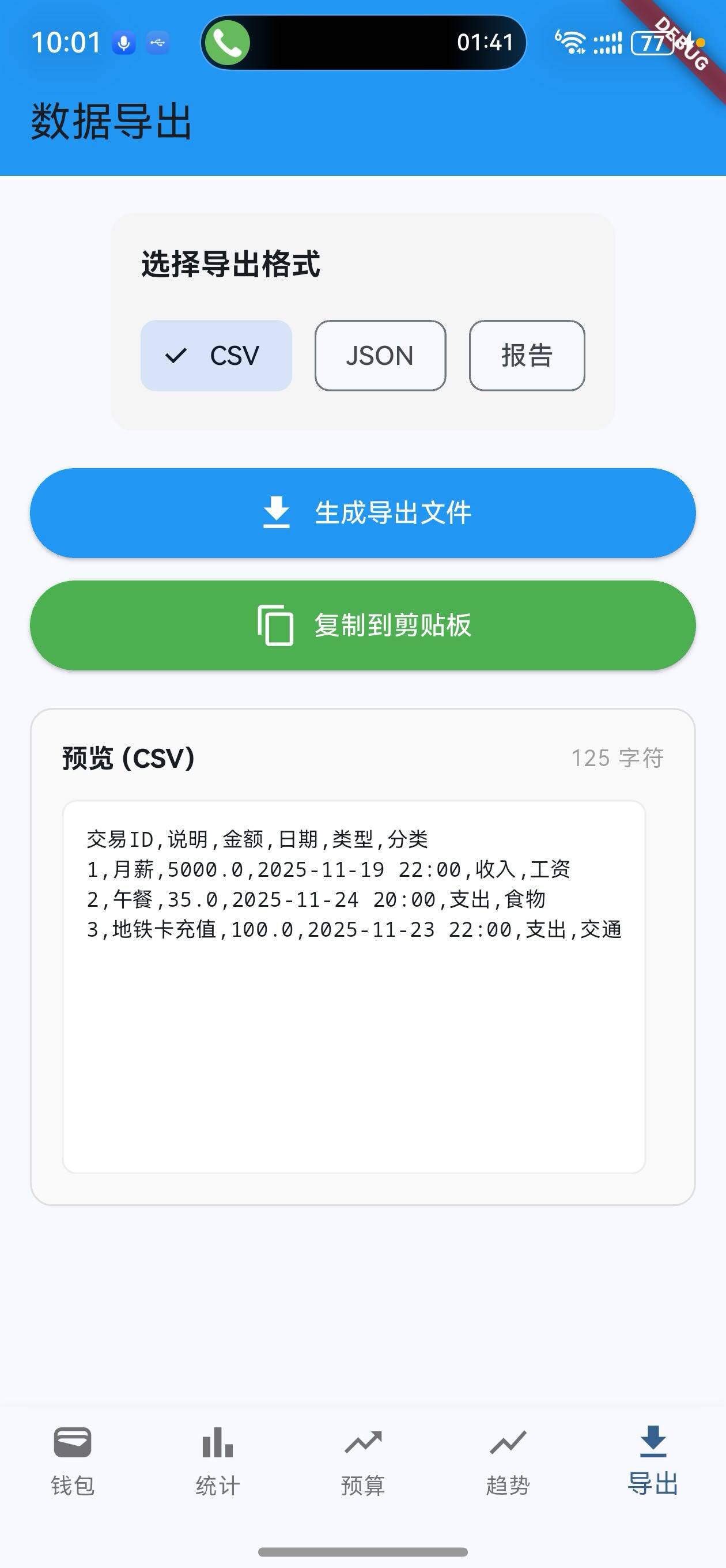
CSV 导出
/// 生成 CSV 格式数据
static String generateCSV(List<wallet.Transaction> transactions) {
  StringBuffer csv = StringBuffer();

  // 添加表头
  csv.writeln('交易ID,说明,金额,日期,类型,分类');

  // 添加数据行
  for (var transaction in transactions) {
    final type = transaction.type == wallet.TransactionType.income ? '收入' : '支出';
    final date = '${transaction.date.year}-${transaction.date.month.toString().padLeft(2, '0')}-${transaction.date.day.toString().padLeft(2, '0')} ${transaction.date.hour.toString().padLeft(2, '0')}:${transaction.date.minute.toString().padLeft(2, '0')}';
    csv.writeln('${transaction.id},${transaction.title},${transaction.amount},$date,$type,${transaction.category}');
  }

  return csv.toString();
}
说明:
- 标准 CSV 格式,包含表头
- 每行一条交易记录
- 包含完整的交易信息
- 可直接导入 Excel 或其他表格软件
JSON 导出
/// 生成 JSON 格式数据
static String generateJSON(List<wallet.Transaction> transactions) {
  StringBuffer json = StringBuffer();
  json.writeln('{');
  json.writeln('  "exportTime": "${DateTime.now()}",');
  json.writeln('  "transactionCount": ${transactions.length},');
  json.writeln('  "transactions": [');

  for (int i = 0; i < transactions.length; i++) {
    final t = transactions[i];
    final type = t.type == wallet.TransactionType.income ? 'income' : 'expense';
    json.write('    {');
    json.write('"id": "${t.id}", ');
    json.write('"title": "${t.title}", ');
    json.write('"amount": ${t.amount}, ');
    json.write('"date": "${t.date}", ');
    json.write('"type": "$type", ');
    json.write('"category": "${t.category}"');
    json.write('}');
    if (i < transactions.length - 1) json.write(',');
    json.writeln();
  }

  json.writeln('  ]');
  json.writeln('}');

  return json.toString();
}
说明:
- 标准 JSON 格式
- 包含导出时间和交易总数
- 每条交易为一个 JSON 对象
- 便于程序化处理
文本报告导出
/// 生成统计报告
static String generateReport(List<wallet.Transaction> transactions) {
  StringBuffer report = StringBuffer();

  double totalIncome = 0;
  double totalExpense = 0;
  Map<String, double> categoryStats = {};

  for (var transaction in transactions) {
    if (transaction.type == wallet.TransactionType.income) {
      totalIncome += transaction.amount;
    } else {
      totalExpense += transaction.amount;
      categoryStats[transaction.category] =
          (categoryStats[transaction.category] ?? 0) + transaction.amount;
    }
  }

  report.writeln('=== OpenHarmony 钱包数据报告 ===');
  report.writeln('生成时间: ${DateTime.now()}');
  report.writeln('');
  report.writeln('【统计摘要】');
  report.writeln('总收入: ¥${totalIncome.toStringAsFixed(2)}');
  report.writeln('总支出: ¥${totalExpense.toStringAsFixed(2)}');
  report.writeln('净收益: ¥${(totalIncome - totalExpense).toStringAsFixed(2)}');
  report.writeln('交易笔数: ${transactions.length}');
  report.writeln('');
  report.writeln('【分类支出统计】');

  final sortedCategories = categoryStats.entries.toList()
    ..sort((a, b) => b.value.compareTo(a.value));

  for (var entry in sortedCategories) {
    final percentage = totalExpense > 0
        ? (entry.value / totalExpense * 100).toStringAsFixed(1)
        : '0.0';
    report.writeln('${entry.key}: ¥${entry.value.toStringAsFixed(2)} ($percentage%)');
  }

  return report.toString();
}
说明:
- 人类可读的文本格式
- 包含统计摘要
- 分类支出统计和百分比
- 适合打印或邮件发送
2. 导出页面
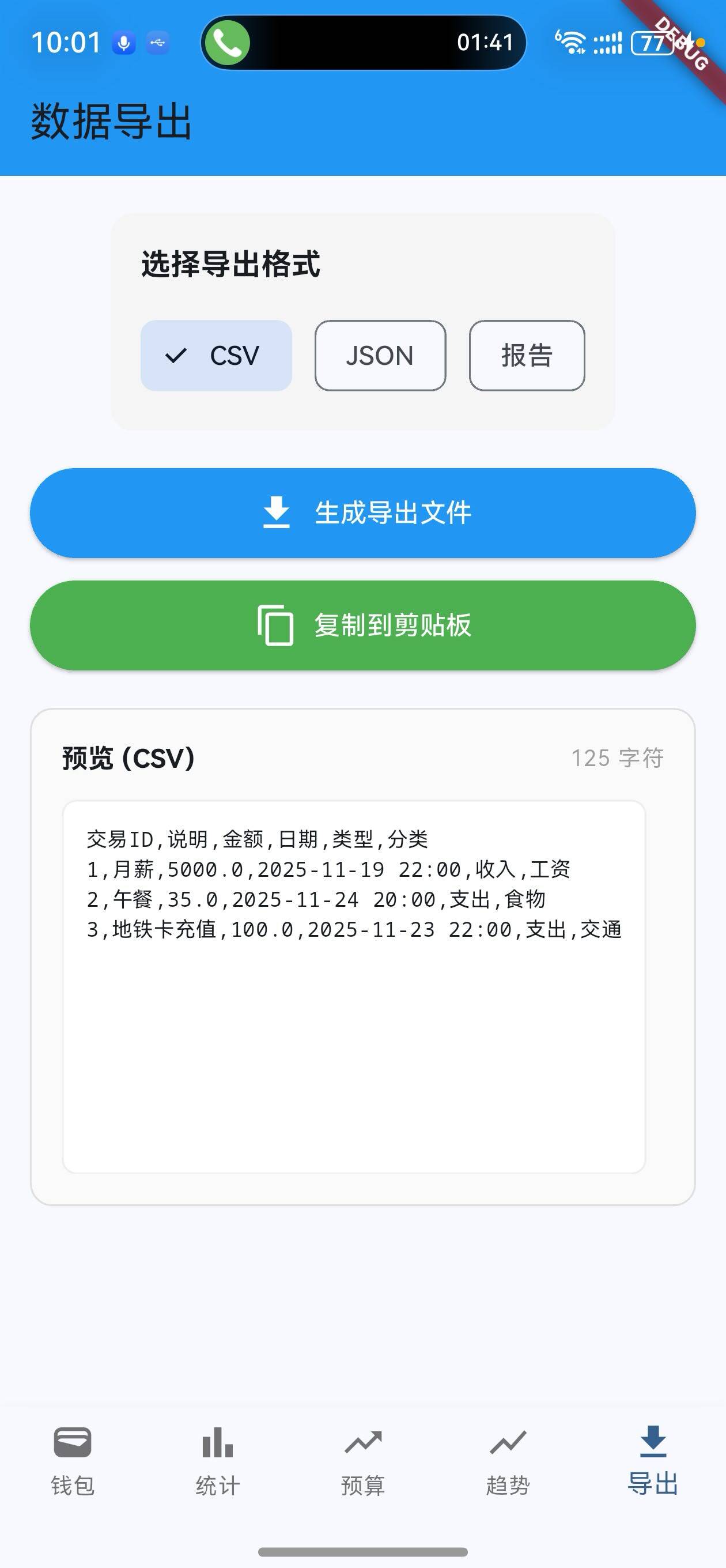
页面结构
/// 数据导出页面
class ExportPage extends StatefulWidget {
final List<wallet.Transaction> transactions;
const ExportPage({
Key? key,
required this.transactions,
}) : super(key: key);
State<ExportPage> createState() => _ExportPageState();
}
class _ExportPageState extends State<ExportPage> {
String _exportedContent = '';
String _selectedFormat = 'CSV';
}
说明:
- 管理导出格式选择
- 存储导出内容
- 支持预览功能
格式选择器
/// 构建格式选择器
Widget _buildFormatSelector() {
  return Padding(
    padding: const EdgeInsets.symmetric(horizontal: 16),
    child: Container(
      padding: const EdgeInsets.all(16),
      decoration: BoxDecoration(
        color: Colors.grey.shade100,
        borderRadius: BorderRadius.circular(12),
      ),
      child: Column(
        crossAxisAlignment: CrossAxisAlignment.start,
        children: [
          Text(
            '选择导出格式',
            style: Theme.of(context).textTheme.titleMedium?.copyWith(
                  fontWeight: FontWeight.bold,
                ),
          ),
          const SizedBox(height: 12),
          Wrap(
            spacing: 12,
            children: ['CSV', 'JSON', '报告'].map((format) {
              return ChoiceChip(
                label: Text(format),
                selected: _selectedFormat == format,
                onSelected: (selected) {
                  setState(() {
                    _selectedFormat = format;
                    _exportedContent = '';
                  });
                },
              );
            }).toList(),
          ),
        ],
      ),
    ),
  );
}
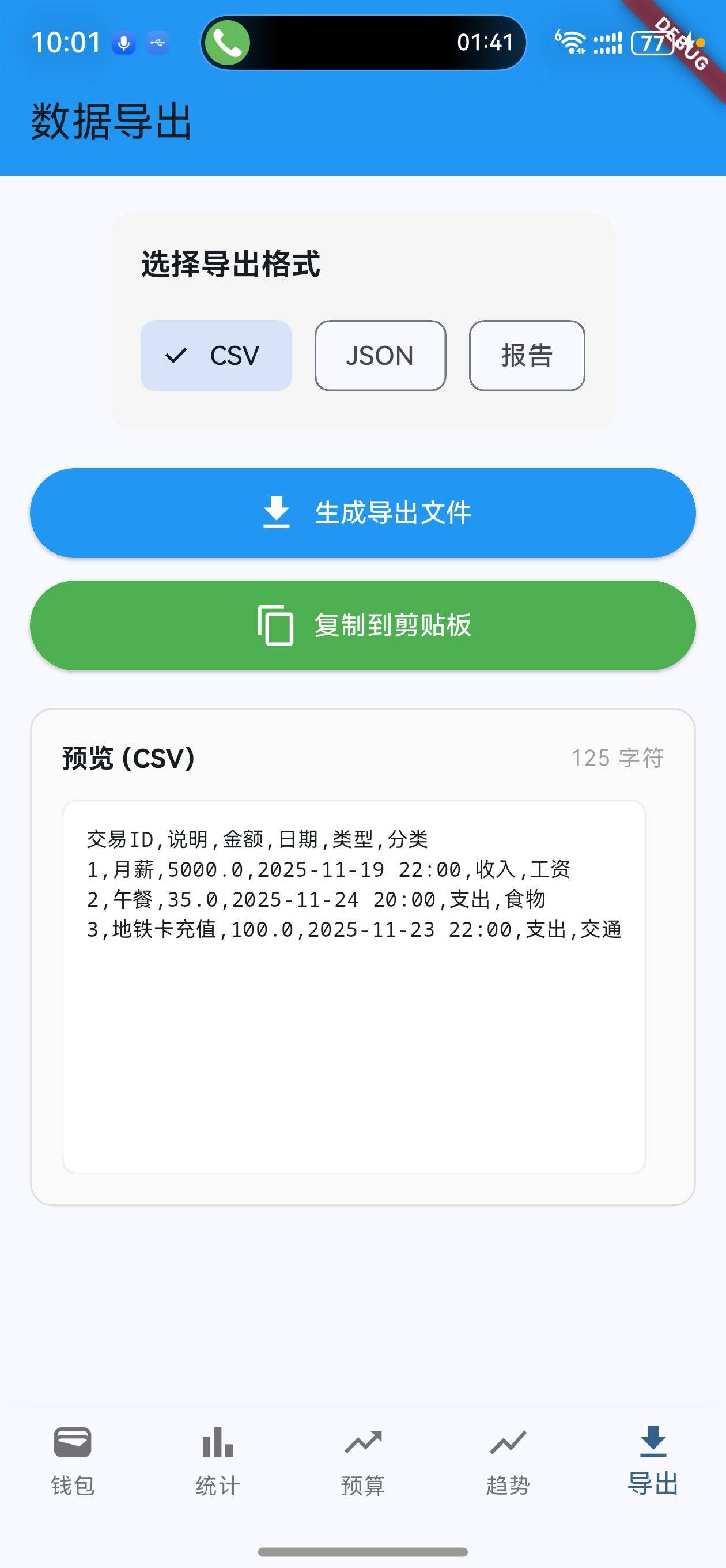
说明:
- 使用
ChoiceChip选择导出格式 - 三种格式可选:CSV、JSON、报告
- 选择格式时清空之前的导出内容
导出按钮
/// 构建导出按钮
Widget _buildExportButtons() {
  return Padding(
    padding: const EdgeInsets.symmetric(horizontal: 16),
    child: Column(
      crossAxisAlignment: CrossAxisAlignment.stretch,
      children: [
        ElevatedButton.icon(
          onPressed: _generateExport,
          icon: const Icon(Icons.file_download),
          label: const Text('生成导出文件'),
          style: ElevatedButton.styleFrom(
            backgroundColor: Colors.blue,
            foregroundColor: Colors.white,
            padding: const EdgeInsets.symmetric(vertical: 12),
          ),
        ),
        const SizedBox(height: 12),
        if (_exportedContent.isNotEmpty)
          ElevatedButton.icon(
            onPressed: _copyToClipboard,
            icon: const Icon(Icons.content_copy),
            label: const Text('复制到剪贴板'),
            style: ElevatedButton.styleFrom(
              backgroundColor: Colors.green,
              foregroundColor: Colors.white,
              padding: const EdgeInsets.symmetric(vertical: 12),
            ),
          ),
      ],
    ),
  );
}
说明:
- 蓝色按钮生成导出文件
- 绿色按钮复制到剪贴板
- 仅在有导出内容时显示复制按钮
预览区域
/// 构建预览区域
Widget _buildPreview() {
  return Padding(
    padding: const EdgeInsets.symmetric(horizontal: 16),
    child: Container(
      padding: const EdgeInsets.all(16),
      decoration: BoxDecoration(
        border: Border.all(color: Colors.grey.shade300),
        borderRadius: BorderRadius.circular(12),
        color: Colors.grey.shade50,
      ),
      child: Column(
        crossAxisAlignment: CrossAxisAlignment.start,
        children: [
          Row(
            mainAxisAlignment: MainAxisAlignment.spaceBetween,
            children: [
              Text(
                '预览 ($_selectedFormat)',
                style: Theme.of(context).textTheme.titleSmall?.copyWith(
                      fontWeight: FontWeight.bold,
                    ),
              ),
              Text(
                '${_exportedContent.length} 字符',
                style: Theme.of(context).textTheme.bodySmall?.copyWith(
                      color: Colors.grey,
                    ),
              ),
            ],
          ),
          const SizedBox(height: 12),
          Container(
            height: 200,
            padding: const EdgeInsets.all(12),
            decoration: BoxDecoration(
              color: Colors.white,
              borderRadius: BorderRadius.circular(8),
              border: Border.all(color: Colors.grey.shade200),
            ),
            child: SingleChildScrollView(
              child: Text(
                _exportedContent,
                style: const TextStyle(
                  fontSize: 11,
                  fontFamily: 'monospace',
                ),
              ),
            ),
          ),
        ],
      ),
    ),
  );
}
说明:
- 显示导出内容预览
- 使用等宽字体便于查看
- 显示内容字符数
- 可滚动查看完整内容
UI 变化
Tab 导航更新
- 新增第五个 Tab:导出
- 图标:下载图标
- 标签:导出
导出页面布局
┌─────────────────────────────────┐
│  数据导出                        │
├─────────────────────────────────┤
│  选择导出格式                    │
│  [CSV] [JSON] [报告]             │
├─────────────────────────────────┤
│  [生成导出文件]                  │
│  [复制到剪贴板]                  │
├─────────────────────────────────┤
│  预览 (CSV)                      │
│  ┌─────────────────────────┐   │
│  │ 交易ID,说明,金额,...   │   │
│  │ 1,月薪,5000,...        │   │
│  │ 2,午餐,35,...          │   │
│  └─────────────────────────┘   │
└─────────────────────────────────┘
导出格式对比
| 特性 | CSV | JSON | 报告 |
|---|---|---|---|
| 可读性 | ⭐⭐⭐ | ⭐⭐ | ⭐⭐⭐⭐ |
| 程序处理 | ⭐⭐⭐ | ⭐⭐⭐⭐ | ⭐ |
| 文件大小 | ⭐⭐⭐ | ⭐⭐ | ⭐⭐⭐ |
| Excel 导入 | ⭐⭐⭐⭐ | ❌ | ❌ |
| 统计信息 | ❌ | ❌ | ⭐⭐⭐⭐ |
使用场景
场景 1:备份数据
- 进入导出页面
- 选择 CSV 格式
- 点击"生成导出文件"
- 复制到剪贴板
- 保存到本地文件
场景 2:数据分析
- 选择 JSON 格式
- 生成导出文件
- 导入到数据分析工具
- 进行深度分析
场景 3:生成报告
- 选择"报告"格式
- 生成导出文件
- 复制内容
- 发送给会计或财务人员
版本对比
| 功能 | v1.7.0 | v1.8.0 |
|---|---|---|
| 趋势分析页面 | ✅ | ✅ |
| 日趋势图表 | ✅ | ✅ |
| 月趋势对比 | ✅ | ✅ |
| 趋势摘要 | ✅ | ✅ |
| 第四个 Tab | ✅ | ✅ |
| 数据导出服务 | ❌ | ✅ |
| CSV 导出 | ❌ | ✅ |
| JSON 导出 | ❌ | ✅ |
| 报告导出 | ❌ | ✅ |
| 导出页面 | ❌ | ✅ |
| 第五个 Tab | ❌ | ✅ |
下一步计划
v1.9.0 将继续增强功能,计划增加:
- 🏷️ 标签管理功能
- 🔔 预算提醒通知
- 📱 数据同步功能
- 🌙 深色模式支持
感谢使用 OpenHarmony 钱包! 🎉
如有建议或问题,欢迎反馈。
欢迎加入开源鸿蒙跨平台社区:https://openharmonycrossplatform.csdn.net

开源鸿蒙跨平台开发社区汇聚开发者与厂商,共建“一次开发,多端部署”的开源生态,致力于降低跨端开发门槛,推动万物智联创新。
更多推荐
 21
21 0
0- 0


 已为社区贡献13条内容

所有评论(0)