React Native for OpenHarmony 实战:掷骰子实现
摘要:本文介绍了使用 React Native 实现的掷骰子工具,支持 1-6 个骰子同时投掷,包含 3D 旋转、抖动和弹跳动画效果。通过状态管理控制骰子点数、投掷状态和骰子数量,利用动画值数组实现每个骰子的独立动画效果。投掷逻辑采用并行动画组合(旋转+抖动+弹跳),通过交错启动和随机点数切换模拟真实投掷过程,最后计算总点数。该实现展示了 React Native 复杂动画交互的开发方法。(149
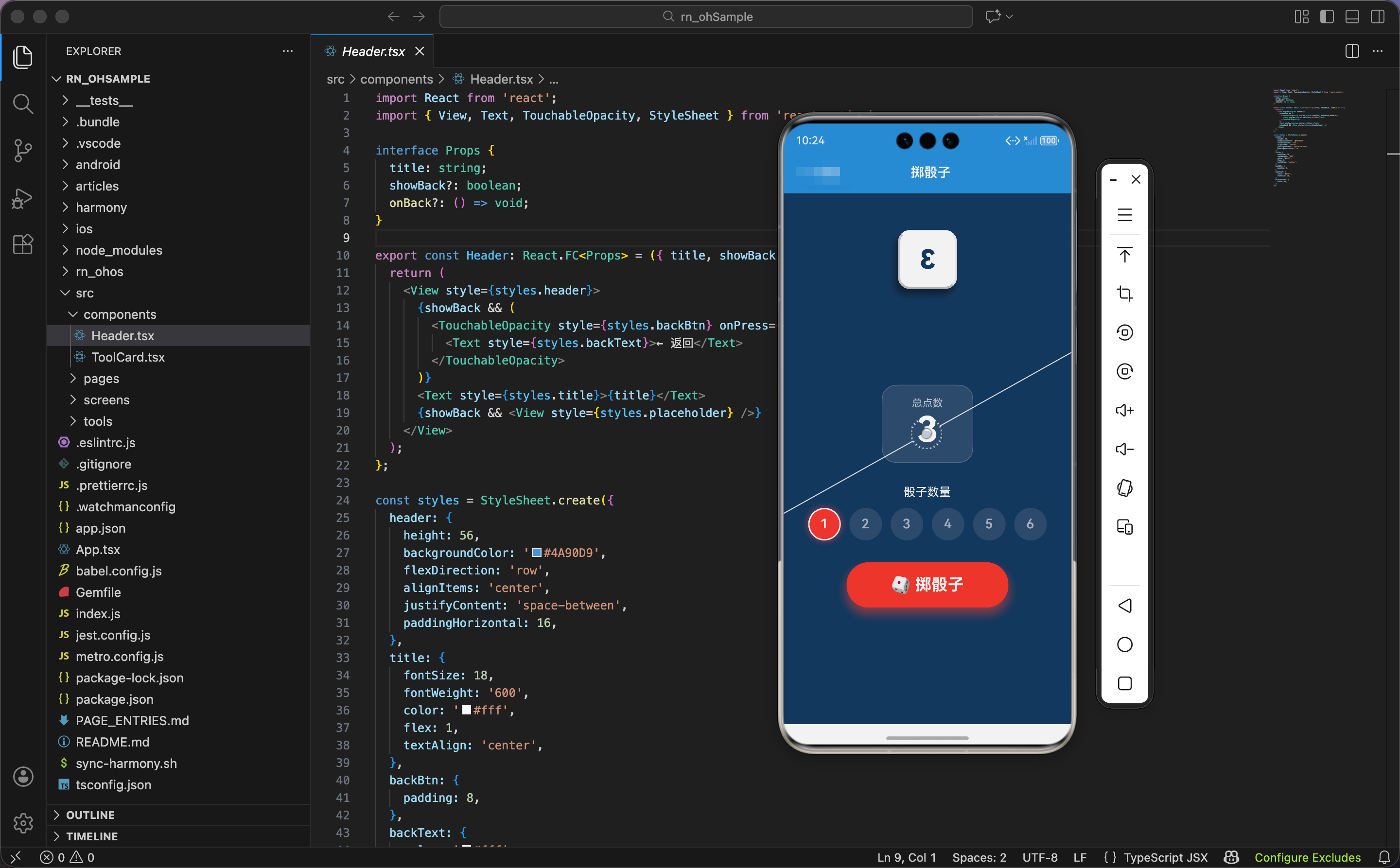
今天我们用 React Native 实现一个掷骰子工具,支持 1-6 个骰子同时投掷,带有 3D 旋转、抖动、弹跳等动画效果。
状态和动画值管理
import React, { useState, useRef } from 'react';
import { View, Text, TouchableOpacity, StyleSheet, Animated, Easing } from 'react-native';

export const DiceRoller: React.FC = () => {
  const [dice, setDice] = useState([1]);
  const [isRolling, setIsRolling] = useState(false);
  const [diceCount, setDiceCount] = useState(1);
  const diceAnims = useRef<Animated.Value[]>([]).current;
  const shakeAnims = useRef<Animated.Value[]>([]).current;
  const bounceAnims = useRef<Animated.Value[]>([]).current;

  const getDiceAnim = (index: number) => {
    if (!diceAnims[index]) {
      diceAnims[index] = new Animated.Value(0);
      shakeAnims[index] = new Animated.Value(0);
      bounceAnims[index] = new Animated.Value(0);
    }
    return { rotate: diceAnims[index], shake: shakeAnims[index], bounce: bounceAnims[index] };
  };
状态设计包含骰子点数数组、投掷状态、骰子数量。
骰子点数数组:dice 是一个数组,每个元素是一个骰子的点数(1-6)。初始值是 [1],表示 1 个骰子,点数是 1。
投掷状态:isRolling 标记是否正在投掷。投掷过程中禁用按钮,防止重复点击。
骰子数量:diceCount 是当前选择的骰子数量(1-6)。用户可以通过按钮切换。
动画值数组:
diceAnims:每个骰子的旋转动画值shakeAnims:每个骰子的抖动动画值bounceAnims:每个骰子的弹跳动画值
为什么用数组存储动画值?因为骰子数量是动态的(1-6 个),每个骰子需要独立的动画。用数组存储,通过索引访问对应骰子的动画值。
懒加载动画值:getDiceAnim 函数按需创建动画值。如果索引对应的动画值不存在,创建新的动画值;如果存在,直接返回。这样避免了预先创建 6 个骰子的动画值,节省内存。
为什么每个骰子需要 3 个动画值?因为每个骰子有 3 种动画效果:旋转(3D 效果)、抖动(左右摇晃)、弹跳(上下跳动)。3 个动画同时运行,营造真实的投掷效果。
投掷核心逻辑
  const roll = () => {
    if (isRolling) return;
    setIsRolling(true);

    // 为每个骰子创建动画
    const animations = Array(diceCount).fill(0).map((_, i) => {
      const { rotate, shake, bounce } = getDiceAnim(i);
      rotate.setValue(0);
      shake.setValue(0);
      bounce.setValue(0);

      return Animated.parallel([
        // 3D旋转
        Animated.timing(rotate, {
          toValue: 1,
          duration: 800 + i * 100,
          easing: Easing.out(Easing.cubic),
          useNativeDriver: true,
        }),
        // 抖动
        Animated.sequence([
          ...Array(5).fill(0).map(() =>
            Animated.sequence([
              Animated.timing(shake, { toValue: 1, duration: 50, useNativeDriver: true }),
              Animated.timing(shake, { toValue: -1, duration: 50, useNativeDriver: true }),
            ])
          ),
          Animated.timing(shake, { toValue: 0, duration: 50, useNativeDriver: true }),
        ]),
        // 弹跳
        Animated.sequence([
          Animated.timing(bounce, { toValue: -30, duration: 200, useNativeDriver: true }),
          Animated.spring(bounce, { toValue: 0, friction: 3, useNativeDriver: true }),
        ]),
      ]);
    });
投掷函数为每个骰子创建 3 个并行动画:旋转、抖动、弹跳。
防重复点击:如果正在投掷,直接返回。设置 isRolling 为 true,标记开始投掷。
创建动画数组:Array(diceCount).fill(0).map((_, i) => {...}) 创建 diceCount 个动画。每个动画对应一个骰子。
重置动画值:每次投掷前,把 3 个动画值重置为 0,确保动画从初始状态开始。
旋转动画:
- 从 0 到 1,时长 800ms + 索引 × 100ms
- 第一个骰子 800ms,第二个 900ms,第三个 1000ms,以此类推
Easing.out(Easing.cubic):缓出曲线,开始快,结束慢,模拟骰子逐渐停下的效果- 后面会用插值把 0-1 映射到旋转角度
为什么每个骰子的时长不同?因为时长不同让骰子依次停下,而不是同时停下。这更符合真实情况:多个骰子投掷时,不会完全同步停下。
抖动动画:
- 5 次左右摇晃,每次从 0 到 1 再到 -1,总共 100ms
- 最后回到 0,总时长 550ms(5 × 100ms + 50ms)
- 后面会用插值把 -1 到 1 映射到水平位移 -10 到 10
为什么抖动 5 次?因为 5 次刚好,既能让用户感受到抖动,又不会太多导致眩晕。每次 100ms,总共 500ms,和旋转动画的前半段重叠,营造"骰子在空中翻滚"的效果。
弹跳动画:
- 先向上移动 30 像素(200ms)
- 再用弹簧动画回到原位,
friction: 3让弹簧有明显的回弹效果 - 模拟骰子"跳起来再落下"的效果
并行动画:Animated.parallel 让 3 个动画同时运行。旋转、抖动、弹跳同时发生,营造真实的投掷效果。
动画启动和随机显示
    Animated.stagger(100, animations).start(() => {
      setIsRolling(false);
    });

    // 随机显示
    let count = 0;
    const interval = setInterval(() => {
      setDice(Array(diceCount).fill(0).map(() => Math.floor(Math.random() * 6) + 1));
      count++;
      if (count > 10) {
        clearInterval(interval);
        setDice(Array(diceCount).fill(0).map(() => Math.floor(Math.random() * 6) + 1));
      }
    }, 80);
  };
动画启动用 stagger 让骰子依次开始,随机显示用定时器快速切换点数。
交错启动:Animated.stagger(100, animations) 让每个骰子的动画延迟 100ms 启动。第一个骰子立即启动,第二个延迟 100ms,第三个延迟 200ms,以此类推。这让骰子依次开始旋转,而不是同时开始,更有层次感。
动画完成回调:所有动画完成后,setIsRolling(false) 解除投掷状态,启用按钮。
随机显示:定时器每 80ms 更新一次骰子点数。Array(diceCount).fill(0).map(() => Math.floor(Math.random() * 6) + 1) 生成 diceCount 个随机点数(1-6)。
为什么用 80ms 间隔?因为 80ms 刚好,既能让用户看到点数在变化,又不会太慢导致动画不流畅。12.5 次/秒的切换速度,人眼能清楚看到变化。
切换 10 次后停止:10 次 × 80ms = 800ms,和第一个骰子的旋转时长一致。切换停止后,再生成一次随机点数作为最终结果。
为什么要快速切换点数?因为快速切换营造"骰子在翻滚"的视觉效果。如果点数不变,骰子看起来只是在旋转,不像在投掷。
总点数计算
const total = dice.reduce((a, b) => a + b, 0);
总点数是所有骰子点数的和。reduce 累加数组元素,初始值是 0。
示例:[3, 5, 2] → 3 + 5 + 2 = 10
骰子渲染:动画变换
  const renderDice = (value: number, index: number) => {
    const { rotate, shake, bounce } = getDiceAnim(index);
    const rotateX = rotate.interpolate({
      inputRange: [0, 1],
      outputRange: ['0deg', '720deg'],
    });
    const rotateY = rotate.interpolate({
      inputRange: [0, 1],
      outputRange: ['0deg', '540deg'],
    });
    const translateX = shake.interpolate({
      inputRange: [-1, 0, 1],
      outputRange: [-10, 0, 10],
    });
骰子渲染函数包含动画插值和 3D 变换。
获取动画值:getDiceAnim(index) 获取当前骰子的 3 个动画值。
旋转插值:
rotateX:绕 X 轴旋转,从 0 度到 720 度(两圈)rotateY:绕 Y 轴旋转,从 0 度到 540 度(一圈半)- X 轴和 Y 轴旋转角度不同,营造 3D 翻滚效果
为什么 X 轴旋转 720 度,Y 轴旋转 540 度?因为角度不同让旋转更随机,不是简单的"翻跟头"。如果两个轴旋转角度相同,骰子看起来像在固定轨道上旋转,不够真实。
抖动插值:translateX 把 -1 到 1 映射到水平位移 -10 到 10 像素。抖动值在 -1 和 1 之间循环变化,骰子左右摇晃。
为什么抖动幅度是 10 像素?因为 10 像素刚好,既能让用户看到摇晃,又不会太大导致骰子跑出屏幕。骰子宽度 80 像素,10 像素是 12.5%,摇晃幅度适中。
骰子渲染:3D 变换和样式
    return (
      <Animated.View
        key={index}
        style={[
          styles.diceContainer,
          {
            transform: [
              { translateY: bounce },
              { translateX },
              { rotateX },
              { rotateY },
              { perspective: 1000 },
            ],
          },
        ]}
      >
        <View style={styles.dice3D}>
          <View style={styles.diceFace}>
            <Text style={styles.diceValue}>{value}</Text>
          </View>
          <View style={styles.diceDots}>
            {Array(value).fill(0).map((_, i) => (
              <View key={i} style={styles.dot} />
            ))}
          </View>
        </View>
      </Animated.View>
    );
  };
骰子用 Animated.View 包裹,应用 5 个变换。
变换顺序:
translateY: bounce:垂直位移,弹跳效果translateX:水平位移,抖动效果rotateX:绕 X 轴旋转rotateY:绕 Y 轴旋转perspective: 1000:透视距离,营造 3D 效果
为什么 perspective 放在最后?因为 perspective 影响所有旋转变换。放在最后,让旋转有透视效果,近大远小,更真实。
骰子内容:
diceFace:显示点数(1-6),绝对定位,覆盖在骰子上diceDots:显示点阵(圆点),透明度 0,不可见。这是为了扩展性,如果想显示点阵而不是数字,可以调整透明度
为什么同时渲染数字和点阵?因为代码中保留了两种显示方式。当前显示数字,点阵透明度 0 不可见。如果想切换到点阵显示,只需要调整透明度和布局。
界面渲染:骰子区域和总点数
  return (
    <View style={styles.container}>
      <View style={styles.diceArea}>
        {dice.map((d, i) => renderDice(d, i))}
      </View>

      <View style={styles.totalContainer}>
        <Text style={styles.totalLabel}>总点数</Text>
        <Text style={styles.total}>{total}</Text>
      </View>
骰子区域:
flexDirection: 'row':水平排列flexWrap: 'wrap':自动换行,如果一行放不下,换到下一行justifyContent: 'center':水平居中minHeight: 200:最小高度 200,确保有足够的空间显示骰子
总点数显示:
- 半透明白色背景,圆角 20,边框
- 标签"总点数",小字,半透明
- 总点数,大字(48),白色粗体,醒目
为什么总点数用大字号?因为总点数是用户最关心的信息,尤其是多个骰子时。大字号让用户一眼看到结果,不需要自己计算。
骰子数量选择
      <View style={styles.countRow}>
        <Text style={styles.countLabel}>骰子数量</Text>
        <View style={styles.countButtons}>
          {[1, 2, 3, 4, 5, 6].map(n => (
            <TouchableOpacity
              key={n}
              style={[styles.countBtn, diceCount === n && styles.countBtnActive]}
              onPress={() => { setDiceCount(n); setDice(Array(n).fill(1)); }}
            >
              <Text style={[styles.countText, diceCount === n && styles.countTextActive]}>{n}</Text>
            </TouchableOpacity>
          ))}
        </View>
      </View>
骰子数量选择用 6 个圆形按钮,点击切换数量。
按钮渲染:遍历 [1, 2, 3, 4, 5, 6],渲染 6 个按钮。
激活状态:diceCount === n 判断当前按钮是否激活。激活的按钮应用 countBtnActive 样式(红色背景、白色边框、阴影)。
点击处理:
setDiceCount(n):更新骰子数量setDice(Array(n).fill(1)):重置骰子点数数组,长度是n,每个元素是 1
为什么点击时要重置骰子点数?因为骰子数量变化后,原来的点数数组长度可能不匹配。比如从 3 个骰子切换到 2 个,点数数组从 [3, 5, 2] 变成 [1, 1],避免显示错误的点数。
投掷按钮
      <TouchableOpacity
        style={[styles.btn, isRolling && styles.btnDisabled]}
        onPress={roll}
        disabled={isRolling}
        activeOpacity={0.8}
      >
        <View style={styles.btnGradient}>
          <Text style={styles.btnText}>{isRolling ? '🎲 掷骰中...' : '🎲 掷骰子'}</Text>
        </View>
      </TouchableOpacity>
    </View>
  );
};
投掷按钮用红色背景、大圆角、阴影,是页面的视觉焦点。
按钮状态:
disabled={isRolling}:投掷过程中禁用按钮isRolling && styles.btnDisabled:投掷过程中降低透明度到 0.6
按钮文字:投掷中显示"🎲 掷骰中…“,空闲时显示"🎲 掷骰子”。
鸿蒙 ArkTS 对比:动画实现
@State dice: number[] = [1]
@State isRolling: boolean = false
@State diceCount: number = 1

private rotateX: number = 0
private rotateY: number = 0
private translateX: number = 0
private translateY: number = 0

roll() {
  if (this.isRolling) return
  this.isRolling = true

  // 旋转动画
  animateTo({
    duration: 800,
    curve: Curve.EaseOut,
    onFinish: () => {
      this.isRolling = false
    }
  }, () => {
    this.rotateX = 720
    this.rotateY = 540
  })

  // 弹跳动画
  animateTo({ duration: 200 }, () => {
    this.translateY = -30
  })
  setTimeout(() => {
    animateTo({ duration: 300, curve: Curve.Spring }, () => {
      this.translateY = 0
    })
  }, 200)

  // 抖动动画(简化版)
  let shakeCount = 0
  const shakeInterval = setInterval(() => {
    this.translateX = shakeCount % 2 === 0 ? 10 : -10
    shakeCount++
    if (shakeCount > 10) {
      clearInterval(shakeInterval)
      this.translateX = 0
    }
  }, 50)

  // 随机显示
  let count = 0
  const interval = setInterval(() => {
    this.dice = Array(this.diceCount).fill(0).map(() => Math.floor(Math.random() * 6) + 1)
    count++
    if (count > 10) {
      clearInterval(interval)
      this.dice = Array(this.diceCount).fill(0).map(() => Math.floor(Math.random() * 6) + 1)
    }
  }, 80)
}
ArkTS 中的投掷逻辑类似,核心是动画 + 定时器 + 随机数。区别在于动画 API:React Native 用 Animated API,ArkTS 用 animateTo 函数。animateTo 更简洁,不需要创建动画值对象,直接修改状态变量就能触发动画。但 Animated API 更灵活,支持复杂的动画组合(并行、序列、交错)。
样式定义:容器和骰子
const styles = StyleSheet.create({
  container: { flex: 1, backgroundColor: '#1e3a5f', padding: 20, alignItems: 'center' },
  diceArea: {
    flexDirection: 'row',
    flexWrap: 'wrap',
    justifyContent: 'center',
    alignItems: 'center',
    minHeight: 200,
    marginVertical: 20,
  },
  diceContainer: { margin: 10 },
  dice3D: {
    width: 80,
    height: 80,
    backgroundColor: '#fff',
    borderRadius: 16,
    justifyContent: 'center',
    alignItems: 'center',
    shadowColor: '#000',
    shadowOffset: { width: 4, height: 8 },
    shadowOpacity: 0.4,
    shadowRadius: 10,
    elevation: 15,
    borderWidth: 3,
    borderTopColor: '#fff',
    borderLeftColor: '#f0f0f0',
    borderRightColor: '#ccc',
    borderBottomColor: '#bbb',
  },
容器用深蓝色背景(#1e3a5f),营造"桌面"的感觉。
骰子样式:
- 白色背景,圆角 16,正方形 80×80
- 黑色阴影,向右下偏移(4, 8),模拟光源从左上照射
elevation: 15:Android 阴影,让骰子有立体感
四边边框颜色不同:
- 上边框:白色(#fff),最亮
- 左边框:浅灰(#f0f0f0),次亮
- 右边框:灰色(#ccc),较暗
- 下边框:深灰(#bbb),最暗
为什么四边边框颜色不同?因为不同颜色模拟光照效果,营造 3D 立体感。光源从左上照射,上边和左边最亮,右边和下边较暗。这是经典的"斜面和浮雕"效果。
样式定义:点数和总点数
  diceFace: { position: 'absolute' },
  diceValue: { fontSize: 36, fontWeight: '800', color: '#1e3a5f' },
  diceDots: {
    position: 'absolute',
    width: '100%',
    height: '100%',
    flexDirection: 'row',
    flexWrap: 'wrap',
    justifyContent: 'center',
    alignItems: 'center',
    padding: 12,
    opacity: 0,
  },
  dot: { width: 12, height: 12, borderRadius: 6, backgroundColor: '#1e3a5f', margin: 3 },
  totalContainer: {
    backgroundColor: 'rgba(255,255,255,0.1)',
    paddingVertical: 16,
    paddingHorizontal: 40,
    borderRadius: 20,
    marginBottom: 30,
    borderWidth: 1,
    borderColor: 'rgba(255,255,255,0.2)',
  },
  totalLabel: { color: 'rgba(255,255,255,0.7)', fontSize: 14, textAlign: 'center' },
  total: { color: '#fff', fontSize: 48, fontWeight: '700', textAlign: 'center' },
点数用深蓝色(和背景色一致),字号 36,粗体 800,醒目。
点阵透明度 0,不可见。每个点是圆形(12×12,圆角 6),深蓝色。
总点数容器用半透明白色背景,圆角 20,边框。总点数字号 48,白色粗体,是页面最大的文字。
样式定义:数量选择和按钮
  countRow: { marginBottom: 30, alignItems: 'center' },
  countLabel: { color: '#fff', marginBottom: 12, fontSize: 16 },
  countButtons: { flexDirection: 'row' },
  countBtn: {
    width: 44,
    height: 44,
    borderRadius: 22,
    backgroundColor: 'rgba(255,255,255,0.1)',
    justifyContent: 'center',
    alignItems: 'center',
    marginHorizontal: 6,
    borderWidth: 2,
    borderColor: 'transparent',
  },
  countBtnActive: {
    backgroundColor: '#e74c3c',
    borderColor: '#fff',
    shadowColor: '#e74c3c',
    shadowOffset: { width: 0, height: 0 },
    shadowOpacity: 0.5,
    shadowRadius: 10,
  },
  countText: { color: 'rgba(255,255,255,0.6)', fontSize: 18, fontWeight: '600' },
  countTextActive: { color: '#fff' },
  btn: {
    backgroundColor: '#e74c3c',
    borderRadius: 30,
    shadowColor: '#e74c3c',
    shadowOffset: { width: 0, height: 8 },
    shadowOpacity: 0.5,
    shadowRadius: 15,
    elevation: 10,
  },
  btnDisabled: { opacity: 0.6 },
  btnGradient: { paddingVertical: 18, paddingHorizontal: 60 },
  btnText: { color: '#fff', fontSize: 22, fontWeight: '700' },
});
数量选择按钮是圆形(44×44,圆角 22),半透明白色背景。激活的按钮用红色背景、白色边框、红色阴影,醒目。
投掷按钮用红色背景、大圆角(30)、红色阴影,是页面的视觉焦点。阴影向下偏移 8 像素,模拟"悬浮"效果。
为什么投掷按钮用大圆角?因为大圆角(30)让按钮看起来像"胶囊",更柔和、更友好。小圆角(10-16)适合卡片和输入框,大圆角适合主要操作按钮。
小结
这个掷骰子工具展示了复杂的 3D 动画实现。每个骰子有旋转、抖动、弹跳三个并行动画,营造真实的投掷效果。交错启动让骰子依次开始,更有层次感。四边边框颜色不同模拟光照,营造立体感。
欢迎加入开源鸿蒙跨平台社区:https://openharmonycrossplatform.csdn.net

开源鸿蒙跨平台开发社区汇聚开发者与厂商,共建“一次开发,多端部署”的开源生态,致力于降低跨端开发门槛,推动万物智联创新。
更多推荐
 15
15 0
0- 0


 已为社区贡献7条内容

所有评论(0)